Which drawing tablet should I get?
Answer up to 6 short questions and see the 5 drawing tablets that suit you best.
23 drawing tablets compared from the makers' spec sheets and expert reviews. How we rank
The questions
23 drawing tablets compared from the makers' spec sheets and expert reviews. How we rank
Picks for common needs
Choose a need to see its top 5. You can change any answer after.
For beginners
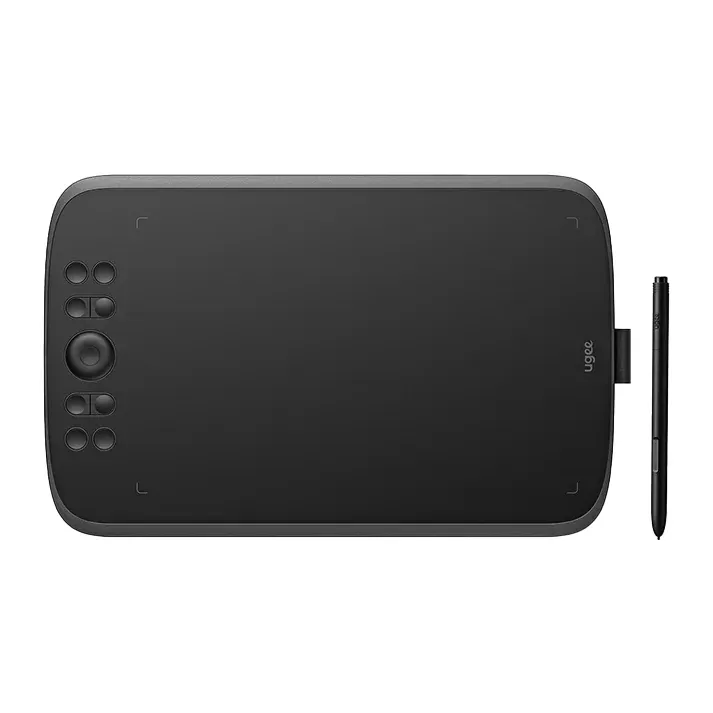
- Number 1: Ugee M908About $50
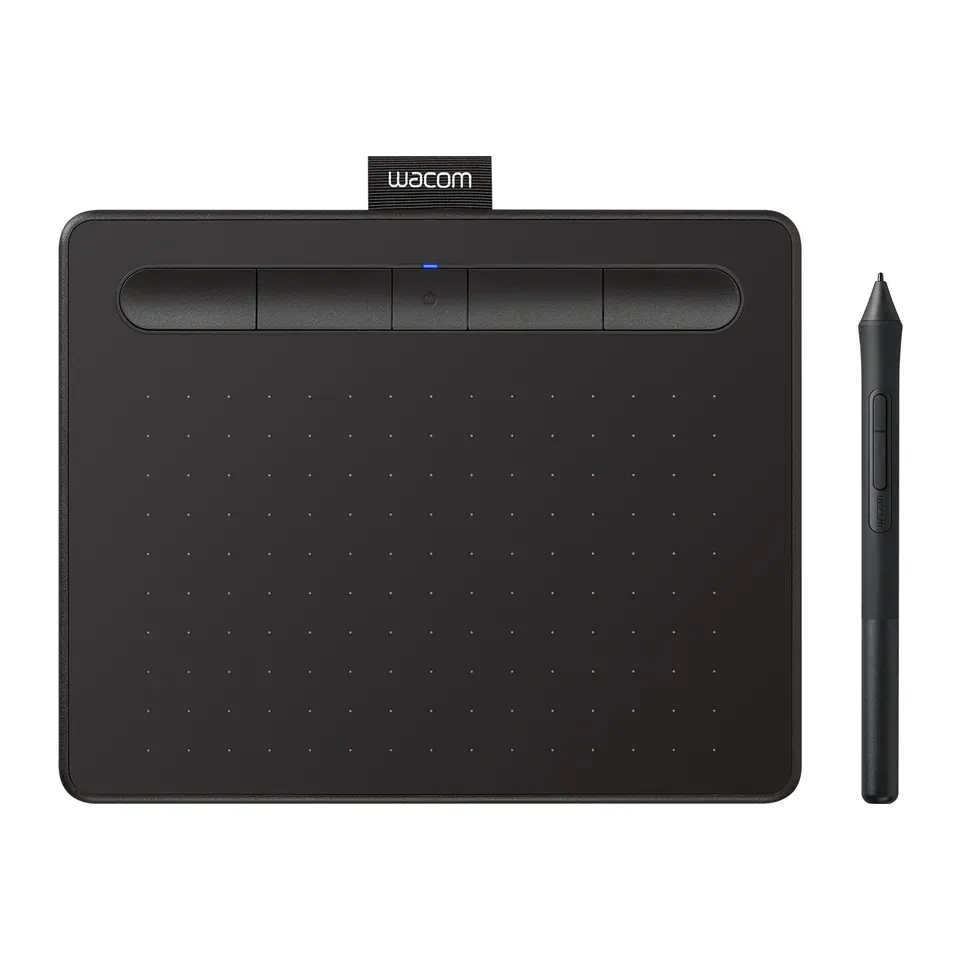
- Number 2: Wacom Intuos Small BluetoothAbout $80
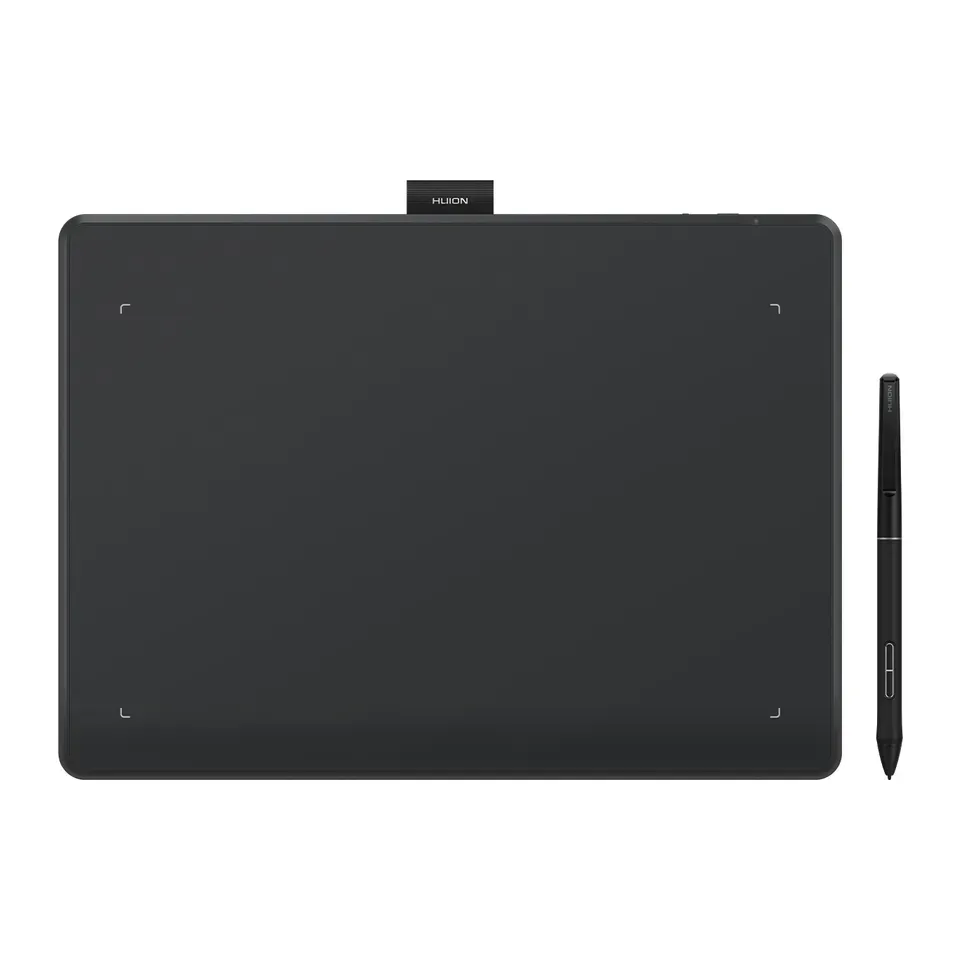
- Number 3: Huion Inspiroy Frego MAbout $90
To draw on a screen, up to $500
- Number 1: XPPen Artist Pro 16 (Gen 2)About $500
- Number 2: Ugee UE16About $200
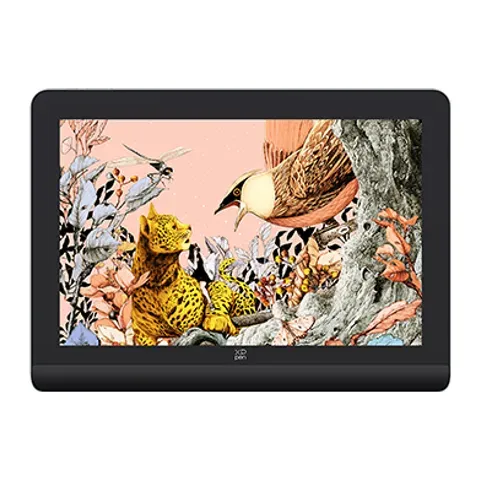
- Number 3: XPPen Artist 12 (3rd Gen)About $210
For osu!
- Number 1: XPPen Star G640About $35
- Number 2: Wacom Intuos Small BluetoothAbout $80
- Number 3: Xencelabs Pen Tablet SmallAbout $140
For a Chromebook
- Number 1: XPPen Star G640About $35
- Number 2: Ugee M908About $50
- Number 3: Wacom Intuos Small BluetoothAbout $80
For art at school or work
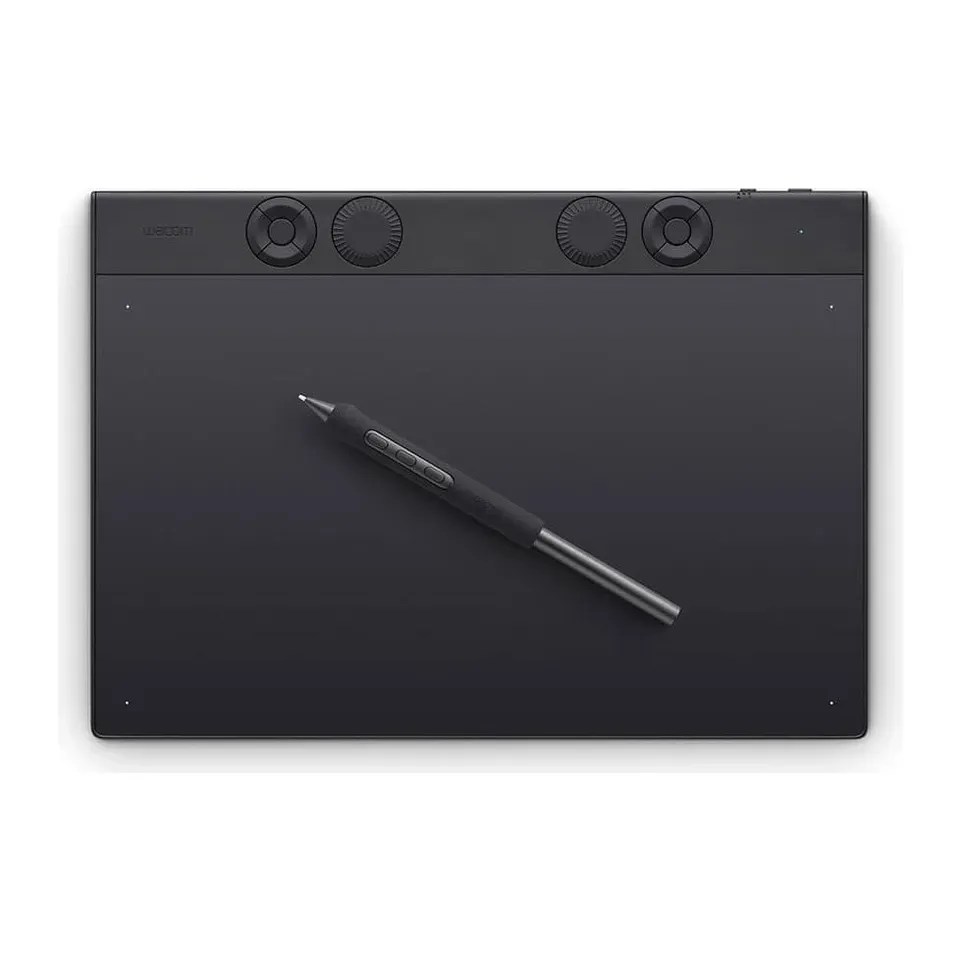
- Number 1: Wacom Intuos Pro Medium (2025)About $380
- Number 2: XPPen Artist Ultra 16About $800
- Number 3: XPPen Artist Pro 16 (Gen 2)About $500
Answer the questions
Up to 6 short questions. Your own top 5 at the end.
All 23 drawing tablets, ranked
Ranked by expert reviews and value for money, before any answers. How we rank
Prices checked .
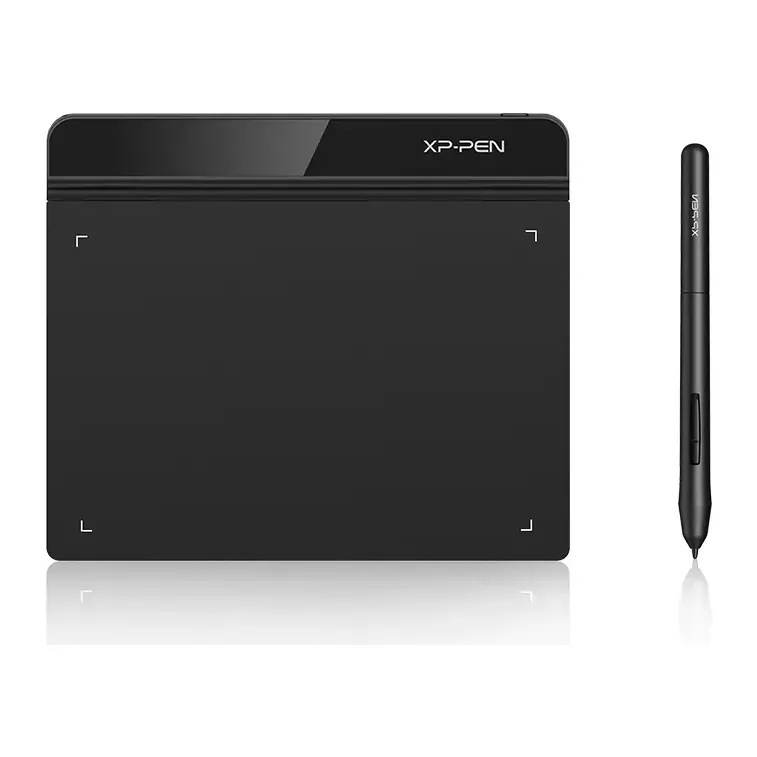
Number 1: XPPen Star G640
About $35
Pen tablet (no screen)Drawing width: 6 in
Details: XPPen Star G640
- Type
- Pen tablet (no screen)
- Drawing width
- 6 in
- Shortcut buttons
- None
- Connects with
- A USB cable
- About $35, less than most tablets here
- Some osu! players say newer units smooth the pen's path, which makes fast jumps harder
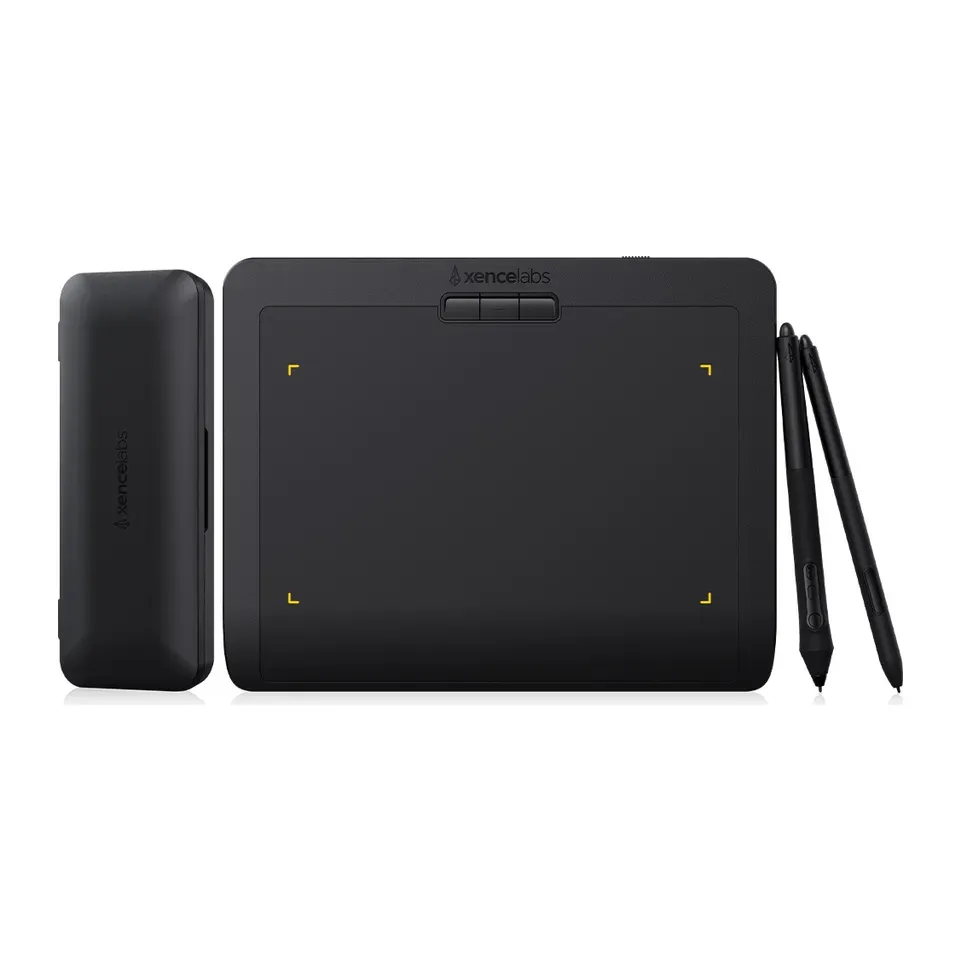
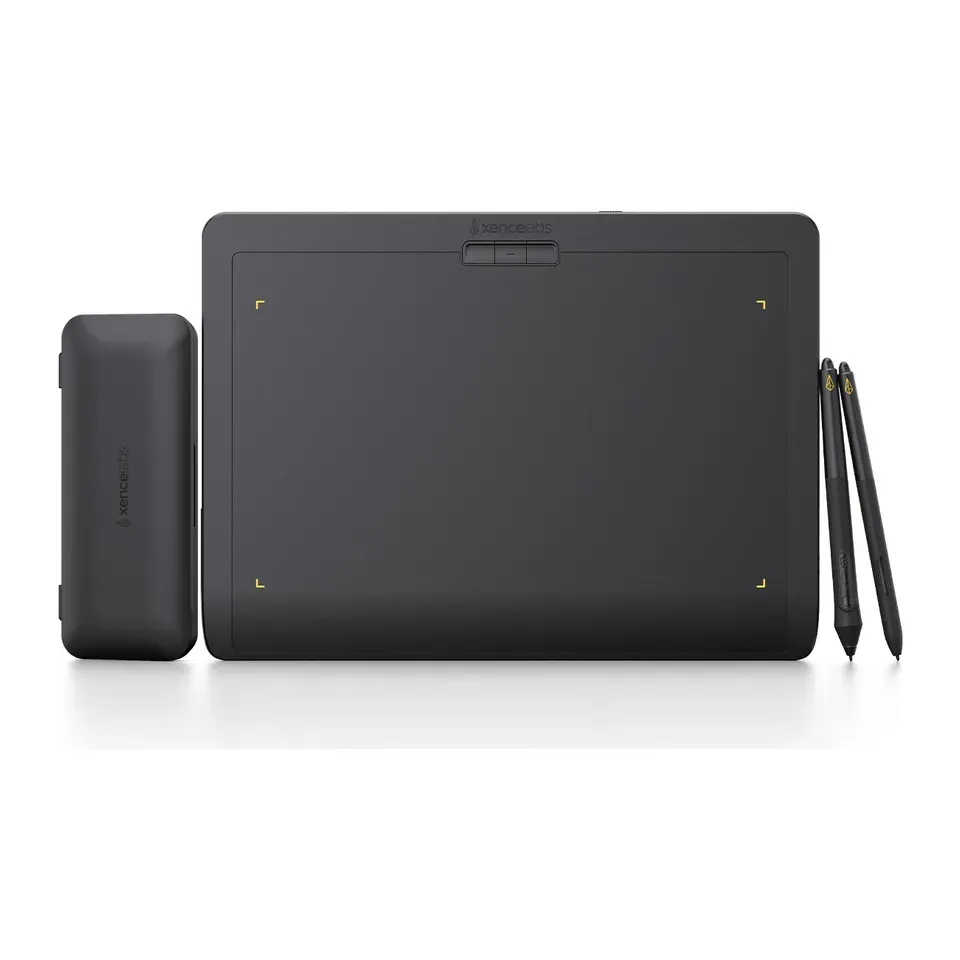
Number 2: Xencelabs Pen Tablet Small
About $140
Pen tablet (no screen)Drawing width: 6.9 in
Details: Xencelabs Pen Tablet Small
- Type
- Pen tablet (no screen)
- Drawing width
- 6.9 in
- Shortcut buttons
- 3
- Connects with
- Wireless, or a USB cable
- Most expert reviews rate it very highly
- Only 3 buttons on the tablet: reviewers suggest the bundle with the shortcut remote
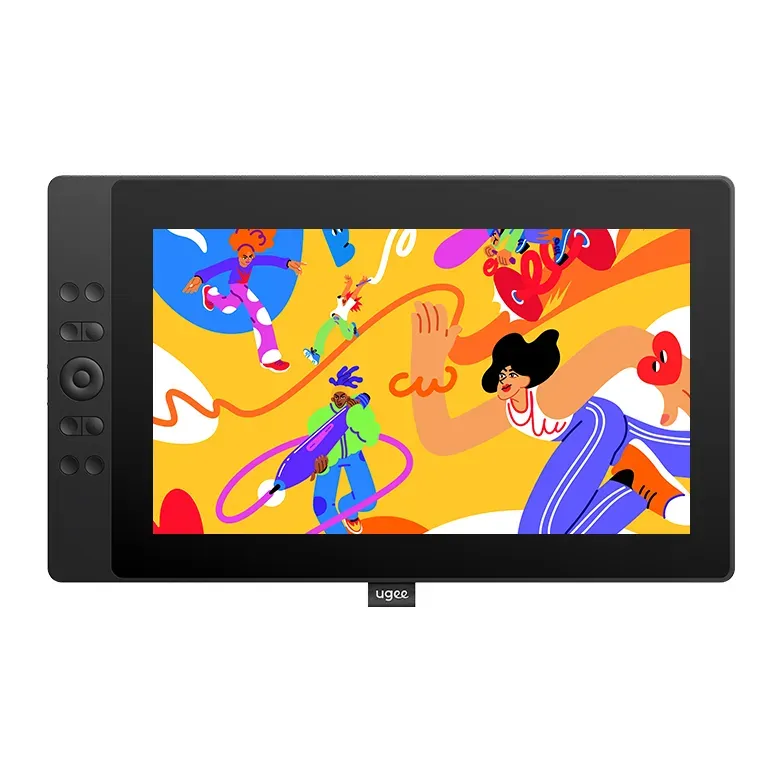
Number 3: Ugee M908
About $50
Pen tablet (no screen)Drawing width: 10 in
Details: Ugee M908
- Type
- Pen tablet (no screen)
- Drawing width
- 10 in
- Shortcut buttons
- 8
- Connects with
- A USB cable
- About $50, less than most tablets here
- The pointer can lag a moment when you lift the pen and bring it back, a reviewer noticed
Number 4: Xencelabs Pen Tablet Medium
About $250
Pen tablet (no screen)Drawing width: 10.3 in
Details: Xencelabs Pen Tablet Medium
- Type
- Pen tablet (no screen)
- Drawing width
- 10.3 in
- Shortcut buttons
- 3
- Connects with
- Wireless, or a USB cable
- Most expert reviews rate it very highly
- Only 3 buttons on the tablet: reviewers suggest the bundle with the shortcut remote
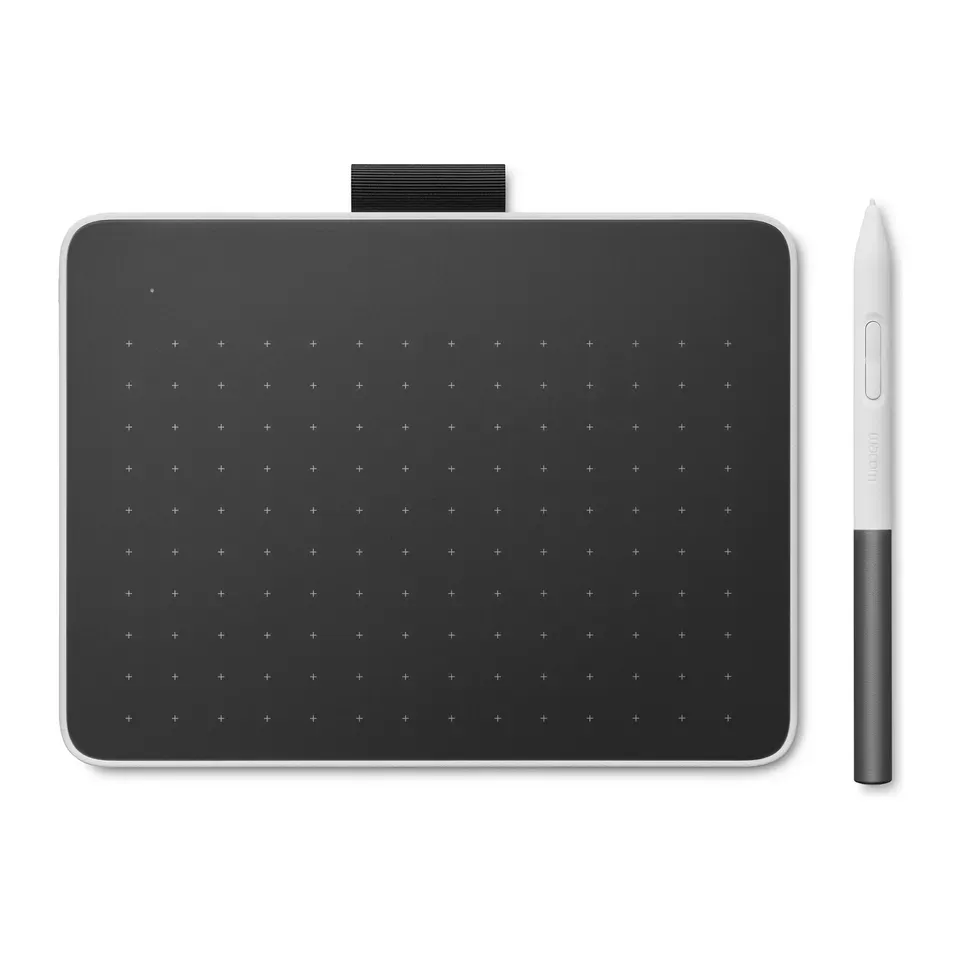
Number 5: Wacom Intuos Small Bluetooth
About $80
Pen tablet (no screen)Drawing width: 6 in
Details: Wacom Intuos Small Bluetooth
- Type
- Pen tablet (no screen)
- Drawing width
- 6 in
- Shortcut buttons
- 4
- Connects with
- Wireless, or a USB cable
- About $80, less than most tablets here
- Micro-USB plug: a USB-C laptop needs an adapter for the cable
Number 6: Huion Inspiroy Frego M
About $90
Pen tablet (no screen)Drawing width: 10 in
Details: Huion Inspiroy Frego M
- Type
- Pen tablet (no screen)
- Drawing width
- 10 in
- Shortcut buttons
- None
- Connects with
- Wireless, or a USB cable
- About $90, less than most tablets here
- No shortcut buttons, and the Bluetooth link can drop now and then, a reviewer found
Number 7: Wacom Intuos Pro Medium (2025)
About $380
Pen tablet (no screen)Drawing width: 10.4 in
Details: Wacom Intuos Pro Medium (2025)
- Type
- Pen tablet (no screen)
- Drawing width
- 10.4 in
- Shortcut buttons
- 10
- Connects with
- Wireless, or a USB cable
- Most expert reviews rate it very highly
- Comes with a USB-A cable: a laptop with only USB-C ports needs an adapter
Number 8: Wacom One S
About $100
Pen tablet (no screen)Drawing width: 6 in
Details: Wacom One S
- Type
- Pen tablet (no screen)
- Drawing width
- 6 in
- Shortcut buttons
- None
- Connects with
- Wireless, or a USB cable
- About $100, less than most tablets here
- Pressure feels uneven for drawing, one reviewer found. Fine for notes and signing
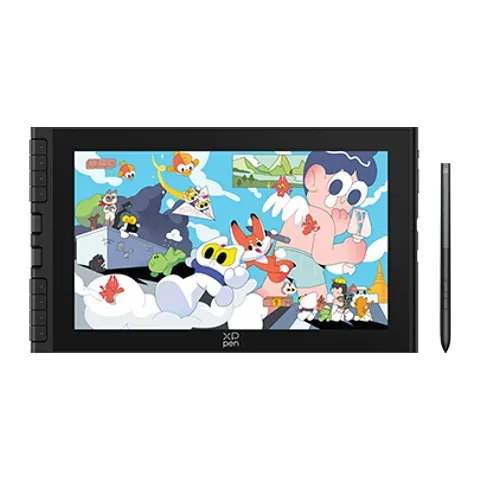
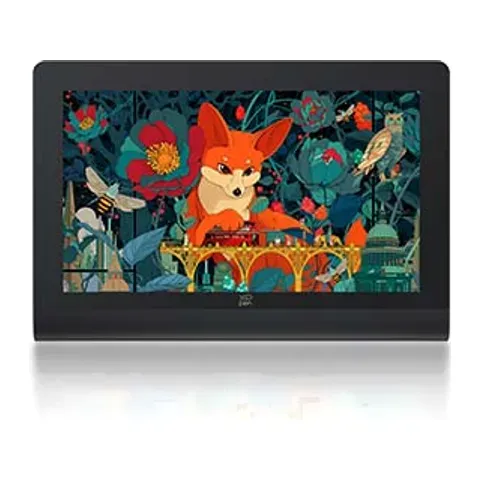
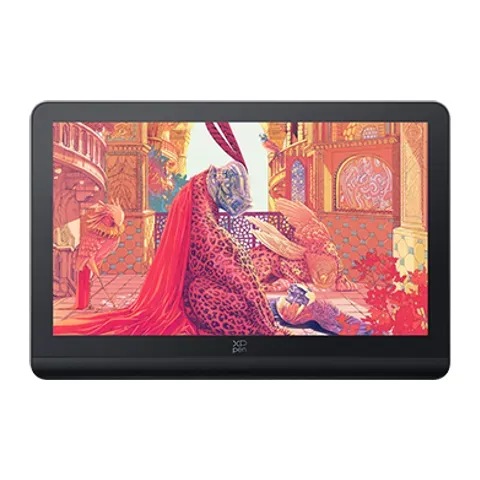
Number 9: XPPen Artist Pro 16 (Gen 2)
About $500
Pen display (with a screen)
Details: XPPen Artist Pro 16 (Gen 2)
- Type
- Pen display (with a screen)
- Screen size
- 16 in
- Shortcut buttons
- 10
- Connects with
- USB-C
- Most expert reviews rate it very highly
- The built-in stand has one fixed angle
Number 10: Ugee UE16
About $200
Pen display (with a screen)
Details: Ugee UE16
- Type
- Pen display (with a screen)
- Screen size
- 15.4 in
- Shortcut buttons
- 10
- Connects with
- USB-C or HDMI
- Accurate colours, reviewers say
- The frame and buttons feel a little flimsy, reviewers say
Number 11: XPPen Artist 12 (3rd Gen)
About $210
Pen display (with a screen)
Details: XPPen Artist 12 (3rd Gen)
- Type
- Pen display (with a screen)
- Screen size
- 11.9 in
- Shortcut buttons
- 8
- Connects with
- USB-C or HDMI
- Accurate colours, reviewers say
- Lines can lag a little near the edges of the screen, a reviewer noticed
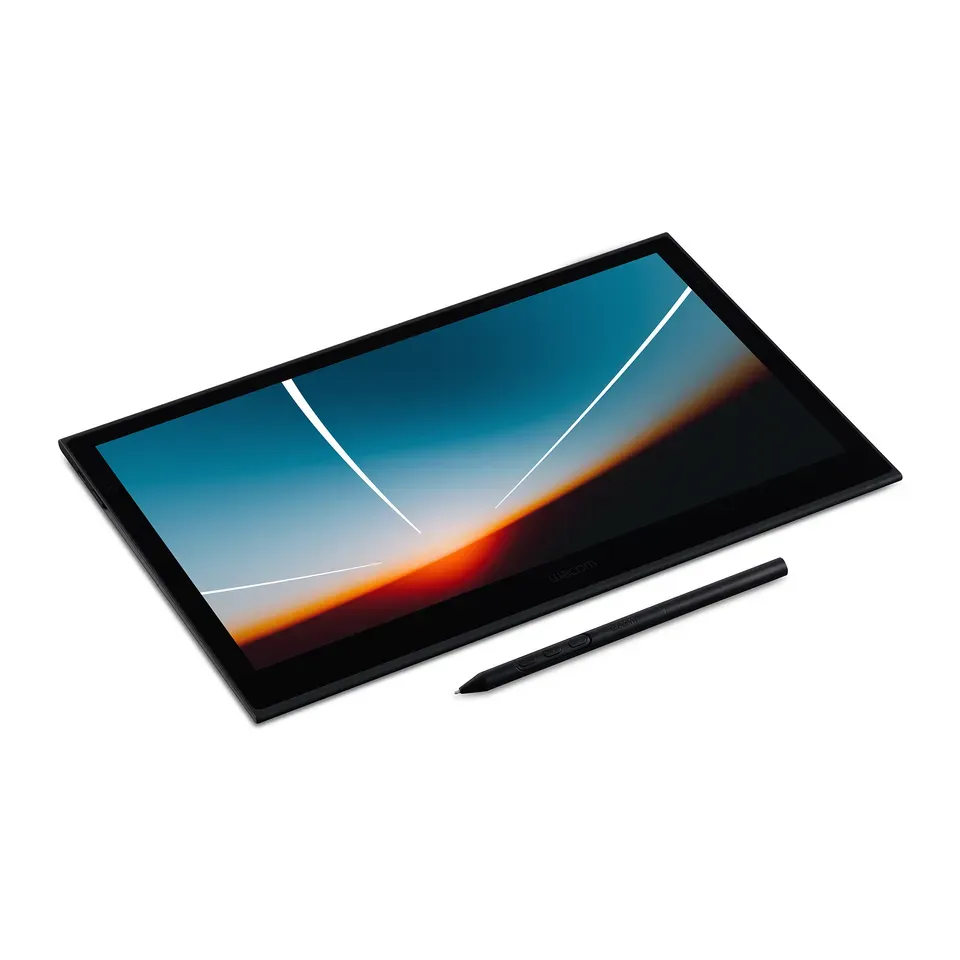
Number 12: Wacom Movink 13
About $750
Pen display (with a screen)
Details: Wacom Movink 13
- Type
- Pen display (with a screen)
- Screen size
- 13.3 in
- Shortcut buttons
- 2
- Connects with
- USB-C
- Most expert reviews rate it very highly
- The pen worked only partly on a Chromebook and an Android phone in one reviewer's tests
Show all 23 drawing tablets
Number 13: Xencelabs Pen Display 16 Lite
About $800
Pen display (with a screen)
Details: Xencelabs Pen Display 16 Lite
- Type
- Pen display (with a screen)
- Screen size
- 15.6 in
- Shortcut buttons
- None
- Connects with
- USB-C
- Most expert reviews rate it very highly
- No buttons, stand or HDMI in this set: the bundle adds them for more money
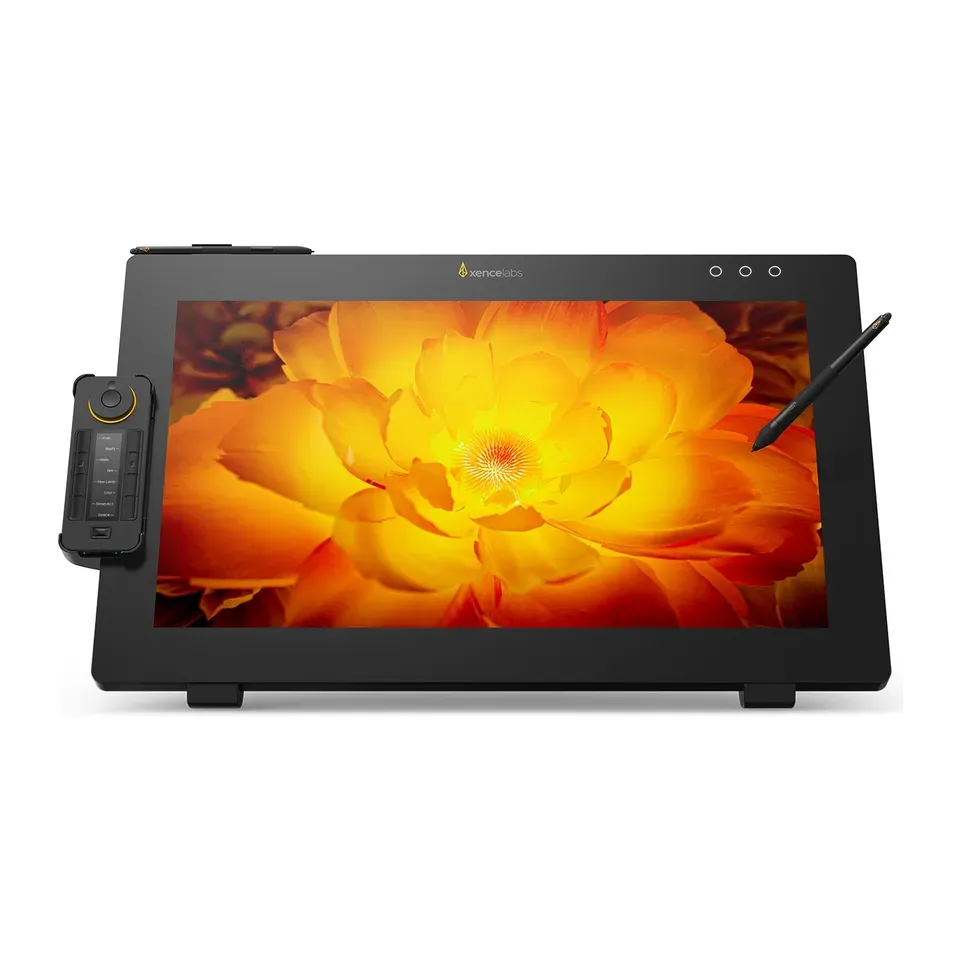
Number 14: XPPen Artist Ultra 16
About $800
Pen display (with a screen)
Details: XPPen Artist Ultra 16
- Type
- Pen display (with a screen)
- Screen size
- 15.6 in
- Shortcut buttons
- 10
- Connects with
- USB-C or HDMI
- Most expert reviews rate it very highly
- Install the maker's driver before you start
Number 15: XPPen Artist Pro 24 (Gen 2) 4K
About $1,000
Pen display (with a screen)
Details: XPPen Artist Pro 24 (Gen 2) 4K
- Type
- Pen display (with a screen)
- Screen size
- 23.8 in
- Shortcut buttons
- 10
- Connects with
- USB-C or HDMI
- Most expert reviews rate it very highly
- Big and heavy: it needs a deep desk
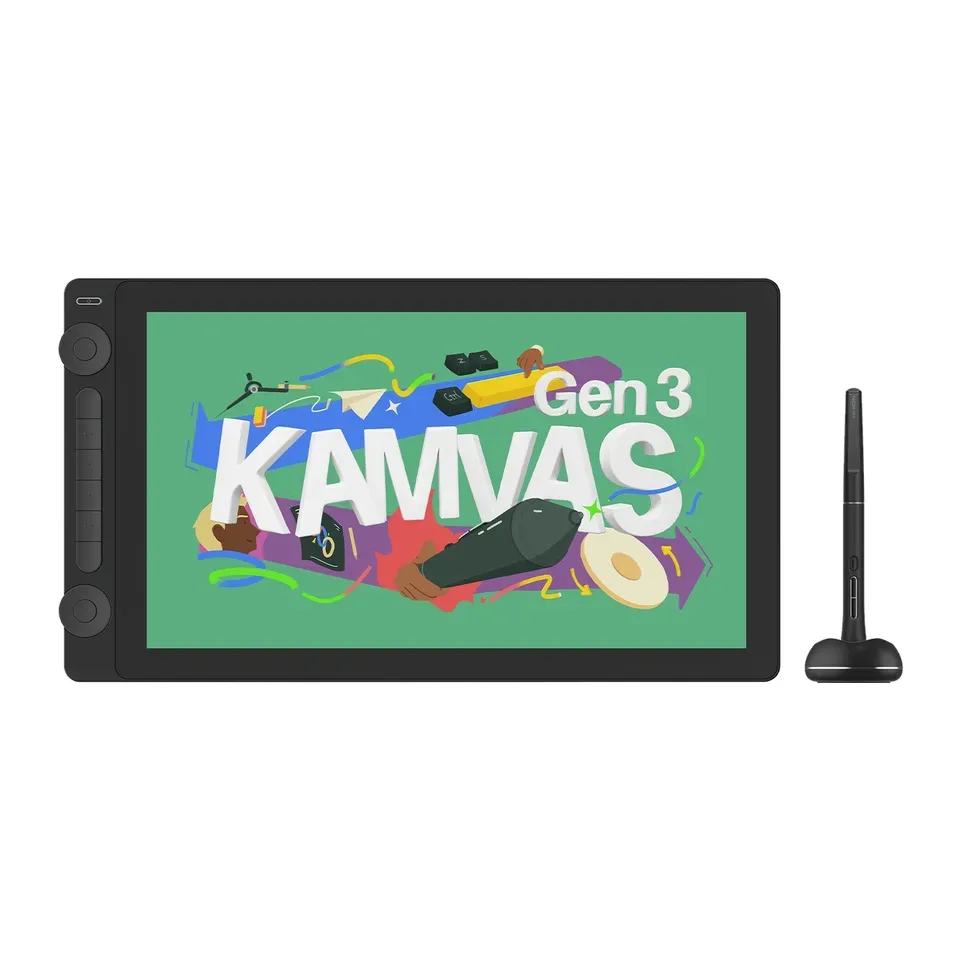
Number 16: Huion Kamvas 16 (Gen 3)
About $450
Pen display (with a screen)
Details: Huion Kamvas 16 (Gen 3)
- Type
- Pen display (with a screen)
- Screen size
- 15.8 in
- Shortcut buttons
- 6
- Connects with
- USB-C or HDMI
- Accurate colours, reviewers say
- Install the maker's driver before you start
Number 17: Xencelabs Pen Display 24
About $1,900
Pen display (with a screen)
Details: Xencelabs Pen Display 24
- Type
- Pen display (with a screen)
- Screen size
- 23.8 in
- Shortcut buttons
- 8
- Connects with
- HDMI and USB
- Most expert reviews rate it very highly
- Big and heavy: it needs a deep desk
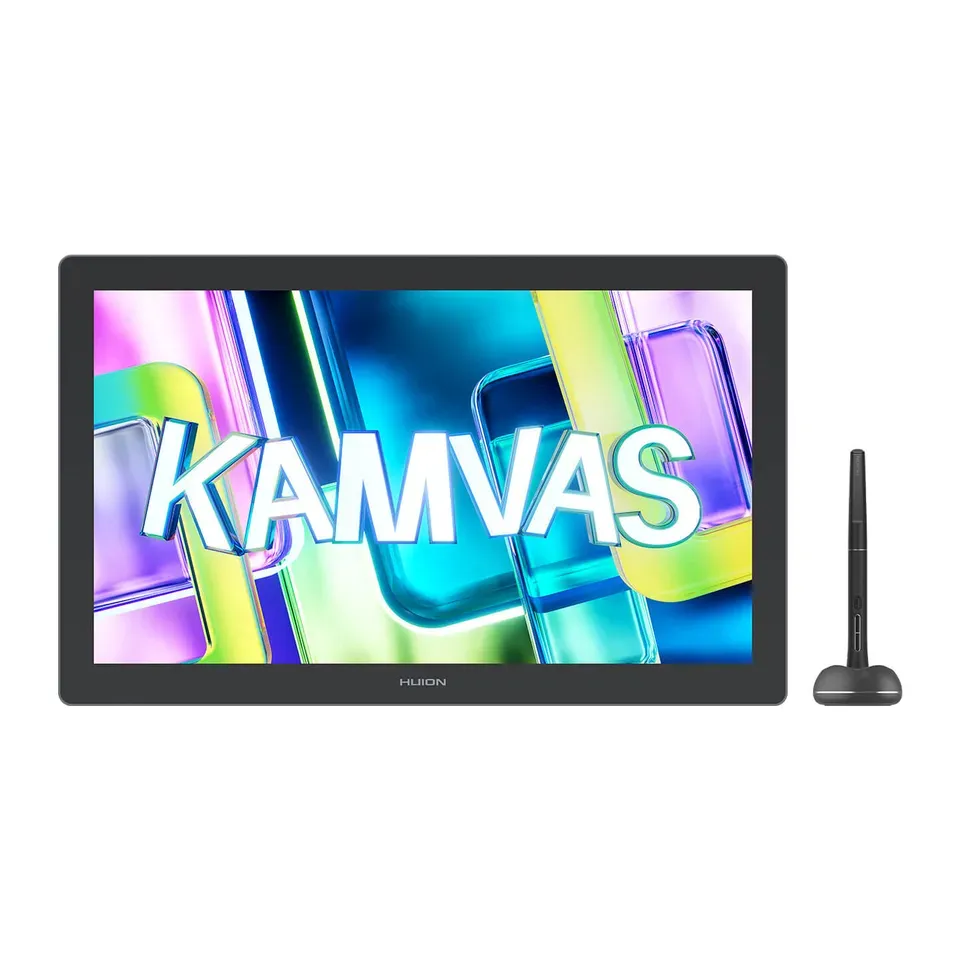
Number 18: Huion Kamvas 22 (Gen 3)
About $600
Pen display (with a screen)
Details: Huion Kamvas 22 (Gen 3)
- Type
- Pen display (with a screen)
- Screen size
- 21.5 in
- Shortcut buttons
- None
- Connects with
- USB-C or HDMI
- Accurate colours, reviewers say
- No shortcut buttons on the frame or in the box: Huion sells a remote separately
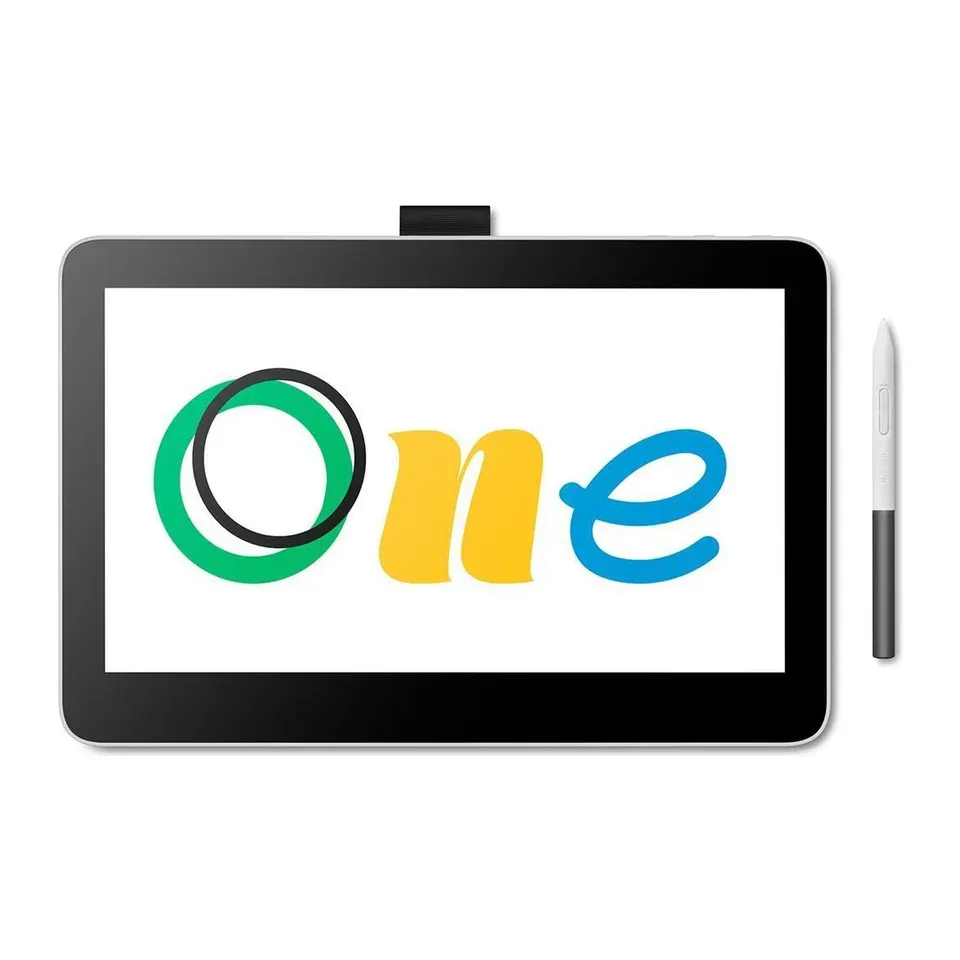
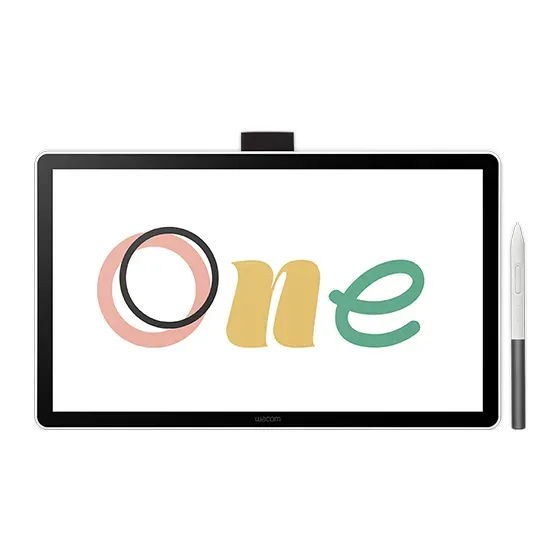
Number 19: Wacom One 13 Touch
About $600
Pen display (with a screen)
Details: Wacom One 13 Touch
- Type
- Pen display (with a screen)
- Screen size
- 13.3 in
- Shortcut buttons
- None
- Connects with
- USB-C
- Accurate colours, reviewers say
- An older model that Wacom now lists as previous, so shops may run out
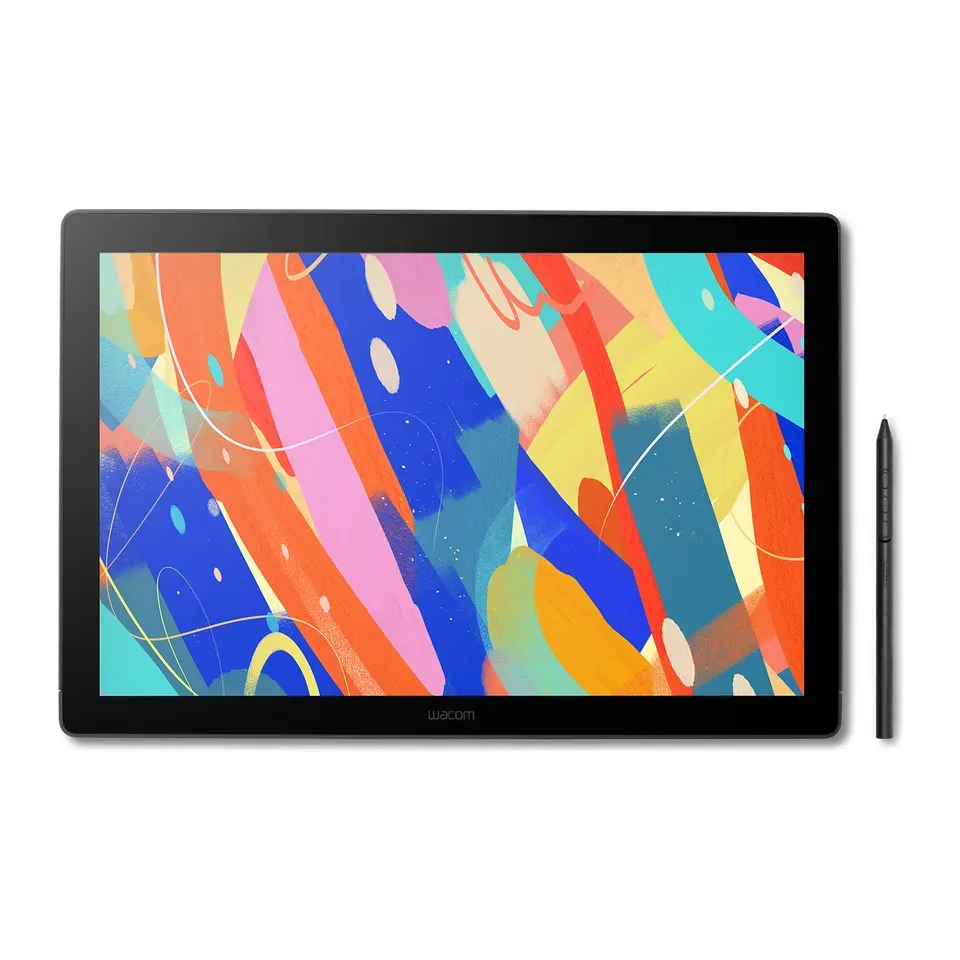
Number 20: Wacom Cintiq 16 (2025)
About $700
Pen display (with a screen)
Details: Wacom Cintiq 16 (2025)
- Type
- Pen display (with a screen)
- Screen size
- 16 in
- Shortcut buttons
- None
- Connects with
- USB-C
- Accurate colours, reviewers say
- Heavier than most 16-inch pen displays, and no shortcut buttons
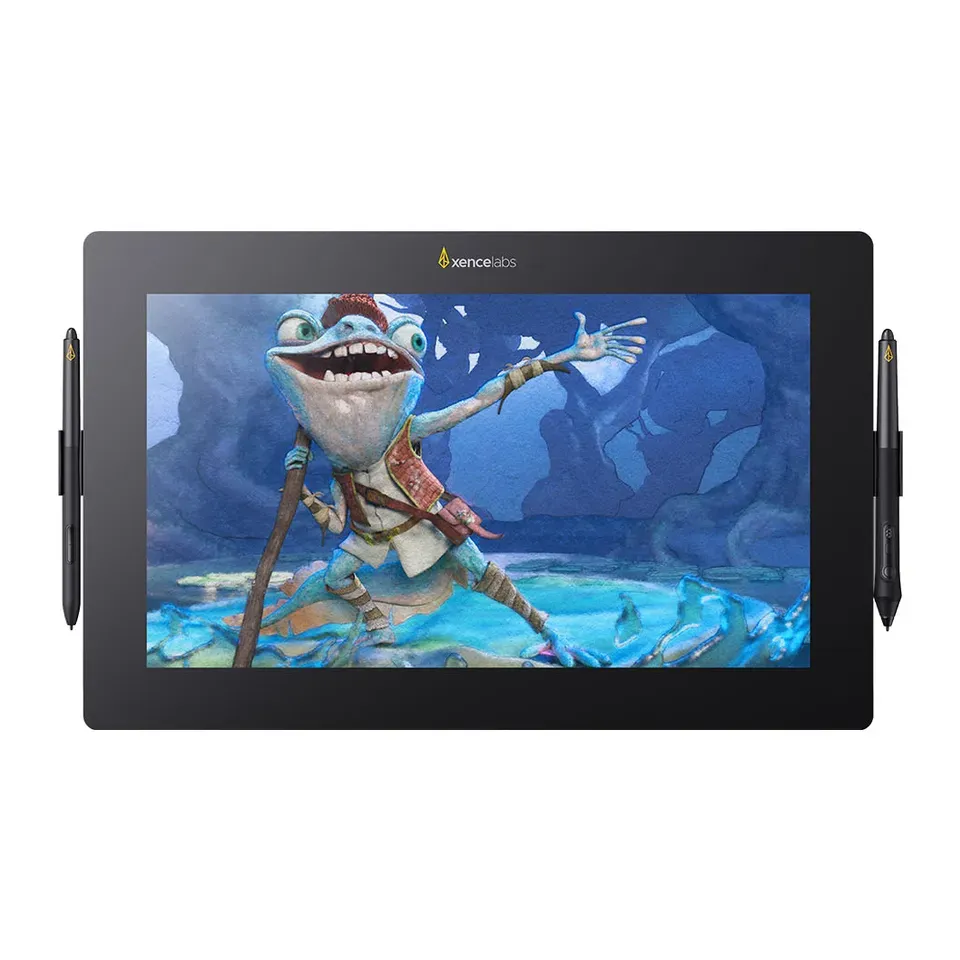
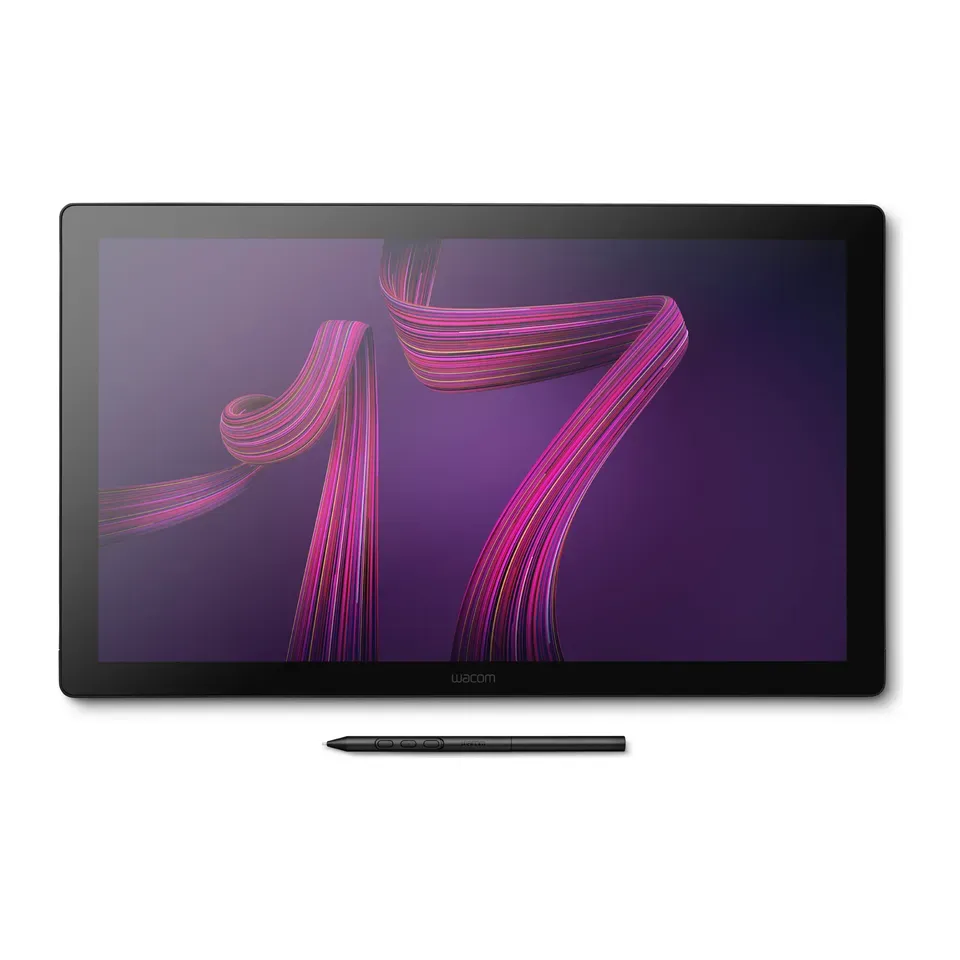
Number 21: Wacom Cintiq Pro 17
About $2,500
Pen display (with a screen)
Details: Wacom Cintiq Pro 17
- Type
- Pen display (with a screen)
- Screen size
- 17.3 in
- Shortcut buttons
- 8
- Connects with
- USB-C
- Most expert reviews rate it very highly
- Needs its own power plug as well as the computer cable
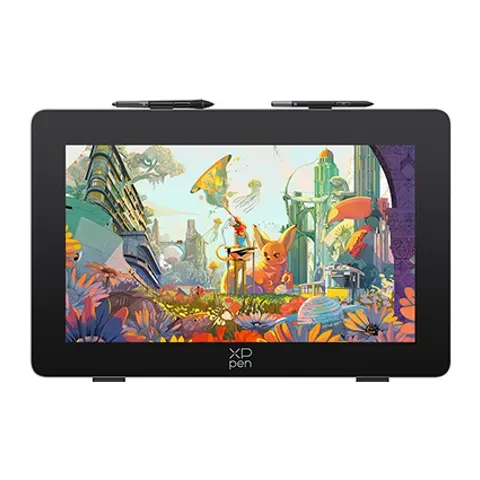
Number 22: XPPen Artist Pro 19 (Gen 2)
About $740
Pen display (with a screen)
Details: XPPen Artist Pro 19 (Gen 2)
- Type
- Pen display (with a screen)
- Screen size
- 18.4 in
- Shortcut buttons
- 10
- Connects with
- USB-C or HDMI
- Accurate colours, reviewers say
- The built-in stand has one fixed angle
Number 23: Wacom One 14
About $300
Pen display (with a screen)
Details: Wacom One 14
- Type
- Pen display (with a screen)
- Screen size
- 14 in
- Shortcut buttons
- None
- Connects with
- USB-C
- Reviewers rate it well for what it costs
- No stand or shortcut buttons, and the pen needs a firmer press to start a line, reviewers say
What matters when you choose a drawing tablet
Only a few things really change which tablet suits you.
- A screen or not. A pen tablet is a pad: you draw on it and watch your computer screen. A pen display is a screen you draw on. It feels more like paper but costs much more. Most beginners start on a pad.
- What you plug it into. Every tablet here works with Windows and Mac. Fewer work with a Chromebook or an Android phone, so we go by each maker’s own list. A pen display also needs a video port: a USB-C port that carries video, or HDMI.
- What you draw. Art for work needs a pen that senses tilt and shortcut buttons. Photo editing on a screen needs true colours. The game osu! needs a small, quick pad.
- Size. Bigger means more arm movement, more desk space and a higher price. A medium pad, about the size of a sheet of paper, suits most people.
Some things matter less than ads suggest:
- Pressure levels. 8,192 or 16,384 levels feel the same in your hand. Every pen here is fine.
- The brand. Wacom is a safe choice, but Huion, XPPen and Xencelabs are close for less money, most reviews agree.
- A very sharp 4K screen on a small display. At 13 inches, a normal Full HD screen is sharp enough for most people.
How we ranked them
We read the maker’s spec sheet for every tablet, and at least one expert review. Most come from Creative Bloq, TechRadar, Digital Camera World and Parka Blogs, plus osu! guides for the osu! picks. Every tablet on the list is sold in the US now, and we checked prices in November 2026.
Before you answer, the list is sorted by two things: how highly the reviews rate each tablet, and how much tablet you get for the money. Your answers then add weight to what you need. Choose osu!, and small, quick pads count most. Choose art for school or work, and tilt, shortcut buttons and sharp, true colour count most.
Some answers rule tablets out. If you choose a screen or a pad, we never swap one for the other. A Chromebook or an Android phone only gets tablets the maker says work with it. If you ask for touch, no cable or a budget, we show those first. If fewer than 5 fit, we show the closest ones and say what they miss.
Each pick says why it fits you and what to keep in mind. Nobody paid to be on this list.
Questions and answers
Should I get a drawing tablet with a screen or without?
Most beginners do well without a screen. A pen tablet without a screen costs $35 to $100, and most people get used to looking up at the computer in a few days. It is also kinder to your neck, because you look straight ahead.
A pen display lets you draw right on the picture, like on paper. It costs about $200 or more and needs a free video port on your computer. Choose it if drawing on a pad feels wrong after a week or two.
Which drawing tablet is best for beginners?
A medium pen tablet without a screen, for $40 to $100. Look for a pen that senses tilt and a few shortcut buttons. Choose Drawing or painting for fun, or I'm just starting and the finder shows the ones reviewers like.
Can I draw without a computer, or with an iPad?
The tablets here all connect to a computer, and some to an Android phone. They don't work as a drawing screen for an iPad.
To draw with no computer at all, you need a tablet computer with a pen, such as an iPad with an Apple Pencil, a Samsung Galaxy Tab S or a Wacom MovinkPad. They cost about $450 or more. This finder doesn't rank them.
Is Wacom better than Huion or XPPen?
Wacom has the longest record for drivers that work with every art app. Huion, XPPen, Ugee and Xencelabs now come close for less money, most reviews agree. The finder ranks them all on the same rules, so the brand alone never moves a tablet up.
Can I use a drawing tablet with my left hand?
Yes. Most drivers have a left-hand setting that turns the tablet around, so the shortcut buttons sit under your right hand. Turn it on before you start. If you need it, check the maker's page first.
Not affiliated with or endorsed by any maker or shop. Product photos are the makers' own. To have one removed, email hello@devicetests.com.