Short answer
Turn the computer off or unplug the keyboard. Turn it upside down and tap it gently, then blow compressed air between the keys in short bursts, with the can upright. Wipe the keys with a soft cloth that is only slightly damp. Never spray or pour liquid onto the keyboard.
Step 1: test the keys first
Test it now
Keyboard tester
Press every key once and note any that don’t get a tick. Then you can compare the result after cleaning.
What you need
- A soft, lint-free cloth, such as a microfibre cloth. Apple says not to use towels or paper towels.
- A can of compressed air, ideally with a thin straw.
- Cotton swabs.
- Water. Most makers also allow isopropyl alcohol: see where makers disagree.
- For a mechanical keyboard: a keycap puller and a bowl of warm, soapy water.
Don’t use bleach, hydrogen peroxide, nail polish remover or other strong solvents. Apple, Microsoft and Logitech all rule them out.
The basic clean (every keyboard)
- Turn it off. Shut down a laptop and unplug its charger. Unplug a separate keyboard, or switch it off and take out its batteries.
- Shake out crumbs. Turn the keyboard upside down and tap it gently. Don’t hit it hard: Logitech warns this can damage it.
- Blow out the dust. Use compressed air in short bursts. Keep the can upright: tipped over, it can spray freezing liquid.
- Wipe the keys. Put a little water on the cloth, not on the keyboard, and wipe each key. The cloth should be damp, not wet.
- Clean the gaps. Run a slightly damp cotton swab around the edges of dirty or sticky keys.
- Let it dry fully before you turn it on.
Laptop keyboards
Follow the basic clean, and leave the keys on. Dell and Razer say laptop keys sit on fragile clips that break when you pull them off. Lenovo says not to remove them unless your laptop’s manual says you can. Wiping the screen too? Screens have their own rules.
MacBook keyboards
Apple has its own steps for keys that don’t respond or feel different from the others. They are for a MacBook (2015 and later) or MacBook Pro (2016 and later).
- Hold the MacBook at 75 degrees, not quite upright.
- Keep the can upright, with its straw about half an inch (1 cm) from the keys.
- Spray the keyboard, or only the faulty keys, from left to right.
- Hold your MacBook at a 75-degree angle, so it’s not quite vertical.
- Spray compressed air over the keyboard, or just the faulty keys, moving from left to right.
- Turn the MacBook onto its right side and spray again, from left to right.
- Turn it onto its left side and do the same.
To wipe a MacBook keyboard, shut it down and unplug it first. Apple allows a 70% isopropyl alcohol wipe or a 75% ethyl alcohol wipe on the keys. Don’t use sprays or let moisture into any openings. Still not working? Apple says to take it to an Apple Store or an Apple Authorised Service Provider.
Mechanical keyboards
On most mechanical keyboards the keycaps come off, so you can clean underneath. Check your keyboard’s manual first: Lenovo says to pull a keycap off only if the maker says it is removable.
- Unplug the keyboard, or switch it off and take out its batteries.
- Take a photo of the keyboard, so you know where each key goes back.
- Pull the keycaps straight up with a keycap puller. Don’t twist them or lever them at an angle.
- Leave the long keys for last. See the drawing below.
- Blow out or brush the dust from the board. Don’t let any liquid reach it.
- Soak the keycaps in warm water with a little mild dish soap, rinse them and dry them on a towel. Let them dry completely, ideally overnight.
- Push the keycaps back onto their stems until they click.
- The Space bar has a metal wire (a stabiliser) underneath that keeps both ends level.
- Enter, Backspace and both Shift keys often have one too.
Lift long keys slowly and evenly at both ends. Stabilisers differ between keyboards, so follow your maker’s steps to put one back. Razer, for example, gives different steps for different stabiliser designs.
Soak times differ a lot between makers: Keychron says 10 to 15 minutes, HP 30 minutes and Corsair 30 to 60 minutes. Never put keycaps or a keyboard in a dishwasher: HP and Logitech both say no.
Washable and fabric keyboards
- Logitech K310 is made to be washed. Logitech’s limits: water under 50 °C (120 °F) and no deeper than 30 cm (11 inches). Put the cap on the USB plug and keep the cable out of the water. Let it dry overnight (8 hours), and never in a dishwasher or with hot air. Most other keyboards must never go in water.
- Surface keyboards and Alcantara covers: Microsoft says to use a lint-free cloth dampened with mild, soapy water: 5 parts water to 1 part soap. Clean a spill on Alcantara within 30 minutes.
Sticky or stuck keys
A key that sticks can have two very different causes.
The key sticks when you press it
Dirt or a dried spill
Blow compressed air around the key. Dell’s tip for sticky keys: run a cotton swab lightly dampened with isopropyl alcohol around the edges, and let it dry fully. Check your maker allows alcohol first: Razer says not to use it.
The computer acts as if a key is held
Often a setting
On Windows, Sticky Keys keeps Shift, Ctrl or Alt pressed for you. Turn it off in Settings Accessibility Keyboard (Windows 10: Ease of Access instead of Accessibility).
In the keyboard tester, a key that stays filled in after you let go is still held down for the computer. If the key is still stuck after cleaning, see some keys don’t work.
Check every key afterwards
Test it now
Keyboard tester
Press every key once. A key that gets no tick may not be pushed back on properly: press it firmly in the middle, then test again.
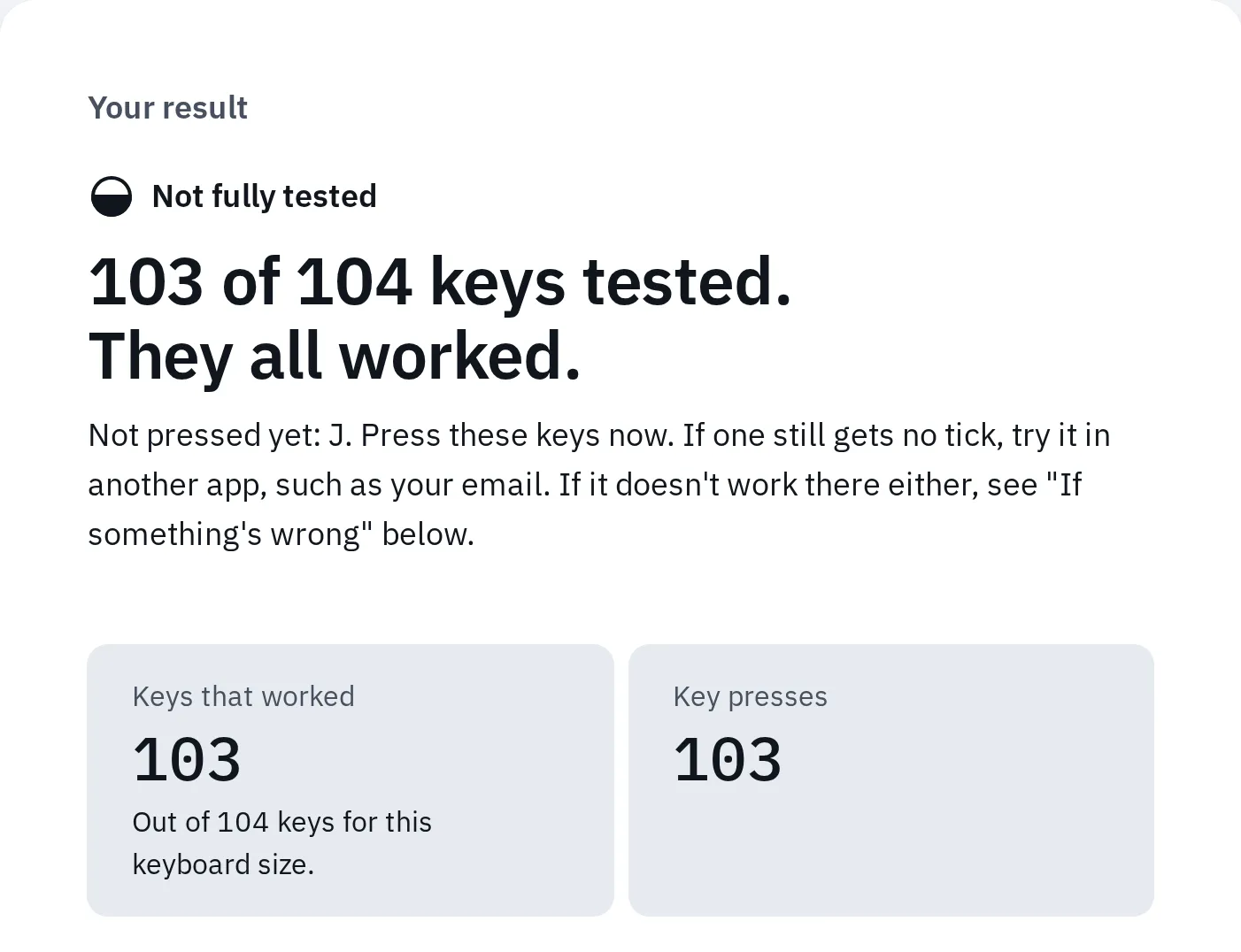
Our tester names the keys it hasn't seen yet. Here J is missing, as if its keycap wasn't pushed back on (keys sent by a test script).
Where makers disagree
Makers give different advice for a few things. Follow the page for your own keyboard first.
| Question | What makers say |
|---|---|
| Alcohol on the keys? | Apple: 70% isopropyl or 75% ethyl alcohol wipes. Microsoft: up to 70% isopropyl. Logitech: wipes with under 25% alcohol. Razer: no alcohol at all. |
| Remove laptop keys? | Dell, Lenovo and Razer: no. Apple and HP don’t give steps for it. |
| How often? | Microsoft and HP: about once a month. Keychron: wipe weekly, clean deeply every 3 to 6 months. |
Questions people ask
Can I wash a keyboard with water?
Only a keyboard made for it, such as the Logitech K310, and only within its limits. Other makers say never to pour water on a keyboard or put it under water. Use a damp cloth instead.
Can I use disinfecting wipes?
On most keyboards, yes, if your maker allows them. Apple allows 70% isopropyl wipes and Clorox Disinfecting Wipes on hard surfaces. Logitech allows wipes with under 25% alcohol, and Razer says no alcohol. Squeeze out extra liquid first.
Can I use a hair dryer?
Logitech says a hair dryer on its cool setting can blow out dust. Don’t use hot air: Logitech warns against it for its washable keyboard.
Why does a key type twice after cleaning?
Dirt can still be under it, or the key may be worn. Check it with the keyboard chatter test.