Short answer
The top row of keys usually has two jobs: F1 to F12, and volume, brightness and other controls. Fn lock decides which job you get when you don’t hold Fn down. On most Dell, Lenovo and ASUS laptops, press Fn Esc to swap. On a Mac, hold Fn or change the setting in Keyboard settings.
Step 1: see what your keys send
Test it now
Keyboard tester
Press F5 alone, then with Fn held. The tester names what arrived, such as F5 or Volume Up. The Fn key itself usually sends nothing, so don’t expect it to light up.
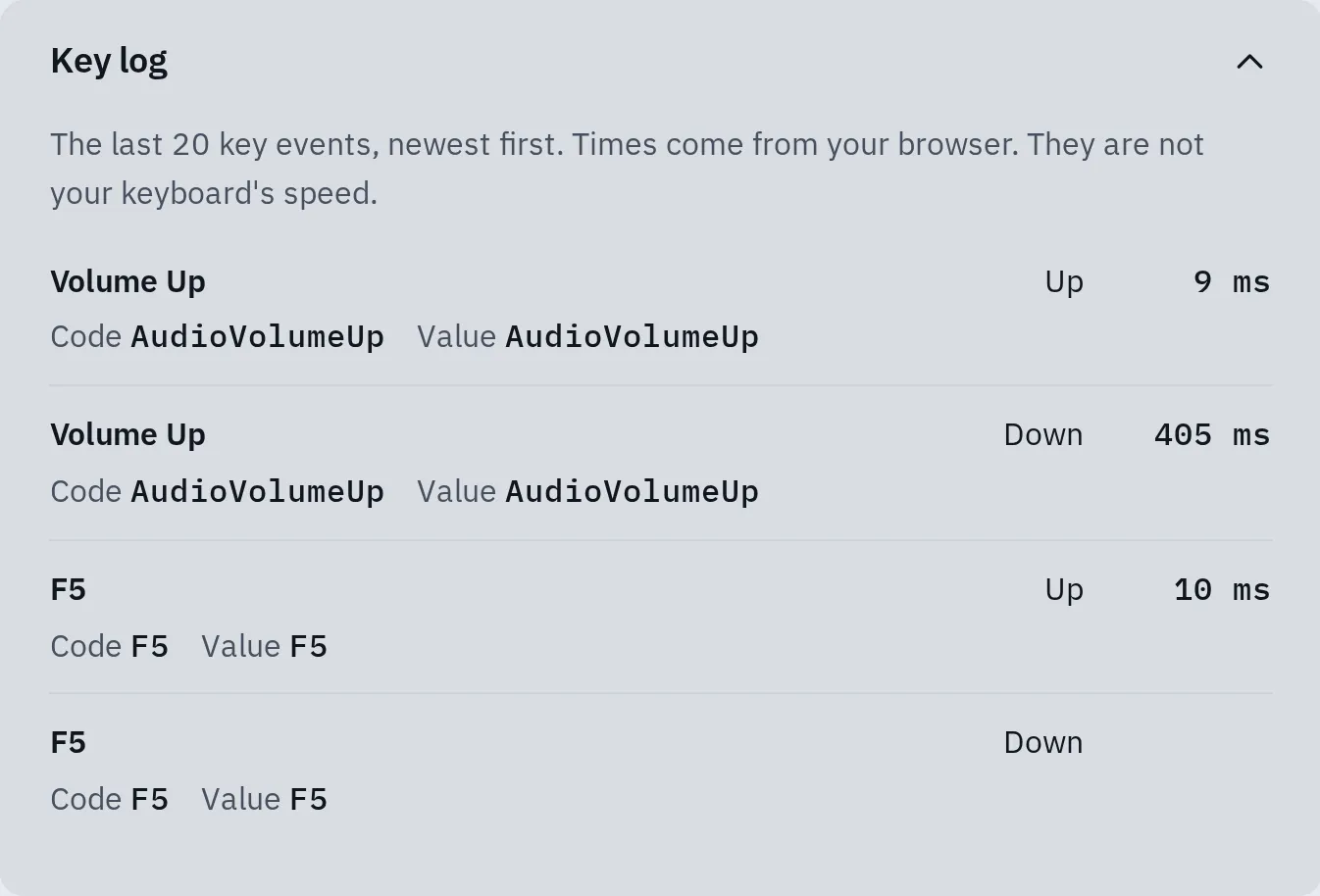
The key log in our keyboard tester after one press of F5 and one of Volume Up, sent by a test script. It shows which job of the key reached the computer.
What Fn lock does
- Fn: hold it to get the other job of a top-row key.
- Esc: on many laptops, Fn and Esc together switch Fn lock.
- A padlock on the key, or a light on it, shows Fn lock.
- The picture is one job (here brightness). The small F-number is the other.
Fn lock doesn’t turn keys off. It only swaps which job a top-row key does when you press it alone. Holding Fn always gives you the other job.
Fn lock on laptops
Find your laptop’s maker. Press a top-row key after each change to check.
Dell
- Press Fn Esc together. Press them again to switch back.
- To change it for good, restart and tap F2 when the Dell logo appears, to open the BIOS setup.
- Newer Dell laptops have the setting under Post Behavior, then Fn Lock Options. Older ones have it under Advanced, then Function Key Behavior.
- Choose the mode you want, then save the change and exit.
- On some models, Windows Mobility Center has a Function Key Row setting too. Search for “Mobility Center” in the Start menu.
Lenovo
- Press Fn Esc (on some models the Esc key is labelled FnLock). In Lenovo’s guides, the light on Esc is on when F1 to F12 work alone.
- On IdeaPad, Yoga and Legion laptops you can also change it in the BIOS. Your model’s user guide on Lenovo’s support site shows how to open it. Look under Configuration for Hotkey Mode: Disabled makes F1 to F12 work alone. Choose Exit Saving Changes.
Some ThinkPads also have the setting in Windows: open Control Panel, view by large icons, then Keyboard or Lenovo - Keyboard Manager.
Stuck keyboard on a Lenovo? See how to unlock a Lenovo laptop keyboard.
HP
HP uses a padlock key, often Fn with left Shift, or Action Keys Mode in the BIOS. Step by step: function keys on an HP laptop.
ASUS
- Press Fn Esc. Not every model can do it: if yours can, a small light on the Fn key shows when it’s locked.
- Or open the MyASUS app, then Device Settings Input Device Settings, and change the Fn key setting.
Microsoft Surface
Press Fn on its own. A light on the Fn key means F1 to F12 are locked on. Press Fn again to turn it off.
On a Surface Pro 8, Surface Laptop 6 or newer, the Surface app can also change the top-row keys. Select your keyboard, then Customize keyboard.
Mac
- Hold Fn (or the Globe key) and press F1 to F12.
- To make F1 to F12 the default, open System Settings Keyboard Keyboard Shortcuts Function Keys and turn on Use F1, F2, etc. keys as standard function keys. Older macOS: System Preferences Keyboard.
- On a MacBook Pro with a Touch Bar, hold Fn to show F1 to F12 in the Touch Bar.
No such setting? You may be using a keyboard from another maker, which can need its own app. Volume keys on a Mac: see turning the volume up with the keyboard.
Chromebook
A Chromebook has no F keys by default. Press the Search (or Launcher) key with a top-row key to get an F key. To swap them for good, open Settings, then Device, then the keyboard settings, and turn on Treat top-row keys as function keys.
Other laptops
Look for a padlock or “Fn Lock” printed on Esc or another key, and press it with Fn. If there is none, the setting may be in the BIOS. Your maker’s support site names it for your model.
Fn lock on separate keyboards
Logitech
Many Logitech keyboards, such as the K106, K250 and POP Icon Keys, switch Fn lock with Fn Esc. In the Logi Options+ app, the keyboard’s settings have an option to use F1, F2 and so on as standard function keys.
Microsoft keyboards
Older Microsoft keyboards have an F Lock key. When its light is off, the keys do their extra commands; when it’s on, they work as F1 to F12. On the All in One Media Keyboard, press Fn Caps Lock.
Keychron and other mechanical keyboards
The Mac / Windows switch on the side must match your computer, or the F keys won’t work as they should. On many Keychron K-series keyboards in Windows mode, hold Fn X L for 4 seconds to swap the function and media keys. On a Mac, use the Mac setting above.
Keys do nothing at all
The tester shows nothing for a top-row key, with or without Fn. Work down this list.
- Switch Fn lock and try again. Some laptops handle a key’s picture job, such as brightness, before the browser sees it. Then the tester stays blank for that job only.
- Install the maker’s keyboard software. Some laptops need it for the extra jobs. On ASUS, MyASUS needs the ASUS System Control Interface driver. Find the driver list for your model on the maker’s support site.
- Restart the computer.
- Try the keys in another app, such as F5 to refresh a web page.
- Test with another keyboard. If a plugged-in keyboard’s F keys work, the laptop’s own keyboard may be faulty, but its settings or software can still be the cause. See some keys don’t work.
Volume keys still dead? See when the volume keys don’t work.
Questions people ask
What is Fn lock?
A switch for the top row of keys. With Fn lock on, a top-row key does its other job without holding Fn. Which job is the default depends on the maker and the model.
How do I turn off Fn lock?
Press the same keys again, usually Fn and Esc. On a Surface, press Fn. On an HP laptop with a padlock key, press Fn and that key.
Why did my function keys swap by themselves?
Fn lock was probably turned on by accident, for example by pressing Fn and Esc together. Press them again.
Why doesn't the Fn key show in the keyboard tester?
The Fn key is usually handled inside the keyboard and sends nothing to the computer, so a website normally can’t see it. You can check it by pressing Fn with F5: if the tester shows something different than F5 alone, Fn works.
Does Fn lock stop letters from typing?
No. It only changes the top row and a few other keys. If letters don’t type, see keyboard not working.