Short answer
Test each side below; for wireless earbuds, put both in the case for 30 seconds first. Then set the balance to the middle, and reset or clean the side that fails.
Step 1: test each side
Test it now
Headphone test
Press Play left, then Play right, and choose where you heard each. If each sound plays only on its own side, both sides work on this device. A side that stays silent here is a problem with the headphones, the connection or a setting, not with one app.
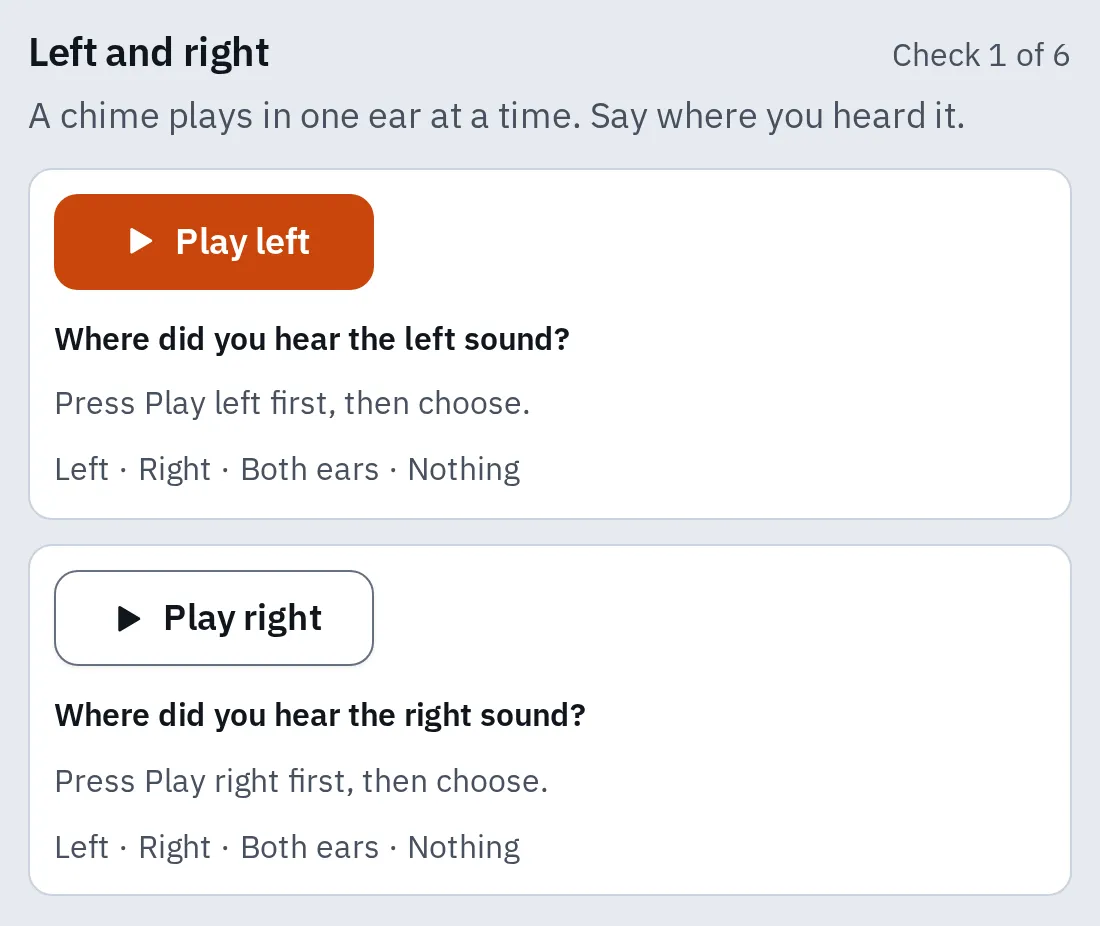
The first check plays a chime in one ear at a time. Choose Nothing for a silent side.
One AirPod is silent
These are Apple’s steps. Test again after each one.
- Charge the case fully. Remove dust from its charging port with a clean, dry, soft brush. Don’t put anything inside the port.
- Put both AirPods in the case for 30 seconds. Open the case near your iPhone and check that each AirPod shows that it is charging.
- Put the silent AirPod in its ear. Leave the other one in the case and close the lid.
- Play something. If you hear it, charge both for 30 seconds more and try them together.
- Check that the balance is in the middle. A balance turned all the way to one side silences the other.
- Still silent? Reset your AirPods.
To see each AirPod’s battery, open Settings and tap the name of your AirPods near the top.
Reset your AirPods
- The status light. It flashes amber, then white, when the reset is done.
- The setup button on the back of the case (AirPods 1, 2 and 3, AirPods Pro 1 and 2).
The reset uses the status light on the front and, on older models, the setup button on the back.
- Put your AirPods in the case, close the lid and wait 30 seconds.
- On your iPhone, open Settings Bluetooth. Tap the More Info button next to your AirPods, then Forget This Device, and confirm.
- Open the lid of the case.
- Reset them for your model (below). Not sure which you have? See how to tell your AirPods generation.
AirPods 1–3, Pro 1–2
Press and hold the setup button on the back of the case for about 15 seconds. Let go when the status light flashes amber, then white.
AirPods 4, 5, Pro 3
The case has no button. Double-tap the front of the case while the status light is on. Double-tap again when it flashes white. Double-tap a third time when it flashes faster. Wait until it flashes amber, then white.
Then hold the open case next to your iPhone and follow the steps on the screen. If the light doesn’t flash white, close the lid for 20 seconds and try again. A case light that flashes red or orange has its own meaning: see what the AirPods lights mean.
AirPods Max have no case to reset. Charge them to at least 50%. To restart them, hold the listening mode button and the Digital Crown until the light flashes amber. Still one side? Hold both for 15 seconds, until the light flashes amber, then white. Then connect them again.
Other wireless earbuds
Each earbud has its own battery. The idea is the same as for AirPods: charge both, put them back in the case, then pair or reset them.
Galaxy Buds
Samsung’s fix links the two earbuds to each other again. First put each earbud in its own slot in the case.
- Galaxy Buds to Buds FE: with both earbuds in the case, touch and hold both at the same time for 7 seconds.
- Buds3, Buds3 Pro, Buds3 FE: open the case. Press and hold the connect button on the bottom of the case for 7 seconds.
- Buds4, Buds4 Pro: open the case. Press and hold the connect button on the back of the case for 7 seconds.
A light that keeps flashing red means it didn’t work. Try again.
Sony WF-1000XM5
- Put both earbuds in the case and close the lid.
- Check the mesh at the tip of each earbud for earwax.
- If the earbuds are updating, wait about 5 minutes with the lid closed.
- Still one side? Reset the earbuds, as Sony’s help guide shows.
- Still no sound? Initialise them, then pair them again. This restores the factory settings and deletes all pairings.
Other earbuds
- Put both earbuds in the case to charge. Check that each one charges.
- Remove them in your phone’s or computer’s Bluetooth settings (Forget or Remove). On Windows, Microsoft says to put both earbuds in the case while you pair them again.
- Reset them with the maker’s app or manual, and install any update there.
On an Android phone that still won’t connect, reset its Bluetooth.
Wired headphones
Start with the plug and the jack.
- All the way in: the plug touches the phone.
- Metal still shows: the plug isn't fully in, so the connection isn't firm.
- A thick case can stop the plug. Take the phone out of it.
Push the plug in until no metal shows.
- Push the plug in all the way. Take off a phone case that gets in the way.
- Look into the jack for lint or dust.
- Check the cable, plug and earpieces for wear or breaks.
- Check that the balance is in the middle.
- Try the headphones on another phone or computer. Try another pair in this jack too. Then you know if the headphones or the jack cause it.
One side is quieter
- Clean the mesh. Earwax can make one side quieter. Don’t use sharp objects, and don’t hold earbuds under water. Apple has cleaning steps for AirPods.
- Check that both ear tips fit. A loose one loses sound.
- Set the balance to the middle (below).
iPhone and iPad
Open Settings Accessibility Audio & Visual and drag Balance to the middle.
Android
Open Settings Accessibility Audio adjustment and set the balance to the middle. On Samsung phones, open Settings Accessibility Hearing enhancements and use Left/right sound balance.
Windows
Open Start Settings System Sound. Under Output, select your headphones. Under Output settings, open Volume and set Left channel and Right channel to the same level.
Mac
Open System Settings Sound. Click Output, select your headphones and drag Balance to the middle.
Then play the headphone test’s centre check: the sound should sit in the middle.
Works in the test, not in one song
Both sides work. Some songs still sound one-sided:
- The recording: some old songs put a voice or an instrument on one side only. Try another song.
- The fix for now: turn on Mono audio. Both ears then hear the whole song, which also helps while one earbud is broken. Turn it off again for normal stereo.
iPhone and iPad
Open Settings Accessibility Audio & Visual and turn Mono Audio on or off.
Android
Open Settings Accessibility Audio adjustment and turn mono audio on or off. On Samsung phones, use Mono audio in Settings Accessibility Hearing enhancements.
Windows
Open Settings Accessibility Audio and switch Mono audio. On Windows 10 it is Settings Ease of Access Audio, Turn on mono audio.
Mac
Open System Settings Accessibility Audio and switch Play stereo audio as mono.
When it’s broken
If the same side stays silent on another phone or computer, after a reset and with the balance in the middle, that earbud or side is faulty. Contact the maker or a repair shop and ask about the warranty.
Questions people ask
Why is only my left (or right) AirPod working?
It may be flat, not charging in the case, or no longer linked. Follow One AirPod is silent, then reset them.
Can I use just one AirPod?
Yes. Leave the other one in the case. Turn on Mono Audio so you hear both sides of the sound in one ear. For calls, set the mic to Automatically Switch AirPods, so the one you wear listens.
One AirPod doesn't charge in the case. What can I do?
Remove dust from the case’s charging port with a clean, dry, soft brush. Don’t put anything inside the port. Check the case light: see what the AirPods lights mean.
Are left and right swapped?
Wear the side marked L on your left ear. The headphone test tells you if the sides are the right way round.