Short answer
Unplug the mouse or its receiver and plug it into another USB port, or change the batteries. If that doesn’t help, test it below and follow the fix for what you see.
Step 1: test the mouse
Test it now
Mouse test
Move the mouse and click each button in the box. A button that lights up reached this browser. A fault that comes and goes can still hide, so click each button a few times.
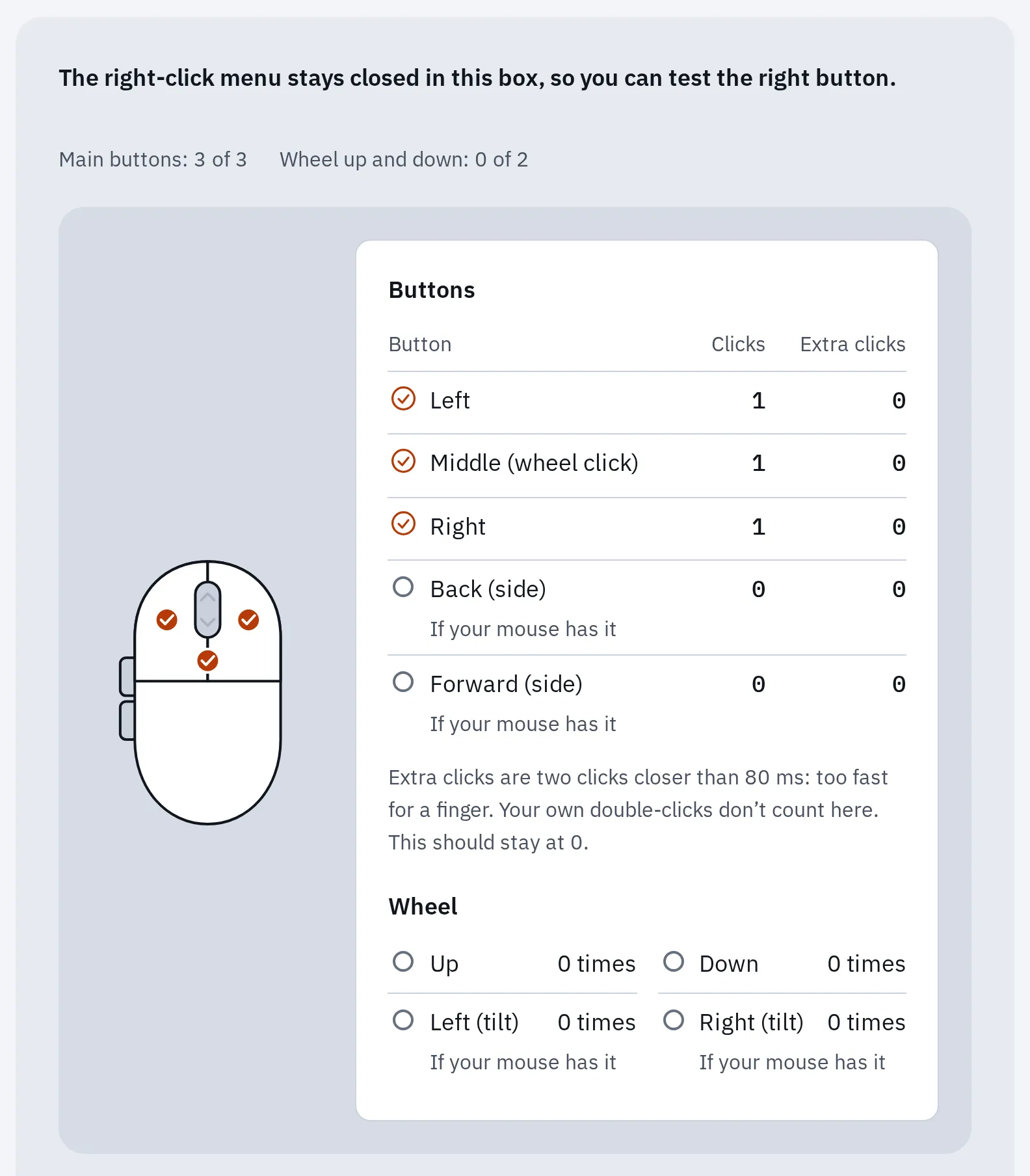
A working mouse in the test: each button you click gets a tick, and Extra clicks stays at 0. A number there can mean a button clicks twice by itself.
The mouse is dead
Work down the list for your kind of mouse. Test again after each step.
USB cable
- Unplug the mouse and plug it into another USB port.
- Plug it straight into the computer, not into a hub, dock or monitor. Fails only on the hub? See USB devices disconnecting from a hub.
- Restart the computer with the mouse plugged in.
- Try it on another computer. If it doesn’t work there either, the mouse is probably faulty.
USB receiver
- Turn the mouse off and on with the switch underneath.
- Put in a new battery, or charge it. A weak battery often causes lag and missed clicks before the mouse stops. See how long mouse batteries last.
- Plug the receiver into another port, as close to the mouse as you can. A USB extension cable helps with a computer under a desk.
- Keep the receiver away from USB 3 devices, external drives and their cables: they can disturb the signal.
- A new or replacement receiver may need pairing with the maker’s app (for Logitech: Logi Options+). Logitech Bolt and Unifying receivers don’t work with each other’s mice.
Bluetooth
- Check that Bluetooth is on, on the computer.
- Put in new batteries, or charge the mouse if it is rechargeable. Then turn it off and on.
- If the mouse can switch between computers (buttons 1, 2, 3), choose the one for this computer.
- Remove the mouse from the Bluetooth list and pair it again. Most mice need a pairing button held for a few seconds.
- For a Magic Mouse, see how to pair a Magic Mouse and how to tell if it’s charging.
Still nothing? Restart the computer, then reset the mouse. If that fails too, see when it’s the hardware.
The pointer lags or jumps
Jumps or freezes for a moment
Often: the wireless signal
Change the battery and move the receiver closer. Test again with nothing else plugged in next to it.
Drifts or skips on the desk
Often: the surface
Glass, mirrors and very glossy desks confuse the sensor. Try a mouse pad, and wipe the sensor window underneath with a dry cloth.
Too fast, too slow or uneven
A setting
Change the speed in the settings below. With pointer acceleration off, a fast flick no longer throws the pointer further. A gaming mouse may also need its DPI changed.
Windows
Open Settings Bluetooth & devices Mouse and change Mouse pointer speed. For acceleration, select Additional mouse settings, then the Pointer Options tab, and untick Enhance pointer precision.
Mac
Open System Settings Mouse and change Tracking speed. For acceleration, turn off Pointer acceleration, under Advanced.
The mouse polling rate test shows how often reports from the mouse reach your browser. An uneven result alone doesn’t prove a wireless fault. To compare Bluetooth, a USB receiver and a cable, see how much lag each adds.
A button doesn’t work
- A button doesn’t light up in the test: check the mouse’s own app (Logitech, Razer, SteelSeries). The button may be set to a shortcut. If not, try another computer: if it fails there too, the button may be worn.
- One click opens things twice, or a drag drops by itself: the switch may be worn. Click slowly a few times in the double-click test to check.
- The side buttons don’t light up in Safari: Safari doesn’t report them. Try the test in Chrome, Edge or Firefox.
- The wheel scrolls the wrong way now and then: dust or wear in the wheel. Blow compressed air around it while you turn it.
The pointer has vanished
- Move the mouse in big circles: the pointer may be on another screen, or very small.
- On a Mac, shake the mouse quickly: the pointer grows for a moment.
- On a laptop, the touchpad may be switched off by an Fn key with a touchpad symbol. See touchpad not working.
If you lose the pointer now and then, make it easier to find:
Windows
Open Settings Bluetooth & devices Mouse Additional mouse settings, then the Pointer Options tab. Tick Show location of pointer when I press the CTRL key.
Mac
Open System Settings Accessibility Display and turn on Shake mouse pointer to locate.
A bigger pointer and easier double-clicks help too: see make your mouse easier to use.
Works here, not in an app
The buttons light up in the test, so the mouse reaches the browser. Close the app and open it again. Then check its own settings: games often have their own mouse sensitivity and button bindings, and some ignore side buttons.
When it’s the hardware
It is most likely the mouse itself when:
- it doesn’t work on a second computer, or
- it stays dead with another cable, port or new batteries, or
- one button keeps failing in the test, on every computer.
Not sure yet? The swap test shows if it’s the mouse, the computer or the app.
A basic mouse often costs less to replace than to repair. Check your warranty on the maker’s support site before you buy a new one.
Questions people ask
Why did my wireless mouse suddenly stop working?
A flat battery, a mouse switched to another computer or a receiver moved to a different port are common causes. Change the battery, check the switch and the receiver, and test again.
Why does my mouse work on one computer but not another?
Start with the computer where it fails: try another USB port, check Bluetooth, and restart. A missing driver is rare for an ordinary mouse, but a mouse app can block buttons.
How do I use my computer without a mouse?
Use the keyboard: Win or ⌘ Space to search, Tab and the arrow keys to move, Enter to open. On Windows, Mouse Keys moves the pointer with the number pad. On a laptop, use the touchpad.