Short answer
Change one thing at a time and watch where the fault goes. If it follows the device to another computer, the device or its own cable is faulty. If it stays with your computer, look at the port, driver or settings. If it happens in one app only, fix that app’s settings.
- The device itself.
- The connection: the cable, the port, the batteries, the receiver or Bluetooth.
- The computer: its driver and settings.
- Our test in the browser. It is one app on the computer.
- The app that fails, with its own settings and permission.
Your device's signal passes three places before it reaches an app. When our test sees it, places 1 to 3 worked for that part, at that moment.
Step 1: run our test
Our test is the first swap: a different app on the same computer. Pick your device.
Keyboard
Test it now
Keyboard tester
Press the key that fails. If it lights up, the keyboard, its connection and the computer handled it.
Mouse
Test it now
Mouse test
Click each button and turn the wheel. A part that lights up reached the browser.
Controller
Test it now
Controller tester
Press a button or move a stick first: browsers show a controller only after that. Then try the part that fails.
Microphone
Test it now
Mic test
Speak normally. If the test hears you, the microphone, its connection and the computer work.
Camera
Test it now
Webcam test
If you see yourself, the camera, its connection and the computer work.
Speakers or headphones
Test it now
Sound test
Play the left and right sounds. If you hear both, the speakers and the computer work.
What a browser test can prove
A test in a web page sees what your computer passes on to the browser. That is a lot, but not everything.
It works in the test
The device works, right now
The part you tested sent its signal, and the computer passed it on. So that part, its connection and the driver worked, at that moment. Test the same key, button or headset that fails in your app.
It fails in the test
Not proof the device is broken
The browser may not be allowed to use the camera or microphone. Some parts never reach a browser, such as the Fn key or a controller’s motion sensor. Try another app before you blame the device.
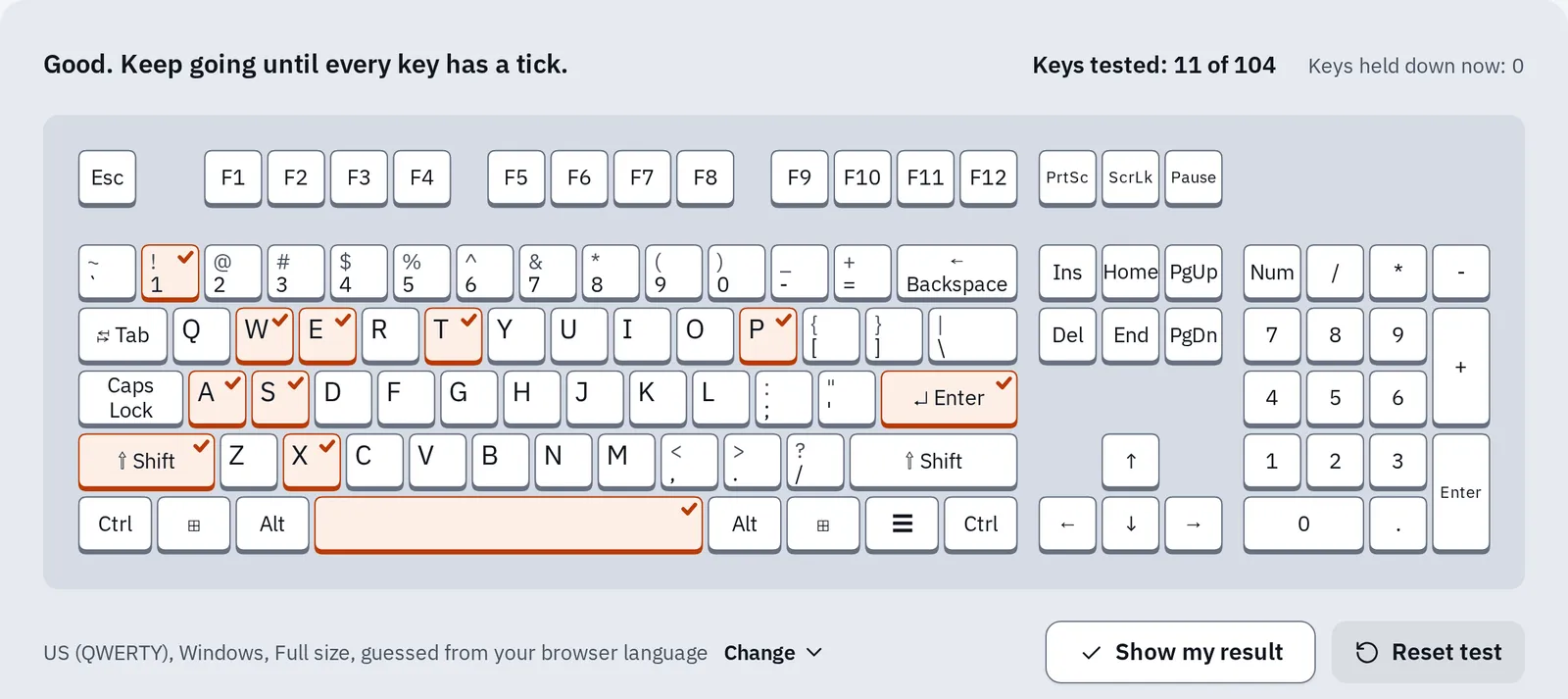
In the keyboard tester, every key with a tick reached the browser. A key without a tick isn't broken: the test just hasn't seen it yet.
Each test page lists what it can and can’t see. How we test has them all in one table.
The swap test, step by step
Three swaps, cheapest first. Each one rules something out.
- Our test, or another app. Works there: the fault is in the app that fails.
- Another port, cable or batteries. Works now: it was the connection.
- Another computer or phone. Works there: it is your computer. Same fault there: it is the device.
A tick means the fault was gone: you found it. A cross means the same fault: go on to the next swap.
- Change one thing at a time. Two changes at once can’t tell you which one helped.
- Repeat exactly what failed after each swap: the same key, the same game, the same call.
- Write down what you tried and what happened. A repair shop or the maker will ask.
Find the fault for your device
For each swap, choose what happened. The answer changes as you go and names the next swap to try. Choose Can’t try for a swap you can’t do, such as moving a laptop’s own keyboard.
What have you tried?
Most likely
Start with our test
Run our test for your device. It’s the quickest swap: a different app on the same computer.
Next: run our keyboard tester.
The same rules, as a table:
| What you saw | Where the fault most likely is |
|---|---|
| Our test works, your app doesn’t | The app: its device choice, permission or settings |
| Our test fails, another app works | The browser: allow the device, or try another browser |
| Another port, cable or batteries fixed it | The connection |
| It works on another computer, not on yours | Your computer: its port, driver or settings |
| The same fault on another computer | The device, or its own cable or receiver |
| A spare of the same kind works on your computer | The device, or its own cable or receiver |
| A spare fails the same way on your computer | Your computer |
| The swaps point two ways | Check the other computer’s settings, then test both while the fault happens |
| No swap left to try | Check your computer, then ask the maker or a repair shop |
Swap 1: our test or another app
If the device works in our test or in another app, the device, its connection and your computer are fine. The app that fails is the place to look.
Each test page has a section for this case. Open the one for your device:
| Device | Works in our test, not in the app |
|---|---|
| Keyboard | Keys work here but not in a game or app, letters type twice in apps only |
| Mouse | Works here, not in an app, the wheel jumps in one app only |
| Controller | Steam or another app changes your buttons, connected but not working in a game, drifts in games but shows 0% |
| Microphone | Others can’t hear you in Zoom, Teams or Discord |
| Camera and calls | Everything works here, but not in the call app |
| Drawing pen | Pressure works here but not in my drawing app |
| Screen | Banding only in videos, streams or games |
One app takes the sound device (Windows)
On Windows, an app can take a microphone or speakers for itself. Other apps then get no sound from it, or play none through it. You can stop apps from doing this:
- Press Win R, type
mmsys.cpland press Enter. The Sound window opens. - Choose the Recording tab for a microphone, or Playback for speakers and headphones.
- Select your device, then Properties, then the Advanced tab.
- Clear Allow applications to take exclusive control of this device and press OK.
Our test fails, but another app works
Then the browser is the odd one out. For a camera or microphone, the browser may not be allowed to use it: see how to allow it. For a controller, press a button or move a stick first: browsers show a controller only after that. Still nothing? Try our test in another browser.
Swap 2: another port, cable or batteries
Same fault in every app? Change the connection next. If the fault goes, it was the port, the cable, the batteries or the wireless link.
With a cable
- Plug it into another port, straight into the computer. Leave out any hub, dock or monitor.
- Try another cable if the cable comes off the device.
Works straight in, but not on the hub? See USB devices disconnecting from a hub.
With a USB receiver
- Put in fresh batteries, or charge the device.
- Unplug the receiver for 10 seconds. Then plug it into another port, close to the device.
Bluetooth
- Charge the device, turn it on and bring it close to the computer.
- Remove it from the computer’s Bluetooth list (on Windows, Remove device). Then pair it again.
For the steps on your device, see the connection fixes for a keyboard, a mouse, a controller, speakers and headphones or a headset with one plug.
Swap 3: another computer or phone
This swap tells the device and your computer apart. Run our test on another computer, with the same cable or receiver. A phone or tablet can stand in for Bluetooth headphones or a controller.
The same fault there
The device
The fault followed the device. If it has a cable or receiver, try another one on that computer too: they travel with the device. Then see when it’s the device.
It works there
Your computer
The device is fine. The fault is in your computer: a port, the driver or a setting. See what to check on your computer.
Some test pages say what this result means for that device: a mouse that clicks twice on another computer too, a wheel that jumps on another computer too and a graphics card that fails in another computer.
It works everywhere except on your computer
- Restart the computer: choose Restart in the power menu.
- Reinstall the driver on Windows, the small program that lets the computer talk to the device. See the steps for a keyboard, a microphone, a camera or sound.
- Try safe mode for a keyboard or mouse. It starts the computer with less software. If the fault is gone there but comes back after a normal restart, software that starts with the computer causes it, such as the maker’s app for your device.
Windows
If your computer is encrypted, Windows may ask for your BitLocker recovery key: have it ready. Hold Shift while you select Power Restart. Then choose Troubleshoot Advanced options Startup Settings Restart and press 4. Restart normally to leave safe mode.
Mac
Mac with Apple silicon: shut it down. Hold the power button until you see the startup options. Select your startup disk, hold Shift and click Continue in Safe Mode.
Mac with an Intel chip: turn it on and hold Shift right away, until the login window appears.
Restart normally to leave safe mode.
When the fault comes and goes
A test only shows the moment you ran it. A pass doesn’t clear a fault that comes back later.
- When the fault happens, go back to the test, start it again and repeat what failed.
- Close our camera or microphone test before you go back to your call app. An app that is still using the camera can block another one.
- Use the longer tests for faults like these: the keyboard chatter test for letters that type twice, the double-click test for a mouse that clicks twice, and the stick drift test for a stick that moves by itself.
- Note when it happens: only on battery, only when the cable moves, only after an hour. That points to the cause.
When it’s the device
- Check the warranty on the maker’s or the shop’s website, before you open the device or buy a new one.
- Save your result from our test, with the device model and how it was connected. It helps your claim.
- Try the maker’s app if it has one. Some makers fix faults, such as double clicks, with a firmware update.
Questions people ask
Can a website test prove that my device is broken?
Not on its own. A failed test can also mean the browser isn’t allowed to use the device. A fault that also shows on a second computer is much stronger proof.
Why does my device work on my laptop but not on my PC?
The device works, so look at the PC: try another port on it, reinstall the driver, and check the app’s settings there.
Why does it work in one game but not another?
Games keep their own settings. Check the controls or key bindings in the game that fails. For a controller on a PC, Steam Input can also change the buttons for one game.
Is it safe to try my device on someone else's computer?
Yes, for a mouse, keyboard, headset, camera or controller. With a Bluetooth device, you may need to pair it with your own computer again afterwards.