Short answer
If the mouse works but is hard to use, change its settings, not the mouse. Four changes help most people:
- a bigger pointer, in a strong colour
- a slower pointer speed
- a slower double-click speed
- ClickLock or drag lock, so you don’t have to hold the button while you drag.
Change one setting at a time. Then try it in the practice area below.
On Windows, the pointer starts small and white, so it hides on a white page. Bigger, and in a colour, it stands out.
- The usual Windows pointer: small and white.
- A bigger pointer: the Size slider.
- A bigger pointer in a strong colour, with a dark outline.
- Rings around the pointer, to find it: Ctrl on Windows. On a Mac, shaking the mouse makes it big for a moment.
What is hard for you?
Helping someone else? Sit beside them, and let them try each change. Write down what you changed, so you can set it back. Our guide to helping parents with tech by phone has tips for doing it from far away.
Practise here, at your own pace
Try the three jobs below before you change anything. Then change one setting and try again. Nothing here is timed or scored, and nothing is saved.
Take your time. Use a mouse, a touchpad, a finger or the keyboard.
1. Open the folder
Double-click the folder: two quick clicks, with the mouse kept still. On a touch screen, tap it twice.
The folder is closed. Keyboard: press Tab to go to it, then Enter.
2. Put the letter in the box
Hold the button down on the letter, move it over the box, then let go.
3. Select some words
Hold the button down at the start of a word, and move to the end. Or double-click one word. On a touch screen, press and hold a word. Keyboard: hold Shift and press the arrow keys.
Nothing is selected yet.
What the practice area tells you, and what to change:
| What happens | What to change |
|---|---|
| You lose the pointer between the jobs | Make the pointer bigger, in a strong colour |
| The pointer goes past the folder or the box | Slow the pointer down |
| Two single clicks, about half a second apart or more | Set a slower double-click speed |
| Two single clicks because the mouse moved | Keep the mouse still: rest your hand on it, and click with one finger only |
| The letter goes back before it reaches the box | Turn on ClickLock or drag lock |
| Selecting words is hard | Double-click a word instead, or use Shift and the arrow keys |
Make the pointer easier to see
A bigger pointer is easier to see and to follow. A strong colour, with a dark outline, stands out on white pages and on dark ones.
Windows
- Press Windows U, or open Start Settings Accessibility.
- Select Mouse pointer and touch.
- Under Mouse pointer style, pick a style: white, black, inverted, or one of the bright colours. Choose another color gives you any colour.
- Move the Size slider to the right.
On Windows 10, open Start Settings Ease of Access Mouse pointer. Use the slider under Change pointer size, and pick a pointer colour below it.
To find the pointer: open Settings Bluetooth & devices Mouse Additional mouse settings, then the Pointer Options tab. Tick Show location of pointer when I press the CTRL key, then select OK. Now press and let go of Ctrl: rings show where the pointer is. Display pointer trails, on the same tab, leaves a short trail behind the pointer while it moves. On Windows 10, the link is called Additional mouse options, in Settings Devices Mouse.
Mac
- Open the Apple menu, then System Settings Accessibility Display. You may need to scroll down.
- Go to Pointer, and drag the Pointer size slider to the right.
- Pointer fill color sets the colour inside the pointer. Pointer outline color sets its edge.
- Turn on Shake mouse pointer to locate: when you move the mouse quickly, the pointer gets big for a moment.
Reset Colors sets the pointer back to black with a white outline.
Chromebook
- Select the time at the bottom right, then Settings. Or press Alt Shift S and select Settings.
- Select Accessibility, then Cursor and touchpad.
- Make the mouse cursor larger, and change its colour if you like.
- You can also turn on highlighting for the mouse cursor, so it is easier to follow.
The text cursor, the line where your typing appears, can be made thicker too. On Windows 11 it’s in Settings Accessibility Text cursor. For bigger letters and icons, see make text bigger.
Slow the pointer down
If the pointer shoots past the button you aim at, slow it down. Then you need to move the mouse a little further, but you stop where you want.
Windows
- Open Start Settings Bluetooth & devices Mouse. On Windows 10: Start Settings Devices Mouse.
- Move the Mouse pointer speed slider to the left. On Windows 10 it’s called Cursor speed.
- Try the practice area, and move the slider again until it feels right.
Enhance pointer precision, on the same page, makes the pointer more accurate when you move the mouse slowly. Leave it on. On Windows 10, it’s in Additional mouse options, on the Pointer Options tab.
Mac
- Open the Apple menu, then System Settings Mouse. For a trackpad, choose Trackpad instead.
- Click Point & Click.
- Drag the Tracking speed slider to the left.
Does the pointer jump further when you move the mouse quickly? You can turn that off. In Mouse settings, click Advanced, then turn off Pointer acceleration.
Chromebook
- Select the time at the bottom right, then Settings Device.
- Select Mouse, or Touchpad.
- Move the Mouse speed or Touchpad speed slider to the left.
Some mice have a button behind the wheel that changes the speed, often marked DPI. If the pointer suddenly got fast, someone may have pressed it. See how to change the mouse speed and DPI.
Make double-clicking easier
Your computer counts two clicks as a double-click only when they come quickly. The mouse must also stay in the same place. Windows allows half a second, unless you change it. A slower double-click speed gives you more time.
- Your computer waits a short time after the first click. A second click inside that time is a double-click, and the folder opens.
- A second click after that time is a new single click. The folder is only selected.
- A slower double-click speed makes the time longer. The same clicks now open the folder.
A slower double-click speed doesn't make you click faster. It gives you more time.
Windows
- Open Start Settings Bluetooth & devices Mouse.
- Under Related settings, select Additional mouse settings. The Mouse Properties window opens.
- On the Buttons tab, under Double-click speed, move the Speed slider towards Slow.
- Select OK. Then try the folder in the practice area.
On Windows 10, open Start Settings Devices Mouse and select Additional mouse options. Then follow steps 3 and 4.
If your Settings app has a double-click speed slider of its own, it does the same job.
Mac
- Open the Apple menu, then System Settings Accessibility Pointer Control.
- Drag the Double-click speed slider to the left, towards slower.
- Try the folder in the practice area.
You don’t have to double-click at all: click a file once, then press Command O to open it.
Chromebook
We found no double-click speed setting in Google’s help for Chromebooks. Automatic clicks can double-click for you: see move and click without the mouse.
Don’t set it to the slowest at once. If it’s very slow, two separate clicks on the same file can open it by accident. Go one or two steps slower, then try again.
Drag without holding the button
To drag a file, you usually hold the button down the whole way. ClickLock on Windows, and drag lock on a Mac trackpad, hold it for you.
- A normal drag: you hold the button down the whole way.
- ClickLock: hold the button for about a second, then let go. The button stays locked.
- Move the mouse with your finger off the button.
- Click once to let go of the file.
The orange bars show when the button is down. With ClickLock, it's only at the start and the end.
Windows
Turn on ClickLock:
- Open Start Settings Bluetooth & devices Mouse Additional mouse settings. On Windows 10: Start Settings Devices Mouse Additional mouse options.
- On the Buttons tab, under ClickLock, tick Turn on ClickLock.
- Select OK.
Use it: point at the file and hold the button down for about a second, then let go. The button stays locked. Move the file where you want it, and click once to drop it. It works for selecting text too.
Do files suddenly follow the pointer without you holding the button? Then ClickLock is on. Untick it in the same place if you don’t want it.
Mac
On a trackpad, turn on drag lock:
- Open the Apple menu, then System Settings Accessibility Pointer Control.
- Click Trackpad Options.
- Turn on Use trackpad for dragging.
- For Dragging style, choose With Drag Lock.
Use it: double-tap the file, and drag it without lifting your finger after the second tap. Then you can lift your finger: the drag goes on until you tap the trackpad once. Three Finger Drag is another style: drag with three fingers, and lift them to drop.
With a mouse: a Mac has no ClickLock. Mouse Keys can press and hold the button for you, and move the pointer with the keys.
Chromebook
On a touchpad: open Settings Device Touchpad and turn on Tap and drag to move items. Then double-tap the item, keep your finger down, and drag.
With a mouse: Automatic clicks has a Click and drag action: see move and click without the mouse.
The keyboard can move files too. Select the file, press Ctrl X, open the other folder, and press Ctrl V. On a Mac, press Command C, then Option Command V in the other folder.
Scroll less with the wheel
Each click of the wheel scrolls 3 lines on Windows, unless you change it. If pages jump too far, scroll fewer lines.
Windows
- Open Start Settings Bluetooth & devices Mouse.
- Under Scrolling, set Roll the mouse wheel to scroll to Multiple lines at a time.
- Move the Lines to scroll at a time slider to the left.
On Windows 10, open Start Settings Devices Mouse and move the slider under Choose how many lines to scroll each time.
Mac
- Open the Apple menu, then System Settings Accessibility Pointer Control.
- Click Mouse Options, or Trackpad Options.
- Drag the Scroll speed slider to the left.
If the page moves the opposite way to what you expect, turn Natural scrolling off or on, in System Settings Mouse.
Chromebook
Open Settings Device Mouse. Under Mouse scrolling, turn on Controlled scrolling. Then you can set the scroll speed.
The scroll wheel test shows each click of the wheel, if you want to check that every one arrives.
Swap the buttons for your left hand
Windows
Open Start Settings Bluetooth & devices Mouse. Next to Primary mouse button, choose Right. On Windows 10, it’s Select your primary button, in Settings Devices Mouse.
Mac
Open System Settings Mouse. In the Secondary click menu, choose to click the left side. Then the right side is your main click.
Chromebook
Open Settings Device Mouse and turn on the setting that swaps the primary mouse button.
The change works at once. Your main button is now the one under your index finger.
Move and click without the mouse
If moving or clicking the mouse is hard, the keyboard can do it. With Mouse Keys, the number keys move the pointer and click. A keyboard with a number pad on the right is easiest.
| Number pad key | What it does |
|---|---|
| 8 2 4 6 | Move up, down, left, right |
| 7 9 1 3 | Move on a slant |
| 5 | Click |
| 0 | Hold the button down, to drag |
| . (the full stop or decimal point) | Let go of the button |
| + | Double-click (Windows and Chromebook) |
Windows
- Open Start Settings Accessibility Mouse.
- Turn on Mouse keys.
Or press Left Alt Left Shift Num Lock to turn it on and off. On Windows 10, open Start Settings Ease of Access Mouse and turn on Control your mouse with a keypad. If the pointer doesn’t move, press Num Lock once and try again. To right-click, press - first: then 5 clicks the right button. / goes back to the left one.
Mac
- Open the Apple menu, then System Settings Accessibility Pointer Control.
- Turn on Mouse Keys.
Without a number pad, the keys around I move the pointer: 7 8 9 U O J K L. I clicks, M holds the button and . lets go.
While Mouse Keys is on, you can’t type text with the keyboard. For a quick way to turn it off and on, open its options. Turn on Press the Option key five times to toggle Mouse Keys.
Chromebook
- Select the time, then Settings Accessibility Cursor and touchpad.
- Turn on Mouse keys.
Without a number pad, the keys around I move the pointer: 7 8 9 U O J K L. I clicks, M holds the button and . lets go. Press Launcher Alt 4 to pause it, so you can type.
If clicking is hard on your hand
Windows
Snap To moves the pointer to the main button of a new window, such as OK. Then you move the mouse less. Open Mouse Properties, as for the double-click speed. On the Pointer Options tab, tick Automatically move pointer to the default button in a dialog box. Some apps don’t support it.
Windows has no setting that steadies a shaking hand. A slower pointer speed and Mouse keys help most.
Mac
Alternate pointer actions lets keyboard keys or a switch click, double-click and drag for you. Turn it on in System Settings Accessibility Pointer Control.
Mouse Keys also clicks with a key, so the pointer can’t slip while you press.
Chromebook
Automatic clicks clicks for you when the pointer stops.
- Open Settings Accessibility Cursor and touchpad.
- Turn on Automatically click when the mouse cursor stops.
- Choose a longer Delay before click if it clicks too soon. Stabilize click location stops a small shake from moving the click.
A small menu at the bottom right picks the next action: left-click, right-click, double-click, click and drag, or scroll. Choose No action (pause) when you want to read without clicks.
On a laptop touchpad
A touchpad can click with a light tap, so you don’t have to press it down.
Windows
On Windows 11, open Start Settings Bluetooth & devices Touchpad, then Taps:
- Tap with a single finger to single-click: a tap clicks.
- Tap twice and drag to multi-select: tap twice and keep your finger down to drag.
- Touchpad sensitivity: if your palm clicks while you type, choose a less sensitive setting.
Cursor speed, on the same page, sets how fast the pointer moves.
Mac
Open System Settings Trackpad, then Point & Click:
- Tap to click: tap with one finger to click.
- Tracking speed: how fast the pointer moves.
- Click: how firmly you must press.
For dragging, see drag lock. Using a mouse, and your palm keeps touching the trackpad? In System Settings Accessibility Pointer Control, turn on Ignore built-in trackpad when mouse or wireless trackpad is present.
Chromebook
Open Settings Device Touchpad:
- Tap to click: tap to click instead of pressing.
- Tap and drag to move items: double-tap and hold to drag.
- Touchpad speed: how fast the pointer moves.
A touchpad that doesn’t respond at all needs a fix, not a setting: see touchpad not working. A plain mouse can also be easier than a touchpad.
Is it the settings, or the mouse?
If double-clicks still fail after you slow them down, check that the mouse sends each click once.
Test it now
Double-click test
Click slowly, then double-click. It shows the time between your clicks, whether your computer counted a double-click, and whether a button ever clicks twice by itself.
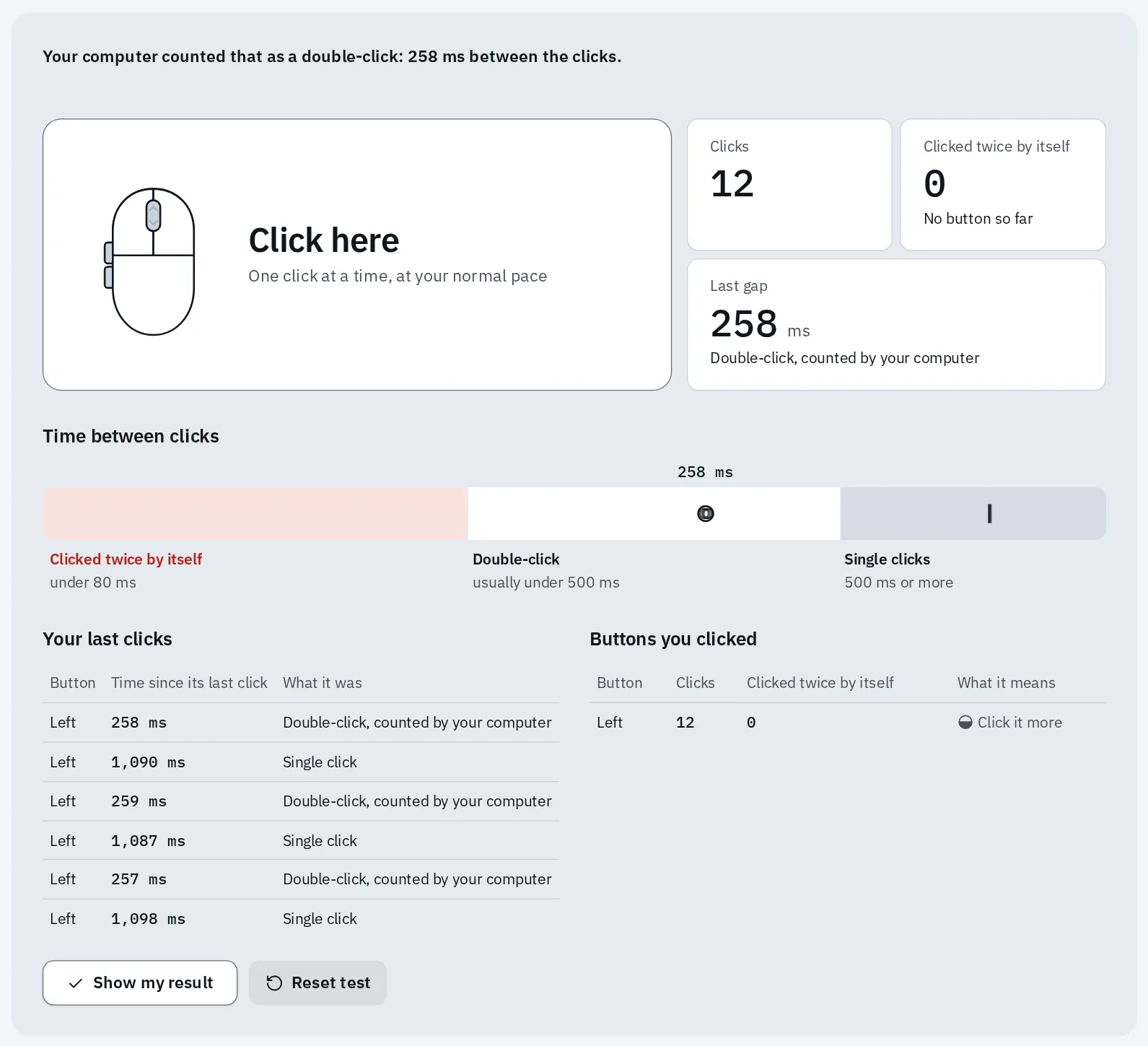
A mouse that works: each double-click, about a quarter of a second apart, was counted by the computer. Nothing clicked twice by itself.
- A button clicks twice by itself: the switch in the mouse may be worn. See mouse not working.
- A dragged file drops by itself: check the button with the hold and drag test. ClickLock can help until you replace the mouse.
- Every click arrives once: the mouse worked during the test. Try a setting above first.
Questions people ask
What is the best double-click speed?
There is no best one. Start where it is, then go one step slower each time, until the folder in the practice area opens nearly every time. Windows allows half a second between the clicks unless you change it.
Why does my double-click select the file but not open it?
Your two clicks came too far apart, or the mouse moved between them. Your computer then sees two single clicks, and one click only selects. Slow the double-click speed, and keep the mouse still while you click.
How big can I make the pointer?
Much bigger than the default, on Windows, a Mac and a Chromebook. Move the size slider until you can follow the pointer easily. A very big pointer can cover small buttons. A strong colour with a medium size is often enough.
How do I find the pointer when it disappears?
On Windows, turn on Show location of pointer when I press the CTRL key, then press Ctrl. On a Mac, turn on Shake mouse pointer to locate and move the mouse quickly. If it’s gone for good, see the pointer has vanished.
How do I undo a change?
Open the same setting and move it back. On a Mac, Reset Colors sets the pointer colours back. On Windows, the double-click speed and ClickLock are in Mouse Properties. Change one thing, then select OK.
Why do files stick to my pointer?
ClickLock is probably on. Then a long press locks the button down until you click again. Turn it off in Mouse Properties, on the Buttons tab. See drag without holding the button.
Is a different mouse easier to use?
It can be. A mouse that fits your hand is easier to keep still while you click. A trackball stays in one place: you turn the ball with your thumb or fingers. Then you click without moving the pointer. The settings above work with any of them.