Short answer
A touchpad that stops completely is often just switched off. Press the key with a touchpad picture (often together with Fn), check that Touchpad is on in your settings, and unplug any mouse. Then test it below.
Three things switch a touchpad off without you noticing.
- The touchpad key in the top row. Many laptops need Fn with it.
- A small light in the corner: on some HP laptops, a double tap there switches the touchpad on or off.
- A mouse: Windows, Mac and Chromebook can turn the touchpad off while a mouse is connected.
Step 1: test the touchpad
Test it now
Touchpad test
Do each short step: slide, click, tap, scroll and pinch. The test shows which parts reach your laptop’s browser. It can’t see your finger, so a spot that stops the pointer only shows if you slide across it.
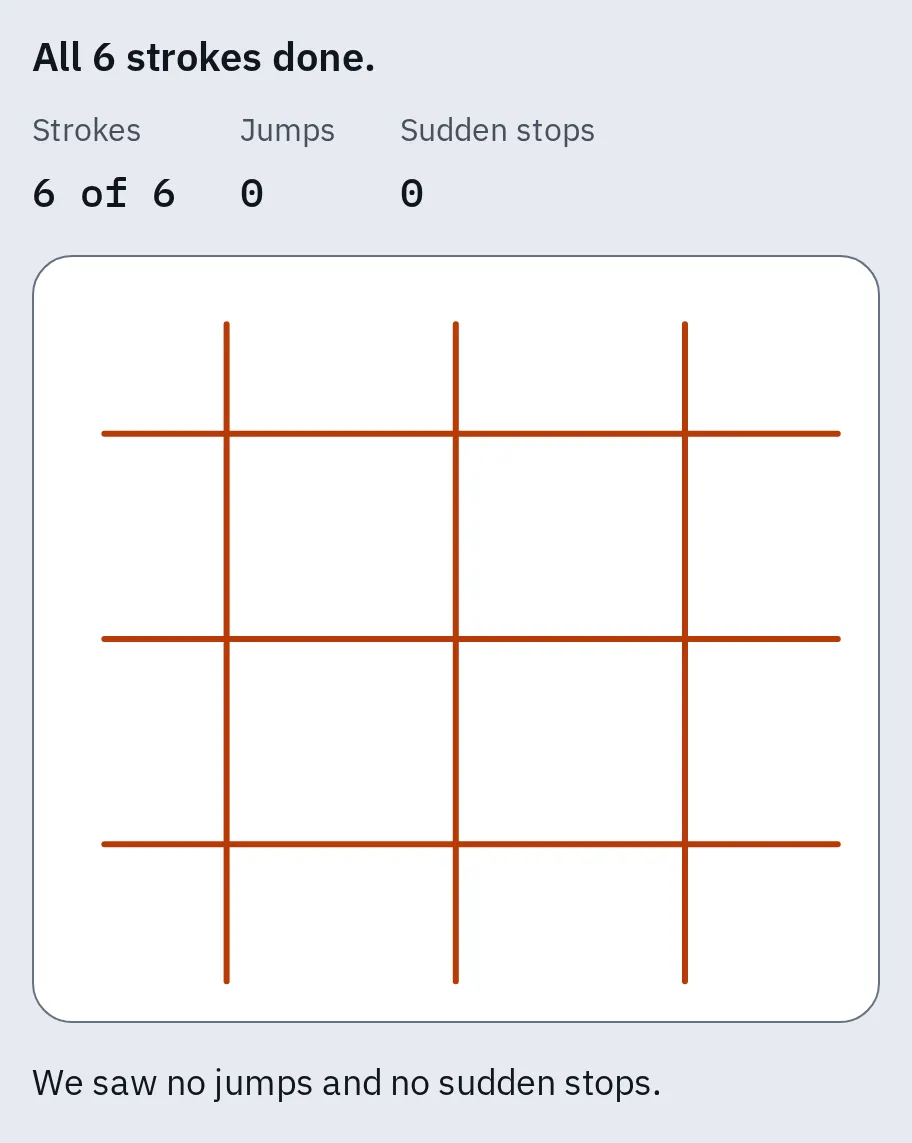
A touchpad that works: six straight strokes, no jumps and no sudden stops. A ring marks a sudden stop: if your finger kept moving there, that spot may not work.
The touchpad doesn’t work at all
Work down this list. Test again after each step.
1. Press the touchpad key
Look along the top row for a key with a touchpad picture. Press it alone, then with Fn. The key differs from model to model, and some laptops have none.
Lenovo
Try F6 or F8, alone or with Fn. On some models it is Fn Delete. A touchpad switched off this way comes back after a restart. More in how to turn the touchpad off and on on a Lenovo.
HP
On some HP touchpads, double-tap the top-left corner of the touchpad. Others have a key in the top row.
Dell
Hold Fn and press the key with a touchpad picture: often F3, F7 or F9. Some Dell laptops have a separate key right of F12 instead.
Asus
Press F6 or F9, alone or with Fn. “Touchpad is enabled” shows when it works. If your MyASUS app has Device Settings, open Device Settings Input Device Settings and set Touchpad to Unlock.
Acer
Press F10, or Fn F10. Older Acer laptops use Fn with F2, F6 or F7.
Samsung
Hold Fn and press F5.
2. Check the touchpad settings
Windows
- Open Settings Bluetooth & devices Touchpad (Windows 10: Settings Devices Touchpad).
- Turn Touchpad on.
- Windows 11: select the arrow next to the switch. Tick Leave touchpad on when a mouse is connected.
Mac
- Unplug any mouse, or turn it off.
- Open System Settings Accessibility Pointer Control.
- Turn off Ignore built-in trackpad when mouse or wireless trackpad is present.
Chromebook
- Press Shift 5 times: that turns the touchpad back on if it was switched off in the accessibility settings.
- To stop it happening again, open Settings Accessibility Cursor & touchpad.
- Set Disable built-in touchpad to Never.
3. Restart or reset it
Windows
Restart the laptop, and don’t touch the touchpad until Windows has fully started. Then open the touchpad settings again and select Reset next to Reset touchpad settings and gestures to defaults.
Mac
Use one finger only: a second finger resting on the trackpad can stop the pointer. Then plug in the charger. A low-battery message can be hiding on the screen and block the trackpad.
Chromebook
- Press Esc several times.
- Drum your fingers on the touchpad for 10 seconds.
- Turn the Chromebook off and on.
- Still nothing? A hard reset can delete some files in Downloads, so copy important ones first. Then turn it off, hold Refresh and press Power. Let go of Refresh when it starts.
4. Reinstall the touchpad driver (Windows)
- Run Windows Update first: it can bring a newer touchpad driver.
- Right-click the Start button and choose Device Manager.
- Open Human Interface Devices or Mice and other pointing devices, and find your touchpad.
- If the problem started after an update, right-click it and choose Properties Driver Roll Back Driver, then restart.
- Otherwise right-click it, choose Uninstall device and restart. Windows installs the driver again.
- Still nothing? Download the touchpad driver for your model from your laptop maker’s support site.
5. Try it before Windows starts (Windows laptops)
This helps tell Windows from the hardware. On Dell, restart and tap F2 at the Dell logo to open the setup screen. On Asus, turn the laptop off, hold F2 and press the power button. On HP, restart and press Esc, then F2, and run Component Tests Mouse/Touchpad in HP PC Hardware Diagnostics.
If the touchpad works there, the problem is likely in Windows or its driver: go back to step 4. If it doesn’t work there either, Dell and Asus say it is likely the hardware. Leave the setup screen without changing anything.
Taps, scrolling or gestures don’t work
The pointer moves, so check these settings first.
Windows
Open Settings Bluetooth & devices Touchpad (Windows 10: Settings Devices Touchpad) and look under Taps: turn on Tap with a single finger to single-click and Tap with two fingers to right-click. Scrolling and pinch are under Scroll & zoom, swipes under Three-finger gestures.
No Taps section, or no touchpad settings at all? Your touchpad isn’t a precision touchpad, or its driver is missing. Look for the maker’s own tab in Control Panel Mouse, and install the maker’s touchpad driver.
Mac
Open System Settings Trackpad and turn on Tap to click. Right-click is Secondary click there; scrolling and swipes are under Scroll & Zoom and More Gestures.
Chromebook
Open Settings Device Touchpad and turn on Tap to click. Tap with two fingers to right-click.
Hard to double-tap or drag? See make the touchpad easier to use.
The pointer jumps or clicks by itself
- Clean the touchpad and dry it, and your fingers too. Dirt and moisture confuse it.
- On Windows, lower Touchpad sensitivity under Taps. That stops your palm from clicking while you type.
- Update or reinstall the driver, as in step 4.
- Run the touchpad test again. If the pointer stops in the same spot every time, that part of the touchpad may be faulty.
On a 2-in-1 laptop, folding the screen back into tablet shape can switch the touchpad off on purpose.
It’s hard to press, or raised
When it’s the hardware
It may be the touchpad itself when:
- it doesn’t work in the setup screen or the maker’s hardware test, or
- a USB mouse works but the touchpad stays dead after every step above, or
- the test shows a spot that stops the pointer every time.
Check your warranty on your laptop maker’s support site first. Until the repair, a USB or Bluetooth mouse works with any laptop. If that misbehaves too, see mouse not working.
Questions people ask
Why did my touchpad suddenly stop working?
Most often it was switched off: by the touchpad key, a plugged-in mouse or a setting. A driver update can also break it. Turn it on and check the settings above, then roll back the driver if it started after an update.
How do I turn my touchpad back on without a mouse?
Press the touchpad key, often with Fn. On Windows, press Win I, type touchpad, then use Tab and Space. On a Chromebook, press Shift 5 times.
Why does my touchpad stop working when I plug in a mouse?
Windows, Mac and Chromebook can turn the touchpad off while a mouse is connected. Change that in the settings in step 2.
My touchpad moves the pointer but won't click. What's wrong?
If tapping doesn’t click, tap to click may be off: turn it on in the settings above. If pressing down doesn’t click either, the click switch may be worn. Check it in the touchpad test.