Short answer
Take off the case and any lens accessory, wipe the lenses and restart the phone. Then test the front and back camera in your browser below. If the picture works there but not in one app, look at that app or its permission. If it’s black everywhere, check what blocks the camera, then contact the maker.
Step 1: the quick fixes
Apple suggests these first, and they help on Android too.
- Take off the case, film or any accessory near the lens, such as a lens clip or a magnetic mount.
- If photos are blurry, wipe the front and back lenses with a microfiber cloth.
- Restart the phone.
iPhone and iPad
On an iPhone with Face ID, hold the side button and either volume button until the slider appears. Drag it and wait 30 seconds. Then hold the side button until the Apple logo shows. On an iPhone with a Home button, hold the side or top button only.
Android
On a Pixel 6 or later, press Power and Volume up together, then tap Restart. On a Samsung Galaxy, press and hold Volume down and the Side key, then tap Restart.
Step 2: test the front and back camera
Test it now
Webcam test
Open it on your phone and press Start webcam test. While it runs, choose Front or Back under Which camera. A moving picture means the phone sends video from that camera outside your camera app. It doesn’t check every lens, zoom or photo mode.
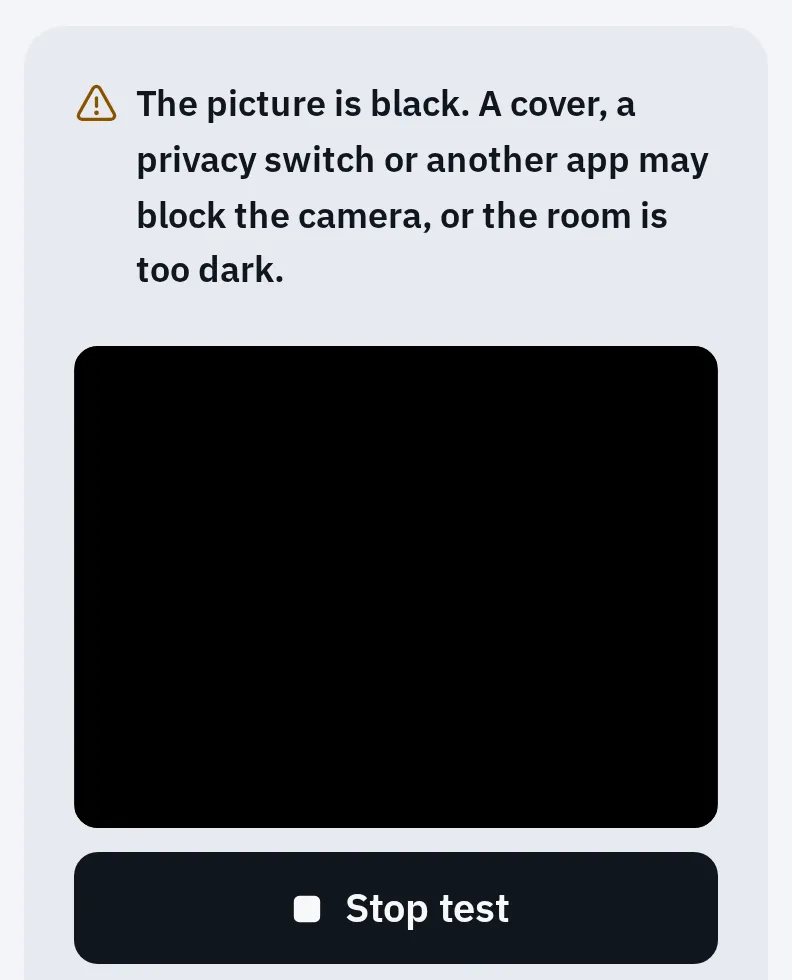
What the test shows when a camera sends only black. This example uses a simulated camera in a phone emulator.
Black screen in every app
Check whether one camera fails or both. Switch with the rotate button in the Camera app, or with Which camera in the test.
iPhone and iPad
- Update iOS in Settings General Software Update.
- iPhone 14 or later: run Apple’s diagnostics, with Wi-Fi nearby. Turn the iPhone off, then press and hold the side button while it starts, to open Recovery Assistant. Tap Diagnostics Mode.
- Choose Mobile Resource Inspector and start the diagnostic. If it finds a problem, contact Apple. On older iPhones, contact Apple directly.
- Had a repair? Look in Settings General About Parts and Service History, on models that show it. Unknown next to the camera can mean a part that isn’t genuine, or one that doesn’t work as it should. Apple says such cameras can freeze or show a blank picture in other apps.
Android
- Check that the camera isn’t off for the whole phone. On a Pixel: Settings Security & privacy Privacy Privacy controls and turn on Camera access.
- Open other camera apps too. Google says that if every app crashes when it opens the camera, it’s probably hardware.
- Samsung: open Samsung Members, then Diagnostics, Phone diagnostics, and tap Camera. Android 12 and later also have it in Settings Device care Diagnostics.
- Start the phone in safe mode (below). If the camera is black even there, contact the maker.
Only the Camera app fails
The camera works in the test, but the Camera app freezes, shows an error or stays black. Until it’s fixed, you can take a photo in your browser.
iPhone and iPad
- Close the Camera app and open it again. Apple says to close an app only when it doesn’t respond.
- Restart the iPhone.
- Update iOS. The Camera app updates with it.
Google Pixel
- Touch and hold the Camera app, tap App info, then Storage & cache, then Clear Cache.
- Update your apps in the Play Store (Profile, Manage apps & devices), and the phone in Settings System Software updates System update.
- Try safe mode. If the camera works there, another app is the cause: remove recent apps one at a time.
Samsung Galaxy
For “Camera failed” or “Cannot launch Camera”, Samsung says it’s most likely software.
- Update the phone in Settings Software update Download and install.
- In the Camera app, open Settings and tap Reset settings.
- Force restart: hold Volume down and the Side key for 7 seconds or more.
- Still failing? Open Settings Apps Camera Storage and tap Clear data. Samsung says this keeps your photos, but resets the camera settings.
- Try safe mode (below).
Start an Android phone in safe mode
Safe mode starts the phone without the apps you installed. On a Samsung, touch and hold Power off in the power menu, then tap Safe mode. On a Pixel 6 or later, press and hold Power and Volume up together, touch and hold Restart (or Power off), then tap OK. To leave safe mode, restart the phone. Other Android phones use other steps.
Works in the camera, but not in other apps
Snapchat, TikTok, Instagram and other apps must ask to use the camera. A “no” from earlier keeps them black.
iPhone and iPad
- Open Settings Privacy & Security Camera and turn the app on.
- Check Screen Time: Settings Screen Time Content & Privacy Restrictions. The camera must be allowed (under Other Features in iOS 27, Allowed Apps & Features in earlier versions).
- A green dot at the top of the screen means an app is using the camera now. Open Control Center to see which one, and close it.
- Update the app in the App Store, or delete it and download it again.
Android
- Open Settings Apps, choose the app, tap Permissions, then Camera, and choose Allow only while using the app.
- Check that the camera isn’t off for the whole phone. On a Pixel: Settings Security & privacy Privacy Privacy controls and turn on Camera access. On a Samsung, look in Settings Security and privacy Privacy.
- A green dot at the top shows that an app is using the camera or the microphone. Tap it in the notification panel to see which app, then close it if it isn’t the one you want.
- Update the app in the Play Store.
The camera works in apps, but a website can’t use it? That’s a browser setting: see camera blocked in your browser.
Blurry photos
- Wipe the lens with a soft, lint-free cloth. Apple says not to use compressed air, bleach or rough materials.
- Remove lens converters, metal cases and magnetic lens mounts. Apple says they can cause motion blur in low light.
- Did you mount the phone on a motorbike? Apple says strong vibration from high-power motorcycle engines can damage the iPhone’s image stabilisation and autofocus. Then photos stay blurry, and it needs service.
A camera that’s blurry only in video calls is a different problem: see the webcam test help.
The flash doesn’t work
- Turn on the flashlight in Control Center. If it lights, the flash works.
- In the Camera app, tap the flash button. With Flash Auto, the flash fires only when the phone thinks it’s dark enough.
- Is the phone hot? Apple says heat can turn off the flash and other camera features for a while. Let it cool down.
- Flash and flashlight both dead after these steps? Contact the maker.
When it’s time for a repair
A camera that stays black in every app, in safe mode and after an update needs a repair. Check your warranty first, and back up your photos before you send the phone in.
Questions people ask
Why is my iPhone camera black?
Often a case, film or accessory blocks the lens, or another app holds the camera. If it stays black after a restart and an update, run Apple’s diagnostics in Recovery Assistant. A camera that’s black everywhere usually needs service.
My front camera doesn't work, but the back one does. Why?
Check for a case or film over the front lens, then restart and update the phone. If the front camera stays black in every app, contact the maker for a check.
Why does my camera work in FaceTime but not in Snapchat?
Snapchat needs its own camera permission. Turn it on in Settings Privacy & Security Camera on an iPhone, or in the app’s Permissions on Android.
Does the browser test use the same camera as my apps?
It asks the phone for its front or back camera, and the phone picks the lens. A picture means that camera sends video. It doesn’t test the flash, zoom, focus or every lens.