Short answer
Restart the phone first. If the line is still there, take a screenshot and zoom into it: a line that stays still while the picture moves is most likely in the display. That can follow a drop, pressure or water, or be a fault in the display itself.
This guide is for phones and small tablets. For a computer, monitor or TV, see lines on your screen. If the glass is cracked, see cracked phone screen. If the screen flickers, see why a screen flickers.
Step 1: look at the line on plain colours
Test it now
Dead pixel test
Tap through black, white, red, green and blue. Plain colours show the line’s shape, colour and size clearly. They can’t tell a display fault from a software fault: step 2 gives you that clue.
One thin line
Often: the display or its connector
One line from top to bottom, often green, pink, purple or white. It stays in the same place on every colour.
A dark blot with lines
The display panel is broken
Black or purple patches near a crack or the spot that hit the ground, often with lines running out of them. They can spread.
Bands or flickering lines
Can be: software, or a loose connector
Lines across the screen that come and go or move across the picture. Don’t press or bend the phone to test them.
The whole screen has a green, pink or yellow tint? That is often a colour setting. See fix a colour tint first.
Step 2: take a screenshot and zoom in
A screenshot saves the picture the phone makes, before it reaches the display.
iPhone and iPad
- iPhone with Face ID: press the side button and the volume up button together, then let go quickly.
- iPhone with a Home button: press the Home button and the side (or top) button together, then let go quickly.
Android
Press the power button and the volume down button together, then let go. This works on Samsung Galaxy, Google Pixel and most other Android phones.
Open the screenshot in Photos or Gallery and zoom in with two fingers. Move the picture around.
If you’re not sure, send the screenshot to another phone or a computer. No line there means the line is in your display.
The line is in the screenshot
The phone draws the line itself, so the display is probably fine. Try these in order and look again after each one.
- Restart the phone. If it doesn’t respond, force a restart. On an iPhone 8 or later, press and let go of volume up, then volume down, then hold the side button until you see the Apple logo.
- Update the phone. On an iPhone, open Settings General Software Update. On Android, open Settings System Software update (Samsung: Settings Software update).
- Update your apps. If the lines show in one app only, update that app or uninstall it.
- Android: restart in safe mode. Safe mode turns off the apps you installed. If the lines go away there, one of those apps is the cause. Restart normally, then uninstall recent apps one at a time.
Samsung Galaxy
Press and hold the side button and the volume down button together. Touch and hold Power off, then tap Safe mode. Restart the phone to leave safe mode.
Google Pixel
On a Pixel 6 or later, press and hold the power button and the volume up button together. Touch and hold Restart (or Power off), then tap OK. Restart the phone to leave safe mode. Other Android phones use other steps: see the maker’s website.
Samsung’s last step for lines that stay is a factory data reset. It erases the phone, so back it up first, and only try it once the steps above haven’t helped.
The line stays on the display
The line isn’t in the screenshot, so the display, or the cable that joins it to the phone, is the likely cause. If you haven’t yet, restart and update the phone; on a Galaxy, Samsung also suggests safe mode (above). If the line stays, no setting or app can fix it. Pressing on the line or tapping the phone can break more of the display.
Check that touch still works
Test it now
Touch screen test
Paint every square on the screen, also over the line. Squares that stay blank twice may show where touch doesn’t work. A case, a thick protector or the phone’s own edge swipes can block touches too. A good result doesn’t prove the display is fine.
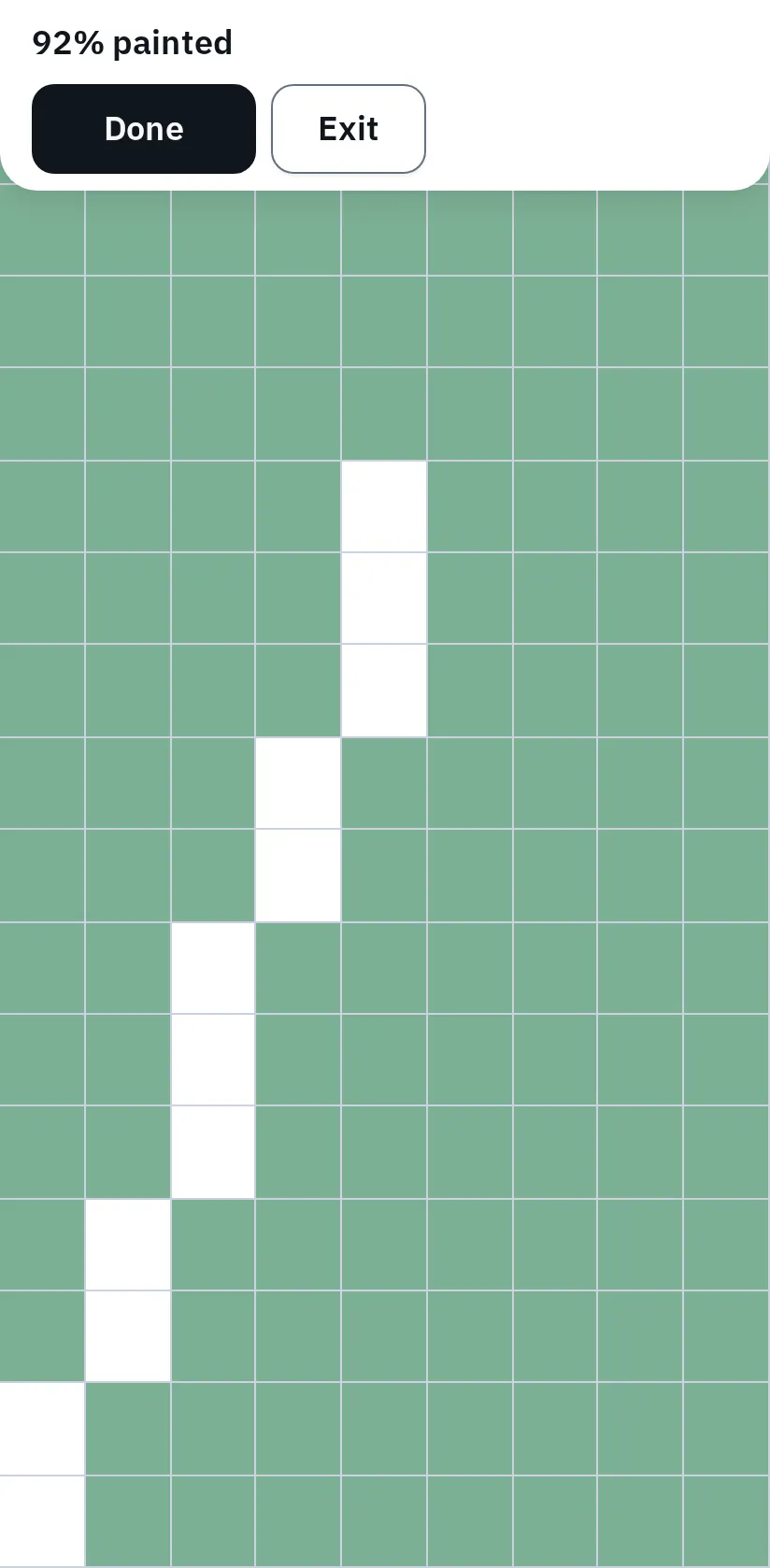
This example uses simulated touches in a phone emulator. Squares turn green where the page gets a touch; the white strip shows squares where it got none.
If touch fails over the line, or the phone taps by itself, get it repaired soon. On most phones, the glass, the touch layer and the display are replaced together as one part.
Ask about a free repair first
- Under warranty, no drop or water: a line that appears by itself can be a fault the maker repairs. Apple’s and Samsung’s standard warranties don’t cover accidental damage, such as drops and liquid.
- AppleCare+, Samsung Care+ or phone insurance: these cover accidental damage for a fee.
- Google Pixel 8, 9 Pro and 9 Pro XL: Google runs extended repair programs for some of these phones with a vertical line or flicker, for 3 years from purchase: see the Pixel 8 and Pixel 9 Pro programs. A cracked screen or liquid damage can rule a phone out.
- Samsung: book a repair through Samsung’s website, the Samsung Members app or a service centre.
Prices and how to tell glass damage from display damage are in cracked phone screen.
The whole screen has a tint
A green, pink, yellow or grey picture over the whole screen is often a setting. Check these before you think about a repair.
iPhone and iPad
- Night Shift makes the screen yellow: Settings Display & Brightness Night Shift.
- Color Filters can tint the screen or make it grey: Settings Accessibility Display & Text Size Color Filters.
- True Tone changes the colour with the room light: Settings Display & Brightness.
Samsung Galaxy
- Eye comfort shield makes the screen yellow: Settings Display.
- Screen mode changes the colours: Settings Display Screen mode. Try Vivid and Natural.
- Colour filters in the accessibility settings can tint the screen or make it grey.
Google Pixel
- Night Light makes the screen yellow: Settings Display (on newer Pixels, under Comfort filters).
- Colors changes how strong the colours are: Settings Display Colors.
- Color correction can tint the screen: Settings Accessibility Color and motion.
If the tint stays with every setting off and shows on the plain colours too, restart and update the phone. If it still stays, ask the maker to check the display. A tint on only part of the screen, or one that came after a screen repair, points to the display too.
Questions people ask
Can lines on a phone screen go away by themselves?
Lines from software can go after a restart or an update. Lines that stay out of the screenshot come from the display. They may come and go for a while, but a new screen is the lasting fix.
Why did a green line appear after an update?
The timing alone doesn’t tell you the cause. Do the screenshot test: if the line isn’t in the screenshot, it’s most likely in the display. Ask the maker before you pay, as some have repaired these lines for free on certain models.
Will the line spread?
It can. Lines and dark blots from a broken display often grow, especially after another knock. Back up your phone and plan the repair.
Can an app or a video fix lines on my screen?
No. Apps and flashing videos can’t repair a damaged display.
Is a single line the same as a dead pixel?
No. A dead pixel is one dot. A line is a whole row or column of pixels. The dead pixel test shows both.