Short answer
Turn the PS5 controller off. Hold Create, then also hold the PS button until the light bar blinks. On your iPhone or iPad, open Settings Bluetooth and tap the controller in the list. You need iOS or iPadOS 14.5 or later, or Android 12 or later. Xbox and PS4 controllers pair the same way with their own buttons.
Step 1: pair the controller
- Xbox: the small Pair button on the top edge.
- PS5 DualSense: Create, then also the PS button.
- Switch Pro: the small SYNC button. This guide covers the PlayStation and Xbox controllers that Apple, Sony and Microsoft document for phones.
Hold the marked buttons until the lights flash fast: the controller is then ready to pair.
PS5 DualSense
- Turn the controller off: hold the PS button until its lights go out. Unplug its cable.
- Hold Create (top left of the touchpad), then also hold the PS button until the light bar blinks.
- iPhone or iPad: open Settings Bluetooth, check Bluetooth is on, and tap the controller in the list.
- Android: swipe down from the top, touch and hold Bluetooth, tap Pair new device, then tap the controller.
- It’s connected when the light bar stops blinking and the player light comes on. If it pairs but doesn’t connect, press the PS button once.
Needs iOS or iPadOS 14.5, or Android 12, or later. A DualSense Edge needs iOS or iPadOS 16.4, and Sony lists no Android version for it.
PS4 DualShock 4
- Turn the controller off: hold the PS button until the light bar goes out. Unplug its cable.
- Hold Share (top left of the touchpad), then also hold the PS button until the light bar flashes.
- iPhone or iPad: open Settings Bluetooth and tap the controller in the list.
- Android: swipe down from the top, touch and hold Bluetooth, tap Pair new device, then tap the controller.
Needs iOS or iPadOS 13, or Android 10, or later.
Xbox
Only Xbox controllers with Bluetooth work with phones. Look at the plastic around the Xbox button: on a Bluetooth controller, it is part of the front of the controller. Every controller sold with an Xbox Series X or S has Bluetooth.
- Turn the controller on with the Xbox button.
- Hold the Pair button on the top edge for 3 seconds, until the Xbox button flashes fast.
- iPhone or iPad: open Settings Bluetooth and tap Xbox Wireless Controller.
- Android: open Settings Connected devices Pair new device and tap Xbox Wireless Controller.
Already paired with an Xbox? Turn the controller off first, then hold Pair.
With a cable: a PlayStation controller pairs and connects by itself when you plug it into an iPhone or iPad with a cable that carries data. Depending on your iPhone and controller, you may need an adapter. On Android, Microsoft warns that wired controllers might not work on every phone.
Step 2: check every button
Test it now
Controller tester
Open it on the phone, press any button, then press every button and move both sticks. A button that lights up reached your phone’s browser, so the phone receives it. If a game still ignores it, look at the game.
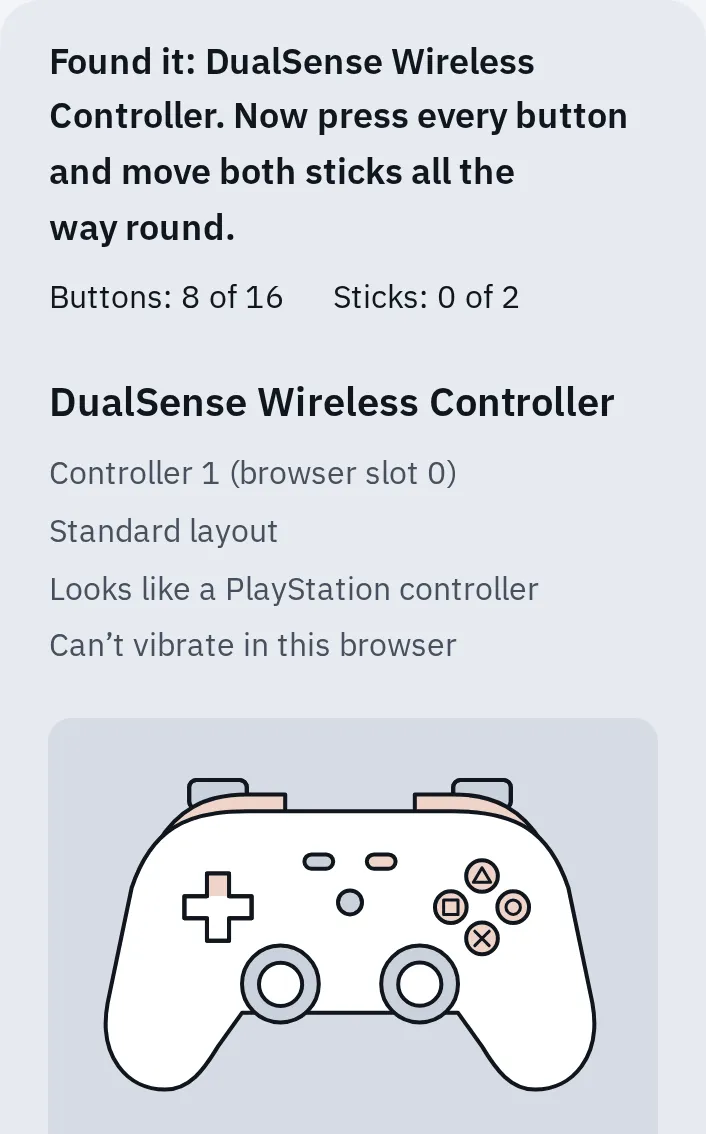
Our tester in an emulated iPhone with a simulated DualSense: 8 of 16 buttons tested so far. Safari on iPhone and iPad can't make a controller vibrate from a web page.
Keep the tester open and press a button on the controller: browsers only show a controller to a page once you use it.
What works on a phone
Buttons, sticks and triggers work with every controller here. Some extras don’t:
| Controller | Doesn’t work on a phone |
|---|---|
| PS5 DualSense | The textured vibration (haptic feedback), the built-in mic and speaker, the headset jack. Adaptive triggers don’t work on Android; on iPhone and iPad only in games that support them. |
| PS4 DualShock 4 | Over Bluetooth: the touchpad, the light bar colour, rumble, the motion sensor and the headphone jack. Sony names some Xperia phones as the exception. |
| Xbox | Headsets, chatpads and other add-ons on the controller. Plug a headset into the phone instead. |
On iPhone and iPad (iOS 16 or later), open Settings General Game Controller tap your controller, then Default Controls, to change what each button does. Buddy Controller there joins two controllers into one, so a friend can help.
It doesn’t show up or won’t pair
Test again after each step.
- Turn off any console nearby. A controller connects to one device at a time, and a PlayStation controller goes back to the last device when you press PS.
- Charge the controller for a while with its cable.
- Remove the old pairing: in the phone’s Bluetooth settings, tap the controller (or the More Info button ⓘ next to it) and choose Forget This Device on iPhone, or Forget on Android. Then pair again as in step 1.
- Restart the phone, and put the controller in pairing mode again.
- Xbox: update the controller’s software. It can’t be updated over Bluetooth or from a phone: update it on an Xbox, or with the Xbox Accessories app on a Windows 10 or 11 PC. An old version can cause wrong buttons and PIN requests on Android.
Still nothing? Reset it as in how to reset a controller, or see controller won’t connect for more fixes.
A game ignores the controller
Every button lights up in the tester, so the phone receives the controller. The game decides what it accepts.
- The game must support controllers. Many phone games only use the touch screen. Check its App Store or Google Play page.
- Playing your PS5 or PS4 games on the phone? Use the PS Remote Play app. It works with a DualSense on iOS 14.5 or Android 12 and later.
- Playing Xbox games in the cloud? Microsoft lists iOS 14.4 or Android 12 and later.
- Buttons swapped in one game? On iPhone and iPad, change them for that game in Settings General Game Controller, under Add Game: choose the game, then change its controls.
Back to your console
PS5 or PS4
Connect the controller to the console with a USB cable and press the PS button. Then you can unplug the cable. A DualShock 4 then needs pairing with the phone again next time.
A DualSense can remember up to 4 devices, so you don’t have to pair again. With the controller off and unplugged, pair each device while holding PS and one of Triangle, Circle, Cross or Square for over 5 seconds. Later, hold that button and PS for about 3 seconds to switch.
Xbox Series X or S
Press the Pair button twice quickly: the controller switches straight back to the Xbox. To go back to the phone, hold Pair: it returns to the last Bluetooth device.
Want the same controller on a computer? See how to connect a controller to a PC.
Questions people ask
Can I use a PS5 controller on an iPhone?
Yes, on iOS 14.5 or later, by Bluetooth or a cable. Buttons, sticks and triggers work. The textured vibration, the mic, the speaker and the headset jack don’t.
Does a PS5 controller work with an Android phone?
Yes, on Android 12 or later. Adaptive triggers and the textured vibration don’t work on Android. If yours won’t pair, Sony suggests checking with your phone’s maker.
Can I connect two controllers to one phone?
Apple says how many depends on your device and wireless conditions. Microsoft suggests one Xbox controller over Bluetooth at a time.
Why does my controller connect to my console instead of my phone?
It remembers the last device it used. Turn the console off, or for a PlayStation controller, put it into pairing mode again with Create (or Share) and PS.