Short answer
A controller that won’t connect often has a low battery, is paired with another device, or is plugged in with a cable that only charges. Charge it, then connect it to the console with a USB cable that carries data and press the PS or Xbox button. If that fails, reset it. Testing it on a computer shows whether the controller itself still works.
Step 1: find out if the controller works
Test it now
Controller tester
Connect the controller to a computer or phone and press every button. If they light up here, the controller still sends its presses, so the pairing with your console is the likely problem.
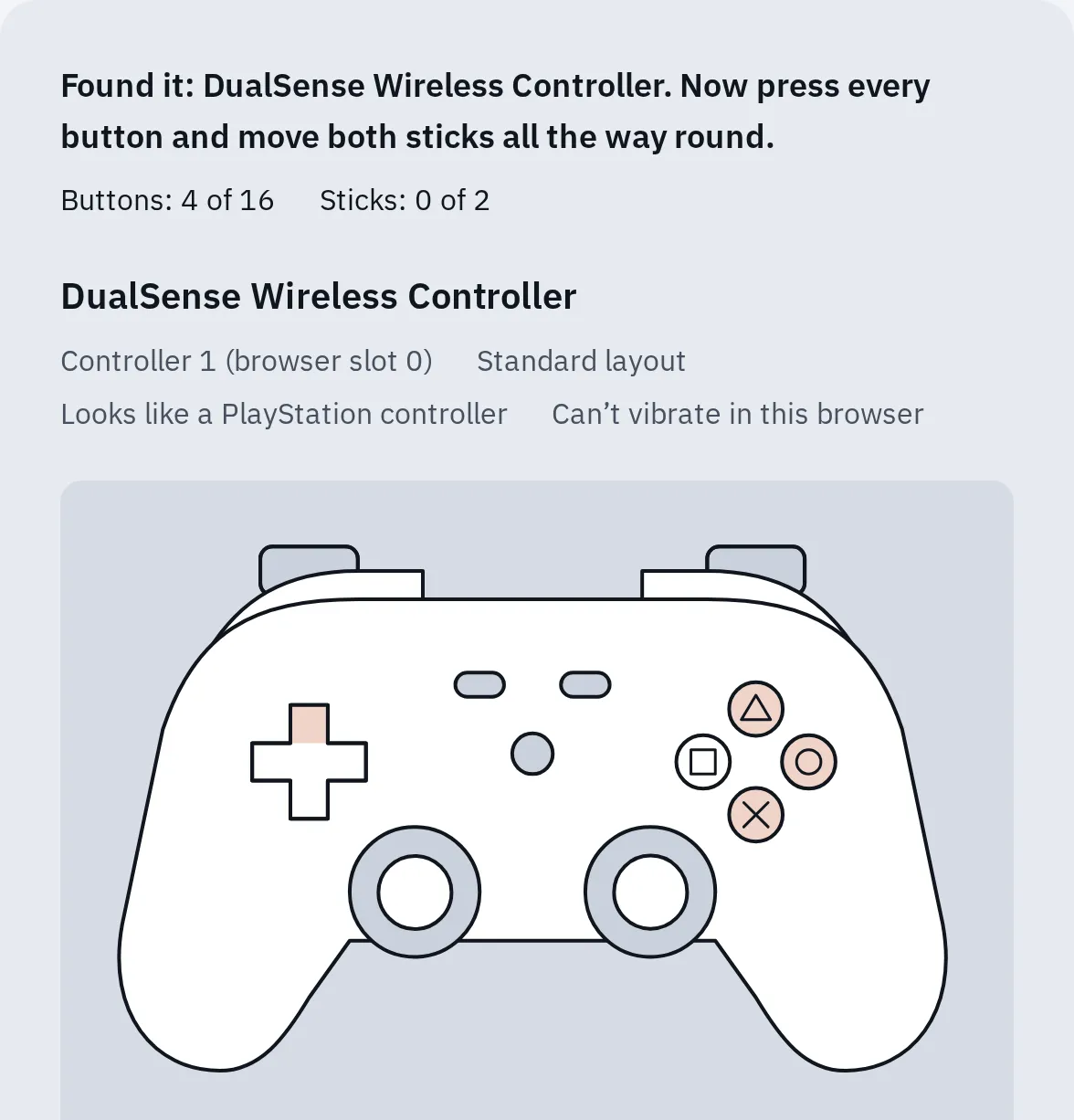
The tester found the controller, and the pressed buttons reached the browser. So the pairing with the console is the likely problem.
On a computer, a USB cable that carries data is the easiest way. See how to connect a controller to a PC for each controller.
Fix 1: charge it
A low battery can stop a controller from connecting, even when it still turns on.
| Controller | How to charge it |
|---|---|
| PS5 | Connect it to the PS5 with its USB cable. In rest mode it charges only if Supply Power to USB Ports is on, in Settings System Power Saving Features Available in Rest Mode. Not charging? Try another USB port on the PS5. |
| PS4 | Connect it to the PS4 with its USB cable. It takes about 2 hours from empty. |
| Xbox | Put in new AA batteries, or fully charge a rechargeable battery. Xbox says to do this even if it still has power. |
Fix 2: connect it with a data cable
A cable connection pairs a PlayStation controller and makes an Xbox controller work straight away. Many USB cables only charge and carry no data. If nothing happens, try another cable and another USB port.
PS5
- Turn on the PS5.
- Connect the controller to the PS5 with a USB-C cable.
- Press the PS button. The light bar blinks, then the player light under the touchpad comes on.
PS4
- Turn on the PS4.
- Connect the controller to a USB port on the front or back of the PS4 with a micro-USB cable.
- Press the PS button. The light bar lights up in a colour.
Xbox
- Turn on the Xbox.
- Connect the controller with a USB-C cable (Xbox Series X|S controllers) or a micro-USB cable (older Xbox One controllers).
- The controller lights up and works straight away.
Does it work with the cable but not after you unplug it? Go on to Fix 3.
Fix 3: pair it with the console again
A controller connects to one console or device at a time. If you used it with a PC, a phone or another console, it may still try to connect there.
- Xbox: the small Pair button on the top edge, next to the USB port.
- PS5 DualSense: Create, then the PS button.
- Switch Pro: the small SYNC button on the top edge.
The pairing buttons. On a console, a PlayStation controller pairs over the cable instead.
PS5
- Back from a PC or phone: connect it to the PS5 with a USB cable and press the PS button.
- A second controller without a cable: with the first controller, open Settings Accessories General Bluetooth Accessories. Turn the second one off, hold Create and PS until its light bar blinks, then choose it on the screen.
- Paired with several devices: a DualSense remembers up to four, one per slot: Triangle is slot 1, Circle 2, Cross 3 and Square 4. To switch, hold a slot’s button, then also hold PS for 3 seconds. If you don’t know the PS5’s slot, use the USB cable instead. It can’t pair without a cable or switch slots while a USB cable is connected.
PS4
- Back from another device: connect it to the PS4 with a USB cable and press the PS button. You also do this each time you move it to another PS4.
- Up to four controllers connect to one PS4.
- Bluetooth list full: open Settings Devices Bluetooth Devices. Select a device you don’t need, press OPTIONS and choose Forget Device.
Xbox
- Press the Xbox button to turn the controller on.
- Press the Pair button on the console. Series X: front right, above the USB port. Series S: front left, next to the USB port. Xbox One S and One X: front right, below the power button.
- Within 20 seconds, hold the Pair button on the controller until the Xbox button flashes. It’s searching.
- When the Xbox button stays lit, it’s connected.
- Back from Bluetooth on a PC or phone: double-press the controller’s Pair button. It switches straight back to the Xbox it last used. Xbox Series X|S controllers can do this; older ones need the steps above.
- Up to eight wireless controllers connect to one Xbox.
Fix 4: reset the controller
| Controller | Reset |
|---|---|
| PS5 | Turn off the PS5 and unplug the controller’s cable. With a pin, hold the button in the tiny hole next to the Sony logo for at least 5 seconds. Connect it to the PS5 with a USB cable and press PS. |
| PS4 | Turn off and unplug the PS4, and unplug the controller’s cable. With a straightened paper clip, hold the button in the tiny hole on the back for at least 5 seconds. Plug the PS4 back in and turn it on. Connect the controller with a USB cable and press PS. |
| Xbox | It has no reset button. Hold the Xbox button for 5 to 10 seconds until it turns off, wait a few seconds, then turn it on again. |
Step by step, with a drawing of the reset hole: how to reset a controller.
Fix 5: restart and update the console
PS5
Update the PS5 system software. The controller’s own update comes with it. To start that one yourself, open Settings Accessories Controller (General), then DualSense Wireless Controller Device Software.
PS4
Turn the PS4 off and on again. Then connect the controller with a USB cable and press PS.
Xbox
- Hold the Xbox button on the front of the console for about 10 seconds, until it turns off.
- Unplug the power cable for 30 seconds, then plug it back in and turn the console on.
- Update the controller: press the Xbox button, then open Profile & system Settings Devices & connections Controllers & headsets. Select … under the controller.
On a Windows PC, the Xbox Accessories app updates the controller. Problems with a PC or phone after a controller update? Xbox lets you go back to the older firmware in that app.
When it’s the controller
It’s likely the controller when it doesn’t work with a data cable on any device, or won’t turn on even with a cable.
- Rule out the cable: try a second data cable and a second device. The swap test shows what each swap rules out.
- Check the warranty. Sony handles repairs through PlayStation Repairs. Xbox has a controller replacement page.
It connects but a stick moves by itself? That’s stick drift.
Questions people ask
Why does my PS4 controller flash and not connect?
A light bar that keeps flashing means the controller isn’t paired yet. Connect it to the PS4 with a data cable and press PS. If it keeps flashing, reset it. A slow orange pulse is different: it means charging. See what the PS4 controller’s lights mean.
My PS5 controller connects to my PC instead of the PS5. What do I do?
Connect it to the PS5 with a USB cable and press PS. That pairs it with the PS5 again. A DualSense can remember a PC and a PS5 in two different slots.
Why does the Xbox button keep flashing?
The controller is searching for the console it was paired with. Pair it again with the Pair buttons on the console and the controller, or connect it with a USB cable.
My controller won't connect to my PC. Is it the same fix?
Mostly. Charge it, use a data cable, and pair it again in Bluetooth settings. Xbox says a busy PC can take up to 2 minutes to find it. Step by step: how to connect a controller to a PC.
Can I connect a PS4 controller to a PS5?
Yes, with a USB cable and the PS button. It only works in PS4 games. See can you use a PS4 controller on a PS5.