Short answer
The easiest way is a USB cable that carries data: plug it in and Windows sets the controller up. For wireless, pair it by Bluetooth, or use the Xbox Wireless Adapter for an Xbox controller. Then check every button below. If the buttons work there but a game ignores them, look at the game’s settings and Steam Input.
Step 1: connect your controller
- Xbox: hold the small Pair button on the top edge until the Xbox button flashes fast.
- PS5 DualSense: hold Create, then also hold the PS button until the light bar blinks.
- Switch Pro: hold the small SYNC button on the top edge, next to the USB-C port.
To pair without a cable, hold the marked buttons until its lights flash.
Xbox
With a cable: use USB-C for Xbox Series X|S, Elite Series 2 and Adaptive controllers, micro-USB for older Xbox One controllers. The cable must carry data, not only charge.
With the Xbox Wireless Adapter: hold the adapter’s Pair button until its light flashes. Then hold the raised Pair button on top of the controller. The Xbox button stays lit when it’s connected.
With Bluetooth: only controllers where the plastic round the Xbox button is part of the face have Bluetooth (all Series X|S controllers do).
- Turn the controller on with the Xbox button.
- Hold Pair for 3 seconds, until the Xbox button flashes fast.
- On Windows 11, open Settings Bluetooth & devices and choose Add device, then Bluetooth. On Windows 10: Settings Devices Bluetooth & other devices, Add Bluetooth or other device, then Bluetooth.
- Choose Xbox Wireless Controller (or Elite), then Done.
Over Bluetooth, PC games don’t vibrate the controller, and a headset on the controller doesn’t work. Microsoft suggests one Bluetooth controller at a time.
PS5 DualSense
With a cable: use a USB-C cable that carries data. You need Windows 10 (64-bit) or Windows 11.
With Bluetooth:
- Make sure the lights under the touchpad are off, and unplug the controller’s cable.
- Hold Create, then also hold the PS button until the light bar blinks.
- On Windows 11, open Settings Bluetooth & devices and choose Add device, then Bluetooth. On Windows 10: Settings Devices Bluetooth & other devices, Add Bluetooth or other device, then Bluetooth.
- Choose the controller from the list.
On a PC, the vibration that feels like textures (haptic feedback) needs the USB cable, and so does a headset in the controller’s jack. If your PS5 is on nearby, the controller may connect to it instead: turn the console off first.
PS4 DualShock 4
With a cable: use a micro-USB cable that carries data. This is the way Sony documents for Windows, together with Sony’s own DualShock 4 USB wireless adaptor.
With Bluetooth: Sony lists Bluetooth only for Mac, iPhone and Android, not for Windows. It may still connect, but it isn’t supported. Unplug the cable. Hold SHARE, then also hold the PS button until the light bar flashes. Then choose the controller in your Bluetooth settings. Over Bluetooth on those devices, Sony says the touchpad, rumble, motion and headphone jack don’t work.
Switch Pro
Nintendo makes the Pro Controller for the Switch and doesn’t support it on PCs. It still works in Steam, which supports official Switch Pro controllers.
With a cable: use a USB-C cable that carries data.
With Bluetooth: hold the SYNC button on the top edge, next to the USB-C port. Then choose the controller in your Bluetooth settings, as for the other controllers.
Lost the pairing? See how to reset a controller.
Step 2: check every button
Test it now
Controller tester
Press every button and move both sticks. A button that lights up here reached your browser, so your PC receives it. If a game still ignores it, look at the game’s settings and Steam Input.
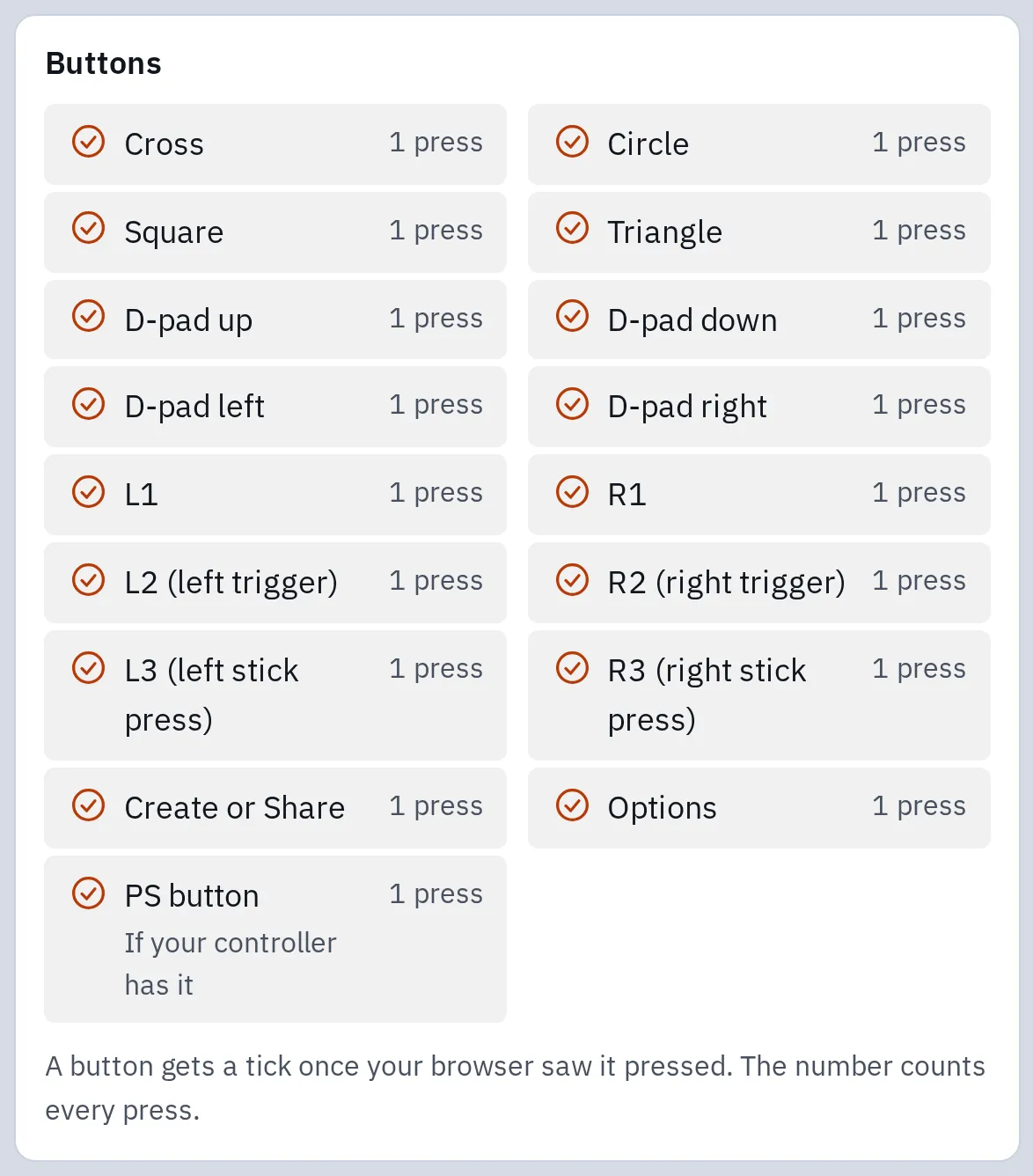
Every button reached the browser on this PC: each one has a tick. The tester also checks both sticks and the triggers.
Have a PS5 or Xbox controller? The PS5 controller test and the Xbox controller test draw your model and name its buttons.
Nothing shows up in the tester
Work down this list. Test again after each step.
- Press a button on the controller. Browsers show a controller only after a button press.
- Try another USB cable. Many cables only charge and carry no data.
- Plug it straight into the PC, not into a hub or a monitor, and try another port.
- Turn off any console nearby. A paired controller may connect to the console instead.
- Close apps that take over the controller, such as Steam or DS4Windows, or try another browser.
- For Bluetooth: remove the controller from the Bluetooth list, then pair it again.
- Update the controller. Xbox: the Xbox Accessories app from the Microsoft Store, with a USB cable or the adapter (not over Bluetooth). DualSense and DualSense Edge: the PlayStation Accessories app.
Connected but not working in a game
Every button lights up in the tester, so your PC gets the controller’s input. The game decides what it accepts.
The game expects an Xbox controller
Often with PlayStation and Switch controllers
Many PC games only understand Xbox controllers. Steam Input fixes that in Steam: the game then sees your controller as an Xbox controller.
Something else changes the controller
Steam Input, remapping apps
Steam Input or an app such as DS4Windows can turn your controller into a different one. Two of them at once can confuse a game. Close the extra app and try again.
- Check the game’s controller support. On its Steam store page, look for Full Controller Support or Partial Controller Support. Some games support PlayStation controllers only over USB.
- In Steam, open Settings Controller and check that Steam Input is on for your kind of controller.
- For one game, right-click it in your Steam library, choose Properties, then Controller, and switch Steam Input on or off for that game. Try the other setting if it still doesn’t work.
- In the game itself, choose the controller as the input in its settings, then restart it with the controller already connected.
Pressing the Xbox, PS or Home button can open Steam’s Big Picture mode instead of the game. That is normal while Steam runs.
Questions people ask
Can I use a PS5 controller on a PC?
Yes. Windows 10 (64-bit) and Windows 11 work with it over USB-C or Bluetooth. Many games support it directly; for the rest, Steam Input makes it act like an Xbox controller.
Do I need DS4Windows?
Usually not for games in Steam, because Steam Input does the same job. If you use it anyway, close Steam Input for that game, so only one of them changes the controller.
Can I connect a controller to a Mac?
Yes. Put an Xbox, PlayStation or other Bluetooth controller in pairing mode and choose it in Bluetooth settings. On macOS 13 or later, Game Controllers in System Settings changes its buttons.
Does an Xbox 360 controller work on a PC?
A wired Xbox 360 controller works on Windows 10 when you plug it in. A wireless one needs the Xbox 360 Wireless Gaming Receiver.
Why does my controller disconnect over Bluetooth?
Move closer to the PC and charge the controller. For Xbox controllers, Microsoft suggests one Bluetooth controller at a time. A USB cable is the steadiest connection. See what Bluetooth leaves out.