Short answer
Force restart the phone first: it may fix a frozen screen. Then unplug the charger, take off the case and screen protector, and clean and dry the screen. Does part of the screen still ignore you, or does it tap by itself? Test it below to see where.
The screen doesn’t respond at all
You can’t open a web page with a dead screen, so start with the buttons. A force restart doesn’t erase anything.
- Press and quickly let go of volume up.
- Press and quickly let go of volume down.
- Press and hold the side button until the Apple logo appears.
Force restart on an iPhone 8 or later: press the buttons in this order.
iPhone and iPad
- iPhone 8, SE (2nd generation) and later: press and quickly let go of volume up, then volume down. Then press and hold the side button.
- Let go when the Apple logo appears. Apple says this can take longer than 10 seconds.
- iPhone 7: hold the side button and volume down together until the Apple logo appears.
- iPhone 6s, SE (1st generation) and earlier: hold the Home button and the side or top button together.
If the iPhone stays black, charge it for an hour and try again.
Google Pixel
- Frozen with the screen on: hold the power button for about 30 seconds. Google says the phone restarts.
- The screen stays black: plug the phone in, then hold volume up and power together for at least 20 seconds.
- If an Android robot and Start appear, press volume down until Power off shows, then press power. Charge the phone, then turn it on.
- A red light means the battery is empty. Charge it for 30 minutes or more.
Samsung Galaxy
- Press and hold the Side key and Volume down together.
- Keep holding for more than 7 seconds, until the phone restarts by itself.
Then do Apple’s and Samsung’s next steps, testing after each one:
- Unplug the charger, cable and any accessory. If touch then works, try another charger, cable or socket.
- Take off the case and the screen protector. Samsung says protectors glued only at the edges can leave dead zones.
- Clean and dry the screen with a soft, dry cloth. Dry your hands and take off gloves.
Still dead: save what’s on the phone
iPhone and iPad
If you set up Voice Control before, ask Siri “Turn on Voice Control”. Then you can say commands instead of tapping. If not, contact Apple for service and ask about your data before anything is erased.
Android
Samsung says you can plug a USB mouse or keyboard into the phone with a USB-C to USB adapter. Use it to unlock the phone and back up your photos. Samsung also names Smart Switch on a computer for the backup.
Step 2: test which parts of the screen work
Once the screen responds, even partly, find out where it fails.
Test it now
Touch screen test
Paint the test area with one finger, then run Watch for ghost touches with the phone lying still. Blank squares show where no touch reached the page, and dots show touches nobody made. Browser bars and edge swipes can hide the edges, so a blank edge alone doesn’t prove damage. Test once without a case or protector too.
Taps are ignored or slow
Accessibility settings can make a phone ignore quick taps or repeated touches. That looks like a broken screen.
iPhone and iPad
Open Settings Accessibility Touch Touch Accommodations. Apple says that with Hold Duration or Tap Assistance on, taps and swipes shorter than the set time are ignored. Ignore Repeat treats quick taps as one. Turn them off, or tap Reset Touch Accommodations.
Google Pixel
Open Settings Display & touch Touch sensitivity. On a Pixel 8a or earlier, turn Screen protector mode on if you use a protector, or off if you don’t. On a Pixel 9, turn Adaptive touch on or off, and try Touch diagnostics in Settings Display & touch.
Samsung Galaxy
- If TalkBack is on, turn it off in Settings Accessibility. With TalkBack, tap once to select, double-tap to open and scroll with two fingers.
- In Settings Accessibility Interaction and dexterity, set the touch and hold delay, tap duration and ignore repeated touches back to default.
- In Settings Accessibility Vision enhancements Magnification, turn off Magnification shortcut. Samsung says its triple tap can make quick taps get missed.
One area doesn’t respond
- Without the case and protector, paint the screen again. Turn the phone sideways and test once more: edges hidden by the browser move.
- Samsung: turn on Touch sensitivity in Settings Display if you keep a protector on.
- Restart and update the phone: Settings General Software Update on an iPhone, Settings System Software updates on a Pixel, Settings Software update on a Galaxy.
The same squares still blank? The touch layer is likely damaged there, often after a drop or water. Lines or spots you can see are a separate fault: see lines on your phone screen.
The screen touches by itself
Apps open, letters get typed or the page scrolls on its own. People call it ghost touch.
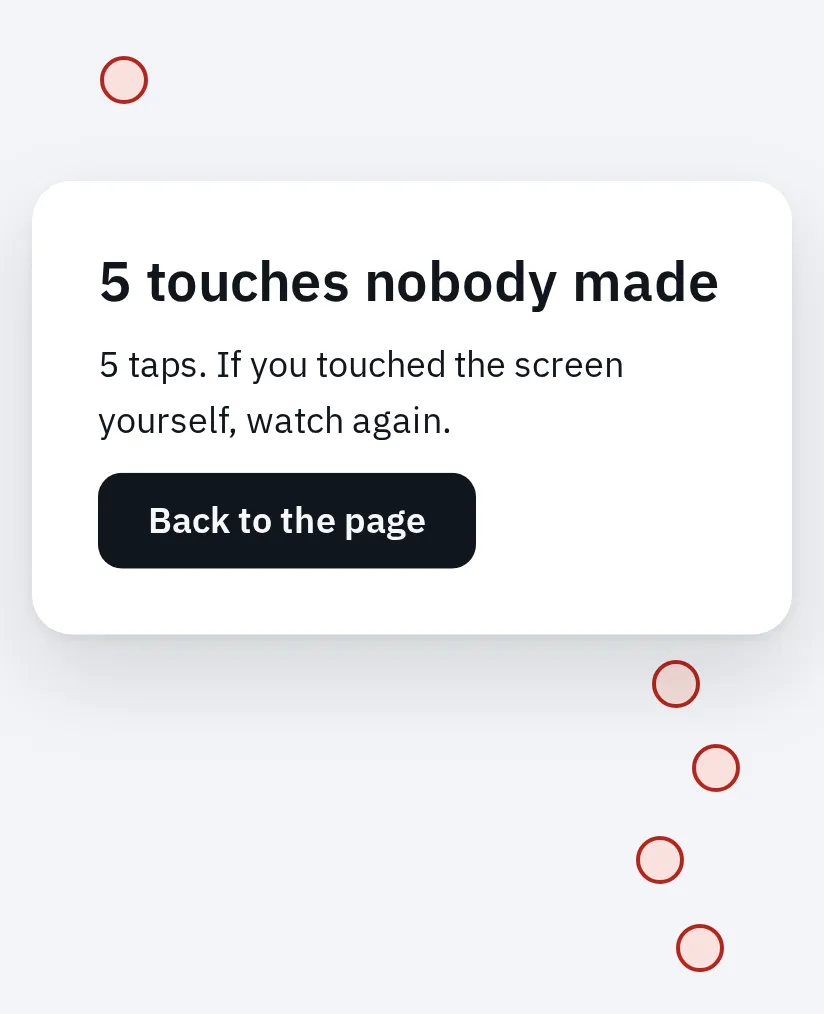
The ghost-touch watch marks touches that reach the page while nobody touches the phone. This example uses simulated touches in a phone emulator.
Do the checks from the first section again: charger, case, protector and a clean, dry screen. Watch for ghost touches after each one. Then:
- Try another charger and socket. Samsung says a damaged charger can make the touch screen act up, and not to use the screen while charging.
- Restart and update the phone.
- Samsung: if it wakes and taps in your pocket, turn on Accidental touch protection in Settings Display. Turn off Lift to wake and Double tap to wake in Settings Advanced features Motions and gestures.
Still touching by itself with no charger, case or protector? That points to a hardware fault. On an iPad, the touch screen test help has Apple’s iPad steps.
Only one app ignores you
If the screen works everywhere else, the app is the cause. Update it, restart the phone, then contact the app’s maker. Google says the same for Pixel phones.
On Android, safe mode starts the phone without the apps you installed. If touch works there, one of them is the cause. On a Galaxy, press and hold the Side key and Volume down, touch and hold Power off, then tap Safe mode. On a Pixel 6 or later, hold Power and Volume up, touch and hold Power off or Restart, then tap OK. Restart to leave safe mode.
When it’s time for a repair
On most phones, the glass, the touch layer and the display are one part, so a touch repair is a screen repair. Before you book it:
- Samsung: test the screen in Samsung Members: open Support, then Get started, and choose Touch screen.
- Pixel 9: run Touch diagnostics in Settings Display & touch.
- Check the warranty, and save your touch test result to show the shop.
Both Google and Samsung put a factory reset last, after a backup. It erases the phone, and it can’t fix damaged hardware.
Questions people ask
What is ghost touch?
The screen reacts although nobody touches it: apps open, text appears or the page scrolls. A charger, water, dirt or a protector can cause it. If it goes on without them, the touch layer is likely damaged.
Can a screen protector stop my touch screen working?
Yes. Thick or badly fitted protectors can block touches, especially at the edges. Take it off and test again. Google warns you may not be able to put a removed protector back on.
Why does my screen act up only while charging?
A damaged or poor charger can disturb the touch screen. Use another charger, cable and socket, and compare with the phone unplugged.
Can I use a mouse on my phone if the screen is broken?
On Samsung Galaxy phones, yes. Samsung says a USB mouse or keyboard, with a USB-C adapter, lets you unlock and back up the phone. On an iPhone, use Voice Control if you set it up before, or contact Apple.
Will a factory reset fix my touch screen?
Only if the cause is software, and it erases everything. Google and Samsung list it as the last step, after a backup. Try the force restart, safe mode and the steps above first.