Short answer
Run a speed test a few steps from your router, then in every room where you use the internet: same device, same spot you sit. Rooms that are much slower, lag more, drop or can’t connect are your weak spots and dead spots. Fix them in this order: move the router to a central, raised, open spot, try the other band, use a cable for things that stay put, and only then add a mesh point or access point.
Walk the house with a speed test
You don’t need an app. Our speed test runs in the browser on any phone, tablet or laptop, and the room log below keeps the results.
- Start a few steps from the router, in the same room. This is your best case: every other room is compared with it.
- The far side of the same room, where you sit.
- The next room: the kitchen table, a desk, a bed.
- A room two walls away.
- Upstairs or the far end of the home.
- Any spot where calls freeze or video stops loading. Test there even if it is not a room.
One route, one device, the spots where you really sit. Then the same route again after each change.
- Use one device for the whole walk, the one that struggles most if you can. Phones and laptops get different speeds, so don’t mix them.
- On a phone or tablet, turn mobile data off for the walk, and back on afterwards. Otherwise a weak room can quietly use mobile data: an iPhone or iPad does this with Connectivity Assist, says Apple.
- Pause big downloads, game updates and video on the other devices. Otherwise one room looks slow just because someone started a film.
- Stand a few steps from the router and run the speed test. Microsoft notes the strongest signal is usually a few feet from the router, not right next to it.
- Walk to each room. Stand or sit where you really use the internet, with doors as they usually are. Run the test again. A result that surprises you? Run it once more.
- Write down Download and Ping, or tap Use my last speed test in the room log. No connection at all? Tick Couldn’t connect here.
- In a room where calls drop or video stops, also record a few minutes with the stability test and add its drops. Record the same length in each room, say 10 minutes. Our speed test can’t see short drops.
Test it now
Internet speed test
It measures what you really get in that room: download, upload and ping from this device to our server. It doesn’t measure the router’s radio signal, and the result includes your internet line too.
Download is how fast data comes in, in Mbps: higher is better. Ping is how long a tiny message takes to reach our server and come back, in ms: lower is better.
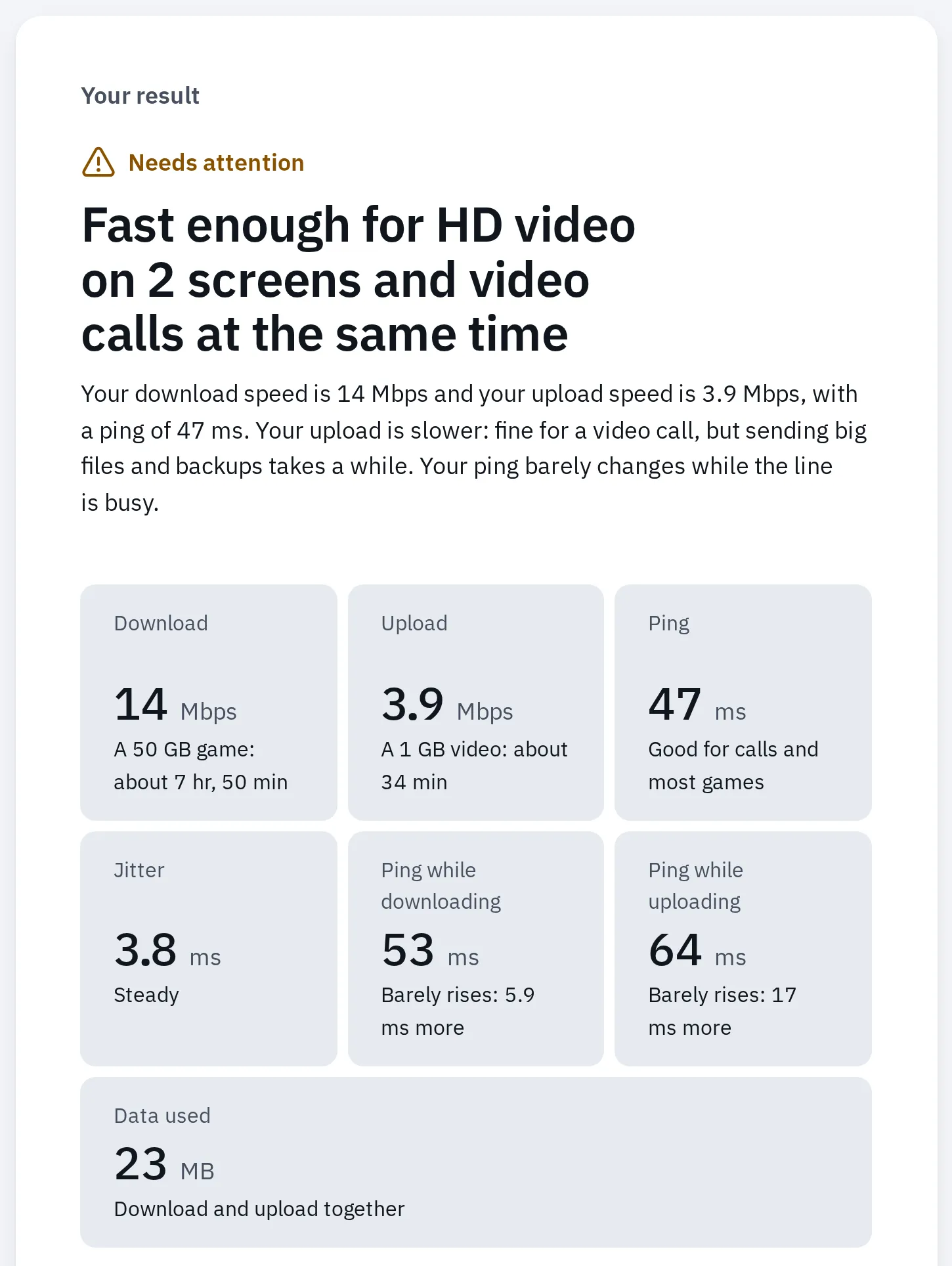
A far room might look like this. Taken in Chrome's engine with the connection slowed down on purpose, not in a real home.
Log your rooms
Add each room as you go. The log compares every room with the spot next to the router, lists the worst first and suggests your next move. It stays in this browser only: nothing is sent to us.
How the log rates each room, checked from the top down. The limits for speed and ping come from our speed test and ping test. The comparison with the router room is our own rule of thumb, not a standard, and it rates the connection, not the radio signal.
| Rating | When |
|---|---|
| No connection | You ticked Couldn’t connect here. |
| Poor | Under 5 Mbps (our speed test calls that standard-quality video), a ping of 100 ms or more, or any drop. |
| Weak | Less than half the speed next to the router and under 25 Mbps, or a ping 30 ms or more above the router room’s. |
| Good | Everything else. A ping you left empty isn’t checked. |
After a new round, a room counts as better or worse when its download changed by a quarter or more, or its ping by 30 ms or more. Speed tests vary a little from run to run, so smaller changes count as the same.
Your rooms, worst first
- Next to the routerYour best case
Not tested yet
Start next to the router: run the speed test there and add the result.
Saved only in this browser, on this device. Nothing is sent to us.
Where to put the router
Router makers agree on the basics: central, raised and in the open. Google says off the ground and in plain view, like on a shelf, at eye level if you can. Microsoft warns that a corner or a spot under a desk weakens the signal.
- In a corner cupboard, on the floor: much of the signal goes into the outside wall and the cupboard.
- Water and metal in the way: a fish tank, a fridge, a metal cabinet.
- The far corner gets nothing: a dead spot.
- Near the middle, raised and in the open: the reach is shared by every room.
- The far rooms are now in reach.
Same home, same router. Only its place changed.
| Do | Avoid |
|---|---|
| Near the middle of the home, or of the rooms you use most (NETGEAR, Google, Microsoft). | A corner, an outside wall, or the far end of the home. TP-Link says an outside wall weakens the signal on the other side of the home. |
| Off the floor, on a shelf or a TV stand (Google). | The floor, under a desk, inside a cupboard or cabinet. |
| In the open, with few walls between it and the rooms you use. | Basements, attics and closets (NETGEAR). |
| Away from other electronics. | Microwaves and baby monitors (NETGEAR), cordless phones (Microsoft, Apple), TVs and metal TV mounts (TP-Link). |
Some materials let Wi-Fi through much better than others. Apple ranks them:
| What’s in the way | How much it weakens Wi-Fi |
|---|---|
| Wood, glass, most plastics | Low |
| Water (a fish tank), brick, marble | Medium |
| Plaster, concrete | High |
| Metal: a filing cabinet, a fridge, a metal-framed mirror | Very high |
Run the placement test
You don’t have to guess. Move the router, then walk the same route again.
- Keep your first round in the room log. Tap New round after a change: your rooms stay, and the results move to Before.
- Change one thing, then test. Move the router to a better spot, or lift it onto a shelf.
- A separate modem and router: a longer network cable between them lets the router move further. The modem stays by its wall socket.
- One box from your provider (modem and router in one): it has to stay near the phone, cable or fibre socket. Lift it, take it out of the cabinet or turn it. If that isn’t enough, see when moving the router isn’t enough.
- Wait until the router’s lights show it’s online again.
- Run the speed test in the same spots, with the same device. The log shows each room’s new rating next to Before.
- Keep the spot that helped most. If nothing helped, go on to the next section.
Can’t move it at all, for example in a rented flat? A small change may still help: lift it onto a shelf, take it out of the cabinet, or turn it so no metal stands in front of it. In a block of flats, the neighbours’ Wi-Fi may slow yours too: see the questions below.
Try the other band
Most routers send Wi-Fi on two or three bands, often under one name. Your device picks one, and it doesn’t always pick well at the edge of your home.
| Band | Reach | Speed | Good for |
|---|---|---|---|
| 2.4 GHz | Longest, and best through walls | Slowest | Far rooms, smart plugs and cameras |
| 5 GHz | Shorter, weaker through walls | Faster | Rooms near the router |
| 6 GHz (Wi-Fi 6E and 7) | Shortest | Fastest | Near the router. Needs a router and device that support it |
The table follows Microsoft’s band comparison. NETGEAR adds that a Wi-Fi 6E router must sit close to where you want the 6 GHz speed.
- If your router lets you, give the 2.4 GHz band its own name for the test: how to split the bands. Some mesh systems manage the bands for you and have no such setting; then skip this section.
- In the weak room, join the 5 GHz name and run the speed test, then the 2.4 GHz name and run it again. On a Mac you can check the band: hold Option and click the Wi-Fi icon in the menu bar, and the details show the channel and band.
- Keep whichever band gives the better result in that room. 2.4 GHz reaches further but is slower.
- Afterwards, go back to one name for all bands. Apple recommends one name, and says separate names can make connections less reliable.
Check the signal on your device
Our tests show what you get in a room: the speed, the ping and the drops. Your device can also show how strong the router’s signal is there. The two answer different questions, and both help.
Our speed and stability tests
What you get
Download, ping and drops, from your device to our server. Includes everything on the way: the Wi-Fi, the router and your internet line. Works on every device, but can’t tell a weak signal from interference.
Your device's signal reading
How strong the router sounds
How loudly the router’s radio arrives, as bars, a percentage or dBm. Says nothing about speed: a full signal can still be slow if the line or a busy channel is the limit.
Windows
Open Command Prompt and type netsh wlan show interfaces, then press Enter. Microsoft lists this command for Wi-Fi troubleshooting. Look for the Signal line, a percentage, and run it again in each room. Windows measures signal quality as a percentage where 100% is −50 dBm or stronger and 0% is −100 dBm, so 50% is about −75 dBm.
For the connection’s details without a command, open Settings, Network & internet, then Properties next to your Wi-Fi.
Mac
Hold Option and click the Wi-Fi icon in the menu bar. Apple says the details under your network include the channel and the band. For a deeper look, choose Open Wireless Diagnostics in that same menu.
iPhone and iPad
An iPhone or iPad shows only the bars in the Wi-Fi icon, in the status bar and in Settings, Wi-Fi. Watch whether they drop as you walk the route. The speed test is the better measure here.
Android
Open Settings Network & internet Internet. Google says your network’s signal strength is shown on its Wi-Fi icon: a fuller icon means a stronger signal. Names differ on Samsung and other phones.
What the dBm numbers mean: closer to zero is stronger, so −50 dBm is strong and −80 dBm is weak. There’s no official “good” line, but makers give hints:
- Below this, an iPhone or iPad starts looking for a better access point (Apple)
- −70 dBm
- The same point for a Mac (Apple)
- −75 dBm
- A Google Wifi point that averages weaker than this over a day gets a "Move" tip in the Google Home app
- −77 dBm
When moving the router isn’t enough
Some homes are too big, too long or too solid for one router. Pick the fix by what’s in the weak room.
| Fix | Best for | Where it goes |
|---|---|---|
| A network cable | A TV, computer or games console that never moves. Best for online games. | Straight from the router. Steadier than any Wi-Fi. |
| Mesh Wi-Fi | Several weak rooms or floors. NETGEAR and TP-Link call it the choice for whole-home coverage. | Points about halfway, no more than 2 rooms from the router or another point (Google). |
| An access point on a cable | A far room where you can run a cable. | In the weak room, connected by cable. A spare router can do it: set it up as an access point. |
| A range extender | One weak spot in a smaller home or flat (NETGEAR, TP-Link). | About halfway between the router and the weak spot (TP-Link). Not in the dead spot itself. |
| Powerline adapters | Rooms that are hard to wire. TP-Link suggests them there. | One by the router, one in the weak room, on wall sockets. |
- A point inside the dead spot hears the router badly itself.
- So the link back to the router is weak, and everything through it is slow.
- About halfway, no more than two rooms from the router, the point still hears it well.
- From there, its own Wi-Fi reaches the far room.
A wireless mesh point or extender needs a good link to the router. Halfway beats the dead spot itself. A point on a cable can go in the far room.
Before you test again, tap New round after a change in the log, then walk your route. Already have mesh? Check where your points are first: about halfway, no more than two rooms apart. Mesh apps check their own links too: the Google Home app has Test mesh under Wi-Fi and Points, and TP-Link’s Deco app shows each unit’s signal, with 2 bars recommended.
Fixing it for a smart plug, camera or printer? Our tests run on your phone or laptop. Finish by using the device itself in that spot: many smart devices use 2.4 GHz only.
Questions people ask
How do I find Wi-Fi dead spots without an app?
Run a speed test in each room with the same device, starting a few steps from the router. Rooms with less than half the router room’s speed, a much higher ping or no connection are your dead spots. The room log on this page ranks them for you.
Should the router be upstairs or downstairs?
Near the middle of the home, counting the floors. In a two-storey home, TP-Link advises high up on the ground floor. It warns against the basement: from there the signal has to go through two floors instead of one. Test both spots if you can.
Why is the Wi-Fi bad in just one room?
Usually walls, a floor or something big in the way: metal, concrete, water. Try the router a little closer to that room or with fewer walls between, then test the other band there. A device that stays in that room is best on a cable.
Is mesh better than an extender?
For a whole home, usually. NETGEAR and TP-Link call extenders a cheaper fix for one weak spot or a smaller home, and mesh the choice for several rooms or floors. Either one needs a good link to the router, so place it halfway, not in the dead spot.
Does 5 GHz go through walls?
Not as well as 2.4 GHz. Microsoft and TP-Link both say 5 GHz is faster but reaches less far, and 6 GHz less far still. In a far room, 2.4 GHz may be the one that works.
Full Wi-Fi bars, but the internet is still slow?
Full bars don’t promise a fast connection. Test next to the router and on a cable: if it’s slow there too, see why the internet is slow. If calls lag only when someone downloads, try the bufferbloat test.
Can my neighbour's Wi-Fi cause dead spots?
It can slow your Wi-Fi: Microsoft calls 2.4 GHz more crowded than 5 GHz. A dead spot, though, usually comes from walls and distance. If you have more than one router of your own, Apple advises giving each its own channel.
Does our speed test map the signal like a heatmap app?
No. It measures what you really get in each room, which is what you notice. It can’t see the radio signal itself. For that, use the signal reading on your device as well.