Short answer
A light on its own doesn’t mean someone hacked your camera. Usually an app you opened is using the camera or microphone: a video call, a browser tab, or an app still running in the background.
Your computer or phone can show you which app. If you know it, close it. If you don’t, turn off its access first, then find out what it is.
- The light beside the camera, on many laptops and webcams. On a Mac it is green.
- In a browser, a sign on the tab that uses the camera or microphone.
- And a camera or microphone icon in the address bar.
- Windows: a microphone icon (on newer versions, also a camera icon) at the right of the taskbar. Rest the mouse pointer on it to see the app.
- Mac: a dot next to Control Center in the menu bar. Green is the camera, orange the microphone, purple is sound from the computer being recorded.
- Phones and tablets: a dot at the top of the screen. On an iPhone or iPad, green is the camera (or the camera and microphone), orange the microphone alone. On Android 12 and newer, it is green for both.
Where the sign shows that the camera or microphone is on.
Step 1: find the app
Your system shows which app uses the camera or microphone right now, and most can show which apps used it lately.
Windows
Right now: rest the mouse pointer on the microphone or camera icon at the right end of the taskbar. A small message names the app. Windows 10 and older Windows 11 versions may show no camera icon: use the lists below. On a computer without a camera light, Windows shows a message when the camera turns on or off.
Lately (Windows 11):
- Open Start Settings Privacy & security Camera.
- Look under Recent activity. It lists the apps that used the camera in the last 7 days.
- Scroll down to Let desktop apps access your camera. It lists the desktop apps Windows has seen use the camera. Select one to see more about it.
- Do the same under Microphone.
Lately (Windows 10): open Start Settings Privacy Camera and scroll to Allow desktop apps to access your camera. The list shows desktop apps that have used it.
Microsoft says desktop apps may not always show in these lists. So a short list doesn’t prove that nothing else used the camera.
Mac
Right now: click Control Center in the menu bar at the top right (its icon looks like two small switches). If an app uses the camera or microphone, its name shows at the top. Click it for more.
Only one dot shows at a time: if both the camera and the microphone are on, you see only the green one. A green light beside the camera means the camera is on. On a MacBook Neo, the light is next to Control Center instead.
Lately: Apple doesn’t describe a history of camera use on a Mac. The microphone sign in Control Center also shows a microphone that was used recently. To see which apps may use them, open Apple menu System Settings Privacy & Security Camera, then Microphone.
iPhone and iPad
Right now: open Control Center: swipe down from the top-right corner (on an iPhone with a Home button, swipe up from the bottom edge). A message at the top names the app that is using, or has just used, the camera or microphone.
An orange dot shows as an orange square if Differentiate Without Color is on.
Lately: turn on App Privacy Report. It shows when each app used the camera and microphone in the past 7 days.
- Open Settings Privacy & Security.
- Scroll down, tap App Privacy Report, then Turn on App Privacy Report.
- Come back later and look under Data & Sensor Access. The report only starts when you turn it on.
Android
These steps work on Android 12 and newer.
Right now: swipe down from the top and tap the green sign. Tap once to see which app uses the camera or microphone. Tap again to change its permission. The sign can stay for up to about 15 seconds after the app stops.
Lately: open the Privacy dashboard. Menu names differ a little between phones.
- Open Settings Security and privacy (or Privacy). You may need to tap Privacy again.
- Tap Privacy dashboard, then Camera or Microphone.
- You see the apps that used it: in the last 7 days on Android 13 and newer, 24 hours on Android 12.
On a Samsung Galaxy, swipe down and tap the green dot: a pop-up shows the app’s icon.
Chromebook
Right now: look at your open Chrome tabs and apps. On a Chromebook Plus, an Expansion button shows on the shelf while an app uses the camera or microphone. Select it to open the video call panel: it shows which apps use the camera, microphone or screen.
Lately: Google doesn’t describe a history of camera use on a Chromebook. To see which websites may use the camera, open Chrome and go to More Settings Privacy and security Site settings Camera.
In a browser, look for the sign on each tab and close the tab that has it. Chrome says a website can’t start recording while you’re in another tab or app, but a call that has already started carries on.
Step 2: is it an app you expect?
Use the flow below. The light finder gives the steps for your system.
- The light or dot is on.
- Find the app (step 1).
- An app you are using, such as a call: that is normal. The light goes off when you close it.
- An app you know but aren’t using, or one you don’t know: turn off its access.
- An app you don’t know: remove it.
- Update your system and run its own security check.
Most lights end at the third picture: an app you're using. Pictures 4 to 6 are for an app you don't expect.
Choose what you found to see what to do.
The same rules, as a table:
| What you found | What to do |
|---|---|
| An app you’re using | Nothing: that’s normal. The light goes off when you quit the app. In a browser, close the tab with the sign. |
| An app you know, not in use | Quit it fully. If it shouldn’t use the camera or microphone, turn off its access. |
| An app you don’t know | Type the name into a web search. If you didn’t install it and don’t need it, turn off its access, remove it, then update and check. |
| No app listed | Restart with every app closed. Still on? Update and check. |
Check the camera light with our test
Want to see the light do its job? Our webcam test turns the camera on and off when you ask.
Test it now
Webcam test
Press Start webcam test. Your camera light should come on, and go off when you press Stop test. If the test says Your camera is busy, another app may be holding the camera right now.
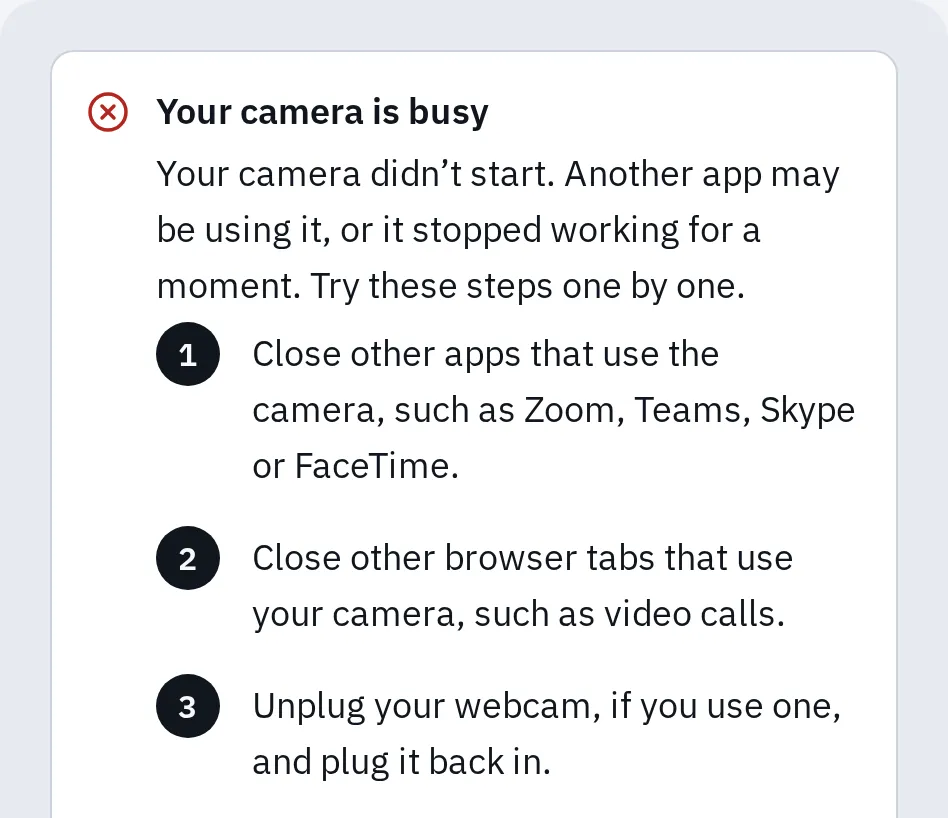
This message can mean another app is using the camera. It lists what to close, then to restart and try again.
Some systems let two apps use the camera at once, so a working test doesn’t prove that no other app is using it. Step 1 helps you find other apps. For the microphone, the mic test works the same way.
Common reasons the light comes on
Turn off an app’s access
This keeps the app but stops it using the camera or microphone. You can turn it back on later.
Windows
- Open Start Settings Privacy & security Camera (Windows 10: Start Settings Privacy Camera).
- Turn off the switch next to the app.
- Do the same under Microphone.
Desktop apps, such as browsers and most call apps, have no switch each. Let desktop apps access your camera (Windows 10: Allow desktop apps to access your camera) turns them all off at once. Microsoft also says an app that installs its own driver can get past these settings, so remove an app you don’t trust.
Mac
- Open Apple menu System Settings Privacy & Security. You may need to scroll down.
- Click Camera and turn off the app.
- Do the same under Microphone. For a purple dot, use Screen & System Audio Recording.
Apple’s own apps, such as FaceTime and Photo Booth, have access without a switch.
iPhone and iPad
- Open Settings Privacy & Security.
- Tap Camera and turn off the app. Do the same under Microphone.
On an iPhone, Safety Check (Settings Privacy & Security Safety Check) lets you review every app’s access in one place. Apple suggests checking these settings if someone else set up your phone or knows your passcode. If you worry about your safety, think before you change anything, because the other person may notice.
Android
- Open Settings Apps, then the app. You may need to tap See all apps first.
- Tap Permissions, then Camera, and choose Don’t allow. Do the same for Microphone.
To block every app at once, swipe down twice and tap the camera or microphone access tile. An app then gets a blank picture or silence.
Chromebook
- For a website: in Chrome, open More (the three dots), then Settings Privacy and security Site settings Camera. Select Delete next to the site: it then has to ask again.
- For an Android app: open Settings Apps Manage Google Play preferences Android settings, then Apps & notifications Permission manager Camera. Move the app to Don’t allow.
- For everything: open Settings Privacy and security Privacy controls and turn off Camera access or Microphone access.
To stop a website in any browser, see how to allow or block the camera in your browser.
Remove an app you don’t know
Look the name up first: type it into a web search. Many apps with odd names are part of your computer, a printer or a mouse. If it came with the device, or your work or school manages the device, ask them before you remove it.
Windows
Open Start Settings Apps Installed apps. Find the app, select More (the three dots), then Uninstall. On Windows 10, right-click the app in the Start menu and select Uninstall.
Mac
Open Finder and click Applications. If the app has its own Uninstaller, use it. If not, drag the app to the Trash, then empty the Trash.
iPhone and iPad
Touch and hold the app. Tap Remove App, then Delete App, then Delete.
Android
In the Play Store, tap your profile icon, then Manage apps & devices, Manage. Tap the app, then Uninstall.
Chromebook
An app: select the Launcher in the corner of the screen, right-click the app, select Uninstall, then Uninstall again.
An extension: in Chrome, open More Extensions Manage extensions. Select Remove on the extension, then Remove again.
Update and run a security check
Updates close the holes that harmful apps use. Your system’s own check is free and already on your device.
Windows
- Open Start Settings Windows Update and select Check for updates. Windows 10: Start Settings Update & Security Windows Update.
- Open Windows Security, then Virus & threat protection Scan options.
- Choose Full scan and select Scan now.
- Still worried? Choose Microsoft Defender Antivirus (offline scan). It restarts the computer, so save your work first.
If you use another antivirus app, run its scan instead.
Mac
Open Apple menu System Settings General Software Update. There’s no scan to run: your Mac has malware protection built in (XProtect). It updates by itself and moves known malware to the Trash. Get apps from the App Store or from makers you know.
iPhone and iPad
Open Settings General Software Update. If an update is there, tap Download and Install. Apple calls updates one of the most important things you can do for security. There’s no scan to run: the update is the check.
Android
- Open Settings System Software updates. Names differ between phones.
- In the Play Store, tap your profile icon, then Play Protect, Settings. Check that Scan apps with Play Protect is on. It then checks your apps from time to time.
Chromebook
Select the time at the bottom right, then Settings, About ChromeOS, Check for updates. There’s no scan to run: the update is the check.
Is my webcam hacked?
Unlikely, if step 1 named an app you know and use. Here is what makers say:
- Mac laptops: Apple says the built-in camera can’t turn on without its light also turning on.
- Windows: Microsoft’s rules for PC makers say the camera light must be on while the camera captures. On a PC without a light, Windows shows a message instead.
- iPhone, iPad and Android: the dot shows whenever an app uses the camera or microphone.
Worth a closer look: an app in step 1 that you don’t know, or a light that stays on after a restart with nothing open. Then follow the steps above, and think about who else has used the device. Did someone call you, say they were from tech support and have you install a program? That is a common scam: remove the program and run a security check.
Should I cover the camera?
Many webcams and laptops have a built-in shutter or camera switch: use it. Before you stick a cover on a laptop, check the maker’s advice. A cover can’t stop the microphone.
On Mac laptops with Apple silicon, closing the lid also turns off the microphone, says Apple.
Questions people ask
Can the camera be on without the light?
Apple says a Mac laptop’s built-in camera can’t. Microsoft’s rules for PC makers say the light must be on while the camera captures, and on a PC without a light, Windows itself shows a message. A USB webcam follows its maker’s design. If you are worried, unplug a USB webcam or close its shutter.
Why does my camera light turn on when I sign in to Windows?
Windows Hello uses the camera to recognise your face. Its light can come on for a moment while you sign in.
Does your webcam test record me?
No. Only you see the picture: it goes from your camera to this browser tab and nowhere else. We don’t record or upload it.
Why does the orange dot stay on my iPhone?
Control Center names the app. Open it and look at the top. If you don’t want that app to use the microphone, turn it off in Settings Privacy & Security Microphone.
The light is on but my laptop's camera doesn't work. Why?
Another app may be holding the camera. Close it, then try the webcam test again. For more fixes, see laptop camera not working.