Short answer
A laptop camera turns on by itself when an app uses it. Is the picture black, or is no camera found? Start with the small shutter over the lens and the camera key. Then check the Windows camera settings and the driver.
How to turn on the camera
The camera is the small lens in the middle of the frame above the screen. There’s no power button for it: open an app that uses it.
Windows
Select Start, type Camera and open the Camera app. Your picture should appear.
Mac
Open FaceTime or Photo Booth. Apple says the camera turns on by itself, and the green light next to it shows it’s on.
Chromebook
Open the Launcher and select Camera.
The online mirror shows only your camera picture, if you just want to see yourself.
Step 1: test the camera
Test it now
Webcam test
Press Start webcam test, choose Allow, and pick your built-in camera in the Camera list. A moving picture means your browser gets video from that camera. If you get a message instead, it points to a fix below.
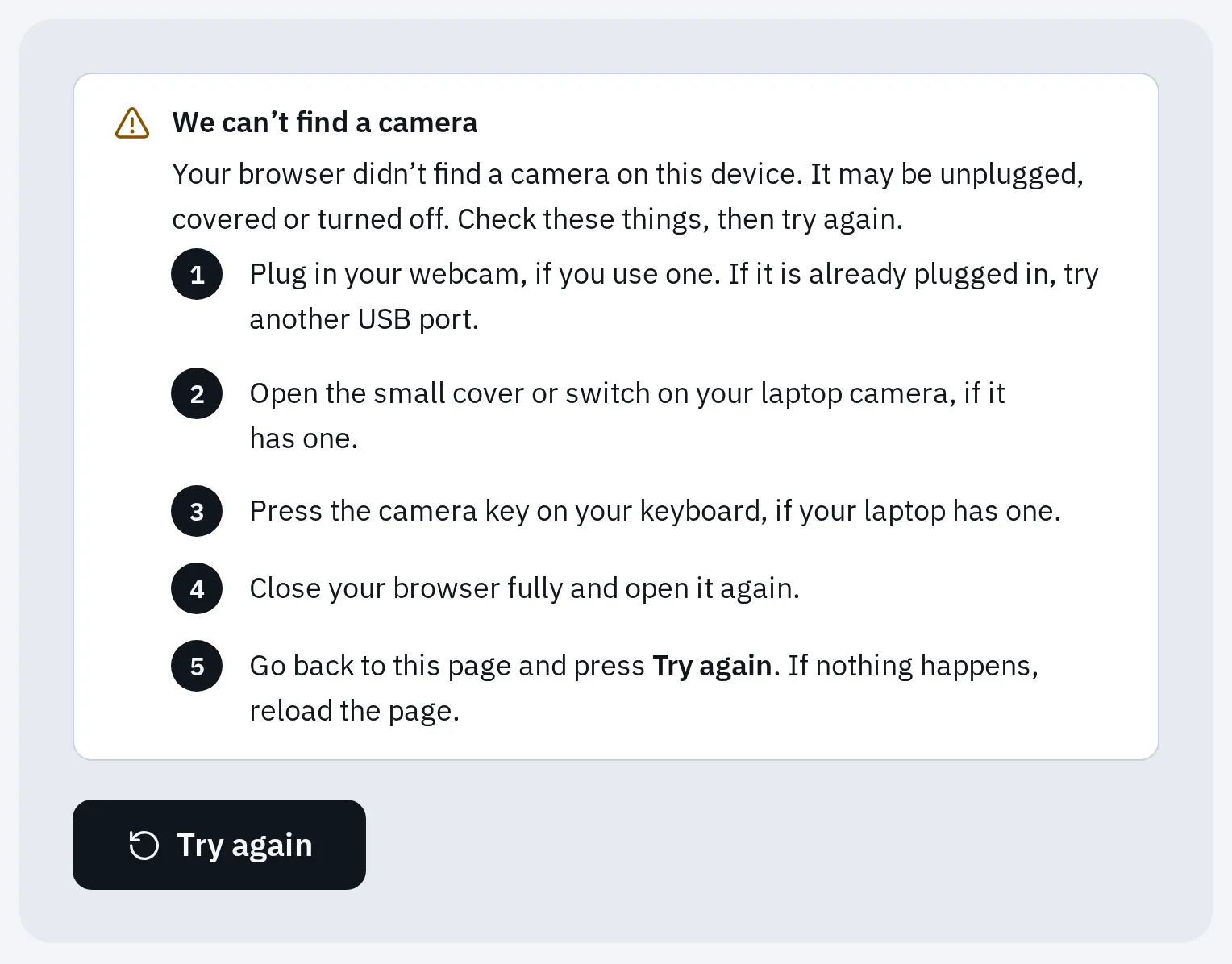
What the test shows when the browser finds no camera. On a laptop, that usually means a camera key, switch or setting turned it off.
Open the shutter and press the camera key
Many laptops have up to three ways to turn the camera off. Microsoft says a switched-off camera can show a black picture, a camera with a slash, or no camera at all.
- A privacy shutter: a small slider over the lens. Slide it so you can see the lens.
- The camera light. It lights up while an app uses the camera.
- A camera key, often an F key with a camera and a line through it. Some laptops need Fn with it.
- A camera switch on the side of the laptop.
Where to look. Your laptop may have none, one or several of these.
| Brand | What to check |
|---|---|
| HP | A webcam privacy switch on the side or next to the camera: slide it away from the camera icon. A webcam shutter key in the top row: press it, or fn with it. HP says the key’s light is on when the webcam is off. Some models have a sliding cover. |
| Lenovo | Open the camera slider (on ThinkPads, the ThinkShutter). Press the camera key, often F8 or Fn + F8; Lenovo says your model may use another key. In Lenovo Vantage, turn off Camera Privacy Mode (Device, My Device Settings, Display & Camera). |
| Dell | Open the privacy shutter, as on the Latitude 7340. If no camera shows up, Dell says to check the BIOS (below). |
| ASUS | Press F10 or Fn + F10: a Camera on message confirms it. Open the privacy shield. Fn + Esc swaps between the F keys and the hotkeys. |
| MSI | Unlock the Webcam Lock Switch if your model has one, then press Fn + F6. MSI says the key can differ, so look for the camera icon. |
| Microsoft Surface | Microsoft’s Surface camera page names no shutter or camera key. Go on to the Windows settings. |
| Mac | No switch or key: the camera turns on with the app. See MacBook below. |
Peel off any protective film still on the lens: Lenovo says it makes the picture blurry. Then test again.
Check the camera in Windows
1. Turn the camera on in Settings
- Open Start Settings Bluetooth & devices Cameras (Windows 11).
- If your camera is listed under disabled cameras, select it and choose Enable. This needs an administrator account.
- Open Start Settings Privacy & security Camera. Turn on Camera access, Let apps access your camera and Let desktop apps access your camera. Your browser, Zoom and Teams are desktop apps.
On Windows 10, the privacy page is Start Settings Privacy Camera. If Camera access is greyed out, an administrator has turned it off. More on these settings, and on Mac privacy, is in camera blocked in your browser.
2. Run the troubleshooter and update Windows
- Open Start Settings System Troubleshoot Other troubleshooters, find Camera and select Run.
- Open Start Settings Windows Update and install updates. Under Advanced options, Optional updates may have a camera driver.
- Some security apps have their own camera block. Check your antivirus settings.
- Restart the laptop with Start Power Restart. Microsoft says waking it from sleep isn’t the same.
3. Check the driver in Device Manager
- Right-click Start and select Device Manager.
- Look under Cameras, Imaging devices or Sound, video and game controllers. Not there? Select Action, then Scan for hardware changes.
- Right-click the camera. If you see Enable device, select it: the camera was turned off.
- After a recent update, open Properties, then the Driver tab, then Roll Back Driver, if it’s offered.
- Otherwise select Uninstall Device, tick Attempt to remove the driver for this device, then Scan for hardware changes to install it again.
- Restart the laptop after a roll back or a new driver, then test again.
Still no camera after a scan? Lenovo says no camera is set up, or the hardware may have failed. On a Dell, also check the BIOS: press F2 at startup, open Integrated Devices and turn on Enable Camera.
MacBook
- Update macOS.
- Open System Settings Privacy & Security Camera and turn on the app you want to use. FaceTime and Photo Booth don’t need this.
- If you use Screen Time, check that the camera is allowed under its app restrictions.
- Restart the Mac. On a Mac with an Intel chip, Apple also suggests resetting the SMC.
If the green light next to the camera flashes, Apple says the Mac may need service. A steady light means an app is using the camera: see why the camera light is on.
Chromebook
- Turn the Chromebook off and on again.
- Try the camera in another app, such as Google Meet or the webcam test.
- Still not working? Back up your files first. Google’s next steps are a Powerwash (it erases the Chromebook), then a ChromeOS recovery. After that, contact the maker.
When the camera is broken
Is the camera still missing in Device Manager after a scan? Or black in every app with the shutter open? Contact the maker. HP laptops have a Webcam Connection Test in HP PC Hardware Diagnostics, and Dell has SupportAssist. Until it’s fixed, any USB webcam works: plug it in and test it.
Questions people ask
Does my laptop have a camera?
Look for a small lens in the frame above the screen. On Windows, a camera shows up in Device Manager under Cameras or Imaging devices. Lenovo says the user guide for your model also says whether it has one.
How do I turn off my laptop camera?
Close the shutter or press the camera key, if your laptop has one. On Windows, you can also turn off Camera access in Settings Privacy & security Camera. That blocks apps from using it.
Why does my HP laptop's camera key have a light on?
HP says the light on the webcam shutter key means the webcam is off. Press the key to turn the camera back on.
The camera works in the Camera app, but not in Zoom. Why?
The camera is fine. Choose it in the app’s video settings, and close other apps that may use it. See camera not working in calls.