Short answer
If your camera and mic work in the test below, choose them in the call app’s settings. Then check the app’s permission and that you aren’t muted.
Step 1: check your camera and microphone
Test it now
Video call test
If you see yourself and the microphone row says it works, your camera and microphone reached this browser. The call app still has its own settings.
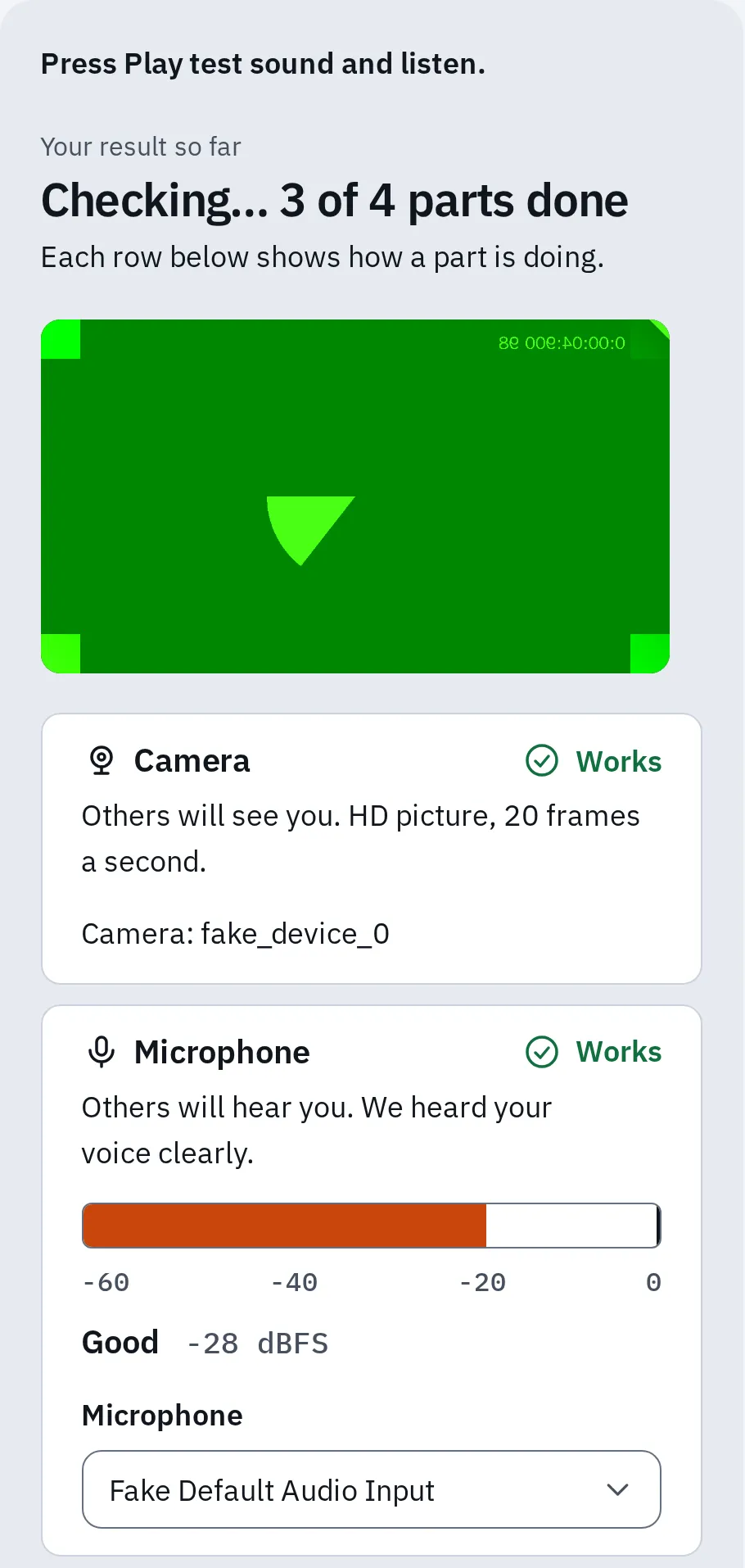
Camera and microphone both work in the test. In our check, Chrome's built-in test camera and microphone stood in for real ones.
Only need one part? Use the webcam test or the mic test. Helping someone else? See how to talk them through it by phone.
Choose the camera and mic in the app
Each app picks its own camera and microphone. It may still use a headset you aren’t wearing, or a camera that is unplugged.
- The arrow next to the microphone or camera button.
- The device the app uses now. Choose the one you tested.
In a call, the small arrow next to the microphone or camera button opens the list of devices.
Zoom
- In the Zoom app, click your profile picture, then Settings.
- Click Audio. Choose your microphone under Microphone, then click Test microphone.
- Click Video & effects and choose your camera under Camera.
In a meeting, click the arrow next to Mute or Stop Video to switch. No sound at all? Click Join audio in the toolbar and join with computer audio. In a browser, open Settings in the meeting, then Audio.
Teams
- Select Settings and more (…) next to your profile picture, then Settings.
- Select Devices.
- Under Audio settings, choose your Microphone and Speaker. In the desktop app, select Make a test call.
- Under Video settings, choose your Camera.
In a meeting, select the arrow next to Mic, then More audio settings. Teams in a browser works in Chrome, Edge, Firefox and Safari, and needs the browser’s permission.
Google Meet
Meet runs in your browser, so the browser must be allowed to use the camera and mic.
- Before you join, use the lists at the bottom of your preview: Microphone, Speaker and Camera.
- In a call, click the arrow next to the microphone or camera button. Or click More options, then Settings, then Audio or Video.
- Close other apps that use the camera, then reload Meet.
Discord
- Click the gear at the bottom left (User Settings), then Voice & Video.
- On the Voice tab, choose your microphone under Input Device and your headphones under Output Device.
- Click Let’s Check and speak. Click Stop Testing when done.
- Choose your camera in the camera list and click Test Video. If you don’t see them, open the Video tab.
- Still nothing? On the Debugging tab, click Reset Voice and Video Settings.
In a call, the arrow next to each call button switches the camera, microphone or speakers.
Desktop app or browser?
The same app needs a different permission, depending on where it runs.
Desktop app
Allow the app
Zoom, Teams and Discord apps, installed on your computer. Your system must let that app use the camera and microphone. See the next section.
In a browser
Allow the website
Google Meet, and Zoom, Teams or Discord opened in a browser. The website needs permission in the browser, and the browser in your system. See how to allow it.
Allow the app in your system settings
If the app finds no camera or microphone, or shows only black and silence, your system may block it.
Windows
- Open Start Settings Privacy & security Camera. On Windows 10 it is Settings Privacy Camera.
- Turn on Camera access (Windows 10: select Change and turn on Camera access for this device).
- Turn on Let apps access your camera. If Microsoft Teams is in the list below it, turn it on.
- Turn on Let desktop apps access your camera (Windows 10: Allow desktop apps to access your camera). Zoom, Teams and Discord apps need it.
- Do the same under Microphone.
Mac
- Click the Apple logo, then System Settings, then Privacy & Security.
- Click Camera and turn on your app, for example Zoom, Microsoft Teams or Discord.
- Do the same under Microphone.
- If the Mac asks you to quit and reopen the app, do so.
iPhone and iPad
- Open Settings Privacy & Security.
- Tap Camera and turn on your call app.
- Go back, tap Microphone and turn it on there too.
Android
- Open the Settings app, then tap Apps and your call app. You may need to tap See all apps first.
- Tap Permissions.
- Set Camera and Microphone to Allow only while using the app.
- Check the switches for the whole phone: open Settings Security & privacy Privacy Privacy controls and turn on Camera access and Microphone access. Names can differ by phone.
Camera busy or in use
While one app uses the camera, another app may show a black picture or say the camera is in use. Zoom, Microsoft and Google all advise closing the other apps first.
- Close apps that may use the camera, such as Zoom, Teams, FaceTime, Skype or the Camera app.
- Close browser tabs with another call or a camera test.
- Unplug a USB webcam and plug it back in.
- Restart the computer, then open only your call app.
Want two apps to share it? On Windows 11 (version 24H2 or later), open Settings Bluetooth & devices Cameras, select your camera and Edit under Advanced camera options. Turn on Allow multiple apps to use camera at the same time.
Others can’t hear you
The app shows you as connected, but nobody hears you.
- Muted: a crossed-out microphone button means you are muted. Click it. In Meet, the button is Turn on microphone. In Zoom, the host may have muted you. In Discord, a server admin can mute you, or the channel may not allow you to speak or use video: ask the server owner or an admin.
- Mute switch: check the switch or button on your headset or its cable.
- Mic covered: a case, a sticker or your hand can block a laptop microphone. See where it is on your laptop.
- Zoom without audio: if you see Join audio, click it and join with computer audio.
- Google Meet in Companion mode: it doesn’t use your microphone. Leave and join the meeting again.
- Discord on Push to Talk: you are only heard while you hold the key. In Voice & Video, set Input Mode to Voice Activity. In a browser, Push to Talk only works while the Discord window is in front.
- Voice too quiet for Discord: turn on Automatically determine input sensitivity.
- They hear you, but not the video you share: turn on the app’s sound option. See share your computer’s sound.
If the mic test hears you but the app still doesn’t, choose the same microphone in the app, as in the steps above.
They hear you, but it sounds wrong? Muffled on Bluetooth headphones is headset mode. An echo of their own voice is a sound loop.
Questions people ask
Why does my camera work in Zoom but not in Teams?
The camera is fine. Teams may have another camera chosen, or Zoom still holds the camera. Quit Zoom fully, then choose the camera in Teams under Settings, Devices.
Why is my camera black in the call app?
Another app may hold it, or a cover or camera key turns it off. If the webcam test is black too, follow the steps there before you change the app’s settings.
Why does it work in the browser but not in the desktop app?
The browser and the app have separate permissions. Allow the app in your system settings.
Can I test before a call without anyone seeing me?
Yes. The video call test checks your camera, microphone and speakers on your own device: your picture and voice stay there. Its internet check measures your connection to our test server, not to the call app. Teams also has Make a test call. For a better picture and sound, see how to look and sound better on calls.