Short answer
The person who hears the echo is usually not the one causing it. An echo starts where a call plays through speakers and a microphone picks it up again. Hear your own voice a moment later? Look at someone else’s speakers. Others hear themselves? Most likely yours: wear headphones or turn your speakers down.
- You speak. Your voice goes through the call to the other person.
- Their laptop plays your voice through its speakers, and its microphone hears it.
- Their call app sends your voice back to you. You hear it a moment later.
- They hear nothing odd: their call app never plays their own voice back to them.
The echo you hear is made at the other end. Headphones on that side would stop it: the sound would stay in their ears.
Who hears the echo?
Choose what you notice. The answer names whose setup most likely makes the echo, and the first fix.
Whose setup to change
Choose what you notice
Pick the first answer that fits.
The same answers, as a table:
| What’s happening | Most likely | First fix |
|---|---|---|
| You hear your own voice, a moment later | Someone else’s speakers | That person wears headphones or turns the speakers down |
| You hear your voice at the same moment you speak | Your own headset or computer | Turn off sidetone, mic monitoring or Listen to this device |
| Others hear their own voice | Your speakers, if muting your microphone stops it | Wear headphones, and check that the call plays through them |
| Most of you hear yourselves | One person’s speakers, most likely the one who hears nothing odd | Ask who doesn’t hear it, or test one person at a time |
| One person sounds doubled | Two devices near that person, or someone else’s speakers | They keep the sound on one device; then test one person at a time |
| Two devices in the call are in one room | Those devices | Keep the microphone and speakers on one, turn both off on the others |
| A squeal or howl | A loud speaker next to a microphone | Mute, turn the speakers down, look for a second device nearby |
Check your own device first
Two quick checks tell you whether your own device plays your voice back to you.
In the call: the mute test
- Mute yourself with the call app’s microphone button, and keep talking.
- Still hear yourself? Your own headset or computer plays your microphone back. See at the same moment.
- It stops? The call sends your voice back: someone else’s speakers. See find whose speakers it is.
Without a call: the voice recorder
Close the call app, so nothing plays the call. Put on your headphones. Choose the same microphone you use in the call, then record a few words.
Test it now
Voice recorder
It shows what your microphone and headset do on their own, with no call running.
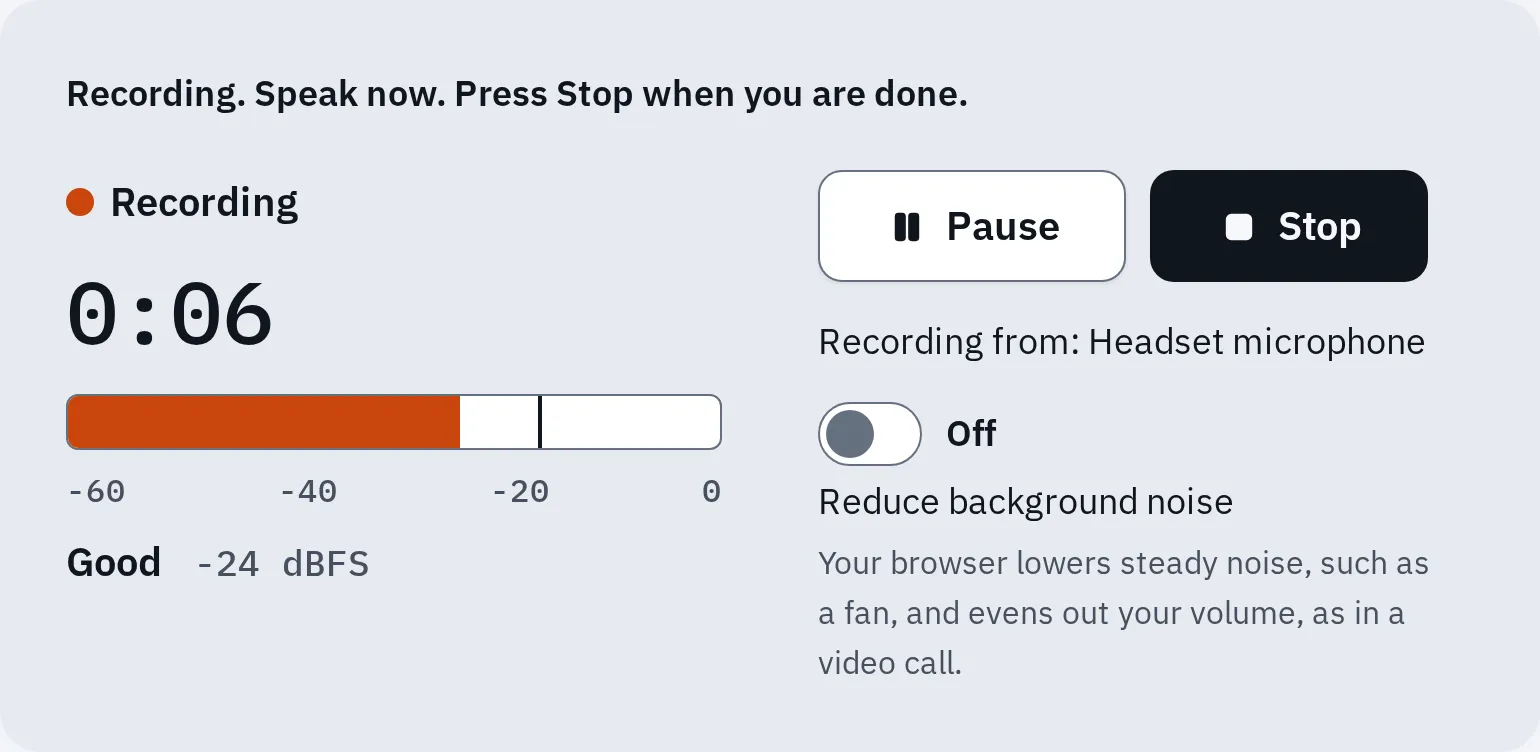
Press Start recording and listen in your headphones while it records. Then press Stop and Play, and listen to the recording.
Your voice, while you record
Your own device
No call is running, so the call can’t be the cause. Your headset or computer plays your microphone back to you. See at the same moment.
A hollow recording
Your room or microphone
A bare room, or a microphone far from your mouth. Sit closer, or use a headset microphone.
Silence while you record, a clean recording
No playback on your device
Your device doesn’t play your voice back, and your room sounds fine. It can’t tell whose setup makes the echo in the call: use the chooser above.
You hear your own voice
If your words come back a moment after you say them, the loop is most likely at someone else’s end. Their speakers play your voice and their microphone sends it back. Your own headphones won’t stop it.
Find whose speakers it is
- Ask who doesn’t hear an echo. You can say: “Does anyone not hear their own voice? Please try headphones.” The person who hears nothing odd is most likely the cause.
- Not clear? Keep your microphone on, and ask everyone else to mute. Keep talking. In Zoom, the host can mute everyone.
- Ask one person to unmute. If the echo comes back, it’s their setup. If not, they mute again, and the next person unmutes.
- That person wears headphones, turns the speakers down, or stays muted while not talking. Still an echo? There may be a second source: test the others too.
Others hear themselves
Then the loop is most likely at your end. Your speakers play their voices, and your microphone sends them back. To be sure, mute your microphone while they talk: if their echo stops, it was yours. Call apps try to remove this echo, but speakers that are loud or close to the microphone can beat them.
- Wear headphones or earbuds. The call’s sound then stays in your ears, where the microphone can’t hear it.
- Check that the call plays through them. Each call app has its own speaker choice. See choose the camera and mic in the app. Check it again after Bluetooth headphones reconnect.
- No headphones? Turn your speakers down, and move the microphone away from them.
- Mute when you aren’t talking.
- Joined twice? If you’re in the call on your computer and by phone, leave one of them.
Then check your call app’s own echo setting:
Zoom
Zoom removes echo by default. To check it in the Zoom app on a computer, click your profile picture, then Settings Audio Advanced. Echo cancellation has the levels Auto, Low and High.
In a meeting, the arrow next to Audio shows the Microphone modes. Original sound for musicians has its own Echo cancellation box. Zoom advises clearing it only when you wear headphones or play an instrument. On speakers, keep it ticked, or choose Noise removal. Playing music in a lesson? See music mode in call apps.
Teams
Use headphones. When you share your computer’s sound with Include sound, Microsoft names two things that matter:
- On a Mac, install the Teams audio driver when Teams offers it. Microsoft says it avoids echo. Restart the Mac afterwards.
- On Windows, Teams and your computer must use the same speaker.
Google Meet
Meet tries to remove echo by itself. If you still hear it, use headphones, turn your speakers down, or mute while you aren’t talking. For more help in a call, click More options, then Troubleshooting & help.
Discord
Discord’s own guide lists Echo Cancellation in its voice settings. On a phone, tap your picture at the bottom right, then the gear at the top right (User Settings), then Voice. Make sure Echo Cancellation is on. On a computer, the voice settings are under the gear at the bottom left, then Voice & Video.
You hear yourself at the same moment
If you hear your voice exactly as you speak, it isn’t an echo from the call. Something on your side plays your microphone back to you. Others don’t hear it. The mute test confirms it: you still hear yourself while muted.
- What you say.
- Sidetone or monitoring: your own headset or computer plays it back at once.
- An echo from the call: the same words, a moment later.
When it comes is a strong clue. At the same moment: your own device. A moment later: usually someone's speakers in the call. The mute test tells you for sure.
A headset
Many headsets play your own voice back on purpose, so you don’t talk too loudly. Logitech calls it mic monitoring or sidetone. Look for it in the headset maker’s app or the manual. Some headsets use buttons: on a Logitech G435, double press Mute to turn sidetone on or off.
Windows
Windows can play a microphone through your speakers or headphones:
- Press Win R, type
mmsys.cpland press Enter. The Sound window opens. - On the Recording tab, select your microphone, then Properties.
- On the Listen tab, clear Listen to this device. Press OK.
iPhone or iPad
Live Listen makes your iPhone or iPad a microphone that sends sound to your AirPods or Beats. You then hear the room, and yourself. It’s started with the Live Listen button in Control Center, so look there.
Testing your microphone in a call app’s settings? Some of those tests play your voice back on purpose. Stop the test when you are done.
Two devices in one room
Two people in one room join on their own laptops. Or you join on a laptop and a phone. Then one device’s speakers play the call into the other’s microphone, and the sound goes round.
- Laptop A: its microphone hears the whole room.
- Laptop B plays the call through its speakers.
- The loop: B’s speakers go into A’s microphone, and round again.
- Fixed: B has its microphone and the call’s sound off.
- Laptop A alone has sound on, for everyone in the room.
Keep the microphone and speakers on one device in a room. On every other device, turn both off.
Muting the microphone isn’t enough, because the speakers still play. On the second device:
Zoom
Disconnect its audio. On a computer, click the arrow next to Audio and leave computer audio. On a phone or tablet: More, then Disconnect Audio. Near a Zoom Room, the Zoom app can turn computer audio off by itself.
Teams
When you join, choose Don’t use audio. On a phone, choose More join options, then Join without audio. Already in the meeting on a phone? Tap Audio off to turn off its microphone and speaker. In a room with a Teams meeting room system, choose Room audio to use its sound instead.
Google Meet
Join with Companion mode. On a computer, click Join in the invite, then Use Companion mode under Other joining options. Or go to g.co/companion. In the Meet app on a phone, tap Use Companion mode under your self view. Your microphone and the meeting’s sound are off, and you can still chat and share your screen.
Discord
Leave the voice channel on the second device. Or select the microphone and headset icons there, so both show a slash: then that device neither sends nor plays sound.
A squeal or howl
A squeal means the sound goes round and round between a speaker and a microphone close together. It gets louder each time.
- Mute, and turn the speakers down at once.
- Look for two devices in the call in one room. Turn off the microphone and sound on one. See two devices in one room.
- Look for loud speakers near a microphone, such as a TV or soundbar playing the call.
One person sounds doubled or hollow
Doubled
Two paths
Their voice reaches the call twice. Most often they joined on two devices, or sit near another device in the call: they keep one. Still doubled? Someone else’s speakers may send it back: test one person at a time.
Hollow, as in an empty room
Their room
That’s not a loop. Their voice bounces off bare walls into a microphone far away. A headset microphone, or sitting closer, helps. They can hear it in a recording of their own voice.
Questions people ask
Why can't I hear the echo when others can?
A call app doesn’t play your own voice back to you. So a loop at your end sends their voices back to them, and you hear nothing odd.
Will my headphones stop me hearing myself?
Only if the loop is at your end. If your voice comes back a moment later, it’s most likely at someone else’s end. That person needs the headphones.
Can a microphone test find the echo?
Not on its own. A test shows what your microphone and headset do with no call running. An echo needs a call where someone’s speakers play the other voices. Use the test to rule out playback on your own device, then find the person in the call.
Why does the echo come and go?
It comes when someone’s speakers get loud enough for their microphone, or when a second device joins nearby. Call apps remove most echo, but loud speakers close to a microphone can beat them.
Does this happen on normal phone calls?
Yes. A phone on speaker, or a car’s hands-free system, can play your voice into its own microphone. Ask the other person to take the phone off speaker or turn the volume down.