Short answer
Call apps are tuned for speech. Their noise suppression takes held and fading notes for noise. Automatic volume makes loud and soft playing the same. Echo cancellation can turn you down when the other side plays too.
Turn on the music setting: Original sound for musicians in Zoom, High fidelity music mode in Teams. Google Meet has none: turn off Noise cancellation. Wear headphones, then do a short test call with your teacher.
Hear what speech settings do to music
Choose an instrument, then press a setting to hear it. Press another while it plays to switch at the same moment. Each drawing shows how loud the sound is from start to end. The sounds are simulations, made on this page.
These are simulations made on this page, not recordings of Zoom, Teams or Meet. Real apps are smarter, but they go wrong on music in these ways. The small ticks are the teacher's metronome, which the echo examples play too.
| Setting | What the teacher hears, and why |
|---|---|
| Noise suppression | Notes stop early, and a held note fades away after a moment. It keeps speech and removes “noise”, and steady or fading sounds look like noise to it. |
| Automatic volume | Soft passages come up and loud ones go down. Room noise swells in rests. It aims every sound at one level. |
| Echo cancellation | Your sound dips or drops out while the teacher plays or talks. It thinks your sound is an echo of theirs. |
The makers say this too. Google: Meet “cancels non-speech noises”, so “if you need other sounds in your meeting, like music, turn off noise cancellation.” Microsoft says the High level in Teams on iPhone “suppresses all background sound that isn’t speech.”
Why calls cut out music
- As you play it: a strong start, then a long fade.
- Noise suppression: the start is kept, the fade is cut off.
- Automatic volume: the start is pushed down and the fade is held up, so the note no longer dies away.
- Echo cancellation: a gap each time the teacher's side makes a sound (the ticks).
One piano note, and what each speech setting leaves of it. Dashed: what is lost.
Speech starts and stops all the time. Fans, traffic and hum go on and on. So call apps keep short, changing sounds and remove steady ones. A held violin note, a sung vowel or a ringing piano chord is steady too. Fading notes get quiet, and quiet sounds are cut as background.
Music modes switch these off, or most of them. They can also send the sound in better quality. With echo cancellation off, wear headphones: nothing else stops the other person’s sound from echoing back.
Turn on music mode in your app
- The arrow next to the microphone button (Audio in Zoom, Mic in Teams).
- The music setting: Original sound for musicians in Zoom, High fidelity music mode in Teams.
- Its extra options, such as echo cancellation. Zoom shows three.
- Zoom shows the current setting at the top right of the meeting window.
Where the music setting sits in a meeting. Zoom and Teams both put it behind the arrow next to the microphone.
Zoom
Zoom on a computer
- Click your profile picture, then Settings Audio.
- Under Microphone modes, select Original sound for musicians. Zoom then turns off its noise suppression.
- Choose its options:
- Echo cancellation: with headphones, clear it. With speakers, keep it ticked and leave High-fidelity music mode off.
- High-fidelity music mode: sends more detail (48 kHz) and uses more data. It also turns off echo cancellation. Zoom says it needs a professional audio interface, microphone and headphones.
- Stereo audio (separate left and right sound): needs a stereo microphone or audio interface. It also needs a Pro, Business, Education or Enterprise plan. Zoom’s recordings stay mono.
- In the Microphone section, turn off Automatically adjust microphone volume. Then set Input volume by hand: play your loudest passage and keep it below the top of the meter.
In a meeting: click the up arrow next to Audio. Under Microphone modes, choose Original sound for musicians. A tick shows which mode is on, and Zoom keeps it for future meetings. The current setting also shows at the top right of the meeting window.
On a phone or tablet: first tap your profile picture, then Settings Audio Microphone modes, and tap Original sound for musicians. Zoom says you must do this before you can turn it on in a meeting. Then, in a meeting, tap More, then Audio settings. Under Microphone modes, tap Original sound for musicians, then Done. Zoom’s help lists no extra options on phones, and no stereo.
No Original sound? Under Noise removal (default), set Background noise suppression to Low. Zoom calls Low “best for casually playing music”. In the Zoom web app, which opens when you join from a browser link, Zoom’s help only describes noise suppression. Install the Zoom app for lessons.
Microsoft Teams
Teams desktop app (work or school)
- In a meeting, select the arrow next to Mic, then More audio settings.
- Turn on High fidelity music mode.
- Before a meeting, the same switch is in Settings and more Settings Devices. There you can also turn off Noise suppression and Automatically adjust mic sensitivity.
Can’t see the switch? You may be in Teams in a browser, where Microsoft lists music mode as missing. Use the desktop app. On a work or school account, ask whoever manages it.
Microsoft says music mode sends 32 kHz at 128 kbps, down to 48 kbps on a slow connection. It advises good external audio devices, and no Bluetooth. You can also turn off noise suppression and echo cancellation. Music mode doesn’t work in live events or with spatial audio. Turn it off for normal meetings: select the music note again, or end the meeting. It uses more data and lets background noise through. To turn off noise suppression during a meeting, choose More actions Settings Audio settings.
Teams (free): in a meeting, choose More Audio settings High fidelity music mode. You can also tick Display in the microphone dropdown menu and choose Echo cancellation.
Teams on iPhone: tap your profile picture, then Settings Calling Noise suppression. Microsoft suggests Low to play music.
Google Meet
Google Meet
Google’s help names no music mode for Meet. Turn off its noise cancellation instead. Google says to do this for music.
- On a computer, in a meeting: More options Settings Audio. Turn off Noise cancellation.
- Before you join, the same switch is under More options Settings Audio too.
- On a phone, during the meeting only: tap the screen, then More Settings Noise cancellation. Turn it off.
Not every account has the switch. Google lists some paid Workspace plans, Google One with 2 TB or more, and most Android phones. On school (Education) accounts it starts off, so check rather than assume. On some plans Studio sound replaces noise cancellation: the same Noise cancellation switch turns it off too. Google’s help names no switch for Meet’s echo removal or automatic volume. For lessons that depend on sound, Zoom or Teams give you more control.
Discord
Discord
- On a computer, click User Settings (the cog), then Voice & Video.
- Find Noise Suppression and turn off Krisp. Discord itself says a quiet room and a good microphone don’t need it.
- If note endings are cut off, turn off Automatically determine input sensitivity. Discord gives this advice for words cut off at the end. Then play softly and move the sensitivity slider until quiet notes and their endings get through.
On a phone, tap your picture, the cog, then Voice. The list includes Noise Suppression, Echo Cancellation, Noise Reduction and Automatic Gain Control. Turn off the noise settings and automatic gain. Keep Echo Cancellation on unless you wear headphones.
Turn off your computer’s own voice effects
Your computer or phone can clean up the microphone too, before the call app gets it. Then music can still cut out with music mode on.
Windows
- Sound software from the PC maker, such as MaxxAudio (Dell), Bang & Olufsen (HP) or LG Smart Assistant. Zoom says these can stop instruments being heard on Windows 11. Turn their voice effects off, or uninstall them and restart.
- Audio enhancements: Zoom also says to turn these off. Open Settings System Sound. Under Input, select your microphone, then Device Properties, then Additional device properties. On the Enhancements tab, tick Disable all enhancements (or Disable all sound effects). If there is no such tab, untick Enable audio enhancements on the Advanced tab. Select OK.
- Voice Clarity: on many PCs, Windows 11 cleans up voices in call apps that support it. It is on by default, and Microsoft’s page names no switch for it.
- Windows Studio Effects (PCs with an AI chip, an NPU): select the network, sound or battery icons on the taskbar. Select the Studio Effects tile and turn off Voice focus.
On a school or work computer these may be locked. Ask whoever looks after it.
Mac
During a call, click the video or audio icon in the menu bar, then Mic Mode. Choose Wide Spectrum. Apple says it “captures your voice as well as the sound around you, such as the sound of music.” Voice Isolation does the opposite: it puts your voice first and minimises the sounds around you.
Mic Modes work in FaceTime and other call apps that support them, on Mac models from 2018 and later. On macOS Monterey or Ventura, Mic Mode is in Control Center.
iPhone and iPad
During a call, swipe down from the top-right corner to open Control Center. On an iPhone with a Home button, swipe up from the bottom. Tap your app’s controls, such as FaceTime Controls. Under Audio & Video, select Wide Spectrum.
Apple says Wide Spectrum “leaves ambient noises unfiltered”. It isn’t there in phone calls. Your choice applies only to that app, and the app keeps it. It needs iOS 15 or later, an iPhone XR, XS or later, or a recent iPad (Apple lists the models).
Check it with your teacher
Your settings change only the sound you send. The teacher’s settings change the sound they send. The teacher hears the result of your settings, so they can help you check them. For a lesson, both of you turn on the music settings.
- The student's app settings decide how the playing reaches the teacher.
- The teacher's app settings decide how their examples reach the student.
Each side's settings work on its own sound, before it leaves.
A two-minute test call
Do this before the first lesson, and after any app or computer change. Both wear headphones.
- Hold one long note for 5 seconds. On piano or guitar, let a chord ring. The teacher listens: does it fade or vanish?
- Play one note and let it ring to the end. Does it stop suddenly?
- Play very softly, then very loudly. Drummers: soft hits, then loud ones. Is the loud part clearly louder? If loud notes crackle, move back from the microphone or lower its level.
- Stop and stay still for 5 seconds. Does a hiss or room noise swell up?
- The teacher claps or counts while you play. Do you drop out?
- Swap roles and repeat, so the student hears the teacher’s playing.
- Compare: play the same passage with music mode off, then on. Keep the setting the teacher hears more clearly.
Hear the difference on your own device
You can hear the effect before a call. The voice recorder can record with your browser’s own clean-up off or on. Browsers use the same kinds of clean-up as call apps.
Test it now
Voice recorder
Record 15 seconds of playing with Reduce background noise off. Then record again with it on, and listen to both. Compare what your browser’s speech clean-up changes.
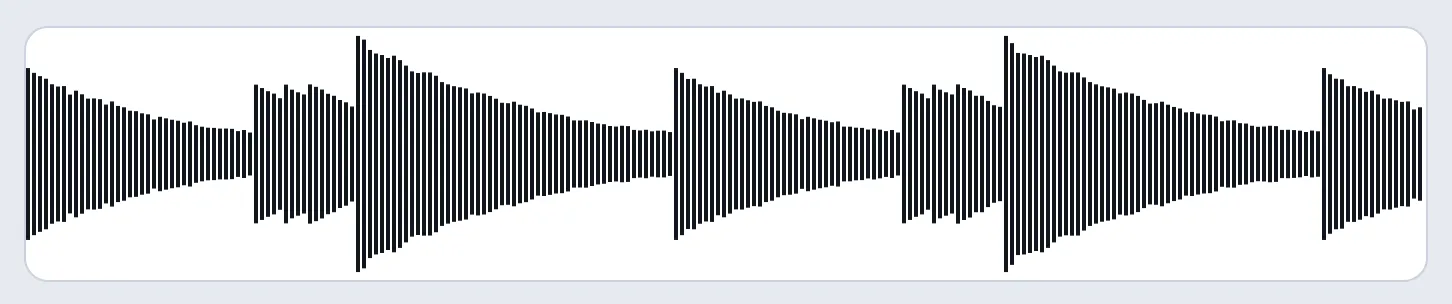
Our voice recorder in Chrome, recording with Reduce background noise off. We fed it the piano phrase from this page in place of a microphone. Every note fades away smoothly.
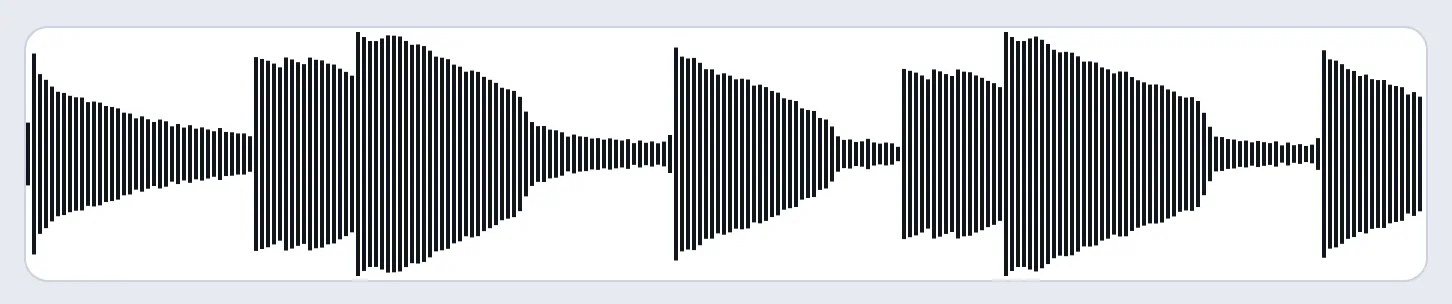
The same phrase with it on. The soft notes come up as loud as the loud chord, and each fade is cut off in a flat line. A real microphone and other browsers may differ.
This shows what your browser does, not your call app. It can’t see Zoom’s or Teams’ settings: only a test call shows those. To check the microphone itself, such as noise, hum or crackling on loud notes, use the mic quality test.
Questions people ask
Why can my teacher hear me talk but not my instrument?
Speech settings keep talking and remove sounds that look like noise. Held and fading notes often look like noise to them. Turn on Original sound for musicians in Zoom or High fidelity music mode in Teams. In Meet, turn off Noise cancellation.
Do both of us need to turn on music mode?
Yes, for a lesson: both of you turn on the music settings. Each setting works on the sound that person sends. The student’s setting decides how their playing sounds to the teacher. The teacher’s decides how their examples sound to the student.
Music mode is on, but notes still cut out. Why?
Check that it is on inside the meeting: in Zoom, the label at the top right shows it. Then turn off your device’s own voice effects. These are PC maker sound software or Voice focus on Windows, or Voice Isolation on a Mac or iPhone. A Bluetooth headset microphone also sounds thin on calls: see Bluetooth headphones on calls.
Do I need headphones?
Yes, once echo cancellation is off. Without it, the teacher’s sound from your speakers goes back into your microphone, and they hear an echo. Microsoft also advises against Bluetooth for music mode. Wired headphones are the safe choice.
Can we play together at the same time?
Not well in a normal call: each side hears the other a little late. Zoom has a separate Live performance audio setting for this, for up to 5 people on Windows or Mac. Everyone must turn it on, with a 48 kHz microphone or audio interface. Zoom recommends a wired connection. Otherwise, play to a metronome on your own side, not one sent over the call.
How do I share a backing track in a lesson?
Share your computer’s sound with the screen share, not through your microphone. In Zoom, choose Stereo (high fidelity) for music. See share your computer’s sound in Zoom, Teams and Meet.
Should I tune before the lesson?
Yes, on your own side. Use the guitar tuner or the tuner for other instruments. It listens to your instrument directly, without the call in between. See how to tune a guitar.