Short answer
A call sends only your microphone, unless you turn on the app’s sound option when you share. It sits in the window where you choose what to share, so turn it on before you press Share. In Zoom it’s Share sound, in Teams Include sound. In Google Meet, present a tab with Also share tab audio on. Safari and Firefox can’t share any sound: use the app, or Chrome or Edge.
Why the audience hears nothing
- The video plays on your speakers, in your room only.
- The call sends your microphone. The audience sees the video, but hears nothing or a faint echo.
- With the sound option on, the call app takes the video's sound straight from your computer.
- The audience hears the video clearly, along with your microphone.
Sharing your screen sends the picture. The sound goes only when you turn it on.
Don’t hold your microphone up to the speaker. It picks up the room too, and the sound arrives faint and patchy.
Find the option for your app
Pick your call app and where you join from, on your computer. The finder starts on the computer and browser you’re reading this on. On a phone or tablet, see phones and tablets.
Yes: the app can share your computer’s sound
Turn onShare sound
- Open the video first, ready to play.
- In the meeting, click Share (older versions say Share Screen).
- Click the screen or window with the video.
- Tick Share sound, under Share options. For music, click the arrow next to it and choose Stereo (high fidelity).
- Click Share, then play the video.
Good to know
- Playing a clip full screen: also tick Optimize for video sharing, so it plays smoothly. Zoom suggests it only for full-screen clips.
- Already sharing? Click More in the share bar, then Share sound.
- Zoom shares every sound your computer plays. Turn off notifications first.
- Set the loudness in the video player, not in Zoom.
| App | Turn on | Windows or Mac app | Chrome or Edge | Safari, Firefox |
|---|---|---|---|---|
| Zoom | Share sound | Yes | A tab’s sound (Zoom names Chrome) | No sound |
| Microsoft Teams | Include sound | Yes. A Mac needs Teams’ audio driver once | A tab; a window or screen too | Join only: can’t share the screen |
| Google Meet | Also share tab audio | No app: use a browser | A tab; a window or screen with Chrome 142 or newer, on Windows 11 or macOS 14.2 or newer | No sound |
| Webex | Include computer sound | Yes. A Mac needs an extension once (administrator password) | A tab or the screen | No sound |
| Discord | Go Live | Yes. Mac: macOS 13 or newer | Chrome only | No sound |
Safari and Firefox don’t pass any sound to a website when you share. That’s true for every call app, so join from the app, or from Chrome or Edge.
The same steps, written out for each app:
Zoom
Zoom app (Windows or Mac): click Share, click the screen or window with the video, tick Share sound under Share options, then click Share. For music, choose Stereo (high fidelity) with the arrow next to Share sound. For a full-screen clip, also tick Optimize for video sharing.
Zoom in a browser: click Share, then Chrome Tab and the video’s tab. Turn on Also share tab audio and click Share. Zoom names Chrome for this.
Teams
Teams app (Windows or Mac): click Share, turn on Include sound, then choose the screen or window. On Windows, Teams and Windows must use the same speaker. A Mac needs Teams’ audio driver once.
Teams in Chrome or Edge: click Share, then Screen, window, or tab. For a tab, turn on Also share tab audio. For a window or the entire screen, turn on Also share system audio.
Google Meet
Meet in Chrome or Edge: open the video in its own tab. In Meet, click Present now, choose A tab and the video’s tab, check Also share tab audio is on, then click Share. For A window or Your entire screen, turn on Also share system audio: Google says that needs Chrome 142 or newer, on Windows 11 or macOS 14.2 or newer.
Webex
Webex app (Windows or Mac): click Share. Under Sharing options, choose Best for video and motion: it turns on Include computer sound. Then choose the screen or app. A Mac needs an extension once, installed with an administrator password.
Webex in Chrome or Edge: click Share, choose the tab or screen, and turn on Also share tab audio or Also share system audio.
Discord
Discord app (Windows or Mac): in a voice channel or call, click the screen share button, choose the app window or screen, then click Go Live. Turn on a sound switch if you see one. On a Mac, allow Discord when the Mac asks to record sound (macOS 13 or newer).
Discord in a browser: Discord says sound works only from Chrome.
Where the sound option sits
Every app asks what to share in its own window. The sound option is in that same window, and it’s easy to miss.
- What kind of thing to share: a screen, a window or a browser tab.
- The screen, window or tab that plays the video.
- The sound option. Zoom: Share sound, under Share options. Teams: Include sound. Chrome and Edge: Also share tab audio or Also share system audio, under the list.
- Share. Press it only after the sound option is on.
Choose what to share, tick the sound option, then press Share. Each app places it a little differently.
Forgot to turn it on?
You don’t always have to stop sharing.
| App | While you share |
|---|---|
| Zoom | Click More in the share bar at the top, then Share sound. |
| Microsoft Teams | Move the pointer to the top of the screen. In the presenter toolbar, click Share audio. |
| Google Meet, and any app in a browser | Stop presenting, then present the tab again with the sound option on. |
| Webex and Discord apps | Stop sharing, then share again with the sound option on. |
Test it before the call
You can’t hear what your audience hears from your own computer. Check it with a second device, a few minutes before you start.
- Make sure the video plays sound on your own computer. No sound there? Check your speakers with the sound test first.
- Start the meeting on your computer. Mute your computer’s microphone for the test, so the phone can’t hear the video through it.
- Join the same meeting from your phone or a second computer. Turn its microphone off. Put headphones on it, or hold it to your ear.
- On the computer, share the video with the sound option on, as above. Play it.
- Listen on the phone. You should hear the video clearly, a moment late.
- Stop sharing, leave on the phone, and unmute your computer’s microphone.
No second device? If you join in Chrome or Edge, test the browser’s part with our screen recorder.
Test it now
Screen recorder
Turn on Record the computer’s sound, share the video’s tab with Also share tab audio on, and play the video for a few seconds. Stop, then play the recording: if you hear the video, your browser can share that tab’s sound. This checks the browser only, not the call.
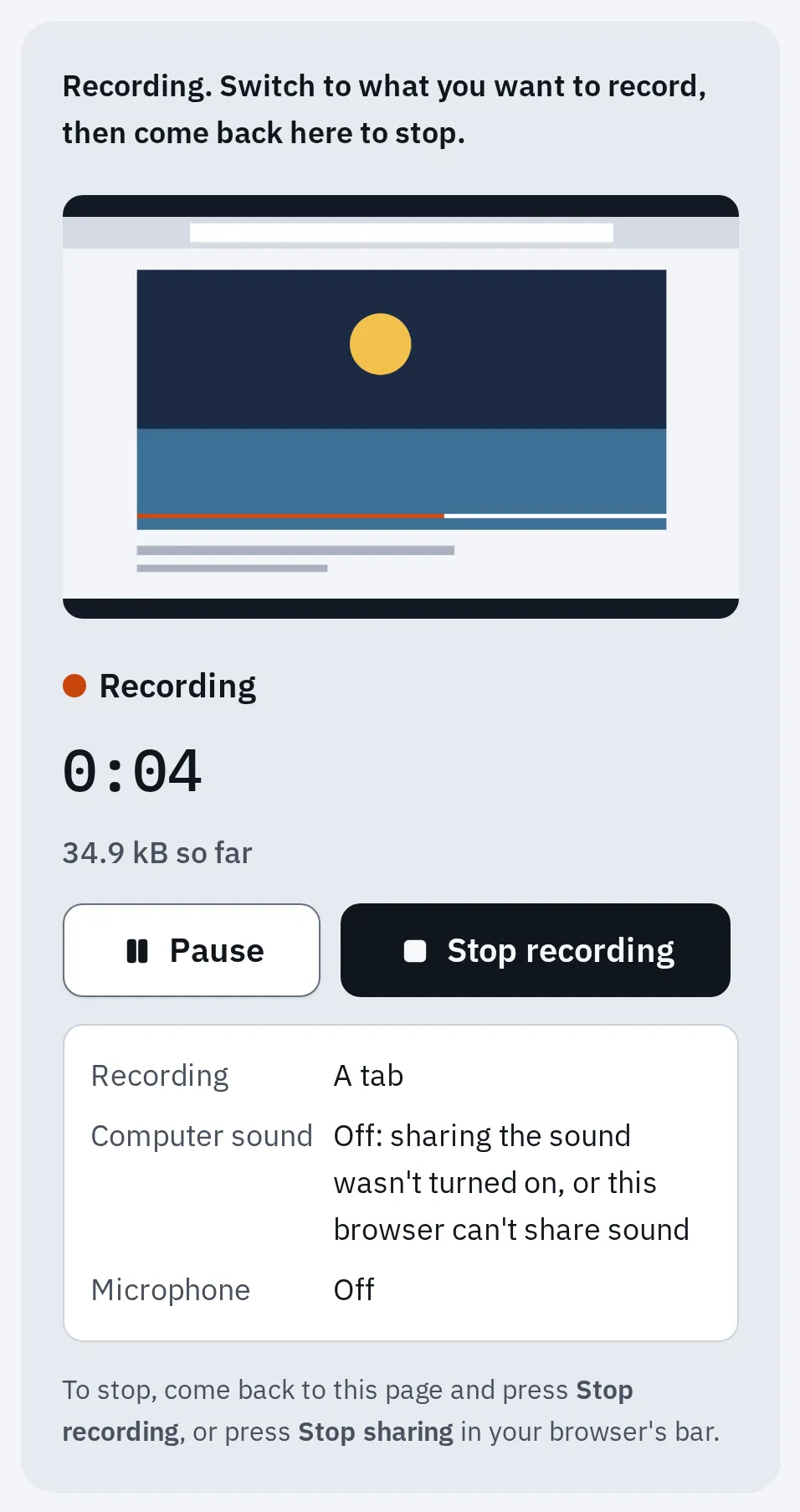
What our recorder shows when the tab's sound option was left off: the same mistake that leaves a call silent. Taken in Chrome's engine with a test tab.
On a Mac, allow the app first
A Mac doesn’t let an app hear the computer’s sound until you allow it. A call app or browser asks the first time you share. If you clicked Don’t Allow, or nothing happens, turn it on yourself:
- Open Apple menu System Settings Privacy & Security.
- Click Screen & System Audio Recording. On macOS 13, it’s called Screen Recording.
- Turn on your call app, or your browser if you join in a browser.
- Quit that app completely and open it again.
Some apps also need a one-time install:
| App on a Mac | What it needs |
|---|---|
| Microsoft Teams | Its audio driver, once. If Teams doesn’t offer it, get it from Microsoft at aka. |
| Webex | An extension for the sound, installed with an administrator password. |
| Discord | macOS 13 or newer, and Allow when the Mac asks about recording sound. |
| Chrome or Edge | A tab’s sound works on any Mac the browser runs on. A window or the entire screen needs macOS 14.2 or newer and an up-to-date browser (Google Meet: Chrome 142 or newer). |
To see your version, open the Apple menu and choose About This Mac.
The sound is shared but sounds wrong
| What they hear | What to do |
|---|---|
| The video twice, or an echo | Someone in the call has two devices in the same room, such as a phone and a laptop. Keep only one device’s microphone and speaker on. Zoom and Microsoft both give this advice. See two devices in one room. |
| An echo in Google Meet | Google suggests choosing your system’s default speaker in Meet’s settings. |
| The video stutters or freezes | Zoom: tick Optimize for video sharing for a full-screen clip. Teams: click Optimize in the bar at the top of the screen. Webex: choose Best for video and motion. |
| The sound is too quiet or too loud | Set the volume in the video player, or the computer’s volume. Zoom says to do it there, not in Zoom. |
| Too quiet, with Teams on Windows | Windows may turn other sounds down during calls. Open the Sound control panel, the Communications tab, and choose Do nothing. |
| Notification pings | When you share the computer’s sound (not one tab), every sound it plays goes too. Turn on Do Not Disturb before you present. |
| One person hears nothing, the rest are fine | It’s on their side. They should check they aren’t muted and their volume is up. In Discord, a stream has its own volume: hover over it and use the speaker icon. |
| Nothing, in a meeting room with a Teams Room console | Microsoft says a laptop connected by cable can’t share its sound there. Join the meeting from the laptop with Audio off, then share with Include sound on. |
Microsoft says Teams and Windows must use the same speaker. Plugged into a projector or TV? Choose it as the speaker in both Windows and Teams.
On a phone or tablet
The call apps can share a phone’s sound too, with your permission.
| App | How |
|---|---|
| Zoom on iPhone or iPad | Tap Share Content, then Screen. In the next panel, tap the microphone button until it says Microphone On: that shares the sound. Then tap Start Broadcast. Later, in Zoom, check Share Device Audio is on. |
| Zoom on Android | Share your screen, then tap Share Audio. Needs Android 10 or newer, and the other app must allow it. |
| Teams | Tap Share, Share screen, then Share screen with audio. Then tap Start Broadcast. Needs Android 10 or iOS 13 or newer. |
| Google Meet app on Android | Tap the screen, then More, Share screen and Start Sharing. Tick the sound box on the Present to everyone pop-up. No box means your phone can’t share sound. Muting your microphone also stops the shared sound. |
Questions people ask
Can I share sound without sharing my screen?
In Zoom, yes: click Share, open the Advanced tab and choose Computer Audio. Teams and Meet share sound only while you present a screen, window or tab.
Why can't I find Share audio in Safari or Firefox?
They don’t share sound with websites at all. Firefox’s own bug tracker says it isn’t built yet. Join the call from the app, or from Chrome or Edge.
Can I play a video file instead of a web video?
Yes. Share the window of the player that plays it, with the app’s sound option on. Zoom can also play an MP4 or MOV file itself: click Share, open the Advanced tab and choose Video file. It needs the Zoom app, signed in, on a fairly fast computer, and H.264 video. If Zoom won’t open your file, play it in your video player and share that window.
Will they hear my voice while the video plays?
Yes, if your microphone is on: the audience hears you over the video. Mute yourself while it plays if you want only the video. In Google Meet’s phone app, muting stops the shared sound too.
My video is inside my slides. What do I share?
Share the window of PowerPoint, Keynote or Google Slides, or your entire screen, with the app’s sound option on. Then play the slide. In a browser, share the slides’ tab with Also share tab audio on.
Why is there no sound option at all?
Safari and Firefox have none. In Chrome or Edge, a window or the entire screen needs a recent browser, and macOS 14.2 or newer on a Mac. Share a tab instead. If the Share button itself is missing or greyed out, the host or your school’s IT may have turned sharing off: ask them.
Does it work on a Chromebook?
Yes, in Chrome. Present the video’s tab with Also share tab audio on. If your app offers Also share system audio, a Chromebook can also share the whole computer’s sound with the entire screen.
Can I record the video's sound for later instead?
Yes, our screen recorder records a tab’s sound in Chrome or Edge. For whole-computer recording, see how to screen record on a Mac or on Windows.