Short answer
Most often the monitor is set to the wrong input, or the cable or adapter carries no picture. Pick the right input with the monitor’s buttons and plug the cable straight into the computer. Then press Windows + P and choose Extend. On a Mac, hold Option in Displays settings and click Detect Displays.
This page is for a monitor that shows nothing at all. If the picture is there but has lines, see lines on the screen. If the laptop’s own screen is black too, see computer on but screen black.
Step 1: see what your computer finds
Test it now
Multi-monitor test
In Chrome or Edge, it says how many screens your computer is using right now. If it says one, the computer either doesn’t see the second monitor or shows the same picture on both.
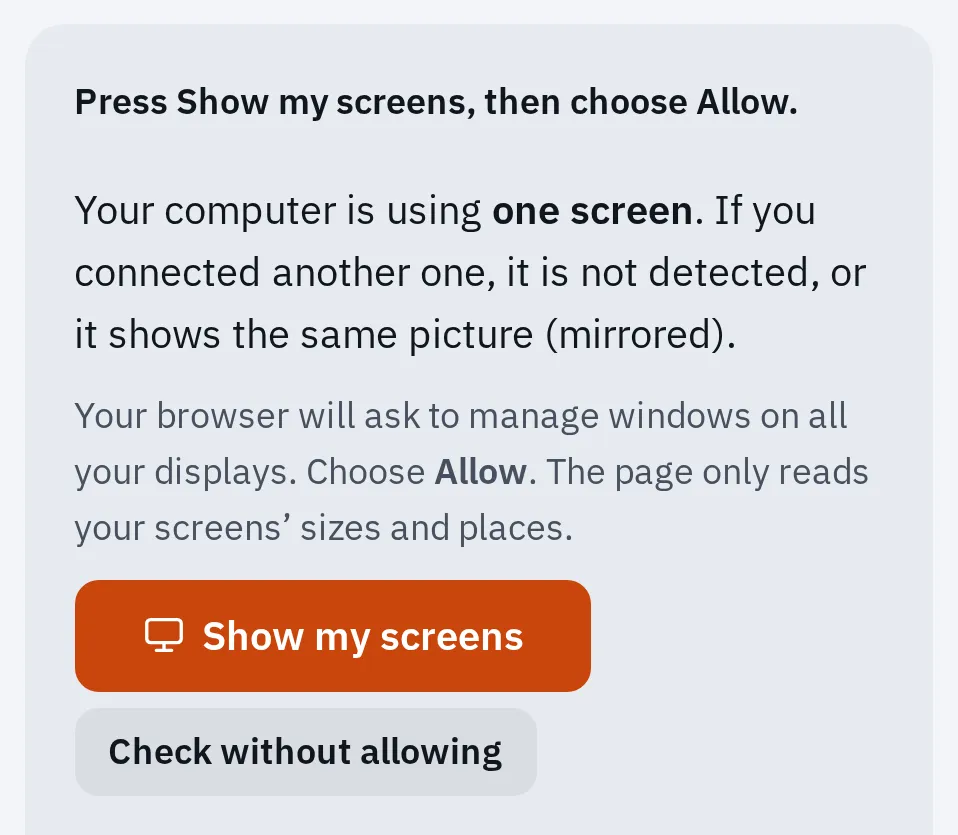
Our test on a computer with one screen. Press Show my screens and choose Allow to list each screen; Show test pattern next to each one tells you which is which.
Where the picture can stop
- The computer’s port: not every USB-C port carries a picture.
- An adapter, hub or dock: leave it out while you test.
- The cable: swap it for one you know works.
- The monitor’s buttons: power, and the input (Source) it listens to.
Work along the path. Test again after each change, so you know which one fixed it.
1. Check the input and power
- Check that the monitor is plugged in and turned on.
- Press the monitor’s Input or Source button, and pick the port your cable is in, such as HDMI 1 or DisplayPort.
- Unplug the video cable while the monitor is on. Many monitors then show a message such as “No signal”. If yours shows nothing at all, even its menu, see when it’s the monitor.
Monitor menus look different on each model. Your monitor’s manual names the buttons.
2. Check the cable, adapter and port
Microsoft and Apple both start here, because docks, adapters and worn cables cause many of these problems.
- Unplug any dock, hub or adapter. Connect the monitor straight to the computer if you can.
- Push the cable in firmly at both ends.
- Try another cable. If the new one works, the old one was faulty.
- Try another video port on the computer and on the monitor. On a desktop PC with a graphics card, use the ports on the card, lower down at the back.
An HDMI splitter can’t give you two different screens: it sends the same picture to both.
3. Make the computer look again
Windows
- Press Windows + P and choose Extend. Duplicate shows the same picture on both, and PC screen only turns the second one off.
- Open Start Settings System Display. Open Multiple displays and select Detect.
- Press Windows + Ctrl + Shift + B. This restarts the graphics driver.
- Restart the computer. If that doesn’t help, shut it down fully, then turn it on again.
Identify in the same Display settings puts a number on each screen. It only shows up once Windows finds more than one display.
Mac
- Unplug the monitor’s video cable and power cable, then plug them back in.
- Put the Mac to sleep, then wake it. On a MacBook, close the lid for a few seconds, then open it.
- Open Apple menu System Settings Displays. Hold Option: a Detect Displays button appears. Click it.
- On a MacBook with Apple silicon, watch for a message that asks to allow the accessory to connect. Unlock the Mac, then click Allow. If you don’t, the monitor stays dark. You can change this later in System Settings Privacy & Security Accessories, next to Allow accessories to connect.
- Restart the Mac.
4. Check how many screens your computer supports
A computer can only drive a certain number of screens. A monitor past that limit stays dark, however good the cable is.
| Mac | External displays |
|---|---|
| MacBook Air with M1 or M2, 13-inch MacBook Pro with M1 or M2, MacBook Neo | 1 |
| MacBook Air or MacBook Pro with the plain M3 | 2, but only with the lid closed |
| MacBook Air or MacBook Pro with the plain M4 or M5 | 2, with the lid open |
MacBook Pro models with Pro and Max chips support more. Using two monitors with an M3 MacBook? Close the lid, and use an external keyboard and mouse with the power connected. If you open the lid, the second monitor goes dark. The limits for every Mac and for Windows PCs are in how many monitors can my PC support.
On a Windows laptop with one video port, you can use one external monitor unless you add a dock or USB adapter. Its manual or spec page says how many screens it supports.
5. Docks and DisplayLink adapters
Some docks and adapters work through software called DisplayLink. They carry a DisplayLink sticker or say so in their manual. Without the software, the monitor stays dark.
- Download the DisplayLink software from the Synaptics website, or the link in your dock’s manual, and install it.
- On a Mac, allow it in System Settings Privacy & Security, under Screen & System Audio Recording (called Screen Recording on older macOS): turn on DisplayLink Manager, then quit and reopen it.
- Plug the dock straight into the computer, not into another hub.
Other devices on the dock drop out too? See USB devices disconnecting from a hub or dock.
6. Update or roll back the graphics driver
Do this on Windows when the monitor stopped working after an update, or nothing above helped.
- Install updates: Settings Windows Update Check for updates. Graphics drivers are often under Advanced options Optional updates.
- Right-click Start and open Device Manager. Open Display adapters.
- If it started after an update: right-click your graphics, choose Properties Driver Roll Back Driver and restart.
- No roll back? Right-click it, choose Uninstall device, tick Attempt to remove the driver for this device, select Uninstall, and restart. Then open Device Manager and Display adapters again, right-click your graphics, choose Update driver and Search automatically for updated driver software.
On a Mac, install the latest macOS update. For a monitor made by another company, check its maker’s site for new firmware. On Ubuntu, see external monitor problems on Ubuntu.
When it’s the monitor
The monitor itself is the likely fault when:
- it shows no light and no menu with a known good power cable, or
- it stays black on a second computer or a games console with a cable that works elsewhere.
Check its warranty on the maker’s site first. For a monitor out of warranty, see what a monitor repair costs.
Questions people ask
Why does my second monitor say No signal?
The monitor is on, but no picture reaches the input it’s set to. Pick the right input with its buttons, then try another cable and port. If the computer sees the monitor but shows the same picture on both, press Windows + P and choose Extend.
Why is my second monitor detected but black?
On a Mac, you may have exceeded the number of displays it supports, or not allowed the accessory to connect. On Windows, press Windows + P and choose Extend, then restart the graphics driver with Windows + Ctrl + Shift + B.
Why did my second monitor stop working after an update?
A new graphics driver can cause it. Roll back the driver in Device Manager, as shown above, or install the newest one from Windows Update’s optional updates or your graphics maker.
Can I connect two monitors to one port?
Sometimes. A dock or daisy chain can share one port on many computers, but it doesn’t raise the number of screens your computer supports. An HDMI splitter only copies one picture.
The second monitor works but runs at 60 Hz. Why?
The cable, the port or the setting limits it. The multi-monitor test has the fixes, and the refresh rate test measures each screen.