Short answer
Three settings make most of the difference. Tell the TV a PC is connected, so text is sharp. Turn on the full HDMI signal for its port too: Deep Colour, Input Signal Plus or Enhanced format. Turn on Game mode, so the mouse and controller react with less delay. For 120 Hz, use the port marked 4K 120Hz and an Ultra High Speed HDMI cable. Pick your TV below for the exact menu names.
Your settings, in order
Pick your TV and what you use it for. The list shows what to change, in order: the port first, then the TV, then your computer or console. The names come from the makers’ guides for the models we name; other years can differ a little.
LG TV, used for Computer work: change these, in this order
- Use the fast port and cable. On the C4, C5, B4, B5 and QNED86, LG lists 4K at 120 Hz on all four HDMI ports. The UT80 and QNED80 stop at 60 Hz. Use an Ultra High Speed HDMI cable. Which port and cable
- Tell the TV a computer is connected. Press Input to open the Home Hub, and choose Edit Inputs. Set the icon of your HDMI input to PC, and choose Save. Why this helps text
- Turn on the full HDMI signal for that port. Open Settings, General, External Devices, HDMI Settings, and set HDMI Deep Colour to 4K for this port. Off means 4K at 60 Hz with reduced colour.
- Turn on Game mode. Open Settings, General, Game Optimiser (in the US: Game Optimizer) and turn it on. Pick the Game Optimiser picture mode. For a console, turn on ALLM there. What Game mode does
- Show the whole picture. LG’s fix for a cut-off computer picture is the PC icon. If edges are still missing, set Picture, Aspect Ratio, Just Scan to On.
- Turn the sharpening down. Lower Sharpness until letters have no bright or dark outline, and turn off noise reduction and motion smoothing.
- Set the computer. Choose the resolution marked Recommended (3840 × 2160 on a 4K TV). Then raise Scale until text is easy to read from your seat. 60 Hz is fine for work; choose 120 Hz if the list offers it. The scale for your seat
- Sort out the sound. No soundbar? Choose the TV as the sound output on the computer. Soundbar: plug it into the eARC port (HDMI 2 on the C4 and C5, HDMI 3 on the B4 and B5). In Sound, Sound Out, choose HDMI(ARC) Device, and turn on eARC Support in Sound, Advanced Settings. LG warns sound can lag with Game Optimiser on: set Select HDMI Input Audio Format to PCM if it does. Sound and lip sync
- Check that text is sharp. Run our chroma subsampling test on the TV, and look from close up. Open the chroma subsampling test
The same settings by brand. Model years change the path a little: the list above has the full steps.
| Setting | LG | Samsung | Sony | TCL | Hisense |
|---|---|---|---|---|---|
| Port for 4K 120 Hz | All four on C4, C5, B4, B5, QNED86 | Mostly HDMI 4 (2019–2023); all four on some, such as the QN90D | HDMI IN (4K 120 Hz) | HDMI 1 and 2 on the QM8K | Depends on the model |
| Computer label | Edit Inputs, icon PC | Edit, icon PC | Content type PC (older: Graphics) | Not in the QM8K guide | Picture mode PC/Game |
| Full HDMI signal | HDMI Deep Colour: 4K | Input Signal Plus | Enhanced format (Advanced) | Not in the QM8K guide | HDMI Format: Enhanced |
| Game mode | Game Optimiser | Game Mode: On | Content type Game | Game Master | Picture mode PC/Game; Instant Game Response: Auto for consoles |
| VRR | VRR, VRR & G-Sync, AMD FreeSync Premium | On with Game Mode | VRR (Variable Refresh Rate) | In Game Master | AMD FreeSync |
| Whole picture | Just Scan | Picture Size Settings: 16:9 Standard | Wide mode: Full | Overscan off | Overscan off |
| Soundbar port | eARC: HDMI 2 (C4, C5) or HDMI 3 (B4, B5) | Labelled ARC | HDMI IN 3 | HDMI 4 (QM8K) | Labelled eARC |
Another brand? Look for the same kinds of words in the picture settings and in the settings for the HDMI inputs: PC, Game, Enhanced or Deep Colour, and VRR.
Use the right port and cable
- The TV port marked 4K 120Hz or 144Hz. On some TVs, it is only one or two of the ports.
- The eARC port. Keep it for a soundbar, if you have one (see Sound, below).
- An Ultra High Speed HDMI cable. Its box has a label with a code you can scan.
- On a desktop computer with a graphics card, the HDMI port on the card, low down. The ports higher up belong to the motherboard.
The port, the cable and the computer's port all have to be fast enough. The slowest one sets the limit.
-
Find the fast port on the TV. Read the small print next to each port, or the TV’s spec page. An “HDMI 2.1” label alone doesn’t promise 4K at 120 Hz: each HDMI 2.1 feature is optional, says HDMI Licensing. Look for the rate itself.
-
Use an Ultra High Speed HDMI cable. HDMI Licensing names four kinds of cable:
Cable name Carries up to High Speed 4K at 30 Hz (10.2 Gbps) Premium High Speed 4K at 60 Hz with HDR (18 Gbps) Ultra High Speed 4K at 120 Hz, 8K at 60 Hz (48 Gbps) Ultra96 4K at 240 Hz (96 Gbps, for HDMI 2.2) The name matters, not a version number. HDMI Licensing says the name must be printed on the cable itself. The label on the box has a code: scan it with your phone’s camera to check the cable is certified. Samsung suggests a cable shorter than 3 m (10 ft). PlayStation and Xbox recommend the cable that came with the console.
-
Desktop computer with a graphics card? Plug into the card’s HDMI port, not the ports higher up on the motherboard. NVIDIA says its GeForce RTX 30 and 40 Series cards support HDMI 2.1. For other cards and for laptops, look for 4K at 120 Hz on the spec page.
-
On a Mac with HDMI, use that port. Apple lists 4K at up to 240 Hz on some MacBook Pro, Mac mini and Mac Studio models from 2023 on, and says adapters aren’t supported for these rates. Older Macs with HDMI stop at 4K 60 Hz or 30 Hz. No HDMI port, as on a MacBook Air? Use a USB-C to HDMI adapter, and check the resolution and refresh rate it lists.
-
Leave out adapters, docks and switches while you test. Many of them stop at 60 Hz. If 120 Hz is still missing, see the cable or port holds it back.
Sharp text: PC mode and full colour
Films don’t need every dot’s colour, so HDMI signals often save room: the computer or box sends full brightness for every dot, but colour for only one dot in four. That is called 4:2:0 (chroma subsampling). Black text on white stays sharp. Coloured text and small words on colour smear. Full colour for every dot is 4:4:4 or RGB, and that is what a computer needs.
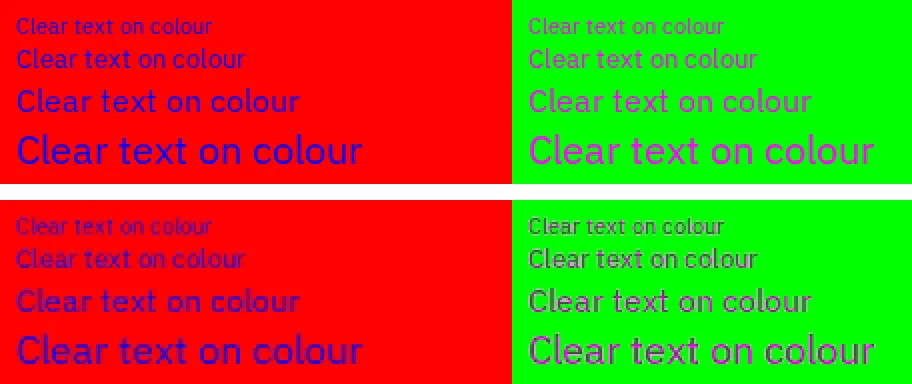
Our chroma test's text-on-colour pattern, enlarged. Top: as a 4:4:4 signal shows it. Bottom: the same pixels with the colour shared by each block of four, as a 4:2:0 signal sends it (we made this copy, it isn't a photo of a TV).
Two TV settings help. The PC label or PC mode tells the TV to stop treating the picture as a film. The full HDMI signal setting (Deep Colour, Input Signal Plus, Enhanced format) lets that port take a 4:4:4 signal at all. The computer must also send RGB or 4:4:4. LG puts numbers on it: with HDMI Deep Colour off, the port takes 4K 60 Hz in 4:2:0 only. Samsung says that with Input Signal Plus off, a computer gets 4K at 30 Hz.
Test it now
Chroma subsampling test
Run it on the TV and look from close up, or through your phone’s camera. If words on colour look soft while black words on white stay sharp, the TV still gets reduced colour.
Still soft? The test’s fixes cover each brand’s PC setting, the colour format in NVIDIA, AMD and Intel settings, and what to try on a Mac: see text on colour is blurry. If even black text is soft, the picture is being resized: see everything is a little blurry.
Low lag: Game mode
A TV improves films with processing such as motion smoothing and noise reduction. That takes time, so the picture comes late. Game mode turns most of it off. You notice it as a mouse pointer that keeps up with your hand, and a game that reacts with less delay.
Do you need to turn it on yourself?
- A PS5, Xbox or Switch 2Usually not: with ALLM (auto low latency mode) the console asks the TV for Game mode when a game starts. Check that ALLM is on in the console.
- A computerYes, as a rule. Samsung, for example, sets Game Mode to Auto for consoles but says to set it to On for a computer.
- Films on the same inputWith ALLM, the TV goes back to its previous mode when a film starts, says HDMI Licensing. With Game mode set to On, it stays on.
120 Hz and VRR
At 120 Hz the TV shows a new picture 120 times a second instead of 60, so motion and the mouse look smoother. VRR (variable refresh rate) makes the TV wait for each new frame, so games don’t tear or judder when the frame rate drops. Both need the fast port, the cable and the full HDMI signal from above.
Windows
- Open Start Settings System Display and select the TV.
- Under Display resolution, choose the one marked Recommended: the TV’s own, such as 3840 × 2160.
- Open Advanced display, and choose the highest rate next to Choose a refresh rate: 120 Hz or more on a TV that has it.
- Turn on VRR in your graphics card’s app: see G-SYNC or FreeSync.
- With an NVIDIA card, open NVIDIA Control Panel, Change resolution, tick Use NVIDIA color settings and set Output color format to RGB.
Mac
- Open the Apple menu, then System Settings Displays, and select the TV.
- Choose Default for the resolution, or a larger text size.
- Pick the highest rate in the Refresh rate menu, if your Mac shows it.
- Picture doesn’t fit the TV? Apple shows an Overscan setting there for some TVs. Otherwise, use the TV’s picture size settings.
Only some Macs send 4K at 120 Hz or more over HDMI: see the port and cable.
PS5
- Open Settings Screen and Video Video Output.
- Turn on 120 Hz Output. A game must support 120 Hz to use it.
- Turn on VRR, and ALLM if your TV has it.
PlayStation recommends the HDMI cable that came with the PS5, in the TV’s HDMI 2.1 port. The PS5 also has Test 1440p Output, for TVs that take 1440p.
Xbox Series X|S
- Press the Xbox button, then open Profile & system Settings General TV & display options.
- Set Refresh rate to 120 Hz. On an Xbox Series X, set Resolution to 4K UHD too; on a Series S, 120 Hz may lower the resolution.
- Under Video modes, tick Allow variable refresh rate and Allow auto low-latency mode.
Xbox says 4K at 120 Hz needs an Ultra High Speed HDMI cable and a TV with HDMI 2.1.
Switch 2
- From the HOME Menu, open System Settings Display.
- Turn on 120 Hz Output. Nintendo supports it at 1080p and 1440p, not at 4K.
- For VRR on the TV, update the system and the dock first: Nintendo added VRR in TV mode with system update 23.0.0, and it needs a dock update. Then turn on VRR Output in the VRR settings.
Video Output Information, in the same settings, shows which signals your TV can take.
Test it now
Refresh rate test
Run it on the TV, in a browser window there. It works out the rate from how often the browser draws, and says if it reaches 120 Hz. Compare it with the rate you chose. A busy computer or power saving can lower the result, so measure again before you change settings.
Our test can’t run on a console. Some TVs show the incoming signal in their game menu: Hisense’s Game Bar, for example, shows the frame rate and whether VRR and ALLM are on. The Switch 2 has Video Output Information.
Make text the right size for your seat
- A 27-inch 4K monitor, about 70 cm (28 in) from your eyes.
- A 55-inch 4K TV, about 1.4 m (55 in) away.
- Both fill the same angle, so text needs the same scale on both: 150%.
What counts is how big the screen looks from your seat. Twice the size at twice the distance looks the same.
Leave the resolution at the TV’s own (Recommended), and make things bigger with Scale on Windows or a larger text size on a Mac. A lower resolution makes text blurry: see make text bigger without blur. Microsoft picks a starting scale from the screen’s pixels and a typical distance for each kind of screen. Here is the same rule for 4K TVs, with your own distance:
| 4K TV | At a desk, 70 cm (28 in) | 1 m (40 in) | 1.4 m (55 in) | Sofa, 2.5 m (8 ft) |
|---|---|---|---|---|
| 42 or 43 inch | 100% | 150% | 200% | 250%, still small |
| 48 inch | 100% | 125% | 200% | 250%, still small |
| 55 inch | 100% | 100% | 150% | 250% |
| 65 inch | 100% | 100% | 125% | 250% |
Worked out with Microsoft’s default-scale rule, the one Windows uses to pick a scale by itself. The rule stops at 250%. “Still small” is our mark for things that look clearly smaller than Windows plans for, even at 250%. Then sit closer, make the text bigger as well, or use the TV’s own apps from the sofa. One step bigger or smaller is fine if it suits your eyes.
Sound: soundbar, eARC and lip sync
- One HDMI cable from the computer or console to the TV’s fast port carries the picture and the sound.
- The TV shows the picture, with Game mode and VRR working.
- A second HDMI cable, from the TV’s eARC port, carries only the sound back out.
- Into the soundbar’s HDMI eARC (or HDMI ARC) port.
Picture and sound go into the TV together. The TV sends the sound on to the soundbar.
- Connect the soundbar to the TV’s eARC port. HDMI Licensing says to use the port marked eARC, and that you may need to turn eARC on in the TV’s menu. eARC can carry Dolby Atmos, Dolby TrueHD and DTS:X, if the TV and the soundbar both support them.
- Choose the soundbar as the TV’s sound output, in the TV’s sound settings (LG: Sound Out; Samsung: Sound Output; Sony: Audio output).
- On the computer, choose the TV as the sound output. On Windows, open Settings System Sound and choose the TV under Output. On a Mac, open System Settings Sound Output and select the TV.
- Lips and sound don’t match? Most TVs have an A/V sync or audio delay setting: the settings by brand. Some lock it in Game or PC mode (Sony does), so use the soundbar’s own setting then. Measure it with the audio latency test.
Why not plug the computer into the soundbar and the soundbar into the TV? Then the soundbar has to pass on 4K at 120 Hz and VRR too. Check its manual before you wire it that way. With the TV in the middle, the fast picture goes straight to the TV. For 5.1 speakers and a receiver, see how to set up surround sound.
An OLED TV as a monitor
OLED TVs show deep black and quick motion, but still things on screen for hours can wear in: a taskbar, a dock, a game map. Long tests and warranties are in OLED burn-in risk. The simplest habits are in lower the risk on a screen you have: let the screen turn off when you step away, hide the taskbar, and keep the maker’s panel care on. To wipe it, see how to clean a screen safely.
Questions people ask
Is a TV good as a computer monitor?
It can be, with the settings above. On a 60 Hz TV, the same steps still give sharp text and low lag; only the 120 Hz steps don’t apply. A 4K TV of 42 to 48 inches at a desk gives sharp text and lots of room. Watch out for TVs that only run at 60 Hz, a desk too shallow for the size, and text that stays soft because the TV gets reduced colour: the chroma subsampling test shows it. Bought one to try? Test it before the return window closes.
Why is the text on my TV blurry when the computer is set to 4K?
Usually the TV gets reduced colour (4:2:0) or sharpens and resizes the picture. Set the input’s icon or mode to PC, turn on the full HDMI signal for that port, and turn Sharpness down. Run the chroma subsampling test to see which it is.
Why can I only choose 60 Hz?
Something in the chain is too slow: the TV port, the cable, the computer’s port or an adapter. The full HDMI signal setting also has to be on for that port. Check each one in use the right port and cable, then run the refresh rate test.
The screen goes black or flickers after a change. What now?
The TV doesn’t take that signal on this port or cable. Set the rate back from another screen, such as a laptop’s own, then check the cable and the port. Check the full HDMI signal setting for that port: Input Signal Plus on Samsung, HDMI Deep Colour: 4K on LG, Enhanced format on Sony. If the trouble started when you turned that setting on, LG says to set HDMI Deep Colour back to Off: the device or cable can’t keep up. No second screen? See screen black but computer on.
How do I make the TV a second screen instead of a copy?
On Windows, press Windows + P and choose Extend for extra space, Duplicate for the same picture on both, or Second screen only to use just the TV. On a Mac, open System Settings Displays and choose how the TV is used: as an extended display or a mirror.
Do DisplayPort to HDMI adapters work?
Only as far as the adapter goes. For 4K at 120 Hz, it must be sold for HDMI 2.1 at 4K 120 Hz, and it must list VRR if you want VRR. Apple says adapters aren’t supported for its Macs’ highest HDMI rates. A graphics card’s own HDMI port is the safer choice.
Should I turn HDR on for the desktop?
Only if you like how it looks. HDR on the Windows desktop can make ordinary windows look duller. You can leave it off for work and turn it on for HDR games and films. See what HDR is and why HDR can look washed out.
Why is the edge of the picture cut off?
That’s overscan: the TV zooms in a little, as it does for TV channels. Set the input’s icon to PC, or turn on Just Scan, 16:9 Standard or Wide mode: Full, or turn Overscan off. On a Mac, Displays may also have an Overscan setting for TVs.