Short answer
Run your exam’s own system check a week before, on the computer, internet and room you’ll use. Then test what it can’t fix in a hurry: your camera, microphone, one screen only, and an internet that stays up for an hour. On the day, restart, plug in the charger, close everything else and check in on time.
Exam today? Go straight to 30 minutes before and if something fails.
- A week before: their system check, then test each part. Time to buy a webcam, ask for a laptop or move rooms.
- The day before: the internet for an hour at the exam’s time of day, a full check in the room, the desk set up.
- 30 minutes before: restart, plug in, close every other app, unplug extra screens.
- The exam: check in on time, and know what to do if something fails.
Three checks, each closer to the exam. Early enough to fix what fails, late enough to catch what changed.
Your checklist
Tick each step as you go. Your ticks stay in this browser on this device, so they’re still here the day before. Enter your exam time to see the date of each step, and add three reminders to your calendar. Every step is explained below the list.
Enter the time on your own clock. If your booking shows another time zone, convert it first.
Nothing is sent anywhere, and there's no account. Clear your ticks when you're done.
Open the calendar file with your calendar app. Google Calendar takes a file only on a computer: open calendar.google.com, then Settings Import & export, Select file from your computer and Import. If your exam time changes, delete the old reminders and add new ones.
A week before
A week leaves time to fix what fails. It’s also the same day of the week as your exam, so run their check at the exam’s time of day. ETS advises this for its own check: run it “on the same day of the week and the same time of day as your test”.
Can’t meet a rule? No webcam that works, a school Chromebook that blocks the install, no room where you can be alone? Only a Windows virtual machine on a Linux or Mac computer? (ProctorU and Pearson VUE don’t allow virtual machines, and Proctorio may block them.) Tell your school or exam body now. They may lend equipment, offer a room, or move you to a test centre. A week is often too late to arrange extra time or other support, so check those are already approved.
Find your service and its rules
Your exam confirmation or course page names the service: Pearson VUE OnVUE, ProctorU, Honorlock, Proctorio, Respondus LockDown Browser, ETS, Proctortrack or another. Its own pages list what it needs. The rules differ more than you’d think, so read yours. Here is what the big ones say about the computer:
| Service | Their app, and their check | Internet they ask for | Extra screens |
|---|---|---|---|
| Pearson VUE OnVUE | The OnVUE app. System test, on the same device and network as on the day | 6 Mbps down, 2 Mbps up | “One display screen only” |
| ProctorU | Guardian Browser for most exams. Test your equipment (it “does not guarantee” exam day) | 3 Mbps up and down; hotspots discouraged | “All others must be disconnected” |
| Honorlock | Chrome with its extension. Its requirements check | 1.0 Mbps down, 2.5 Mbps up | Windows: press the Windows key and P together, then pick the PC-only option. Mac: mirror it, or unplug it if it uses an adapter |
| Proctorio | Chrome, Edge, Brave or Opera with its extension. Requirements check | Recorded exams: a small upload (0.09 to 0.19 Mbps, its page says). With a live proctor: 5 Mbps down | Unplug it: turning it off “will not satisfy the requirement” |
| Respondus LockDown Browser | LockDown Browser. Webcam Check and System Check, under Help Center | No set number; a network cable if you can | Not supported: disconnect them |
| ETS (GRE and TOEFL at home) | The ETS Secure Browser (GRE) or TOEFL app. Equipment Check | No set number; check at the same day and time as your test | One screen only |
| Proctortrack | An onboarding exam, a practice run | 1.5 Mbps down, 1.5 Mbps up | No extra monitors, keyboards or mice |
“Down” is download, what comes to you. “Up” is upload, what you send: your camera picture and voice. The table is what each page said in November 2026. Pages change, so check yours. Prometric, Examity and others aren’t in the table: read their own pages.
Two more rules almost all of them share:
- No headphones or earbuds, unless your exam says so. OnVUE, ETS and ProctorU say this, and Honorlock’s standard rules ban headsets. You’ll hear the proctor through speakers.
- No phone or tablet as the exam computer for most exams. Chromebooks work with Honorlock, Proctorio and Respondus, with ProctorU and Proctortrack only for some exams, and not with ETS or OnVUE.
Run their system check
Run it on the computer, internet and room you’ll use on the day. A laptop that passes at the library may fail at home. If it asks you to install something (an extension, an app, LockDown Browser), install it now.
A work or school laptop may not let you install it. You need a login that can install programs (an administrator account): Microsoft says yours needs “local administrative permissions”. It also advises a personal computer, because work computers “often contain software that prevents OnVUE software from launching”. Honorlock also lists webcams it doesn’t work with, Amcrest and Nexigo, so check your service’s list before you buy one.
Test each part
If their check fails, or passes with a warning, our tests help you find which part is the problem. Each one takes a minute. If the browser says the camera or microphone is blocked, see how to allow it.
Test it now
Webcam test
It shows whether real pictures arrive and aren’t too dark, with the picture size. ProctorU asks for at least 640 × 480.
Test it now
Mic test
It shows whether your microphone hears your voice. Use the computer’s own microphone or a desk microphone: ProctorU allows any microphone “other than those built into headphones”.
Test it now
Internet speed test
Compare both numbers, download and upload, with what your service asks for. Run it on the same Wi-Fi or cable, in the exam room.
One screen only
Every service above allows one screen. Turning a monitor off isn’t enough, Proctorio warns: the computer can still see it while the cable is in. So unplug every extra monitor, TV and drawing tablet with a screen, at the computer end. Microsoft also says to turn them away from you.
Test it now
Multi-monitor test
On a computer in Chrome or Edge, press Show my screens, then Allow. It shows how many screens your computer uses. After unplugging, it should say one. Firefox and Safari only see the screen the window is on.
If a second screen shows the same picture as the first, it’s mirrored, and the test may count one screen. It’s still connected, so unplug it, unless your service allows the closed-laptop case below.
Using a laptop closed, with a monitor? Rules differ. ProctorU allows it if the monitor is set to mirror. The cable must go straight into the laptop, not through a dock: “avoid using a docking station”. ETS says to use the laptop’s own screen. Ask your service.
Updates and your ID
An update that starts on exam morning can hold up your computer. Install updates now, restart, then pause them. In Windows 11: Start Settings Windows Update, then Pause updates. Pick a date after your exam. On a Mac, install waiting updates: Apple menu System Settings General Software Update.
Check your ID too. Pearson VUE wants a government ID whose name “exactly matches the name on your exam booking”. Honorlock fails nicknames and changed names that don’t match. For the GRE at home, ETS asks you to verify your ID in its app at least 72 hours before the test.
The day before
Record your internet for an hour
A speed test takes a few seconds, so it misses a drop that comes once an hour. And one drop of two minutes can end an exam. So we suggest recording your connection for an hour, at the time of day your exam starts, when the same people at home are online.
Test it now
Internet stability test
Choose 1 hour and press Start recording. Keep the tab open and the computer awake. It lists each drop it finds, with its time and length.
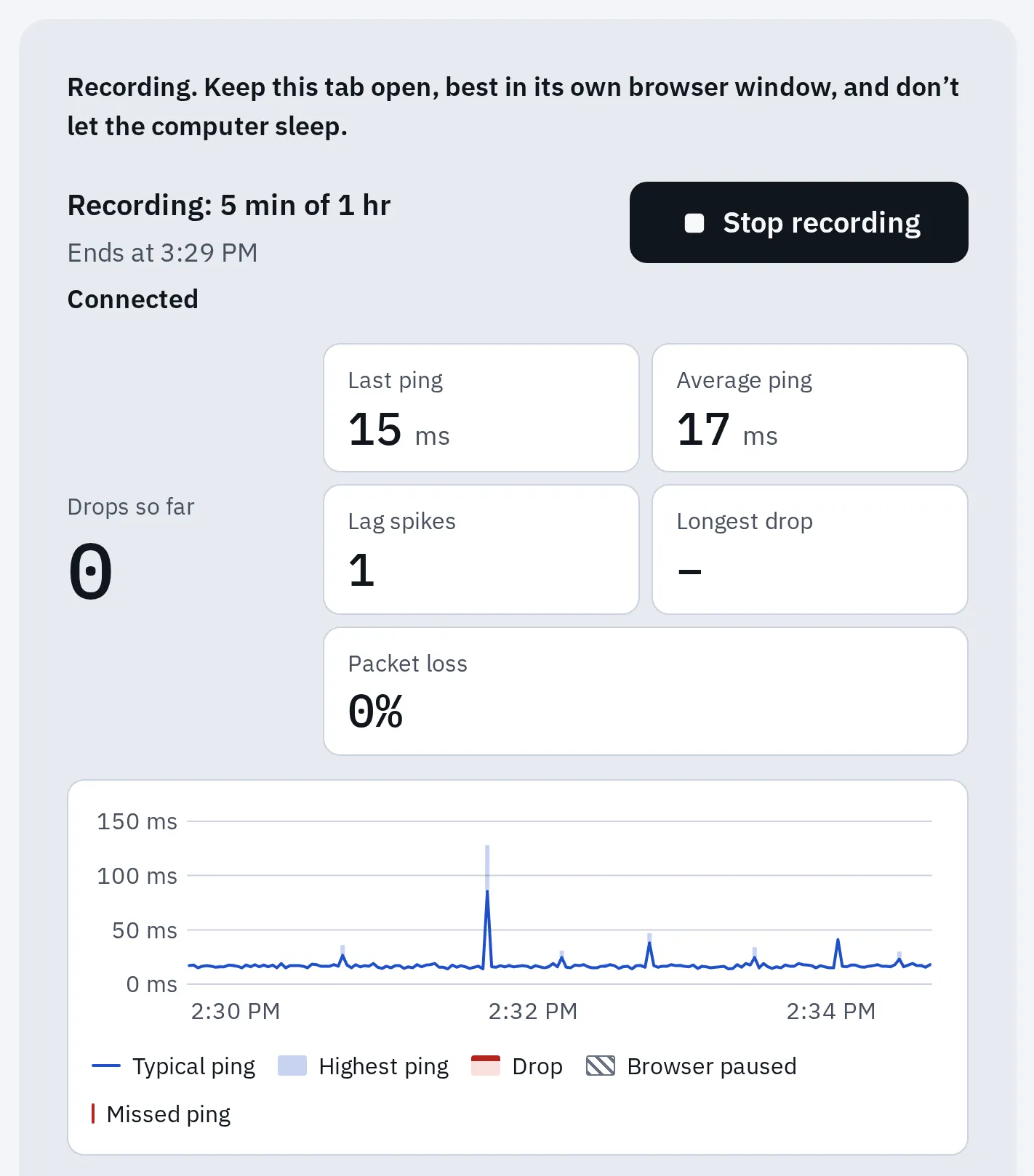
Five minutes into an hour: no drops, one short lag spike. A drop would show as a red band, and the result lists its time and length.
Wi-Fi weak in the exam room? Test each room to find the best place to sit.
Thinking of a phone hotspot as a backup? Ask first. ProctorU discourages hotspots, and LSAC doesn’t allow one for the LSAT.
A full check in the exam room
Sit where you’ll sit, at the desk you’ll use. Then run our video call test: it checks the camera, microphone, speakers and internet together, in about a minute. Then run your service’s system check again.
Test it now
Video call test
It says “You’re ready for a video call” only when the camera, microphone, speakers and internet all worked here.
Set up the desk and room
- The camera sees your face the whole time. Pearson VUE doesn’t let you leave the webcam view, except on an approved break.
- Light in front of you, not behind. A window behind you makes your face dark.
- Extra screens unplugged, and turned away.
- A clear desk. Only what your exam allows, such as your ID or a drink.
- Your phone out of reach once check-in is done, unless your rules say otherwise.
- The charger plugged in. ETS asks for this for the whole TOEFL test.
- The door closed, and you alone. ProctorU suggests sitting with your back to the door.
What the camera and the room scan should find. Your service's rules come first: they say what may be on the desk and where the phone goes.
- Clear the desk, and under it. Pearson VUE checks everything “on, under, or within arm’s reach”.
- Light your face from the front: a window or lamp behind the laptop. The webcam test says if the picture is very dark. More help with light and camera height: look better on video calls.
- Put the laptop on something steady, with the camera level with your face. For the room scan you may have to turn the camera all the way round. ETS asks for a camera you can move, so leave the cables some slack.
- Plan the phone. Many services use it at check-in: photos of you and your ID, a room scan, or as a mirror to show your screen. Then it goes out of reach: Microsoft asks for it “close enough to be heard” in case the proctor calls. If it’s a second camera (some ETS and ProctorU exams), it stays where the service says, plugged in and silent.
- Wipe whiteboards (Pearson VUE asks for this). For the TOEFL, ETS also wants the walls clear of anything about the test.
Tell the people you live with when the exam is. Pearson VUE asks that “no one else is using the network for streaming or large downloads”. And close the door: Pearson VUE says “You must remain alone at all times”.
30 minutes before
Does your check-in open 30 minutes before the exam, as Pearson VUE’s does? Then do these steps before it opens.
- Restart the computer. ProctorU and Pearson VUE both advise it. Then plug in the charger, and make sure the screen won’t lock or go to sleep during the exam.
- Close every other app. Chat, music, Zoom, Teams, Discord, cloud sync and remote-control apps like TeamViewer or AnyDesk. Pearson VUE says to “close all applications except OnVUE”, and many exam apps close the others anyway.
- Turn on Do Not Disturb, so no message pops up. In Windows 11: Start Settings System Notifications, then Do not disturb. On a Mac, open Control Center in the menu bar, click Focus, then Do Not Disturb.
- Turn off any VPN, an app that sends your internet through another server. Not sure what that is? Then you probably don’t have one. Proctorio doesn’t allow one, and Respondus and OnVUE say to turn it off.
- Unplug extra screens, and use a network cable if you can.
- Desk clear, ID ready, bathroom now. “Not all exams offer breaks”, as Pearson VUE puts it.
- Start check-in on time. Microsoft says OnVUE check-in “takes approximately 15 minutes but may take longer”.
If something fails during the exam
- Stay at the desk, in view. Don’t pick up your phone or leave the room unless the proctor tells you to.
- Give it a few seconds. Short drops often fix themselves: Respondus Monitor retries every 5 seconds, and ETS reconnects you automatically.
- Use the exam’s chat or follow what’s on screen. A proctor may also call your phone. Waiting for an OnVUE proctor for 30 minutes? Microsoft says the connection may be lost: use the OnVUE support chat.
- The app closed or froze? Open it again the way you started. OnVUE: close it and open it again from your Downloads folder. Honorlock: start it again from the course page.
- Internet down? Tell the proctor in the chat if you still can. Switch to a backup connection only if your rules allow one. Proctorio lets you back in only if your exam allows it.
- Afterwards, write down the times and what you saw, and contact your teacher or exam body the same day. Ask what happens next.
Questions people ask
Can the exam detect a second monitor even if it's turned off?
Yes, often. A monitor that’s switched off but plugged in can still count as connected. Proctorio says turning it off “will not satisfy the requirement”: unplug the cable. Then check with the multi-monitor test, in Chrome or Edge, that one screen is left. A mirrored screen can still count as one there, so unplugging is what matters.
Can I take a proctored exam on Wi-Fi?
Usually yes, but a cable is safer. ProctorU, Proctorio, Respondus and Microsoft all suggest a wired connection. On Wi-Fi, record an hour with the internet stability test at the exam’s time of day.
How fast does my internet need to be?
It depends on the service: from under 1 Mbps up for Proctorio’s recorded exams to 6 Mbps down and 2 Mbps up for Pearson VUE. A steady connection matters more than a fast one. One long drop can end an exam.
Can I use headphones or earbuds?
Usually not. Pearson VUE, ETS and ProctorU don’t allow them unless your exam says so. Use the computer’s speakers, and a microphone that isn’t part of a headset.
Can I use a Chromebook or an iPad?
Only with some services. Honorlock, Proctorio and Respondus support Chromebooks, ProctorU and Proctortrack only for some exams. Respondus works on an iPad only if your school’s course system supports it. Pearson VUE and ETS need a Windows computer or a Mac.
If my computer passes your tests, will it pass the exam's check?
Not always. Our tests check the parts: camera, microphone, screens and internet. The exam’s own check also tests its app, your system and your network’s settings. Always run theirs too.