Short answer
Don’t lower the screen resolution. It makes everything bigger, but blurry. Use the size settings instead: they draw letters bigger with all of your screen’s pixels, so they stay sharp. For one website on a computer, hold Ctrl and press +. On a Mac, use Command instead of Ctrl.
Both screens make the text the same size. Only one keeps it sharp.
- Scale or text size: the screen uses all of its pixels, and the letters are drawn bigger. Sharp.
- A lower resolution: the computer draws on fewer pixels, and the screen stretches the picture to fill itself. Soft, grey edges.
Which setting do you need?
There are four ways to make things bigger. Each one makes something different bigger.
- Text size: the letters, in most apps. Windows, icons and buttons stay about the same size.
- Scale or display size: everything, from letters to icons, buttons and windows.
- Browser zoom: only the web page, in the browser.
- Magnifier: one part of the screen, much bigger, while you need it.
What each setting makes bigger. The bigger parts are in orange.
The two settings have different names on each device:
| Device | Only the letters | Everything |
|---|---|---|
| Windows 11 | Text size | Scale |
| Windows 10 | Make text bigger | Make everything bigger, or Scale |
| Mac | Text size | Larger Text, in Displays |
| iPhone | Text Size, or Larger Text | Display Zoom |
| iPad | Text Size, or Larger Text | No setting: use Zoom |
| Android | Font size | Display size |
| Samsung Galaxy | Font size | Screen zoom |
| Chromebook | Font size, in Chrome (web pages only) | Display and text size |
Make things bigger on your device
Pick your device. Helping someone else? Pick their device. Can’t read the settings at all? Turn on the magnifier first. Before you change a setting, note what it is now, so you can go back. Then go one step bigger than you have now, and look at the result.
Windows
Only the letters (Windows 11):
- Press Windows U, or open Start Settings Accessibility.
- Select Text size.
- Drag the Text size slider to the right. The sample text shows the new size.
- Select Apply.
On Windows 10, open Start Settings Ease of Access Display. Move the slider under Make text bigger, then select Apply.
Everything bigger:
- Open Start Settings System Display.
- Under Scale & layout, open the Scale list.
- Pick a bigger number, such as 125%, 150% or 175%.
Leave Display resolution on the one marked (Recommended). Some apps only change after you sign out and back in: save your work first.
Bigger mouse pointer: open Settings Accessibility Mouse pointer and touch and move the Size slider. For a slower pointer and easier clicks, see make your mouse easier to use.
Mac
Everything bigger:
- Open the Apple menu, then System Settings Displays.
- Click one of the Larger Text choices, to the left of Default.
This is Apple’s own way to make everything bigger. On a separate monitor that isn’t very sharp, it can look a little soft. Some monitors show a list of resolutions here instead. In both cases, choose Default and use Text size instead.
Only the letters:
- Open System Settings Accessibility Display.
- Scroll down to Text and click Text size.
- Drag the slider to the right.
This changes the desktop, app sidebars and the apps in the list. In Mail and Messages, Command + also makes the text bigger.
Bigger pointer: in System Settings Accessibility Display, go to Pointer and drag the Pointer size slider. For a slower pointer and easier clicks, see make your mouse easier to use.
iPhone
Only the letters:
- Open Settings Appearance Text Size. On iOS 26 and earlier, it’s under Display & Brightness.
- Drag the slider to the right.
- Need it bigger still? Open Settings Accessibility Display & Text Size Larger Text and turn on Larger Accessibility Sizes. Then drag the slider further to the right.
Mail, Messages, Notes, Settings and many other apps follow this size. Thicker letters help too: turn on Bold Text in the same place as Text Size.
Everything bigger: open Settings Appearance Display Zoom, tap Larger Text, tap Done, then Use Zoomed. On iOS 26 and earlier, Display Zoom is under Display & Brightness.
iPad
Only the letters:
- Open Settings Appearance Text Size. On iPadOS 26 and earlier, it’s under Display & Brightness.
- Drag the slider to the right.
- Need it bigger still? Open Settings Accessibility Display & Text Size Larger Text and turn on Larger Accessibility Sizes. Then drag the slider further to the right.
Everything bigger: an iPad has no setting for this. Its Display Zoom, in the same place as Text Size, only makes things smaller. If it is set to More Space, choose the other option. For everything bigger, use Zoom.
Android phone
These steps are for a Google Pixel. On other phones, open Settings and search for Font size.
- Open Settings Display & touch Display size and text.
- Only the letters: move the Font size slider.
- Everything bigger: move the Display size slider.
- Thicker letters help too: turn on Bold text.
The preview at the top shows the new size. Reset settings takes you back. Some apps don’t follow the font size.
Samsung Galaxy
- Only the letters: open Settings Display Font size and style. Drag the Font size slider. Turn on Bold font for thicker letters.
- Everything bigger: open Settings Display Screen zoom and drag the slider.
Easy mode in Settings Display makes items on the screen bigger and the keyboard easier to see.
Chromebook
Everything bigger:
- Select the time at the bottom right, then Settings Device Displays.
- Under Display and text size, choose a bigger option.
Or press Ctrl Shift +. Ctrl Shift 0 goes back to the normal size.
Only the letters on web pages: in Chrome, open More (the three dots) Settings Appearance and choose a bigger Font size.
Make websites bigger
Browser zoom makes the web page bigger, pictures included, and keeps it sharp. It works in every browser on a computer:
| To | Windows and Chromebook | Mac |
|---|---|---|
| Zoom in | Ctrl and + | Command and + |
| Zoom out | Ctrl and - | Command and - |
| Back to normal | Ctrl and 0 | Command and 0 |
With a mouse on Windows, you can also hold Ctrl and turn the wheel. Every browser also has Zoom in its menu, with + and - buttons.
Browsers remember the zoom for each website. To make every website bigger at once, set the default zoom. A website you zoomed before keeps its own zoom.
Chrome
On a computer, open More (the three dots) Settings Appearance and choose a bigger Page zoom. Font size on the same page makes only the letters bigger, but some websites don’t allow it.
On an Android phone, open More (the three dots) Settings Accessibility and move the Default zoom slider until the preview is easy to read.
Edge
Open Settings and more (the three dots) Settings Accessibility and choose a bigger Page zoom. On Windows, Alt F opens the menu too. Can’t find it? Type zoom in the search box in Edge’s settings.
Firefox
Open the menu, then Settings Accessibility and choose a bigger Default zoom. In Firefox 151 and earlier, it’s under General Language and Appearance. Tick Zoom text only to make only the letters bigger.
Safari
On a Mac: choose Safari Settings Websites Page Zoom. Open the When visiting other websites list and choose a bigger percentage.
On an iPhone: tap the Page Menu button to the left of the address, then Page Zoom. Tap the large A for bigger text on that website. On iOS 26 and earlier, the large A is right in the Page Menu.
On an iPad: tap the Page Menu button, then Page Zoom, then Zoom In. Actual Size goes back to normal.
It got bigger, but blurry
A screen has a fixed grid of tiny dots, called pixels. A sharp picture needs one dot of the picture on each dot of the screen.
- Scale and text size keep that: the computer draws the letters bigger, with all of the screen’s dots.
- A lower resolution doesn’t: the computer draws on fewer dots, and the screen stretches the picture to fill itself. Microsoft puts it plainly: text “won’t look as sharp”, and the picture may be stretched or have black edges.
Try it here. Pick how much bigger, then compare the two sides. Close-up shows the screen’s dots.
Scale 150%
All 1920 × 1080 pixels draw the bigger letters. Sharp.
Resolution 1280 × 720
Fewer pixels, stretched to fill the screen. Soft, grey edges.
This is a demo: it doesn't change your screen. It draws the pixels of a 1920 × 1080 computer screen. On a phone or a very sharp screen, each one shows a little bigger.
The same choice on a 1920 × 1080 screen, in numbers:
| Scale 150% | Resolution 1280 × 720 | |
|---|---|---|
| Pixels the screen uses | All 1920 × 1080 | 1280 × 720, stretched to fill 1920 × 1080 |
| How big things look | 1.5 times bigger | 1.5 times bigger |
| Letters | Sharp | Soft, with grey edges |
| What websites see | 1280 × 720 | 1280 × 720 |
Check what your screen runs at
Test it now
Screen resolution
The big number is the resolution your screen runs at now. Compare it with the one marked (Recommended) in your settings: if the big number is lower, your screen isn’t using all of its pixels.
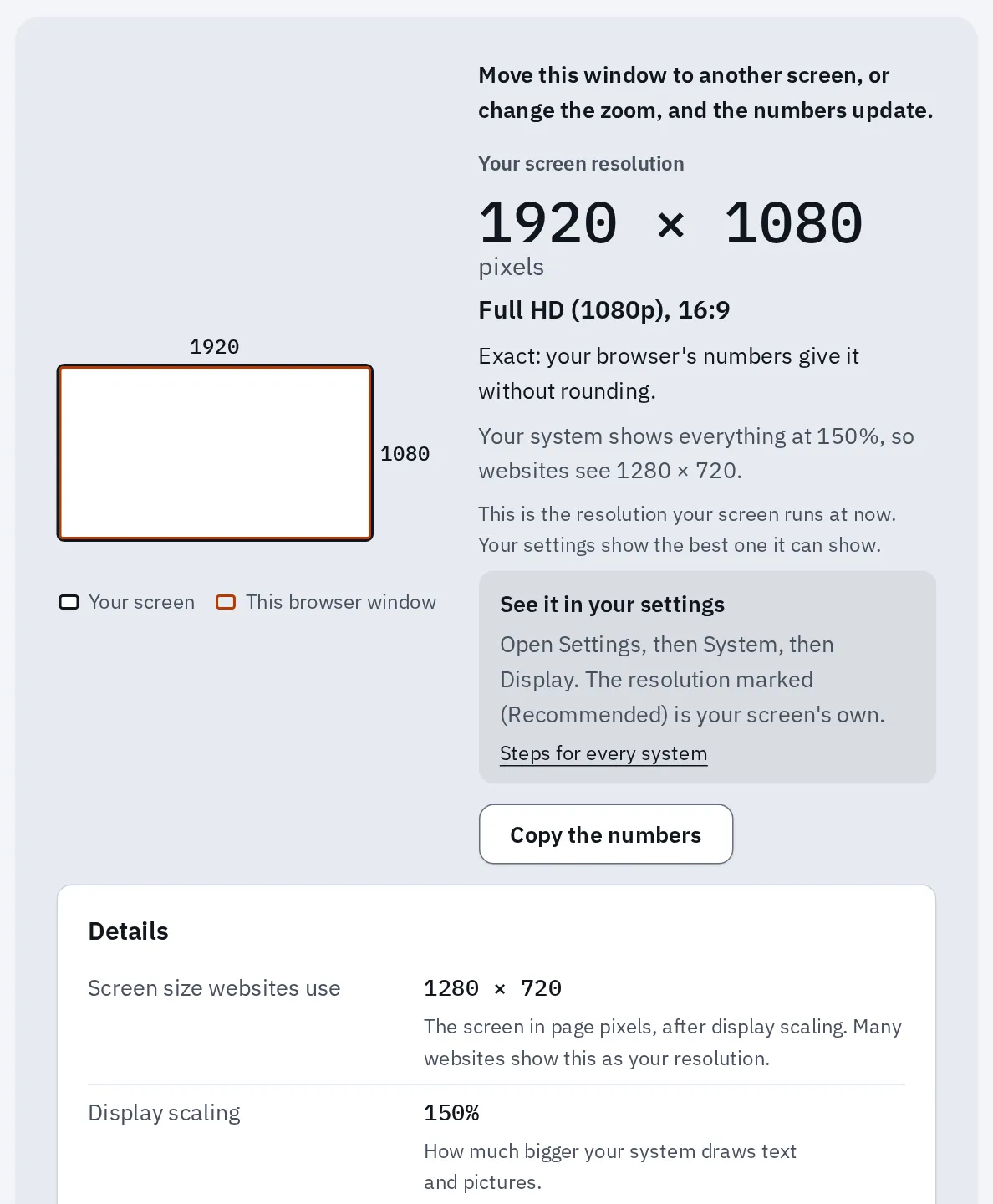
A laptop set the right way: the screen uses all of its 1920 × 1080 pixels, and Scale makes everything 150% bigger. Websites see 1280 × 720.
Set it back
Windows
- Open Start Settings System Display.
- In the Display resolution list, choose the one marked (Recommended).
- Then make things bigger with Scale, on the same page.
Mac
- Open the Apple menu, then System Settings Displays.
- Click Default.
- Then click a Larger Text choice, or use Text size (see your device).
Still blurry at the right resolution? A cable, an old app or a TV can blur text too. The screen resolution tool lists what else blurs a screen, most likely first.
Magnify part of the screen
A magnifier makes one part of the screen much bigger, for small print or a tiny button. Turn it off again when you’re done.
Windows
| To | Press |
|---|---|
| Turn on Magnifier and zoom in | Windows and + |
| Zoom out | Windows and - |
| Turn it off | Windows and Esc |
Its settings are in Settings Accessibility Magnifier.
Mac
- Open System Settings Accessibility Zoom.
- Turn on Use keyboard shortcuts to zoom.
- Press Option Command 8 to zoom in and out. Option Command + and - change how much.
Hover Text shows a big copy of the text under the pointer. Turn it on in System Settings Accessibility Hover Text, then hold Command over the text.
iPhone and iPad
- Open Settings Accessibility Zoom and turn on Zoom.
- Double-tap the screen with three fingers to zoom in or out.
- Drag three fingers to move around.
For paper, such as a menu or a medicine label, the Magnifier app uses the camera like a magnifying glass.
Android phone
- Open Settings Accessibility Magnification and turn on Magnification shortcut.
- Choose a shortcut: the Accessibility button on the screen, holding both volume keys, or three quick taps on the screen.
- Use the shortcut, then tap the screen to zoom in.
- Drag two fingers to move around. Pinch with two fingers to zoom more or less.
- Use the shortcut again to stop.
Samsung Galaxy
Open Settings Accessibility Vision enhancements Magnification. Choose a shortcut: three quick taps on the screen, or the accessibility button. Then use it to zoom in.
Chromebook
| To | Press |
|---|---|
| Magnify the whole screen | Ctrl Search M |
| Magnify the top of the screen | Ctrl Search D |
| Zoom in or out | Ctrl Alt and the brightness keys |
Some keyboards have a Launcher key instead of Search. To turn the magnifier off, open Settings Accessibility and turn off Full screen magnifier or Docked magnifier.
Questions people ask
Why does lowering the resolution make my screen blurry?
Your screen has a fixed number of pixels. At a lower resolution, the computer draws a smaller picture, and the screen stretches it to fill every pixel. Stretching softens the edges of letters. Scale makes things just as big and keeps them sharp.
Will making the text bigger change my files or photos?
No. These settings only change how big things look on this screen. You can change them back at any time.
Why didn't one app get bigger?
Some apps don’t follow the text size setting. On Windows, sign out and back in first. Then look for a zoom or text size setting in that app.
Now things are too big or cut off. How do I undo it?
Move the same slider back, or choose (Recommended) on Windows and Default on a Mac. In a browser, press Ctrl and 0 (Command and 0 on a Mac). Very big text can make buttons hard to tap on a phone, so a step down may suit you better.
What is the difference between resolution and scale?
The resolution is how many pixels the picture has, such as 1920 × 1080. The scale is how big things are drawn with them. Keep the resolution at your screen’s own, and change the scale.