Short answer
Send them one link to the right test, and ask them to read you the words it shows. Every test on this site says its result in plain words, so you hear what they see. Then go one step at a time, and let them do the clicking.
- You send a short message with a link to the right test.
- They open it on the device with the problem and press the big button.
- The test says the result in words.
- They read the words to you, with the phone on speaker beside the screen.
Step 1: send them the right test
Pick the problem. You get a short message with the link, what to press and what to tell you. Copy it into a text message or an email, or share it from your phone.
What's the problem?
Your message
The links have no tracking codes. The tests run on their device and don't upload their picture, voice or typing.
The same links, if you’d rather write your own message:
| Problem and test | What they press | What to ask them to read you |
|---|---|---|
| No sound: sound test | Play left, then where they heard it (Left, Right, Both sides or Nothing); the same for Play right | The words under the test |
| People can’t hear them: mic test | Start microphone test, Allow, count to five, Stop test | The first line of the result |
| Camera: webcam test | Start webcam test, Allow, Stop test | The first line of the result |
| Keyboard: keyboard tester | Each key once, then Show my result | The first line, and the keys it lists |
| Slow internet: internet speed test | Start speed test, then wait | The first line, plus Download and Upload |
| Video calls: video call test | Start the check, Allow, talk, Play test sound and choose what they heard, Finish the check | The big line at the top, and any row that doesn’t say Works |
Test it now
Video call test
Not sure what’s wrong with their calls? This one checks the camera, microphone, speakers and internet together in about a minute. Its top line says in words whether they’re ready.
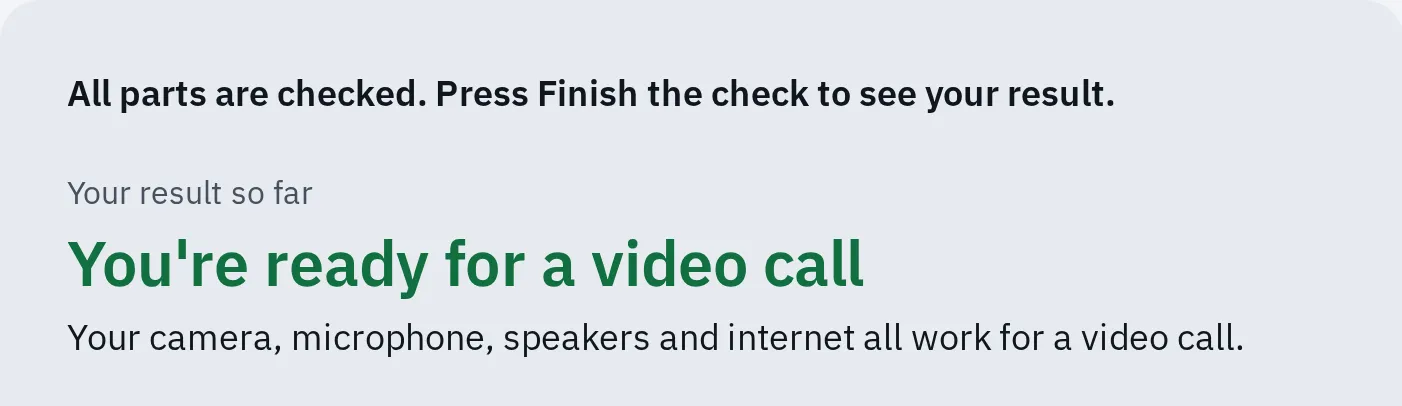
The big line at the top is what they read to you. A part that fails has its own row that says what's wrong. A pass means these parts work in the browser; the call app still has its own settings.
If they can’t get to the test
- The problem is on the phone you’re talking on. Send the message, then hang up: a call can block the phone’s microphone. They call you back when they see the result.
- They can’t find the message, or the link won’t open. Spell it: ask them to click the long box at the top of the browser. Spell devicetests.com/sound-test slowly. Then they press Enter.
- No website opens at all. The internet is down, so skip the tests. Start with their router: see why the internet is slow.
- The browser asks to use the camera or microphone. They choose Allow. If it says blocked, follow allow camera and microphone.
Step 2: on the call, one step at a time
- Ask what they were trying to do, and what happened. Let them finish. Fear of breaking something is real, so start calm.
- Ask them to put the phone on speaker and lay it next to the screen. Now both hands are free. Stay quiet while a sound or microphone test runs.
- Ask “What do you see?” and have them read the words on the screen exactly. Text too small? In the browser, Ctrl and + makes it bigger (Command and + on a Mac). To make it bigger everywhere, see make text bigger.
- Give one step, then wait for “done”. Don’t give the next step until they say what changed.
- Name things by place, colour and the words on them, not by their technical name. Use the picture below.
- Let them click and tap. They will remember it better than if you do it for them.
- Ask them to try the real thing again: the call, the music or the email that failed.
- Write down what fixed it, or ask them to. A note by the computer saves the next call.
- The address bar: the long box at the top of the window. Here they can type a link you read out, such as devicetests.com/sound-test.
- The buttons in the top right corner of the window: hide it, make it bigger, close it. On a Mac they are three coloured dots in the top left.
- The bar along the bottom of the screen, with the Start button. On a Mac this row of icons is the Dock.
- The bottom right corner: sound, Wi-Fi and the clock. On a Mac they are at the top right of the screen.
Places on a Windows screen that are easy to name on the phone.
| Instead of | Say |
|---|---|
| “Open the browser.” | “Click the picture you click to go on the internet. What colour is it?” |
| “Go to the URL.” | “Click the long box at the top of the window, then type what I spell.” |
| “Click OK.” | “Read me the words on each button first.” |
| “Is it working now?” | “What do you see on the screen now?” |
Step 3: see their screen yourself
Words solve most problems. When they don’t, ask for a picture of the screen. Only share the screen itself if the picture isn’t enough.
A photo or a screenshot
The easiest picture: they take a photo of the screen with their phone and text it to you. It even works when the computer has frozen. A video call works too: they point the phone’s camera at the screen while you talk. For a sharper picture, a screenshot. Choose their device:
Windows
Press Windows + Shift + S, then drag over the part to keep. They can paste it into an email to you. It is also saved in the Screenshots folder.
Mac
Press Shift + Command + 3. The screenshot is saved on the desktop.
iPhone or iPad
On an iPhone with Face ID, press the side button and volume up together, then let go quickly. With a Home button, press the side button and the Home button. On an iPad, press the top button and either volume button (or the top button and the Home button).
On iOS 26 the screenshot then opens, ready to send. On iOS 18 a small picture shows in the corner: they tap it. It is also kept in Photos.
Android
Press the Power and Volume down buttons at the same time. If that doesn’t work, the phone maker’s support site has the steps for that model.
Share the screen in a call
These are built into the device or free from the maker. What works depends on both your devices:
| Their device | You can watch from | To click for them, you need |
|---|---|---|
| Windows | Any device, in a Google Meet meeting | Windows (Quick Assist), or any computer with Chrome (Chrome Remote Desktop) |
| Mac | An iPhone, iPad or Mac, in FaceTime | A Mac (FaceTime or Messages), or any computer with Chrome (Chrome Remote Desktop) |
| iPhone or iPad | An iPhone or iPad, in FaceTime (or a phone call on iOS 26) | An iPhone or iPad on iOS 18 or later (FaceTime) |
| Android or Chromebook | Any device, in a Google Meet meeting | No built-in way that the makers document: talk them through it |
Set one up together on a calm day, so it’s ready when something breaks. Choose their device:
Windows
Quick Assist is a free Microsoft app for Windows 10 and 11. You need a Windows computer and a Microsoft account. They don’t need an account. If the app is missing, install it from the Microsoft Store.
- You both open it: click Start and type Quick Assist. (Shortcut: Ctrl + Windows + Q.)
- You choose Help someone and read them the 6-digit code.
- They type it in Code from assistant and choose Submit. Then they choose Allow.
- Now you see their screen. To click for them, choose Request control. They choose Allow.
- Either of you ends it with Leave.
Mac
Use FaceTime, in a call with just the two of you. You can watch from an iPhone, iPad or Mac. To click for them, you need a Mac.
- They click the video button in the menu bar at the top, then the screen sharing button.
- They click Share Entire Screen. Now you see their screen.
- To click for them, you click the Control Screen button in the Screen Sharing window.
- They click Allow Control in the menu bar, then Allow. Both Macs need macOS 14 or later.
- Ending the FaceTime call ends the sharing.
They can also share from a Messages chat with you: the FaceTime button at the top, then Share My Screen. An audio call starts by itself, so hang up the other call first. To let you click, they click the Screen Sharing button in the menu bar, then Allow Control.
iPhone or iPad
In a normal phone call (both iPhones on iOS 26 or later): they tap More, then Screen Sharing, then Share My Screen. You can tap Ask to Share Screen instead.
In FaceTime: they tap the screen to show the buttons, then More, Screen Sharing and Share My Screen. On iOS 18 the button is Share Content. To stop, they tap More, then Stop next to Screen Sharing.
In a one-to-one FaceTime call you can draw on their screen to show where to tap. You can also ask to control it. You must be saved in their contacts, and you both need iOS 18 or later. They tap Allow, and Stop ends it. Apple says this isn’t available in the European Union.
Android
Google Meet: send them a meeting link, and both join. They tap the screen, tap More, then Share screen and Start Sharing. Stop sharing, then Ok, ends it. You see their screen but can’t tap on it. Google’s help pages show no built-in way to control an Android phone from afar.
Chromebook
Google Meet in the browser: send them a meeting link, and both join. They click Present now at the bottom, choose Your entire screen, then Share. Stop presenting ends it.
Click for them on Windows or a Mac: Chrome Remote Desktop.
- You both open remotedesktop.google.com/support in Chrome on a computer.
- They choose Download under Get Support, install the app, then choose Generate Code.
- You type the code under Give support and choose Connect.
- They check that your email address shows, then choose Share.
That gives you full control, until they choose Stop Sharing. Every 30 minutes it asks them to confirm.
Make a short video they can watch again
For a job they do often, like joining a video call, a short video beats a long call. They can stop it and watch it again as often as they like.
- On your computer, open the screen recorder. Turn on Record my microphone, so your voice explains each click.
- Make the text big first (Ctrl and + in the browser, or Command and + on a Mac). Move the mouse slowly.
- Record one job only, from the screen they will see first to the finished result. Say what you click: “Now I click the green button at the bottom.”
- Cut the start and end with the video trimmer. If the file is too big to send, make it smaller with the video compressor.
- Send it with the same steps written out in the message, so they can follow the words too.
On a phone, use the screen recording built into it: Screen Recording in Control Center on an iPhone, Screen record in Quick Settings on Android. The screen recorder’s help has the steps.
Want to keep their stories, not only fix their tech? See how to record a family story.
When to stop and go there
A test and a phone call can’t fix everything. Stop and visit, or ask someone nearby, when:
- the device won’t turn on, or a drink went into it
- something asks for a password you don’t know, or for payment
- they may have let a stranger in, or given out a password or card number (then also call their bank)
- the same fix has failed twice: someone next to the device sees what you can’t
Passing on an old phone or laptop? Do it together: see what to do before you give it away.
Questions people ask
Can I control my parent's iPhone from my iPhone?
Yes, in a one-to-one FaceTime call. They share their screen, and you ask to control it. You both need iOS 18 or later, and you must be saved in their contacts. Apple says this isn’t available in the European Union.
Is Quick Assist safe?
Yes, with someone they know. Microsoft says to use it only with people you trust. Scammers call people and ask them to open it. If someone calls out of the blue and asks for a code, hang up.
Can I see my parent's Android phone screen?
Yes, in a Google Meet meeting: they tap More, then Share screen. You can watch, but you can’t tap for them. A photo or a screenshot works too.
What if they can't open the link?
Ask them to click the long box at the top of the browser window. That is the address bar. Spell the address slowly, such as devicetests.com/mic-test. Then they press Enter.
Do the tests record their camera, voice or typing?
No upload. The camera, microphone and video call tests run in the browser and don’t upload the picture or voice. The mic test can make a recording if they press Record my voice. It stays in that browser tab and is gone when they close it. The keyboard tester doesn’t save or send the keys they press.