Short answer
Check that the microphone isn’t muted and that it is chosen as the input in your sound settings. Then test it below: the result tells you which fix to try.
Step 1: test the microphone
Test it now
Mic test
Choose your microphone in the Microphone list, then speak. If the meter moves, that microphone sends sound to this browser. Each app still has its own settings.
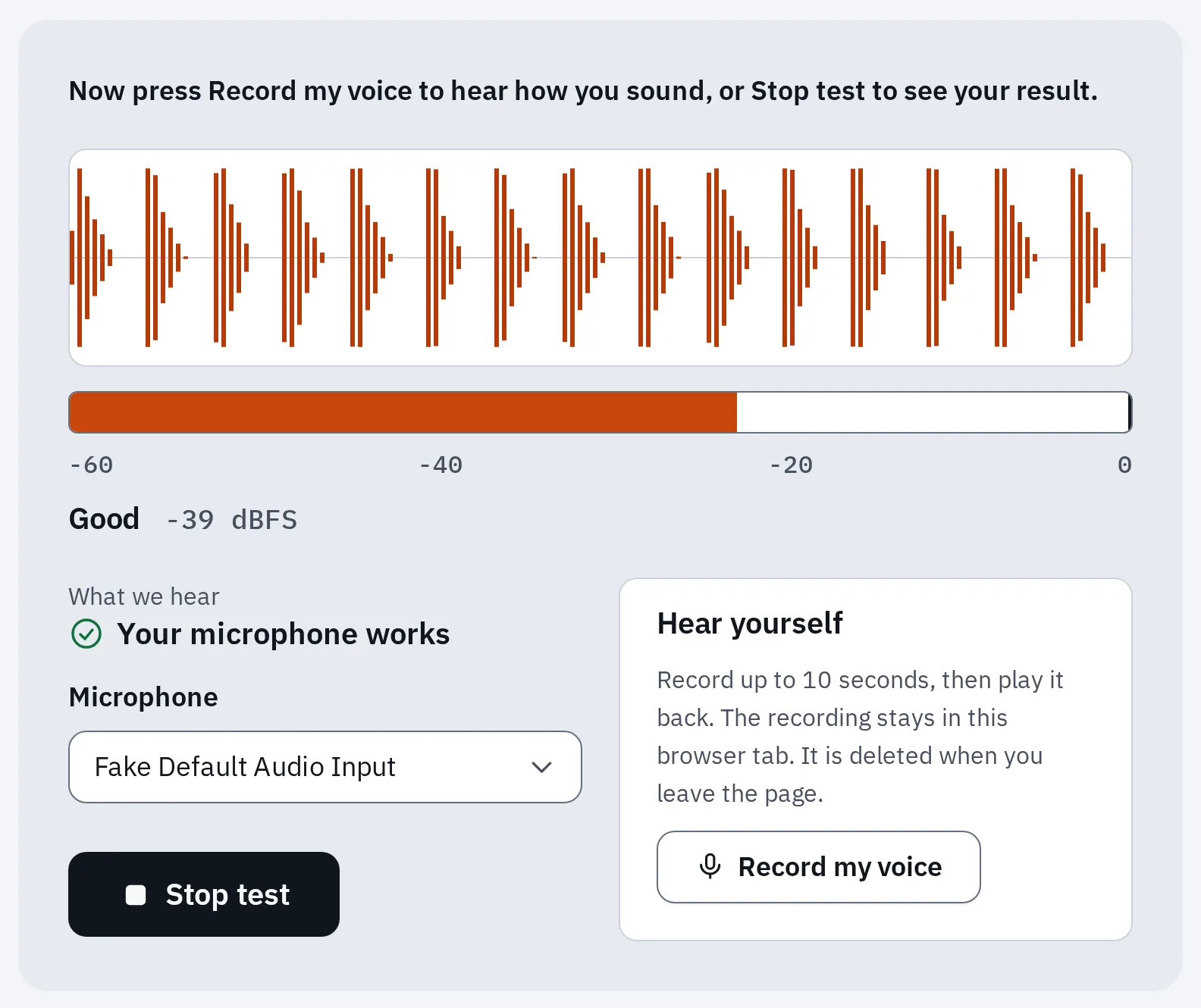
A working microphone in the test. In our check, a beeping test tone stood in for a voice. Pick your microphone in the Microphone list if you have more than one.
No sound at all
Work down this list. Test again after each step.
1. Unmute it
- Check the mute button or switch on your headset, or on its cable.
- On a laptop, look for a key with a crossed-out microphone. Press it once.
- Bluetooth headset: check that it is on, charged and connected.
2. Choose the microphone and turn it up
Windows
- Open Start Settings System Sound.
- Under Input, choose your microphone in Choose a device for speaking or recording. On Windows 10 the list is called Choose your input device.
- Windows 11: select > next to it, then Start test, and speak. Select Stop test, then Play to hear yourself. Move Input volume up if needed.
- Windows 10: watch the Test your microphone bar while you speak.
Mac
- Click the Apple logo, then System Settings.
- Click Sound, then Input.
- Select your microphone and speak. The Input level meter should move.
- Drag the Input volume slider to the right if it hardly moves.
On recent Mac laptops, the built-in microphone is off while the lid is closed. Open the lid, or use another microphone.
3. Allow microphone access
If your system blocks apps from the microphone, the browser and every call app hear only silence or show “blocked”.
Windows
- Open Start Settings Privacy & security Microphone. On Windows 10 it is Settings Privacy Microphone.
- Turn on Microphone access. On Windows 10, select Change under Allow access to the microphone on this device and turn it on.
- Turn on Let apps access your microphone (Windows 10: Allow apps to access your microphone). If your app is in the list below it, turn it on too.
- Turn on Let desktop apps access your microphone (Windows 10: Allow desktop apps to access your microphone). Browsers, Zoom and Discord are desktop apps.
Mac
- Quit the app you want to use.
- Click the Apple logo, then System Settings, then Privacy & Security.
- Click Microphone and turn on the switch next to the app.
- Open the app again.
4. Turn the microphone back on (Windows)
A microphone can be switched off in the old Sound window. Then it is missing from the list in step 2.
- Open Start Settings System Sound.
- Under Advanced, select More sound settings, then the Recording tab.
- Select your microphone, then Properties.
- Next to Device usage, choose Use this device (enable). On Windows 10, select Device properties in the Sound settings and clear the Disable box.
5. Run the troubleshooter, then reinstall the driver (Windows)
- Open Start Settings System Sound. Under Advanced, select Troubleshoot common sound problems, then Input devices. Follow the steps.
- Only if Windows doesn’t find your microphone at all: right-click Start and choose Device Manager.
- Open Sound, video and game controllers. Right-click your sound device and choose Uninstall device.
- Tick Attempt to remove the driver for this device (Windows 10: Delete the driver software for this device), then select Uninstall.
- Restart the computer. Windows normally installs the driver again by itself.
- Still missing? In Device Manager, right-click Sound, video and game controllers and select Scan for hardware changes.
A headset with one plug
A headset plug with three bands carries both sound and the microphone. Many desktop PCs have two separate jacks instead, so the microphone half has nowhere to go.
- Three bands: sound and microphone on one plug. It fits a jack with a headset icon, as on many laptops.
- A splitter turns it into a microphone plug and a headphone plug.
- A computer with two jacks: microphone (often pink) and headphones (often green).
One plug with three bands needs a headset jack, or a splitter for two jacks.
- In the green headphone jack alone, you hear sound, but the microphone stays silent.
- Use a splitter, or a small USB sound adapter with a headset jack. See how to use a one-plug headset on a PC.
- Then choose the new microphone in step 2.
Your voice is too quiet
- Move closer. With a laptop, the microphone is often next to the camera: see where the microphone is on a laptop.
- Check that nothing covers it, such as a case, a sticker or your hand.
- Raise Input volume in step 2.
- Windows: in the Recording tab from step 4, open Properties, then Levels. Raise Microphone, and Microphone Boost if you see it. More about Microphone Boost.
Sound muffled, like a phone call? Many Bluetooth headphones switch to a call mode while their microphone is on. Use a wired headset or the computer’s microphone for better sound.
Test it now
Voice recorder
Record a few words and play them back. You hear roughly what others hear, though call apps change the sound a little.
To measure hiss, hum and distortion, use the microphone quality test.
Works here, not in one app
The microphone works. That app uses another microphone, or isn’t allowed to use it.
- Open the app’s audio or voice settings and choose the same microphone as in the mic test.
- Check that you aren’t muted in the app.
- Check that the app is allowed in step 3, then quit and reopen it.
For the exact settings in Zoom, Teams, Google Meet and Discord, see camera or mic not working in calls.
iPhone or iPad
On an iPhone, Apple’s own check uses two apps you already have. They test the microphone at the bottom and the one at the top.
- Bottom: open Voice Memos, record while you speak here, then play it back.
- Top: open Camera and record a video with the front camera while you speak here.
- Switch to the back camera and record again, still speaking at the top.
Speak at the marked spot for each test.
- Take off any case, screen protector or film. Clear dust from the openings.
- Run the three tests in the drawing. You should hear your voice clearly in each.
- One app only? Open Settings Privacy & Security Microphone and turn on that app.
- AirPods or a car connected? Calls may go through them. On an iPhone, tap Audio during a call and choose the iPhone.
On an iPad, open Camera. Record a video facing the front camera while you speak, then switch to the back camera and record again. Play both back.
If one test stays silent or muffled after cleaning, that microphone may need a repair. Contact Apple.
Is the microphone broken?
Try it on another computer or phone, and with another cable, port or adapter. If it fails everywhere, the microphone is probably faulty. The mic test lists the signs of a broken microphone.
Questions people ask
Why did my mic stop working after an update?
Why does my mic work on my phone but not on my computer?
If the same headset works on your phone, the headset is fine. Your computer may block it, use another input, or need a headset jack. Start with no sound at all.
Why can't people hear me in Zoom when the mic test works?
Zoom picks its own microphone. See camera or mic not working in calls.
Where is the microphone on my laptop?
Often one or two tiny holes next to the camera, above the screen. See where the microphone is on a laptop.