Short answer
When an app turns on their microphone, most Bluetooth headphones switch to headset mode. Headset mode carries your voice back too, but plays sound in mono and cuts off the high pitches. Music and voices go flat and tinny, like an old phone. Nothing is broken. To keep full sound, leave the headphones as your speaker and choose another microphone, such as your computer’s own. On most computers, that keeps them in music mode.
Hear the difference
Press a mode to hear the same music in each. Press another while it plays: the switch is what happens when a call starts.
Leave any call and close microphone tests first. If your headphones are in headset mode now, all three sound the same. This demo doesn’t change any settings.
Each bar shows the pitches a mode carries: deep on the left, high on the right. The music is made on this page. The headset modes are an example: they take away stereo and the pitches outside the bar. Your headphones may sound a little different.
| Mode | What you hear | When it’s used |
|---|---|---|
| Music mode | Stereo (left and right), the full range of music | No app uses the headphones’ microphone |
| Headset mode, wideband | Mono (one channel), about 50 to 7,000 Hz | The microphone is on. Microsoft says most newer computers and headphones manage this mode. |
| Headset mode, narrowband | Mono, about 300 to 3,400 Hz, as an old phone line | The microphone is on, with older headphones or computers |
Hz (hertz) measures pitch: low numbers are deep sounds, high numbers are high sounds, such as the hiss in “s”. The two bands are the telephone standards from the ITU (wideband, narrowband). Windows uses wideband when both the computer and the headphones can, says Microsoft.
Why your headphones switch
- Music mode: two lanes of full sound go to the headphones, one for each ear. Nothing comes back.
- Headset mode: one thinner lane goes to you, and one comes back with your voice.
- The headphones' microphone. When any app opens it, the headphones switch to headset mode until it closes.
Bluetooth has two ways to work. Turning on the microphone picks the second one.
Most Bluetooth headphones use “classic” Bluetooth. Its music mode only plays sound. To use the microphone too, it switches to headset mode, which shares the link between both directions. Microsoft puts it plainly: classic Bluetooth headphones “cannot support stereo playback while the microphone is in use.”
Any app can cause the switch: a call app, a game with voice chat, a website asking for your microphone, or a voice assistant. On Windows 11, a call app’s own sound can switch them too, because Windows treats it as call sound. While headset mode is on, everything you hear sounds worse, music and videos too.
Playing an instrument on the call? Call apps cut music too: see music mode.
Step 1: check what your microphone sends
Test it now
Microphone quality test
Run it once with your headphones’ microphone. Then, under Compare two takes, record again with your computer’s own microphone. The result says which one sounds better and why.
The test checks how your voice records. It can’t tell which mode your headphones play in: for that, listen.
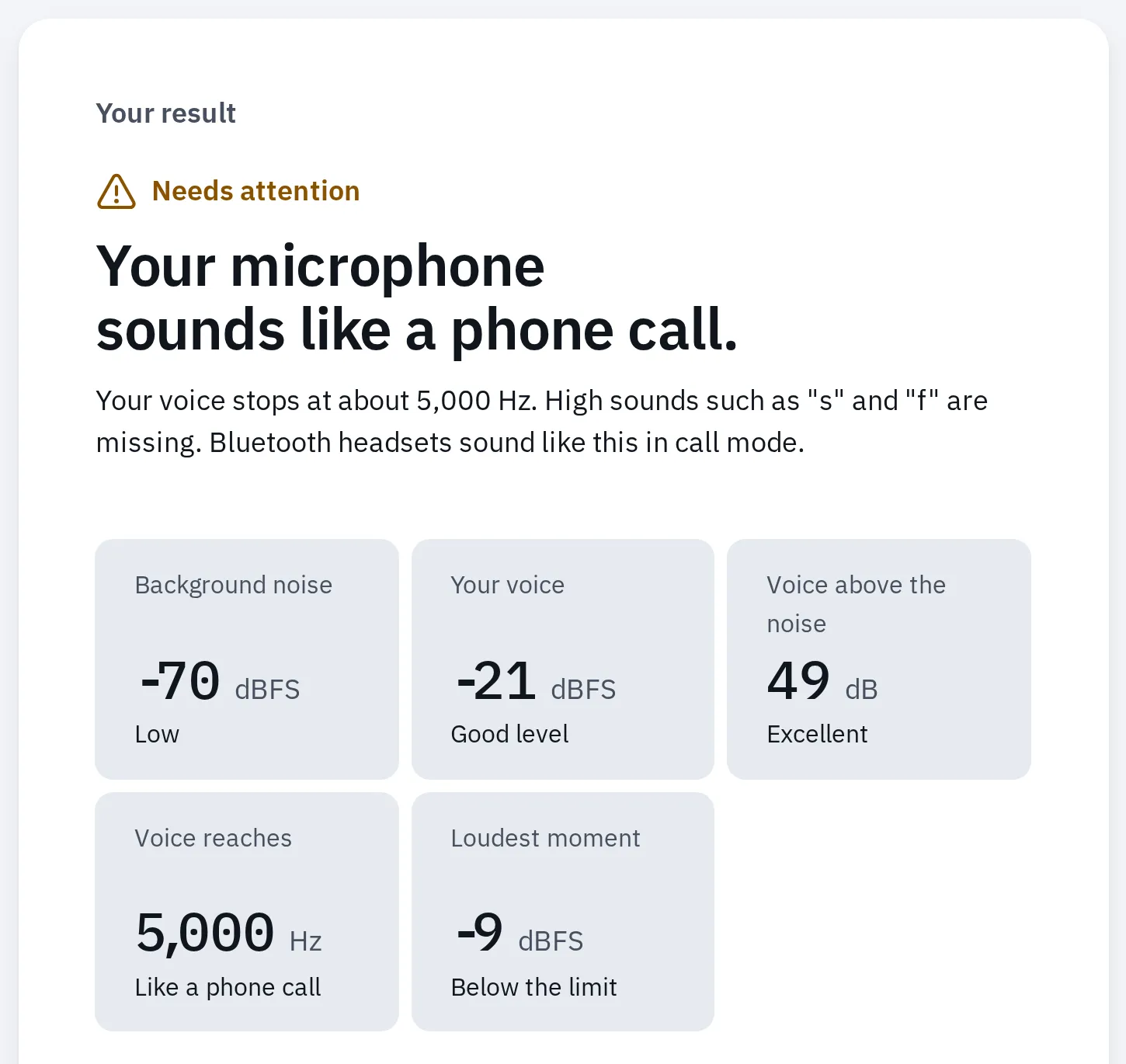
Our mic quality test, given a test sound cut to the telephone band, as narrowband headset mode sends it. It says 'Like a phone call'.
You can also hear the switch: play music on your headphones, then start the test with their microphone. The music turns flat the moment the test starts.
Keep the headphones and use another microphone
Headphones switch when something uses their microphone. Pick another microphone, and on most computers they stay in music mode during a call. Your laptop’s or webcam’s microphone works, and so does a USB microphone. The mic quality test shows which one sounds best.
- Output (speaker): your Bluetooth headphones.
- Input (microphone): your computer's own microphone, or a USB or webcam microphone.
- The laptop's microphone. Many laptops have it at the top of the screen, next to the camera.
Two settings: the headphones for sound out, the computer's microphone for your voice.
Set it in your system first, so every app starts with it. Then check the call app, because each app can keep its own choice.
Windows
- Open Settings System Sound.
- Under Output, in Choose where to play sound, select your headphones.
- Under Input, in Choose a device for speaking or recording, select your computer’s microphone, not the headphones.
Your computer’s microphone may be listed under its maker’s name. Many desktop computers have none: use a webcam or USB microphone. If a call app still makes the sound flat on Windows 11, it may play its sound as call sound. Use a wired or USB headset for that app, or see LE Audio.
Windows 10 lists Bluetooth headphones twice: a name ending in Stereo (music mode) and one ending in Hands-Free (headset mode). In Settings System Sound, choose the Stereo one under Choose your output device. Under Choose your input device, choose your computer’s microphone. While any app uses Hands-Free, Windows 10 drops the sound sent to Stereo. So in each call app, choose the Stereo one as the speaker too.
Mac
- Open Apple menu System Settings Sound.
- Click Output and select your headphones.
- Click Input and select your Mac’s own microphone, not the headphones.
Apple says sound quality and volume drop while an app uses the headphones’ microphone, and you may hear static or popping. It stays that way “until the microphone is no longer in use.”
Then check your call app
On a computer, each call app has its own speaker and microphone list. Choose the headphones as the speaker and the computer’s microphone as the microphone.
| App | Where to choose |
|---|---|
| Zoom | In a meeting: the arrow next to Mute. Before: profile picture, Settings, Audio. Lists: Speaker and Microphone. |
| Microsoft Teams | Settings and more (…), Settings, Devices. In a meeting: the arrow next to Mic. Lists: Speaker and Microphone. |
| Google Meet | More options (⋮), Settings, Audio. Lists: Speakers and Microphone. |
| Discord | User Settings (the cog), Voice & Video. Lists: Output Device and Input Device. |
More about each app’s list is in camera or mic not working in calls. Keep the headphones as the speaker: sound from laptop speakers can reach the microphone and echo for the others.
On a phone or tablet
Phone calls are made for headset mode, so the drop matters less there. It matters when you listen to music and talk at the same time, as in a game or a video call.
iPhone and iPad
- Where you hear the call: swipe down on the call banner, tap Audio, then choose iPhone, the speaker or your headphones.
- Which microphone it uses: with more than one audio device connected, open Control Center during the call. Tap the app’s controls, such as FaceTime Controls. Next to Audio Input, tap the device and choose another.
Android
To keep the headphones for music and take calls on the phone itself, open Settings Connected devices and tap the settings icon next to your headphones. Turn off Phone audio and leave Media audio on. Names differ by phone; these are a Pixel’s.
During a call, tap Speaker to switch between the phone, the speaker and the headphones.
Sound stays bad after the call
The headphones switch back to music mode only when no app uses their microphone. Something may still hold it open.
- Look for the sign that an app uses a microphone. On Windows, a microphone icon shows in the notification area of the taskbar. On a Mac, an orange dot shows next to Control Center: open Control Center to see which app.
- Quit that app completely, not just the meeting. Apple names video call and chat apps as the usual cause. A website can hold it too: close its tab.
- On a Mac, also close System Settings if it shows Sound. Then open Control Center in the menu bar, click Sound, select your Mac’s speakers, then select your headphones again.
- On Windows, play something again once the app is closed. Windows switches back to music mode by itself once the microphone closes.
- Still flat? Turn the headphones off and on, or disconnect and connect them again.
Headphones that sound good on calls
Some setups keep good sound with the microphone on. If you talk while you listen a lot, these help:
| Option | What you get in calls |
|---|---|
| Bluetooth headphones and a separate microphone | Music mode on most computers: stereo, full range. Your voice is as good as that microphone. |
| Wired or USB headset | Full sound both ways: there is no Bluetooth link to share. |
| LE Audio headphones and a Windows 11 PC that supports them | Stereo, even with the microphone on, and a clearer voice than headset mode. |
LE Audio is a newer kind of Bluetooth. Microsoft added stereo with the microphone on for it in Windows 11, version 24H2, with recent updates and the PC maker’s newer Bluetooth driver. Both the headphones and the computer must support it.
- Check the computer: open Settings Bluetooth & devices Devices. Under Device settings, look for Use LE Audio when available and turn it on. If it isn’t there, this PC doesn’t support LE Audio now.
- Connect your LE Audio headphones. Then open Settings System Sound, click the arrow next to them under Output, and open Output settings, Format.
- Under Format when microphone is active, choose Stereo (2 channels). If sound breaks up during calls, choose Mono (1 channel).
If Format when microphone is active isn’t there, the PC can’t do stereo with the microphone yet. Microsoft suggests updating Windows and the drivers, or asking the PC maker. Also check that Mono audio is off in Settings Accessibility Audio.
Questions people ask
Why do my headphones sound fine for music but bad on Zoom?
Zoom turns on the headphones’ microphone, and that switches them to headset mode: mono, with the high pitches cut off. Choose your computer’s microphone in Zoom (the arrow next to Mute). On most computers, the headphones then stay in music mode.
Will a better Bluetooth adapter or driver fix it?
Not for most headphones. Classic Bluetooth plays only mono while its microphone is on, by design. A newer adapter may get wideband instead of narrowband headset mode, which sounds less muffled. Stereo with the microphone needs LE Audio on both sides.
Do AirPods do this too?
Yes, on any device when their microphone is on. You notice it most on a computer, where you hear music or games during a call. On Windows, AirPods use classic Bluetooth, so music turns mono during a call. See AirPods on a Windows PC.
Why does my game sound bad when voice chat is on?
Voice chat opens the headphones’ microphone, so the whole game sound goes through headset mode. Choose another microphone in the game’s or Discord’s settings, or use a headset with a USB receiver.
Why do high tones stop early in a hearing test with Bluetooth?
Headset mode cuts off at about 7,000 Hz or lower. Close every app that uses the microphone, or use wired headphones. The hearing test’s help explains more.
Is the sound late as well as bad?
Bluetooth adds some delay in every mode. To measure it and make it smaller, use the audio latency test. Headphones: a different scale compares Bluetooth with a dongle and a cable.