Short answer
Press Shift + Ctrl + Show windows, select Screen record, and choose the full screen, part of it or a window. For sound, open Settings in that bar first and choose Device audio, Microphone, or both. To stop, select Stop recording at the bottom right. The video goes to your Downloads folder as a WebM file.
Those keys open the Screen capture bar. The drawing shows where each button is.
- Screen record: choose this instead of Screenshot.
- What to record: the full screen, part of the screen or one window.
- Settings: the sound. Device audio, Microphone, or Device audio and microphone.
- Stop recording, at the bottom right of the screen while it records.
The drawing is simplified.
Record with Screen capture
Screen capture is built into every Chromebook and free.
- Press Shift + Ctrl + Show windows. The Show windows key looks like a box with two lines. On an external keyboard without it, press Ctrl + Shift + F5.
- In the bar at the bottom, select Screen record.
- Select Record the full screen, Record a partial screen or Record a window.
- Want sound? Select Settings in the bar now, before you start. See choose the sound.
- Start the recording:
- Full screen: click anywhere on the screen.
- Part of the screen: drag over the part you want, then choose Record video.
- A window: click the window.
- To stop, select Stop recording at the bottom right. Or press Search + Shift + X.
No keyboard handy? Select the time at the bottom right, then Screen capture.
Choose the sound
Open Settings in the Screen capture bar before you start, and choose one of these:
| Choice in Settings | What the video records |
|---|---|
| Microphone | Your voice and other sound in the room |
| Device audio | The Chromebook’s own sound: a video, a game, a call |
| Device audio and microphone | Both, mixed together |
- Record GIF has no sound. When you record part of the screen, choose Record video for sound.
- Device audio records every sound the Chromebook plays, alerts too. Close tabs and apps that might make a noise.
- Don’t see Device audio? Older ChromeOS versions record only the microphone. Update your Chromebook in Settings About ChromeOS, or use our screen recorder.
Settings has two more switches. Front Camera shows your face in a corner of the video. Show clicks and keys marks your clicks and the key combos you press, which helps in how-to videos.
Find and share your recording
Recordings go to the Downloads folder. Open the Files app and select Downloads. The latest recording is also copied, so you can paste it straight into a chat or document.
To save somewhere else, open Screen capture, select Settings, then Select folder.
The video is a .webm file. It plays in Chrome and in VLC, but many editing apps, older iPhones and some phone apps can’t play it. For those, turn it into an MP4 with our WebM to MP4 converter. It runs in your browser and doesn’t upload the video.
Record in Chrome with our screen recorder
Our screen recorder runs in Chrome, with nothing to install. Use it when you want only one tab’s sound, without alert sounds, or when your Chromebook has no Device audio choice. Nothing is uploaded.
Record it now
Screen recorder
Computer sound: On means Chrome shared the sound. Play the video back to check that you hear it.
- Open what you want to record in a Chrome tab.
- Open the screen recorder in another tab.
- Turn on Record the computer’s sound. Turn on Record my microphone if you want your voice too.
- Select Start recording.
- In Chrome’s window, choose a tab to get that tab’s sound, or Entire screen for every sound on the Chromebook.
- Make sure the sound switch is on: Chrome calls it Also share tab audio or Also share system audio. Then select Share.
- When you’re done, come back and select Stop recording, then Download MP4 (or Download WebM).
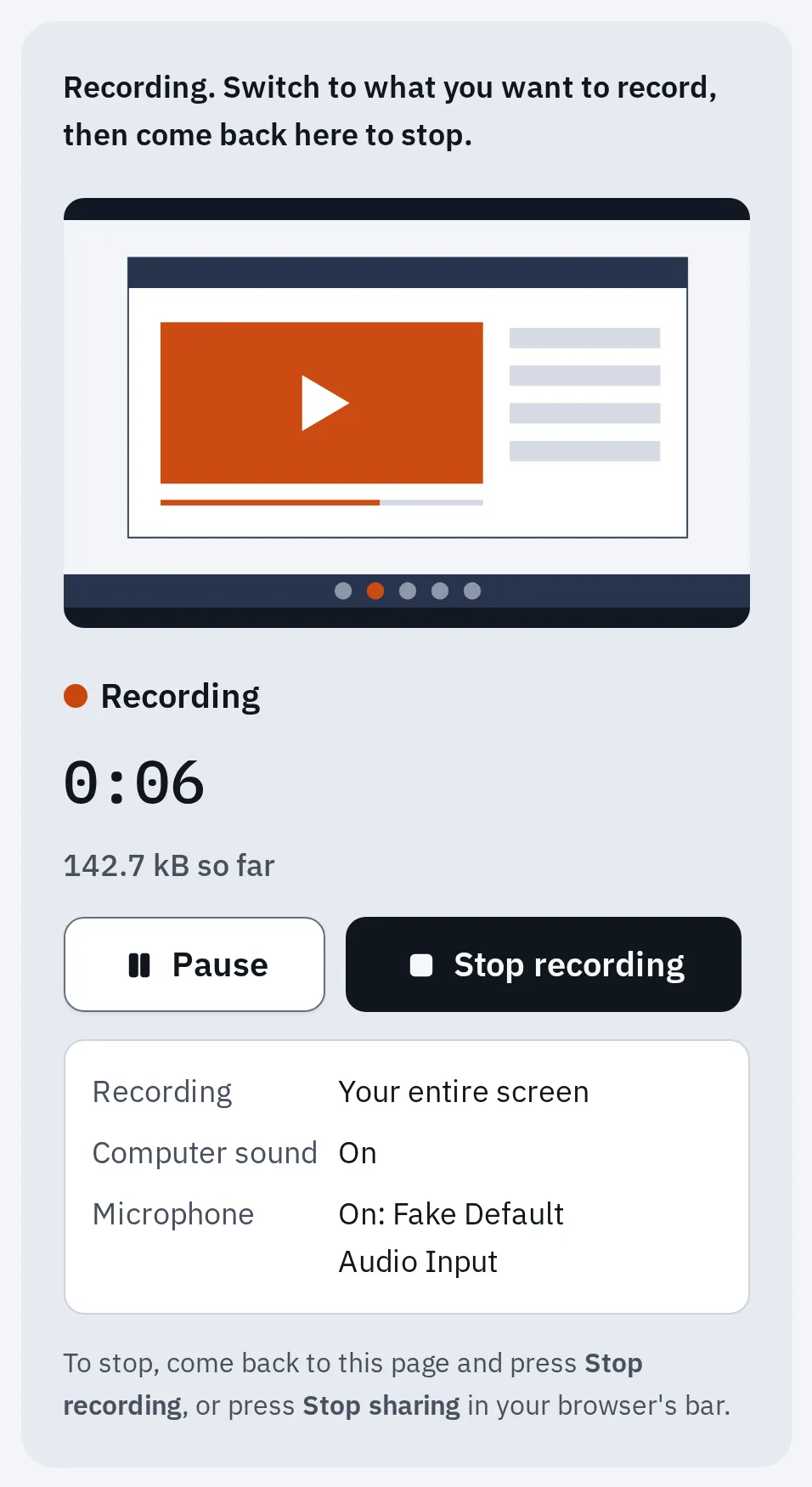
Our recorder in Chrome's engine, recording a test screen with a test microphone.
A recording can last up to 1 hour. It saves an MP4 or a WebM file, depending on what your browser can make; where it can make both, choose under File type before you start. The recorder’s help covers a missing sound or a black window.
On a school or work Chromebook
The school or company can block screenshots, and can stop websites from sharing the screen. Then Screen capture or our recorder may not start, or may show an error. Only the administrator can change that, so ask them.
If it doesn’t work
No sound in the video
Check Settings in the Screen capture bar before you start. If no sound is chosen there, the video is silent. A GIF never has sound. For the Chromebook’s own sound, choose Device audio.
My voice is missing
Choose Microphone or Device audio and microphone. Speak close to the Chromebook. If it’s still silent, check your microphone with our mic test.
I can’t find the video
Open the Files app, then Downloads. If you chose another folder under Select folder, look there.
The video won’t play on a phone or in an editing app
It’s a WebM file. Convert it with the WebM to MP4 converter.
Questions people ask
How do I stop a screen recording on a Chromebook?
Select Stop recording at the bottom right of the screen. Or press Search + Shift + X.
Can a Chromebook record its own sound?
Yes. In the Screen capture bar, open Settings and choose Device audio before you start. Older ChromeOS versions only offer the microphone: update the Chromebook, or record a Chrome tab with our screen recorder.
Can I record my face with my screen?
Yes. In the Screen capture bar, open Settings and turn on Front Camera. Your camera shows in a corner of the video.
My keyboard has no Show windows key. What's the shortcut?
On an external keyboard, press Ctrl + Shift + F5. Or select the time at the bottom right, then Screen capture.
How long can a Chromebook screen recording be?
Google names no time limit for Screen capture. A long video needs space, so check that the Chromebook has room in Downloads. Our browser recorder stops at 1 hour.
On another computer: how to screen record on Windows and how to screen record on a Mac.