Short answer
Press Shift + Command + 5, click Record Entire Screen or Record Selected Portion, then click Record. To stop, click the Stop button in the menu bar. The video goes to your desktop. To add sound, open Options and choose a microphone. On macOS 27, also choose Include System Audio for the computer’s sound.
Those keys open the Screenshot toolbar. The drawing shows where each button is.
- Recording buttons: Record Entire Screen, Record Selected Window (macOS 26 or later) and Record Selected Portion.
- Options: where to save, a timer, the microphone, mouse clicks and, on macOS 27, the computer's sound.
- Record starts the recording.
- Stop, in the menu bar, ends it.
The drawing is simplified.
Record with Shift-Command-5
This is built into your Mac and free.
- Press Shift + Command + 5 together. The Screenshot toolbar opens at the bottom of the screen.
- Click Record Entire Screen, or click Record Selected Portion and drag the box over what you want. On macOS 26 or later, Record Selected Window records one window.
- Want sound or a timer? Click Options first. See Add sound.
- Click Record. If you chose to record one window, click that window instead.
- To stop, click the Stop button in the menu bar at the top. Or press Command + Control + Esc.
To cancel before you start, press Esc.
Options has a few more useful switches:
- Timer: waits a few seconds after you click Record, so you can get ready.
- Show Mouse Clicks: draws a black circle around the pointer each time you click. Good for how-to videos.
- Save to: another place for the file, instead of the desktop.
Add sound: your voice and the computer’s sound
A recording can hold three kinds of sound. Each way of recording gets a different set.
- Your voice, through a microphone.
- The sound of one browser tab, such as a YouTube video.
- The whole computer's sound: every app, game, call and alert.
| How you record | 1 Your voice | 2 A tab’s sound | 3 The whole computer’s sound | Install |
|---|---|---|---|---|
| Shift + Command + 5 or QuickTime, macOS 27 | Yes | Yes | Yes, with Include System Audio | No |
| Shift + Command + 5 or QuickTime, macOS 26 or older | Yes | No | No | No |
| Our screen recorder in Chrome or Edge | Yes | Yes | macOS 14.2 or newer, when you share the entire screen | No |
| Our screen recorder in Safari or Firefox | Yes | No | No | No |
| A recording app such as OBS Studio | Yes | macOS 13 or newer | macOS 13 or newer | Yes |
To check your version, open the Apple menu and choose About This Mac.
Your voice (all versions): click Options, then choose a microphone under Microphone. None means no voice.
The computer’s sound on macOS 27: click Options, then choose Include System Audio. Choose a microphone too if you want to talk over it.
The computer’s sound on macOS 26 or older: the built-in tools can’t record it. A microphone only records the sound in the room. Record a browser tab with our screen recorder, or install a recording app. OBS Studio is free and needs macOS 13 or newer. On older macOS, OBS says you need an extra sound app, such as Loopback or Sound Siphon.
Want others to hear a video in a live call, not a recording? See share your computer’s sound in Zoom, Teams and Meet.
Record a browser tab’s sound, with nothing to install
Our screen recorder runs in your browser. It records a tab with its sound, and your voice if you like, and saves an MP4 file. Nothing is uploaded. It works the same way on a Chromebook.
Record it now
Screen recorder
Computer sound: On means your browser shared the sound. Play the video back to check that you hear it.
- Open the page you want to record in Chrome or Edge. Safari and Firefox can’t share sound.
- Open the screen recorder in another tab of the same browser.
- Turn on Record the computer’s sound. Turn on Record my microphone if you want your voice too.
- Click Start recording. In the browser’s window, choose the tab that plays the sound.
- Make sure Share audio is on (Chrome says Also share tab audio), then click Share.
- When you are done, come back and click Stop recording, then Download MP4 (or Download WebM).
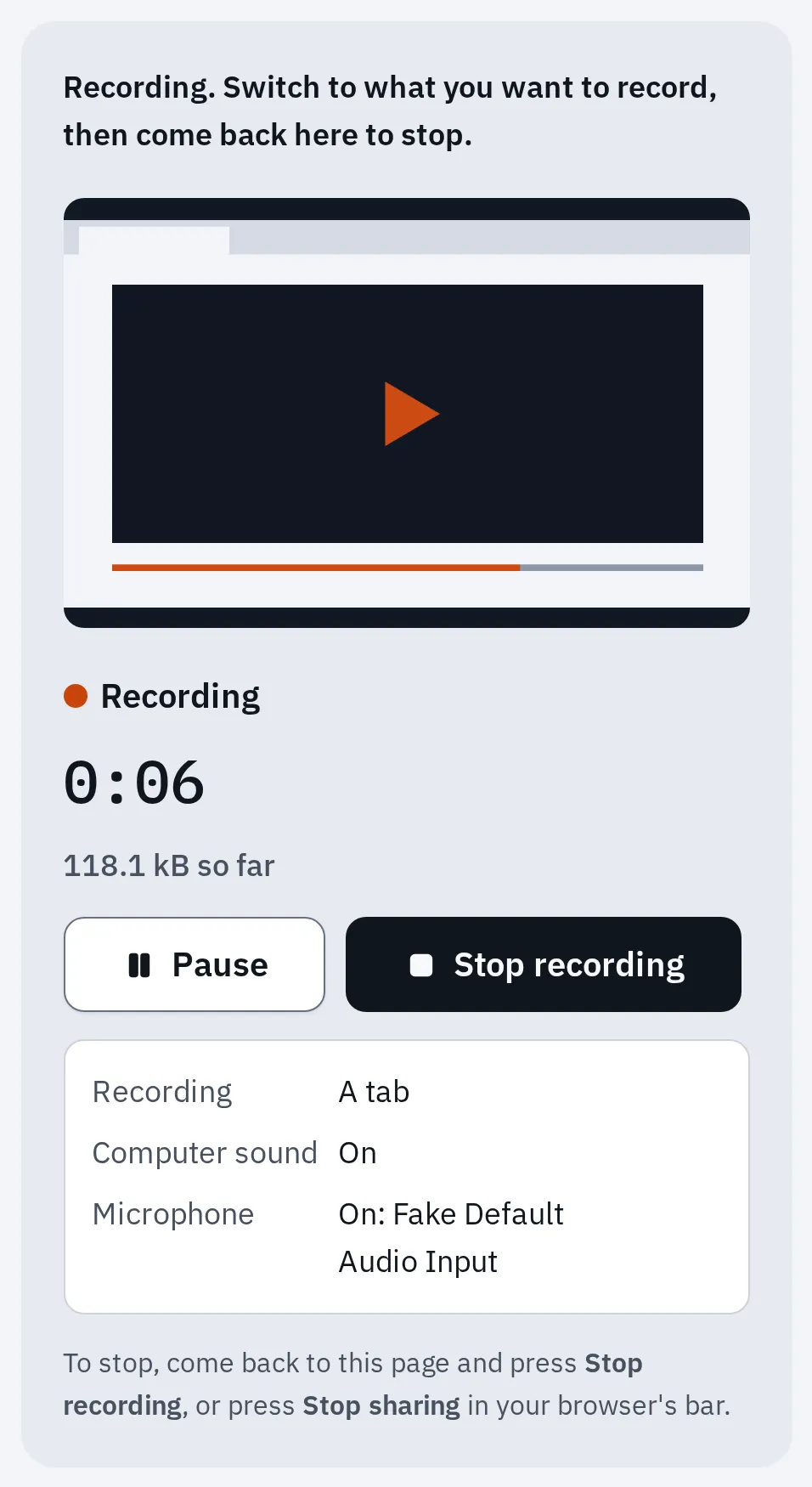
Our recorder in Chrome's engine, recording a test tab with a test microphone.
On macOS 14.2 or newer, Chrome and Edge can also share the whole computer’s sound. Choose your entire screen in step 4 to get it. A recording can last up to 1 hour. The recorder’s help covers problems such as a missing sound or a black window.
Use QuickTime Player instead
QuickTime Player opens the same tools.
- Open QuickTime Player from your Applications folder.
- Choose File, then New Screen Recording. Or press Control + Command + N.
- The Screenshot toolbar opens. Follow the steps above.
On very old macOS versions, QuickTime shows its own small window instead. Click the arrow next to the Record button to choose a microphone and Show Mouse Clicks in Recording. QuickTime opens the video when you stop.
Find your recording
By default the video goes to your desktop. It is called Screen Recording with the date and time, and it is a .mov file.
- A small picture of it shows in the corner of the screen for a few seconds. Click it to trim the video.
- Changed Save to in Options? Look in that place instead.
- To share it with a Windows PC or an Android phone, an MP4 file plays in more places. Our recorder makes MP4 in Chrome, Edge and Safari.
If it doesn’t work
No sound in the video
Check Options before you click Record. Microphone set to None records no voice. On macOS 26 or older, Shift + Command + 5 and QuickTime never record the computer’s sound: see the table above for other ways.
A black window in the video
Some apps, such as the Apple TV app, don’t let you record their windows. Films with copy protection do the same.
A browser or app may not record the screen
Your Mac asks before other apps may record the screen. Open the Apple menu, then:
On macOS 13, the last item is called Screen Recording. Turn on the browser or app, then quit it and open it again.
Questions people ask
How do I stop a screen recording on a Mac?
Click the Stop button in the menu bar at the top of the screen. Or press Command + Control + Esc.
Can I record just one window?
Yes, on macOS 26 Tahoe or later. Press Shift + Command + 5, click Record Selected Window, then click the window. On older versions, use Record Selected Portion and drag the box around the window.
How long can a Mac screen recording be?
Apple gives no time limit. A long video takes a lot of space, so check that your Mac has room. Our browser recorder stops at 1 hour.
Can I record my iPhone or iPad screen this way?
Not with Shift + Command + 5. An iPhone or iPad has its own screen recorder in Control Centre: the screen recorder’s help has the steps. To record it on your Mac, connect it with a cable, open QuickTime Player and choose File, then New Movie Recording. Choose your iPhone or iPad from the menu next to the record button.
Why does my recording only have room sound?
You chose a microphone, so the Mac recorded what the microphone heard. On macOS 27, choose Include System Audio to record the sound inside the computer.