Short answer
On Windows 11, press Windows + Shift + R, drag over the screen, then select Start. By default, Snipping Tool saves an MP4 in Videos, then Screen Recordings. On Windows 10, press Windows + Alt + R in an app or game to record it with Xbox Game Bar. For the whole Windows 10 desktop with sound, use a browser recorder.
Record your screen
Pick your Windows version. To check it, press Windows, type winver and press Enter.
Windows 11
Snipping Tool
- The area you drag: only this part is recorded.
- The microphone and the computer's sound. Turn them on before you start.
- Start.
Snipping Tool's recording bar. The drawing is simplified.
- Press Windows + Shift + R. Or open Snipping Tool, select Record, then New.
- Drag over the part of the screen you want. For everything, drag from corner to corner.
- Turn on the microphone or the computer’s sound on the bar, if you want them.
- Select Start.
- When you are done, select Stop on the bar at the top.
The video opens in Snipping Tool. By default it is also saved as an MP4 in Videos, then Screen Recordings. If automatic saving is off in Snipping Tool’s settings, save the video yourself before you close it. Older versions of Snipping Tool record no sound.
Windows 10
Windows 10 has no Snipping Tool recorder
Snipping Tool on Windows 10 takes pictures only. You have three free ways to record:
- A game or one app: Xbox Game Bar. Press Windows + Alt + R.
- The desktop, File Explorer, or several windows: our screen recorder in Chrome or Edge, with the computer’s sound.
- Clipchamp, Microsoft’s video editor, which Microsoft suggests for Windows 10. Its recordings stop at 30 minutes.
Record a game or app with Xbox Game Bar
Game Bar comes with Windows 10 and 11. It is made for games, and it records many other apps too. It may not work with every app.
- The app or game you are using: Game Bar records only this window.
- File Explorer: not recorded.
- The desktop, Start menu and taskbar: not recorded.
Game Bar records the app you are in.
- Open the app or game, and click inside it.
- Press Windows + Alt + R to start recording.
- Press Windows + Alt + R again to stop.
- Find the MP4 in Videos, then Captures.
More keys and settings:
- Windows + G opens Game Bar. The Capture widget has the record button.
- Windows + Alt + M turns your microphone on or off while you record.
To choose the sound and the longest recording, open:
Settings Gaming CapturesThere you choose whether to record the game’s sound and your microphone, and pick a maximum recording length.
Game Bar works on one monitor at a time.
Record the whole screen with sound and nothing to install
Our screen recorder runs in your browser, on Windows 10 and 11. It records your entire screen, a window or a tab. In Chrome and Edge it also records the computer’s sound, and your voice if you like. Nothing is uploaded.
Record it now
Screen recorder
Computer sound: On means your browser shared the sound. Play the video back to check that you hear it.
- Open the screen recorder in Chrome or Edge. Firefox can’t record the computer’s sound.
- Turn on Record the computer’s sound. Turn on Record my microphone if you want your voice too.
- Select Start recording. In the browser’s window, choose Entire screen.
- Turn on Also share system audio, then select Share.
- Do what you want to record. Then come back, select Stop recording, then Download MP4 (or Download WebM).
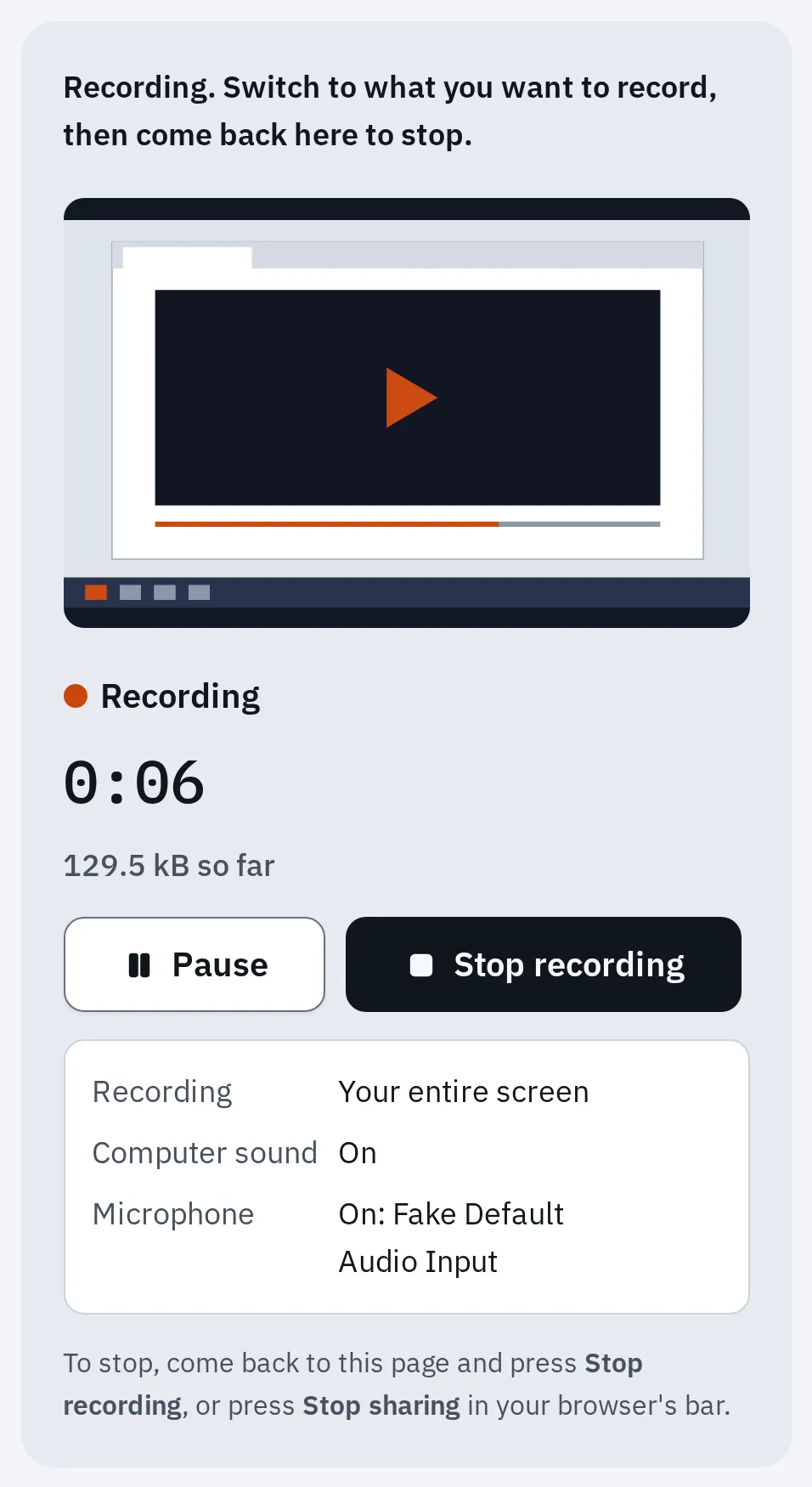
Our recorder in Chrome's engine, recording a test screen with a test microphone.
You get an MP4 file of up to 1 hour. The recorder’s help covers problems such as a missing sound or a black window.
Want others to hear a video in a live call, not a recording? See share your computer’s sound in Zoom, Teams and Meet.
Which way to choose
| Snipping Tool | Xbox Game Bar | Our screen recorder | A recording app (OBS Studio) | |
|---|---|---|---|---|
| Windows | 11 | 10 and 11 | 10 and 11 | 10 and 11 |
| Records | Any part of the screen | One app or game | Entire screen, a window or a tab | Anything you set up |
| Computer’s sound | Yes | Yes | Yes, in Chrome and Edge | Yes |
| Microphone | Yes | Yes | Yes | Yes |
| Longest recording | No limit given by Microsoft | You set it in Captures | 1 hour | No limit given |
| Install | Built in | Built in | Nothing: runs in the browser | Free download |
Clipchamp also records the screen, for up to 30 minutes. With a personal account, it records the computer’s sound only when you share a browser tab.
Find your recording
| Recorded with | Folder | File |
|---|---|---|
| Snipping Tool | Videos, then Screen Recordings (if automatic saving is on) | MP4 |
| Xbox Game Bar | Videos, then Captures | MP4 |
| Our screen recorder | Downloads | MP4 in Chrome and Edge |
Lenovo, HP, Dell and other laptops
The steps are the same on every Windows laptop. You don’t need a brand app: Lenovo’s own guide uses Xbox Game Bar. Is your laptop a Chromebook? See how to screen record on a Chromebook.
To record yourself instead of the screen, use our webcam recorder. For your voice alone, use the voice recorder.
If it doesn’t work
Game Bar won’t record the desktop or File Explorer
That is how Game Bar works: it records an app, not Windows itself. Use Snipping Tool on Windows 11, or our screen recorder.
No sound in the video
Turn on the sound before you start. In Snipping Tool, use the buttons on its bar. In our recorder, turn on Also share system audio in the browser’s window.
In Game Bar, check Settings, then Gaming, then Captures. If other apps’ sound is missing, press Windows + G, open Game Bar’s Settings, then Capturing, and choose All.
A black window in the video
Films and apps with copy protection block recording of their picture. Nothing you change in Windows fixes that.
No recording at all on an N edition
Windows 10 and 11 N editions come without some media parts. Install Microsoft’s Media Feature Pack to record the screen.
Questions people ask
What is the shortcut to screen record on Windows?
Windows + Shift + R starts Snipping Tool’s recorder on Windows 11. Windows + Alt + R starts and stops Xbox Game Bar on Windows 10 and 11.
Can I save the last few moments of a game?
Yes, with Game Bar. Turn on background recording in Settings, then Gaming, then Captures. It is off at first. Windows 11 calls it Record what happened. Older Windows 10 versions call it Record in the background while I’m playing a game. Then press Windows + Alt + G to save the last moments.
Does Windows 10 have a screen recorder?
Yes: Xbox Game Bar, for games and apps. It can’t record the desktop or File Explorer. For those, use our screen recorder or Clipchamp.
Is there a free screen recorder with no watermark?
Snipping Tool, Game Bar and our screen recorder are all free and add no watermark.