Short answer
Watch what stops. Does the whole picture freeze or jerk, even when you turn? Start with your computer or console: that’s stutter. Does your own view stay smooth while other players jump, or you snap back? Start with the connection: that’s network lag. Not sure? Play the game offline for five minutes. If it still stutters, the internet isn’t the cause.
See the difference
The same short game scene, twice. You are the orange runner. Press Play, or step through it one moment at a time.
Computer stutter
Network lag
Moment 1 of 7
Moment 1 of 7. Computer stutter: Smooth. A new picture comes about 60 times a second. Network lag: Smooth. Your game moves you at once and hears from the server all the time.
- Computer stutter, the line under the picture: how long each picture stayed on screen. A tall, wide block is one picture that stayed far too long.
- Network lag, the ticks under the picture: messages to and from the game's server. A gap is lost messages.
A drawing of what happens, not a recording of a real game.
| What you notice | Computer stutter | Network lag |
|---|---|---|
| Your own view, when you turn or run | Freezes, then jumps | Stays smooth |
| Other players | Stop and jump along with everything else | Stand still, jump or teleport on their own |
| You | Never put back | Snap back to where you were (rubber-banding) |
| In a mode without the game’s servers | Still happens | Goes away |
| The game’s own numbers | Frame time spikes, frame rate drops | Ping spikes, packet loss |
What do you see?
Answer two questions. The chooser says where to start, and which test to run first.
Where to start
Choose what you see
Pick the line that fits best. You can change it at any time.
| What you see | Offline too, or when it’s worst | Start with |
|---|---|---|
| The whole picture freezes or jerks | Offline too | The computer: frame time |
| The whole picture freezes or jerks | Only online, or the game has no offline mode | The game’s own numbers: computer and connection, watched together |
| Any of these | I haven’t tried offline | Play offline first |
| Other players jump, or you snap back | When someone streams, downloads or uploads | The bufferbloat test |
| Other players jump, or you snap back | All the time, or at random | The ping test, then the packet loss test |
| Other players jump, or you snap back | In one game only, or against certain players | That game’s server region and status, then high only in one game |
| Smooth picture, slow controls | Offline too | Input lag: screen, settings, controller |
| Smooth picture, slow controls | Only online | The ping in the game’s connection numbers, and the ping test |
| Cloud gaming or Remote Play | Any time | The network: the packet loss test, set to Cloud gaming |
| A straight line across the picture, the top part shifted | Any time | That’s tearing: see screen tearing |
Play offline first
This is the quickest clue. Offline, the internet can’t cause a stutter.
- Start the same game in a mode that runs without the game’s servers, such as single-player or an offline mode. Practice modes and bot matches may still be online. Keep the same graphics settings.
- Play for about five minutes, in a busy part of the game if you can.
- Still stutters? Look at your computer or console. Smooth offline, bad online? Look at the network next. But read the computer numbers too: an online match can have more players and effects.
No offline mode in your game? Go straight to the game’s own numbers below.
Turn on the game’s own numbers
- Smooth: every picture takes the same time. At 60 frames a second, that is about 16.7 ms each.
- A stutter: one picture takes about five times longer. Everything on screen stops while you wait for it.
- The average barely moves. A frame rate counter shows an average, so it can still read high while the game stutters.
Frame time: one bar per picture, its height the time that picture took. A stutter is one tall bar.
Frame time is how long each picture takes, in milliseconds (ms). It is the other side of the frame rate: 1,000 divided by the frames per second (Intel). So 60 FPS is 16.7 ms a picture, and 144 FPS is 6.9 ms. Intel also notes that a few slow pictures make a game feel slower than its average.
Ping is how long a message takes to reach the game’s server and come back. Jitter means the ping keeps changing. Packet loss means some messages never arrive.
You need two kinds of numbers: computer numbers (frame time or FPS) and connection numbers (ping and packet loss). Many games show both. Overlays from Steam, Windows, NVIDIA and AMD show only computer numbers. An overlay is a small panel of numbers over the game. Turn them on, play until it happens, and watch which numbers change at that moment.
In the game
Many online games show their own numbers. These are the steps their makers give:
- VALORANT (computer and connection): Settings Video Stats. Turn on the frame rate and network graphs. Riot says this data helps find “a specific problem with your network connection or game client performance”.
- Fortnite (connection): Settings Game UI. Under HUD, turn on Net Debug Stat. It shows your ping and packet loss in a match.
- Apex Legends (computer and connection): under the Gameplay tab, turn on Performance Display. It shows frames per second, latency and packet loss.
- Overwatch 2 (computer and connection): on PC, press Shift + Ctrl + R for the frame rate and Shift + Ctrl + N for the network graph. Use the right Shift, so you don’t trigger an ability. On a console: Options Video Show Network Stats.
- Counter-Strike 2 (computer and connection): turn on the Telemetry display in the game settings (Valve added it in February 2024).
Blizzard sums it up: “While the latency numbers are related to connectivity, framerate is affected by your computer’s performance.”
Steam
- In Steam, open Settings In Game.
- Find Performance Monitor and choose a detail level, from a single FPS number up to full details with CPU, GPU and memory.
- Play. Steam’s graph shows the frame rate. A red ↓Min number means at least one picture took more than twice as long as the average: a stutter you can see.
Computer numbers only. Steam says this first version focuses on Windows.
Xbox Game Bar
- On Windows, press Windows + G while the game runs.
- Open the Widget menu and choose Performance. It shows CPU, GPU, video memory, RAM and FPS.
- The first time, choose the FPS tab, select Request access, follow the steps and restart your PC.
Computer numbers only. The FPS tab shows the frame rate of the last 60 seconds. A sudden dip while it stutters points to the computer.
NVIDIA
In the NVIDIA app, press Alt + R to show or hide the performance statistics in a game. Press Alt + Z and open Statistics to choose what they show, such as FPS and its 1% low (the slowest pictures). Computer numbers only: NVIDIA’s “PC latency” is the delay inside your computer, not your ping.
AMD
In AMD Software: Adrenalin Edition, press Ctrl + Shift + O to show or hide the metrics overlay. To choose what it shows, type Metrics in the search box and open Performance Metrics. Frame Time and Stutter Rate are among them. Computer numbers only.
PS5 and Xbox
Some games show their own numbers on a console too (see In the game). To check the console’s connection:
- PS5: Settings Network Connection Status Test Internet Connection.
- Xbox: Profile & system Settings General Network settings, then Test network speed & statistics. It shows packet loss and latency. Microsoft suggests troubleshooting if you see more than 5% packet loss.
| At the moment it happens | Start with |
|---|---|
| Frame time jumps or FPS drops; ping and loss stay steady | The computer: where to look |
| FPS stays steady; ping jumps or packets get lost | The connection: what to test |
| Both change | Both. Start with the one that changes more. |
| Neither changes | The game’s server warnings and status page, or input lag |
If it’s the network
- Your game moves you at once. It doesn’t wait for the server.
- Your moves go to the server, which has the final say.
- Some messages get lost or come far too late.
- The server sends a correction: where it has you.
- Your game moves you there: you snap back.
One example of rubber-banding: your game showed you further on than the server heard. Games handle it in different ways.
Your game shows your own moves at once and sends them to the server. The server has the final say. Riot explains it for VALORANT: your game is “always locally predicting the results of your inputs”, and “if the server ever disagrees”, it sends a correction (Riot Games). That’s why network trouble rarely makes your own view stutter. Instead, you snap back, or other players stand still and then jump when their messages arrive again.
Test it now
Ping test
Turn on Keep testing until I press Stop, and keep the page visible next to the game, for example with the game in a window. The test pauses while its page is hidden. Peaks in the chart at the moment the game lags point to your connection. It measures this device’s route to our server, not to the game’s.
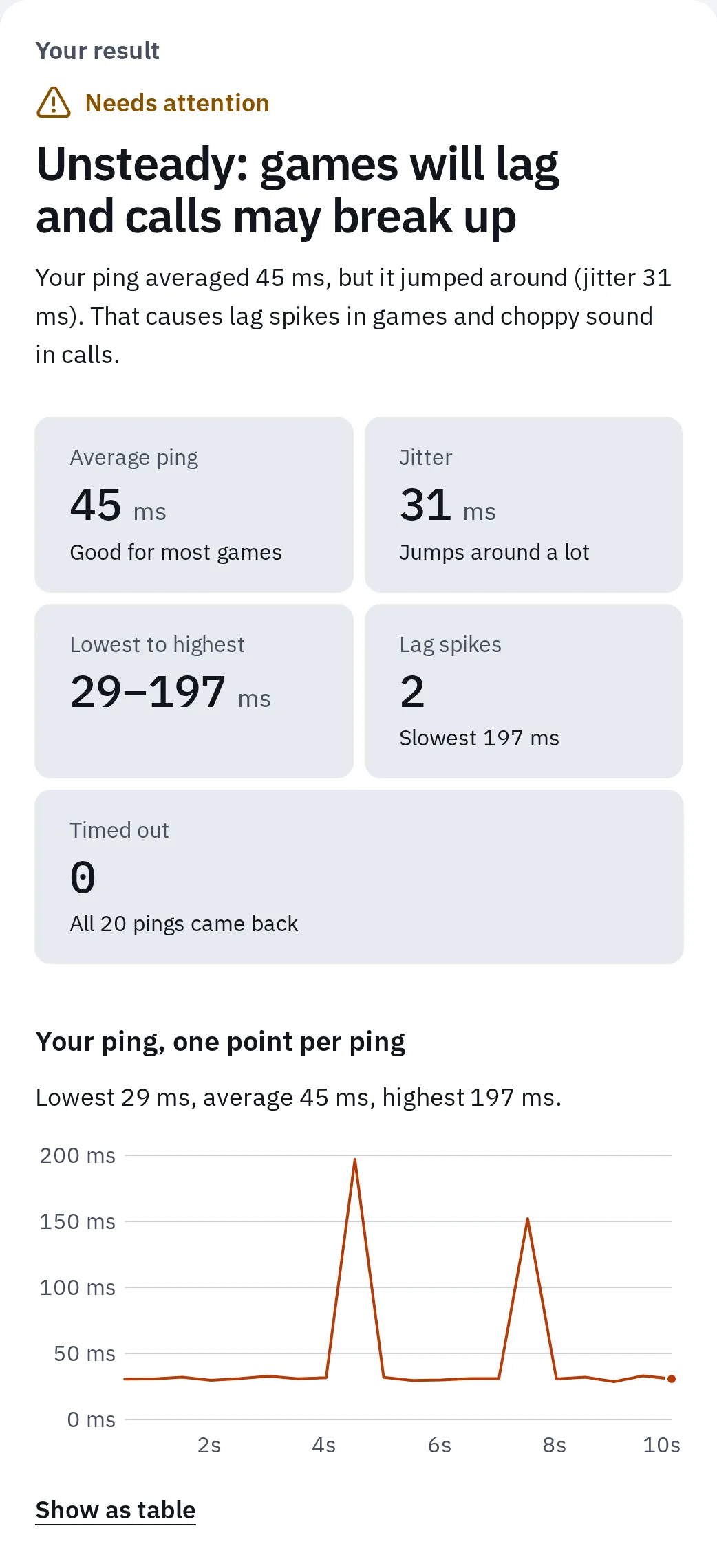
Our ping test with two lag spikes. We set a test server to answer late twice, so you can see what to look for.
- On a console or a phone, run the test on a second device on the same Wi-Fi, or plugged into the same router, while you play. It shows how that device’s connection behaves. A good result doesn’t rule out trouble on the console’s own Wi-Fi or the game’s route.
- Then test for packet loss. Under Test it like, choose An online game in the packet loss test. Late or lost messages can make players jump.
- Worse when someone streams or uploads? Run the bufferbloat test. It measures how much your ping rises while the line is full.
| What the tests show | Where the fix is |
|---|---|
| Spikes or loss on Wi-Fi, fine on a cable | Use a cable, or improve the Wi-Fi |
| Ping rises a lot while the line is busy | Stop other traffic from queueing |
| Our tests are steady, the game still lags | High only in one game: the server region, a VPN, the game’s status |
| Packets lost even on a cable | Packet loss |
Activision, for example, “strongly recommend[s] using a wired Ethernet connection” for online play (Activision). A cable is the quickest way to rule out Wi-Fi.
If it’s the computer
Read the computer numbers while it stutters, then go to the page for what you see. Most likely first. CPU is the computer’s main chip, GPU its graphics card.
| What you see | Where to look |
|---|---|
| Stutter in the first minutes, in new places, or after a game or driver update | Shaders being built. Play on for a few minutes; it should get better. |
| Something else downloads, records or updates while you play | Pause it: see free fixes. On Windows, Game Mode (Settings Gaming Game Mode) is on unless someone turned it off. It stops Windows Update installing drivers while you play. |
| The CPU, or one of its cores, near 100% while the GPU is lower | CPU bottleneck |
| The GPU near 100% and the frame rate low | Lower the graphics settings: see how to lower GPU usage |
| The frame rate jumps up and down a lot | Uneven frame pacing: see capping the frame rate and G-Sync or FreeSync |
| A laptop that stutters on battery, not plugged in | The power mode: see free fixes |
| Motion looks jumpy everywhere, even on the desktop | Check that your screen runs at its full rate (below) |
Test it now
Refresh rate test
It estimates your screen’s refresh rate (Hz, pictures a second) from how often your browser draws. A 144 Hz screen stuck at 60 Hz makes games look less smooth. A rate that keeps changing between runs can mean G-Sync or FreeSync is on. Browser limits and power saving can lower the result, so measure again before you change settings.
If you overclocked your monitor, the frame skipping test checks that it really shows every frame.
Smooth picture, slow controls
If the picture is smooth but the game reacts late to your controller or mouse, even offline, that is input lag. The internet doesn’t cause it.
- On a TV, turn on Game mode. Samsung, for example, describes its Game Mode as “low latency” for gaming. It often turns on by itself for a console, but not for a computer (Samsung). A computer on a TV needs a few more settings.
- Try the controller on a cable, or close to the console or computer, to compare with wireless. See how much lag each link adds.
- Only online? Do turning and menus respond at once, but hits or actions count late? Then read the ping in the game’s connection numbers: the server confirms your actions after a round trip. Run the ping test too.
Questions people ask
Does a high ping lower my FPS?
Usually not. In most online games, your computer keeps making pictures while it waits for the server, so a high ping shows as late hits and jumping players, not as a stutter. Watch both numbers to be sure.
Can it be both at once?
Yes. A busy online match can load the computer more while the connection also has spikes. Turn on the computer and connection numbers together, and start with the one that changes more when it happens.
My internet is fast. Why does my game still lag?
Speed and ping are different things. Games send small messages, so a fast plan doesn’t help when those messages wait in a queue or get lost. See what a good internet speed is and run the bufferbloat test.
Can Wi-Fi make my game stutter?
Usually not the picture itself, in a game that runs on your device. Wi-Fi causes lag spikes and lost packets, so players jump and you snap back, while your own view stays smooth. With cloud gaming or Remote Play it is different: the whole picture comes over Wi-Fi, so it can freeze.
Can your FPS test measure my game?
No. The FPS test runs in your browser and shows what different frame rates look like on your screen. To see how your game runs, use the game’s own numbers or an overlay.
Is it the game's servers?
It can be. If our tests are steady while the game lags, and friends on other connections lag at the same moment, it is the server. Check the game’s status page or its social accounts.