Short answer
Most often the sound goes to the wrong place, such as a monitor without speakers or Bluetooth headphones, or something is muted. Click the speaker icon, choose your speakers, and check that nothing is muted or turned all the way down. Then play a test sound below.
Step 1: play a test sound
Test it now
Sound test
Press Play left, then Play right. If you hear them from the speakers you want, they work in this browser, so the problem is one app or website. If you hear nothing, work down the fixes below.
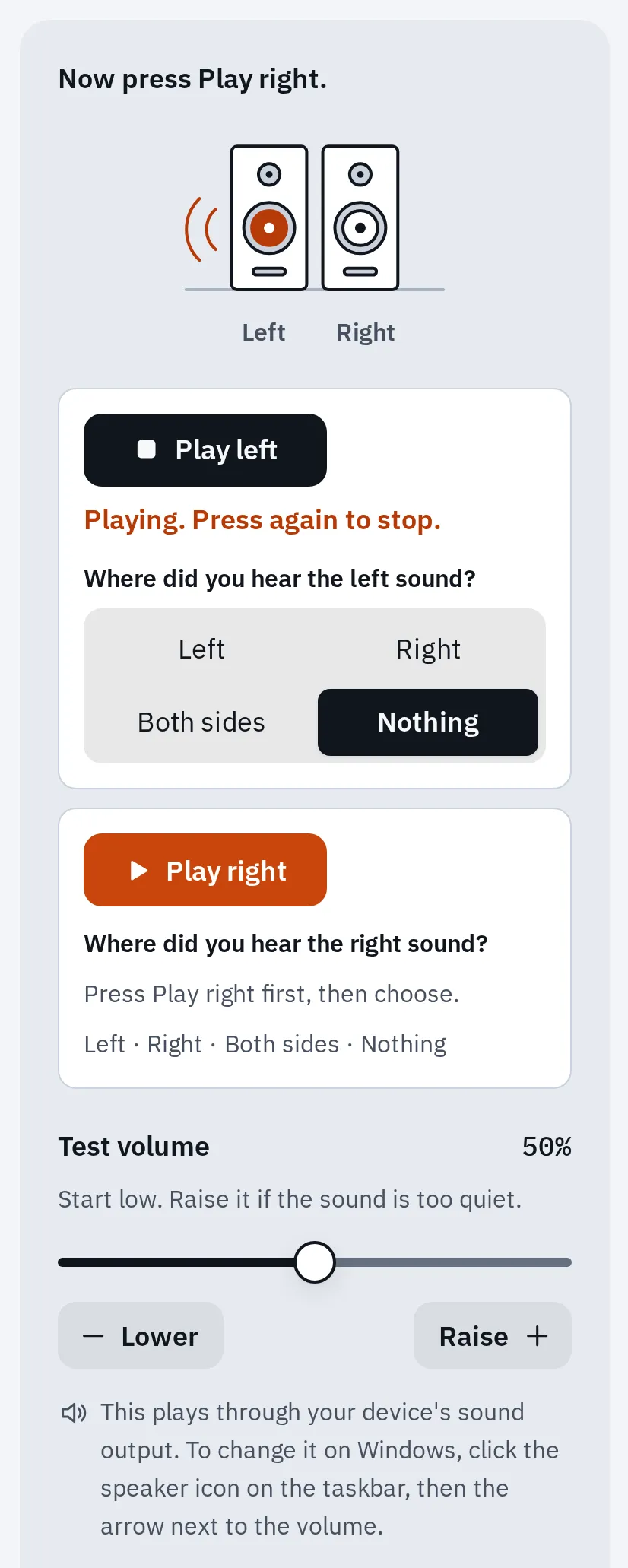
Heard nothing? Choose Nothing, and the result tells you what to check. The test plays through your computer's current sound output.
Fixing it for a parent over the phone? See how to talk them through the test.
1. Choose the right output
- The list of sound outputs on your computer.
- A monitor or TV: plugging one in by HDMI can make it the output, even when it has no speakers.
- Bluetooth headphones that are still connected.
- The speakers you want to hear.
A computer plays sound through one output at a time. If it picks a monitor without speakers, or headphones in another room, you hear nothing.
Windows
- Select the Speakers icon on the taskbar, near the clock.
- Select the arrow › to the right of the volume slider (Select a sound output). On Windows 10, select the arrow next to the speaker name.
- Choose your speakers or headphones.
Or open Start Settings System Sound and choose the device under Output. That also makes it the default.
Mac
- Unplug any headphones or external speakers you don’t want to use.
- Open Apple menu System Settings Sound, then click Output.
- Choose your speakers. Check that Output volume isn’t all the way to the left and Mute isn’t ticked.
Using a display’s speakers with headphones plugged in? The Mac may switch back to the headphones. Unplug them first, then choose the display.
Chromebook
- At the bottom right, select the time.
- Select Audio settings.
- Under Output, choose your speakers. The one in use has a green check mark.
Or open Settings Device Audio.
A monitor or TV on HDMI often appears as a sound output. If it has no speakers and it’s selected, you hear nothing. Choose your speakers instead, or see how to use monitor speakers if it has some.
2. Unmute and turn up every volume
Sound passes through several volume controls. One that is muted or at zero silences everything after it.
- The mute key: many laptops have a speaker key on the top row. On some, you hold Fn with it. See which keys change the volume.
- The computer’s volume: the slider from step 1. A muted speaker shows an x or a crossed-out icon.
- External speakers: check they’re switched on and their own volume knob is up.
- The app: players, games and browsers have their own volume.
Windows
Open Start Settings System Sound Volume mixer. Under Apps, check that the silent app isn’t muted or turned down. Also check its Output device: an app can use a different output from the rest of Windows. On Windows 10, right-click the speaker icon and choose Open Volume mixer.
Mac
An app’s own volume can only go as high as the Mac’s Output volume. Turn up the Mac first, then the app.
3. Check cables and ports
- Push the plugs in firmly. On a desktop PC, speakers go into the green jack; pink is for a microphone.
- Unplug headphones: on some computers the speakers stay silent while headphones are plugged in.
- Plug USB speakers or headphones into another USB port.
- Try other speakers or headphones, or try yours on another device.
On a Mac, check that USB speakers show up: hold Option, choose Apple menu System Information, then click USB.
4. Fix it in Windows
Still nothing on Windows? Try these in order and play the test sound after each one.
Run the audio troubleshooter
Microsoft’s audio troubleshooter now runs in the Get Help app and checks your sound settings for you. Open it from Microsoft’s link, or on Windows 11 from Start Settings System Troubleshoot Other troubleshooters: select Run next to Audio.
Turn off audio enhancements
Open Start Settings System Sound and select your speakers under Output. Under Advanced settings, set Audio enhancements to Off. On Windows 10, open Sound in Control Panel, right-click your speakers on the Playback tab, and choose Properties. On the Enhancements tab, tick Disable all enhancements (or Disable all sound effects).
Update and restart
Install updates in Settings Windows Update, then choose Start Power Update and restart. The restart applies sound-related updates.
Reinstall or roll back the sound driver
- Type device manager in the search box and open it.
- Open Sound, video and game controllers.
- If sound stopped after an update: right-click your sound device, choose Properties Driver Roll Back Driver. If the button is greyed out, go on to step 4.
- Right-click it, choose Uninstall device, tick Attempt to remove the driver for this device, select Uninstall, and restart. Windows installs the driver again by itself.
- Still silent? Download the sound driver for your exact model from your computer maker’s support site.
Windows says No audio output device is installed? In Device Manager, choose View Show hidden devices, then Action Scan for hardware changes. If Enable device appears when you right-click your sound device, choose it. If the device is missing, install the sound driver from your computer maker’s site.
Restart the Windows sound service
- Type services in the search box and open Services.
- Right-click Windows Audio and choose Restart.
- Do the same for Windows Audio Endpoint Builder.
On Ubuntu, see fixing no sound on Ubuntu.
No sound on YouTube or in the browser
If the sound test plays but a video doesn’t, your computer and browser work. Something is muting that tab, site or browser.
- The player: check the video’s own speaker button and volume slider.
- The tab: in Chrome, right-click the tab and choose Unmute site if it’s there. In Firefox, click the speaker button on the tab, or press Ctrl + M.
- The site’s sound setting (Chrome): select View site information to the left of the web address, then Site settings, and check that Sound isn’t set to mute. To check every site, open Settings Privacy and security Site settings Additional content settings Sound.
- The browser’s volume (Windows): in the Volume mixer, check that your browser isn’t muted, turned down or sent to another output. Then reload the tab.
- Restart the browser. Still silent? Turn off ad blockers and other extensions, then try another browser.
Videos don’t start with sound by themselves? That’s autoplay blocking, not a fault. Firefox stops videos with sound from starting by themselves, and Safari can too. Press play and the sound works. To change it, use Autoplay in Firefox’s Privacy & Security settings, or Safari Settings Websites Auto-Play.
If the sound test is silent too but other apps play, check the browser’s volume and output device in the Volume mixer on Windows, and its tab and site sound settings above. Then reload the page.
When it’s the hardware
It’s likely the speakers themselves when:
- headphones work on the computer but its own speakers stay silent with every fix above, or
- external speakers stay silent on a second device too.
Not sure yet? The swap test shows if it’s the speakers, the computer or the app.
If a laptop’s built-in speakers still stay silent, contact its maker for a check or repair, and look at its warranty first. Until then, headphones or USB or Bluetooth speakers work.
Questions people ask
Why did the sound on my computer suddenly stop?
Usually a new device took over the output: a monitor, TV or Bluetooth headphones. An update or a muted app can do it too. Choose your speakers again as in step 1, then play the test sound.
Why is there no sound through my HDMI monitor?
The monitor may have no speakers, or it isn’t chosen as the output. See how to use monitor speakers.
Why does YouTube have no sound when other sites do?
That tab or site is muted, or the player’s own volume is down. Unmute the tab and check the player’s speaker button, as shown above.
My Chromebook has no sound. What should I check?
Press the volume-up key on the top row and open Audio settings to check the output. If the volume keys don’t change anything, you may already be at the top or bottom of the volume.
My phone has no sound. Is it the same?
No: phones have their own settings, such as silent mode. See phone speaker not working.